
Manage Tickets
Understanding ticket management
Managing your tickets is easy.
Overview#
Use this guide to track, respond to, and close your support tickets. It covers ticket statuses, how to reply and mark tickets solved, how to use the My Tickets and Organisation views, how to re-order ticket lists, and what happens when you reply to an escalated ticket.
Ticket Statuses#
- Open: Your ticket request is in progress.
- Scheduled: Work is planned for a future date/time (e.g.,system upgrade, or live over test request).
- With Client: We’re waiting on your reply to solve or progress your request. Please reply with the requested details to move the ticket forward.
- Solved: The ticket has been marked as Solved. You can reply on the ticket for 7 days after its solved to re-open the ticket. You can still add a reply if something isn’t fully addressed, which will reopen the case.
Status Transitions#
You’ll commonly see your tickets change status.
- You create a ticket → starts as an Open ticket.
- Tourplan Support Agent asks for info → Ticket moves to With Client (with you).
- You reply with details → Ticket moves to Open.
- Work is planned → Ticket moves to Scheduled.
- Issue resolved → Ticket moves to Solved (by you or by the Tourplan Support agent).
Seven-day 'With Client' Rule#
If no reply is received in 7 days on your ticket in a ‘With Client’ status, we assume our response was acceptable and you no longer require assistance, the ticket will progress to Solved.
To continue the conversation after that, simply ‘Add Comment’ (Submit a reply) on the solved ticket. Your reply will reopen the case and return it to the support queue.
Ticket Replies#
If you see a ticket ‘With Client’ we are waiting your reply, to submit a reply:
- Open the ticket by either:
- Going to My Tickets and clicking the ticket subject to open it, or,
- Open the ticket from your email notification which is received when Support replies to your ticket.
- Review latest updates:
- Read the most recent comment and any attachments.
- Add your reply:
- Click the ‘Add to conversation’ field, type your response.
- ‘Add file’ as attachment if needed.
- Submit:
- Click ‘Submit’. The ticket status will typically move from ‘With Client’ to ‘Open’ when your reply posts.
Solving Tickets#
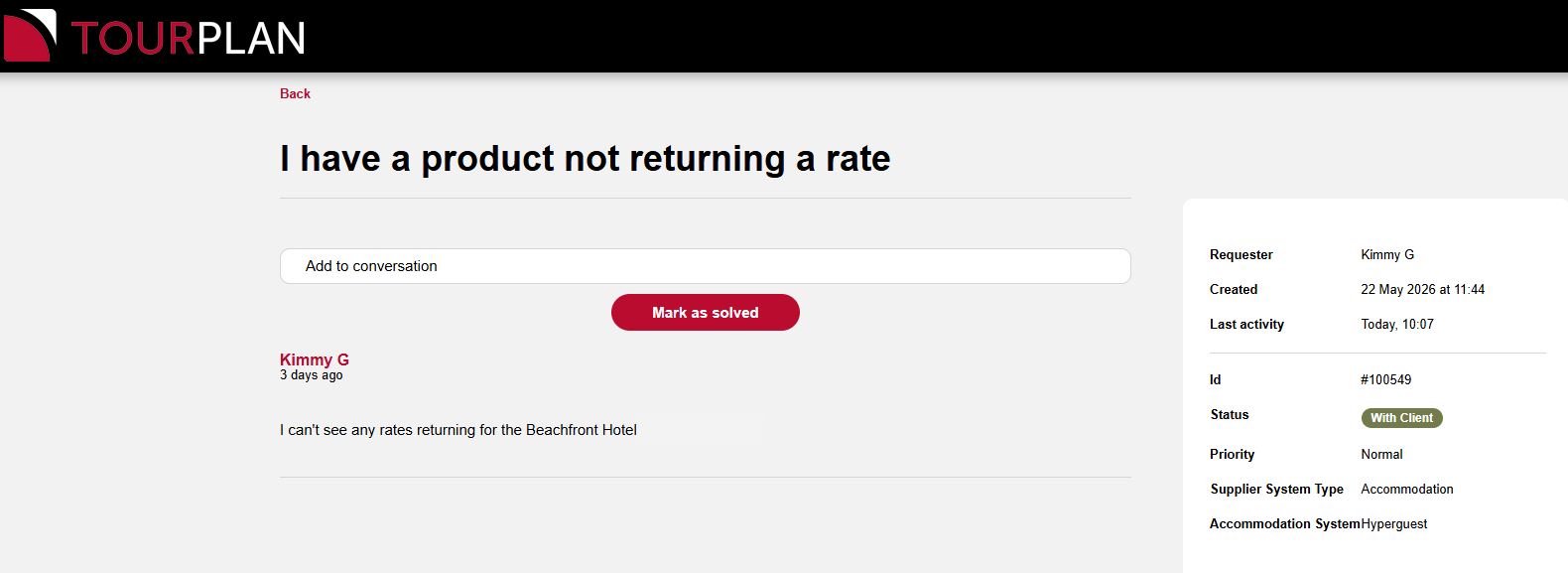
If your request is resolved, you can mark the ticket as solved instead of replying.
- In the ticket, Select ‘Mark as solved’.
- You can still reply (for up to a week) if you need to reopen it.
You can choose to mark a ticket as solved at any time.
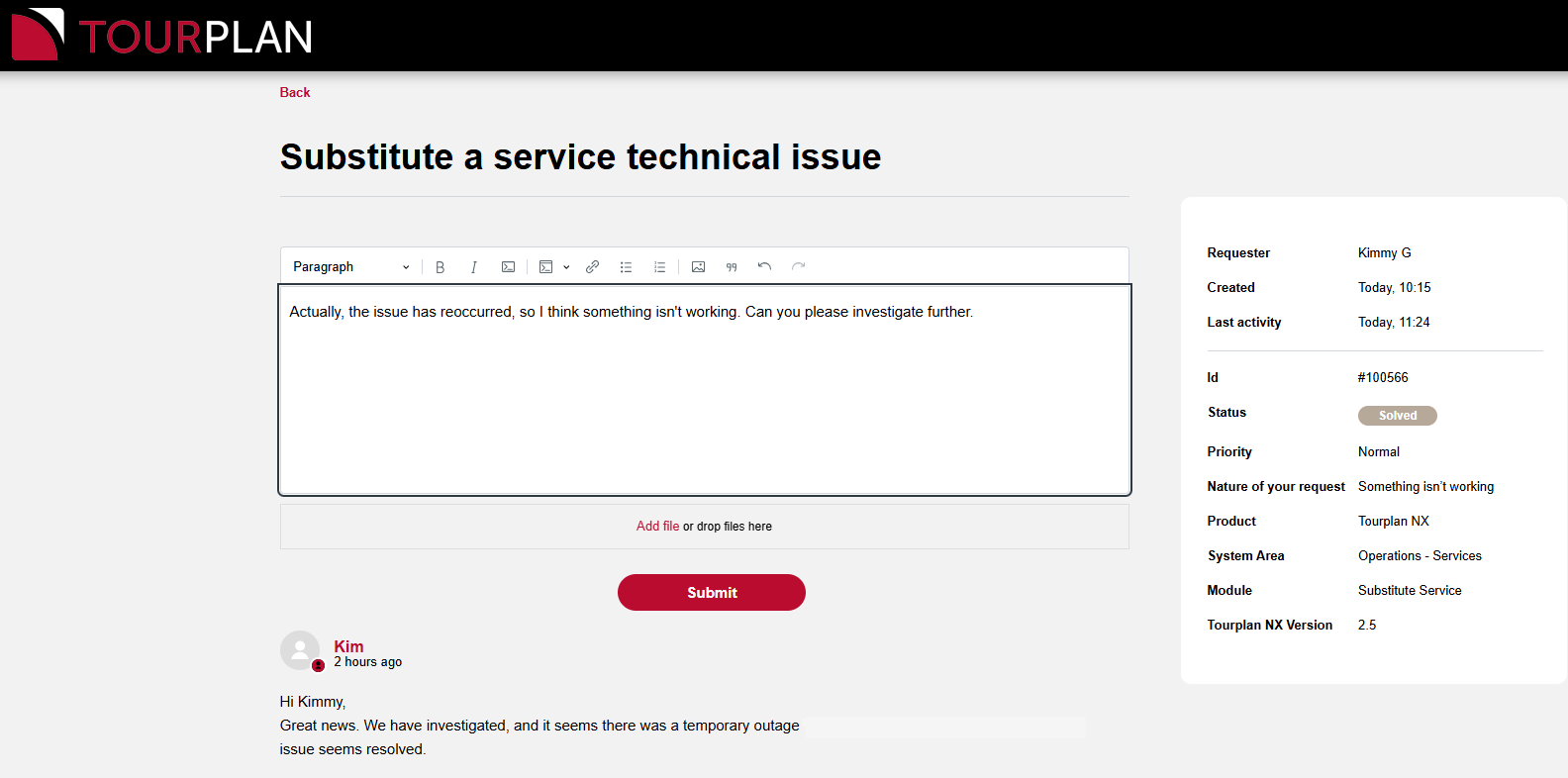
You can re-open a solved ticket by clicking on it, adding to the conversation, and resubmitting it. This will change the status back to open.
Best Practices#
- Respond promptly to ‘With Client’ tickets to avoid auto-closure after 7 days.
- When replying, include concrete details: steps to reproduce, local internet & browser checks, timestamps, error messages, log files, environment, and recent changes.
- Use a clear subject and concise updates to keep the thread easy to follow.
- If the issue is fully resolved on your side, ‘Mark as Solved’ to close the loop quickly.
Ticket Views#
Access your tickets from help.tourplan.com home page, and select the ‘myTickets’ tile. Or follow the link directly to your ticket, from the notification email you received when it was created.
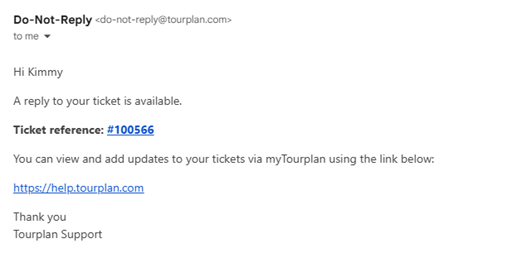
When an update is made to your ticket, you will receive a Do-Not-Reply email notification to check for a ticket reply in myTourplan. The notification provides easy access directly to the ticket and to the myTourplan home page.
My Tickets View#
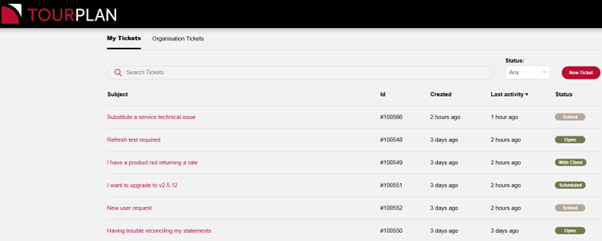
My Tickets is a list of tickets you have created and can edit yourself. You can filter tickets by status open, in progress or solved.

- What you see:
- Subject, Ticket ID, Created, Last Activity and Status (Open, Scheduled, With Client, Solved).
- Quick actions:
- Click a column header (e.g., Created, or Last Activity) to re-order the list.
- Filter by Status – to group tickets that require your reply. Filter by:
- Open – all open tickets
- In Progress– all open or with client
- Solved– all resolved tickets
- Use search/filter to find tickets by keyword, status, or date.
You will receive an email notification when there is a reply on your ticket, the email includes a direct link to your ticket and to myTourplan - providing an easy way to follow your ticket replies.
Organisations Tickets View#
If your myTourplan account is authorised for Organisation-wide visibility, you’ll see an Organisations Tickets option on screen.
Organisations Tickets allows you to manage your own tickets, and view all tickets from your organisation.
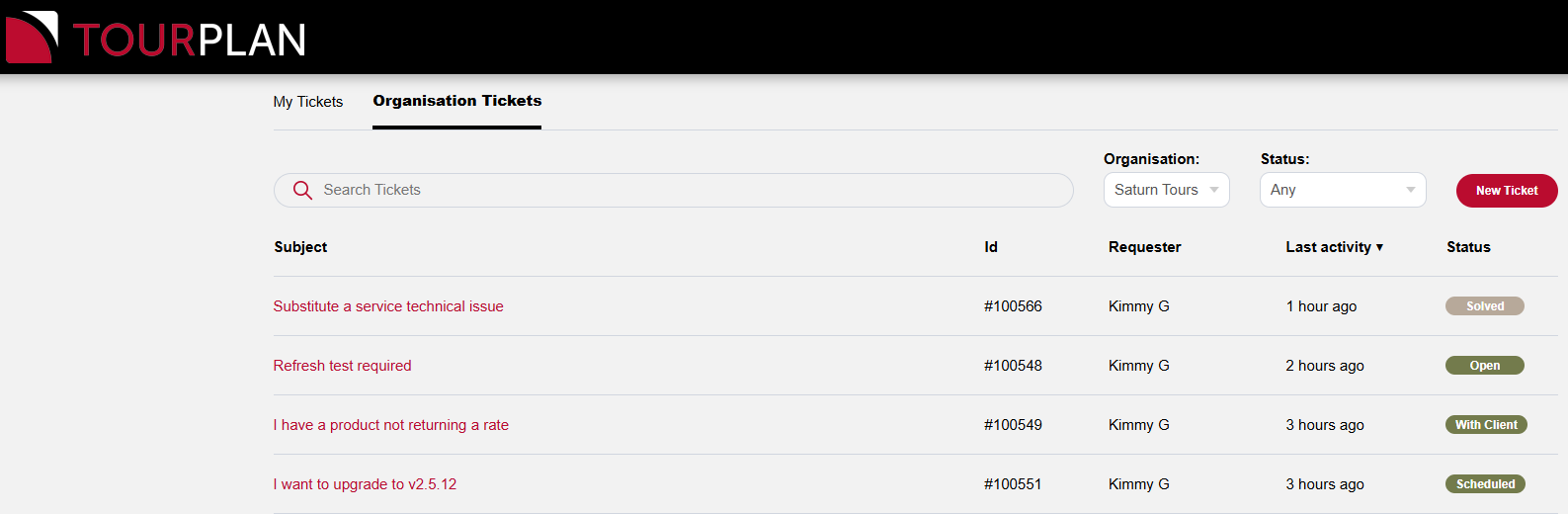
What you can do:
- View all tickets raised by anyone in your Organisation.
- Open any ticket to read updates.
- Re-ordering ticket lists.
- Filter by ticket Status.
Sorting Columns#
In either My Tickets or Organisations Tickets view:
- Click a column header to sort by ticket ID, or Last Activity.
- Click again to reverse the sort order.