
Optional Services Setup
How do I setup optional services?
Service Statuses are configured in System Setup to behave as workflow triggers. An Optional Service is defined by a service status code that allows Tourplan to itemise it as an additional service which is not included in the booking total.
This article will help you to …
-
Setup Optional Service Statuses.
-
Understand Optional Services for messaging.
-
Process a booking and PCM with an Optional Service.
-
Work with Optional Services in packages.
Overview
Optional Services allow the inclusion of add-on products in an itinerary while excluding the product from the booking total and operational processes. If the customer wants to include an Optional Service, you simply convert the service into a service status which is pre-defined as a non-optional service status.
Use case examples
-
Quotes and Bookings: One or more Optional Services can be included in quotes and Group and FITS bookings.
-
PCM Packages: Optional Services included in PCM Packages offers travellers additional choices beyond the base package. Optional Services are costed from the database when inserted into a quote or booking.
Setup of the Optional Service Status
The configuration of the Optional Service Status in System Setup is significant because it differentiates Optional Services from included services and determines how they operate in Tourplan.
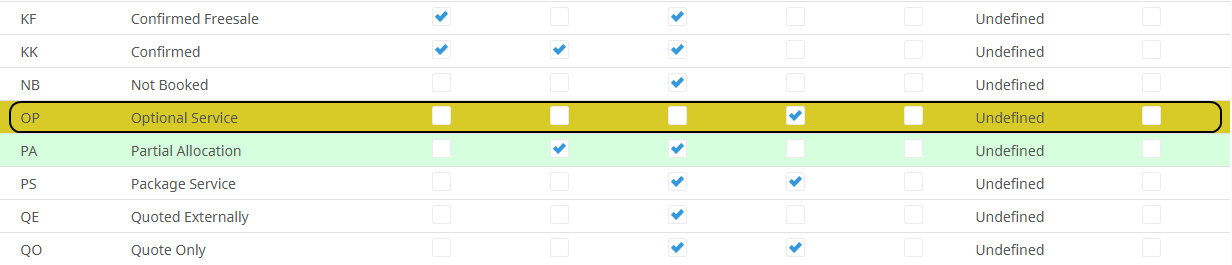
The Optional Service Status is created in System > Code Setup > Bookings > Service Status.
-
If an Optional Service Status is not already defined in your Tourplan system, click on the Insert button and define a Code and Description.
NOTE: You can choose to colour code different service statuses, which offers a good visual representation of different statuses in itineraries (refer to the System Setup User Manual).
-
The Include In checkbox must not be checked. Not checking Include In, excludes products with an optional service status from being included in the total booking value. This ensures invoices are not generated for Optional Services and any markup/commission totals remain unaffected within a booking or quote.
-
Select the PCM checkbox to allow Optional Services in PCMs.
Define Messaging Templates to Include Optional Services
There are no limitations for customising messages to include Optional Services. By inserting specific substitution codes into templates, you can choose to add Optional Services details in the main message, or create a separate section under which Optional Services are listed (refer to the Messaging User Manual).
Regardless of how you setup the messaging templates, the cost of the Optional Services will display in messages but remain excluded from the total booking value (provided the Include In checkbox in System Setup is unchecked).
Process Booking With Optional Service
-
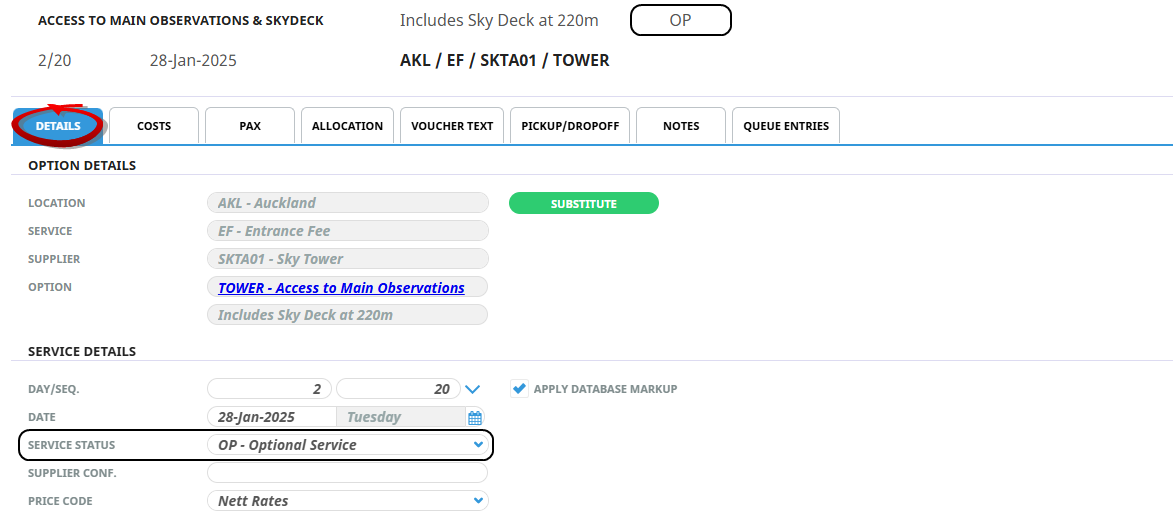
When adding Optional Services to bookings or quotes, ensure the Service Status is set to the Optional Service Status created in System Setup.
-
If the quote is accepted and clients would like the Optional Service included, manually update the status of the service by clicking on the service line in the itinerary to open the Service Details screen.
-
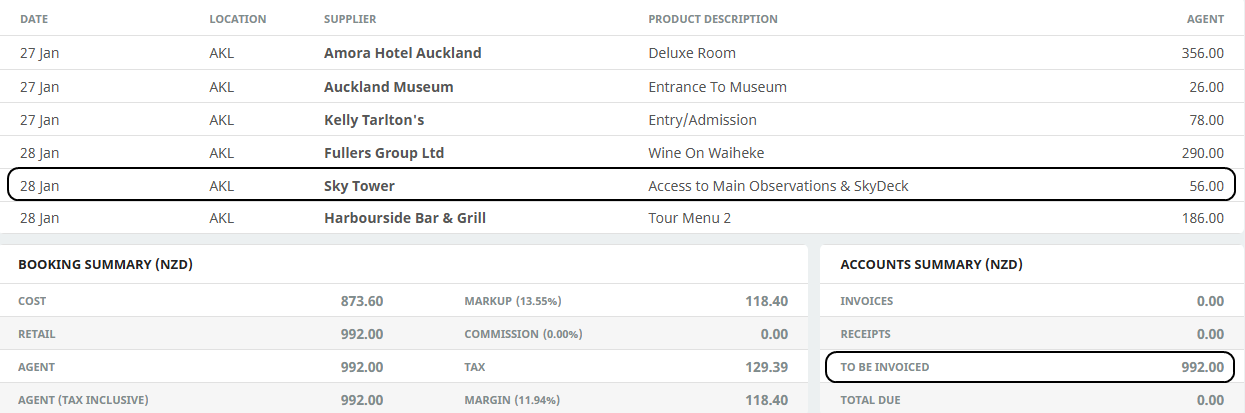
Choose a Service Status that aligns with your workflow, such as On Request or Confirmed. When the Optional Service has its status changed to indicate it is included in the trip, it becomes chargeable and the cost is added to the booking total and markup/commissions.
Example:
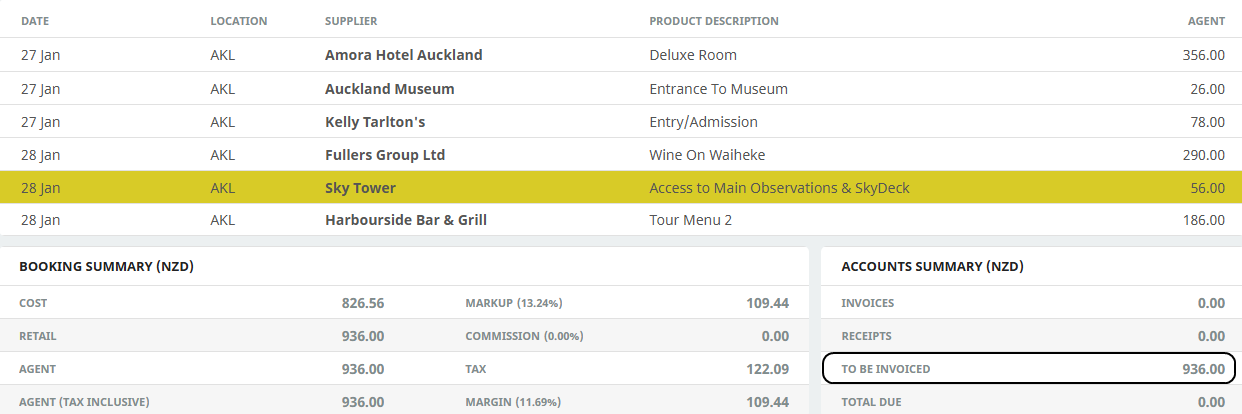
The following example shows a quote for 2 Pax with the colour-coded Optional Service excluded from the total.
Booking Dashboard view showing the booking total excludes the Optional Service value.
This is the same booking, with the Sky Tower Service now a confirmed service, you can see that the total now includes the service value. (Without having to manually re-calculate the booking). The update occurs as soon as the service status is changed.
PCMs and Optional Services
NOTE: The PCM checkbox must be checked in System Setup when defining the Optional Service Status to allow Optional Services to be added to PCM Quotes and Packages.
Insert a PCM Quote with an Optional Service into a booking.
Optional Services can exist in PCM Quotes, which may be inserted into bookings later. Additionally, existing bookings can have Optional Services before inserting a PCM Quote. In all scenarios, the Optional Service is always excluded from the quote total until such time as its status is changed.
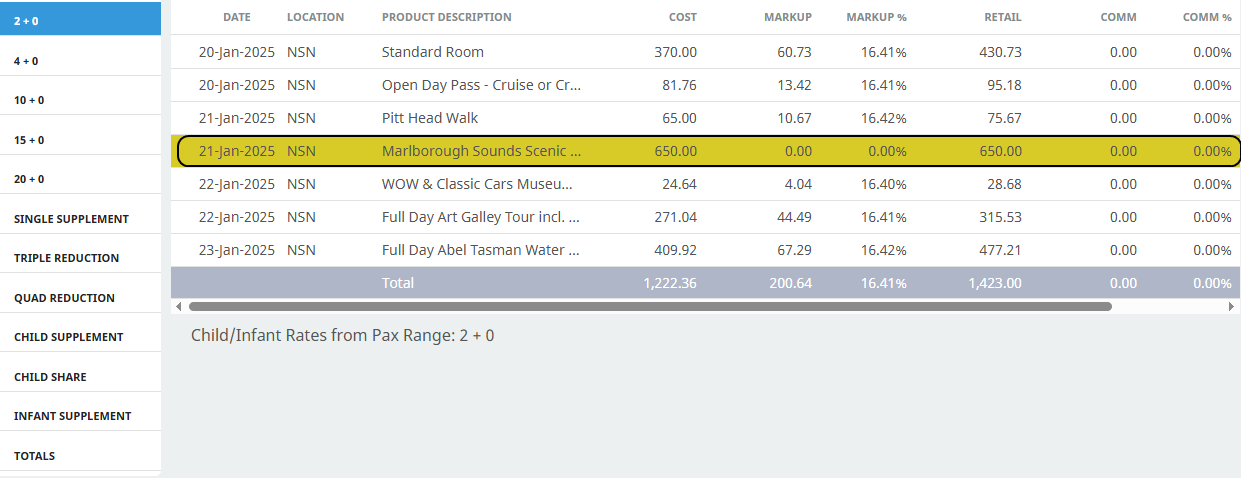
The PCM Quote total excludes the Optional Service
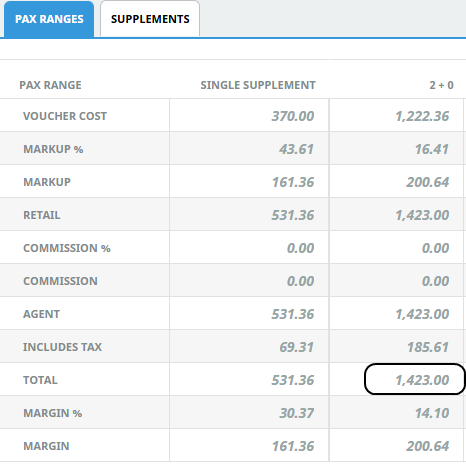
Inserting PCM Into Booking
PCM Quotes preserves included Optional Services when the quote is inserted into a booking.
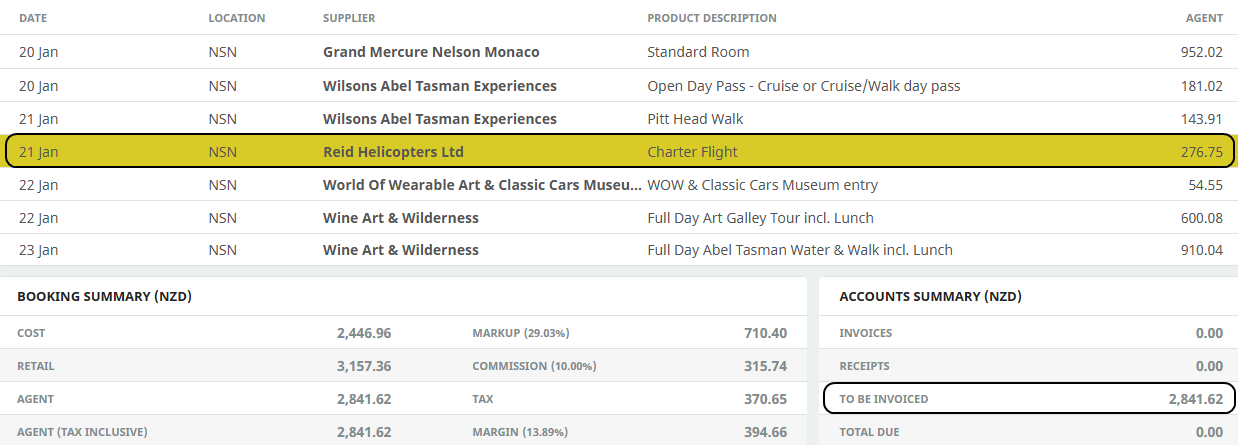
When the Optional Service has its service status changed to indicate it is included in the trip, it becomes chargeable and the cost is added to the booking total and markup/commission.
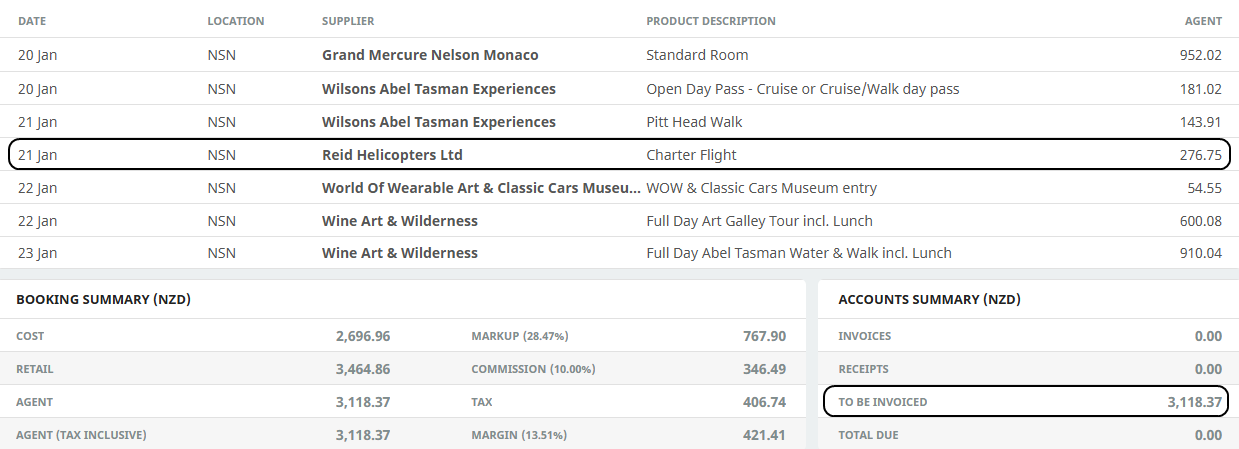
Manage Optional Services In PCM Packages
When building a PCM Package, services can be added as an optional or included service (i.e. service status setup indicates the service is included in the total).
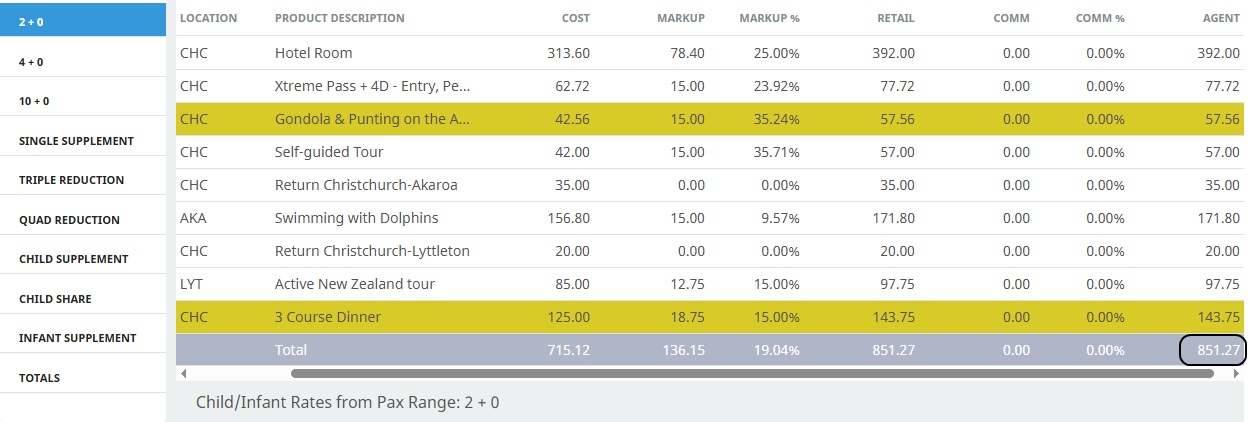
A PCM Package can have Optional Services assigned when inserted into a booking.
This example the FITs booking has the package is expanded to show Optional Services within the Package Itinerary date order. (Not costed as part of the tour due to the service status being OP - the Optional Services appear in date order for consultants to view when the optional service dates occur within the package).
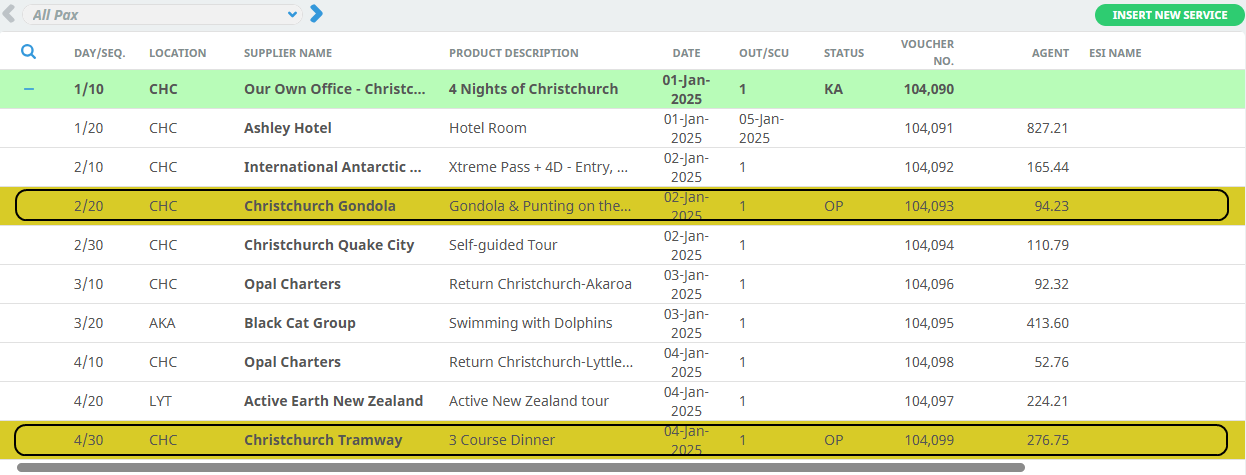
Where as this example has the package collapsed to show the Optional Services separated from the package itinerary.

A PCM Package can have the Optional Service Status assigned when inserted into a booking. When the main PCM Package service line is Optional, then all the service lines within the package will be automatically set to Optional.
For Book-on Packages, when the roll-up process is performed it will only process included services. Optional Services that exist within the PCM Package are not generated in the Group Tour.