
Loading interactive content…
System Event Queue
The System Event Queue within Tourplan uses queue messaging to record unexpected booking errors that occur between Tourplan and external booking systems. The queue can be used to view and manage errors on a case by case basis.
This document will explain…
-
What types of errors are recorded.
-
Unexpected Error Types
-
How to enable the system event queue.
-
How queue messages are viewed.
Queue messages are generated by Tourplan when a response from an external booking system is not received. These unexpected errors occur because the external system booking status is unknown or differs from the internal Tourplan booking status. Although it doesnt happen often it can happen for a number of reasons, including a connection timing out while waiting for an external system to respond. In this scenario the external system may have been updated but Tourplan was not.
The unexpected error types and definitions can be seen in the table below:
| Unexpected Error | Definition |
|---|---|
| External Book Fail; | The status of the booking request in the external system is unknown. |
| External Cancel Fail; | The status of the booking cancellation request in the external system is unknown. |
| External Book Success/Internal Update Fail; | The booking was created successfully in the external system but the internal booking update failed. |
| External Cancel Success/Internal Updated Fail; | The booking was cancelled in the external system successfully but the internal booking update failed. |
NOTE: Note: A booking error returned by the external system itself, such as ‘service no longer available’, will not generate a queue message as Tourplan received the response and no booking update occurred.
We suggest enabling this feature and reviewing the event queue as part of your daily operations.
How do I enable the System Event Queue for External Services?
Enable System Event Queue
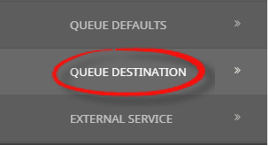
Before the System Event Queue can be used, a Queue Destination must first be configured within Code Setup > System > Queue Destination.
Within the Queue Destination ensure the System Event Queue checkbox is selected, this will assign a queue for system event queue messages.

NOTE: Only one Queue Destination can be assigned as the System Event Queue.
Creating a Queue Destination - External Services
-
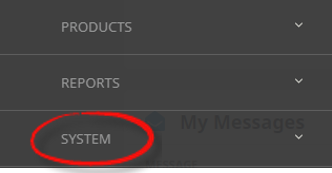
Select menu
 Home > System > Code Setup.
- Click the Home menu to expand it:

- Click the System menu option to expand it:

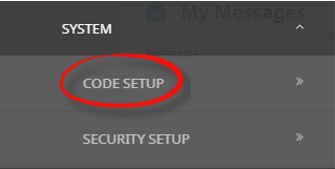
- Click Code Setup to go to the Code Setup menu:

- Click the Home menu to expand it:
-
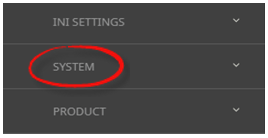
Select menuCode Setup > System > Queue Destination.
- Click the Code Setup menu to expand it:

- Click the System menu option to expand it:

- Click Queue Destination to open the Queue Destination screen:

- Click the Code Setup menu to expand it:
-
ClickInsert.

-
On theQueue Destination screen, enter a Name and Description for the Queue Destination.
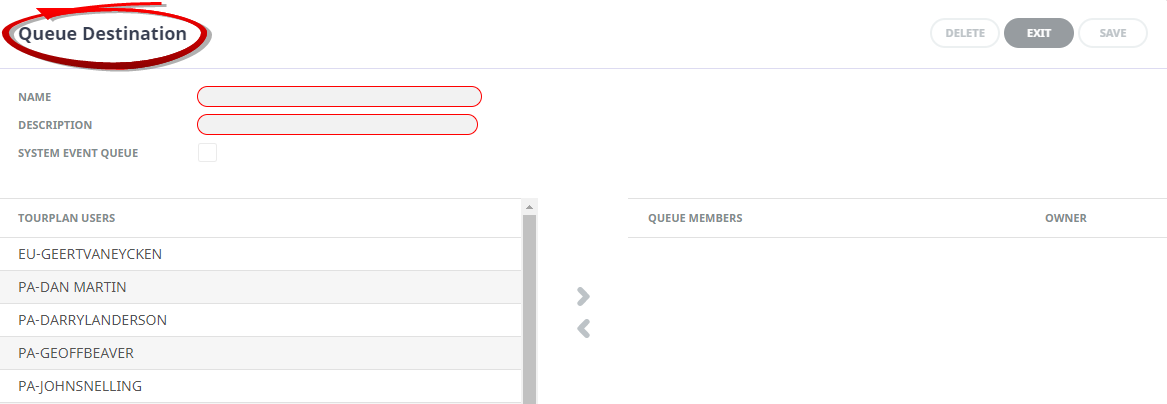
- Attach the Tourplan Users to the Queue Members; highlight the required user then click on the
 button.
 - Check the completed screen.
-
ClickSave to keep the changes.

-
ClickExit to discard any changes.



View Queue Messages
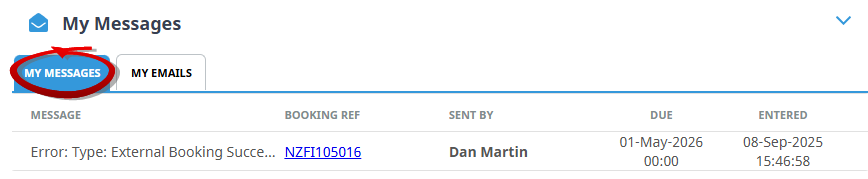
Queue messages are viewed either from the My Messages section of the Tourplan homepage or via the Booking Operations > Queue Management > Manual Selection or Saved Filter > Results.
My Messages
NOTE: For Queue Messages to appear in My Messages, the Tourplan user must be a Queue Destination member.
Booking Operations - Queue Management
NOTE: Booking Operations > Queue Management is available for users with sufficient system permissions within Tourplan NX. Configuration should be done in consultation with your Tourplan system administrator.
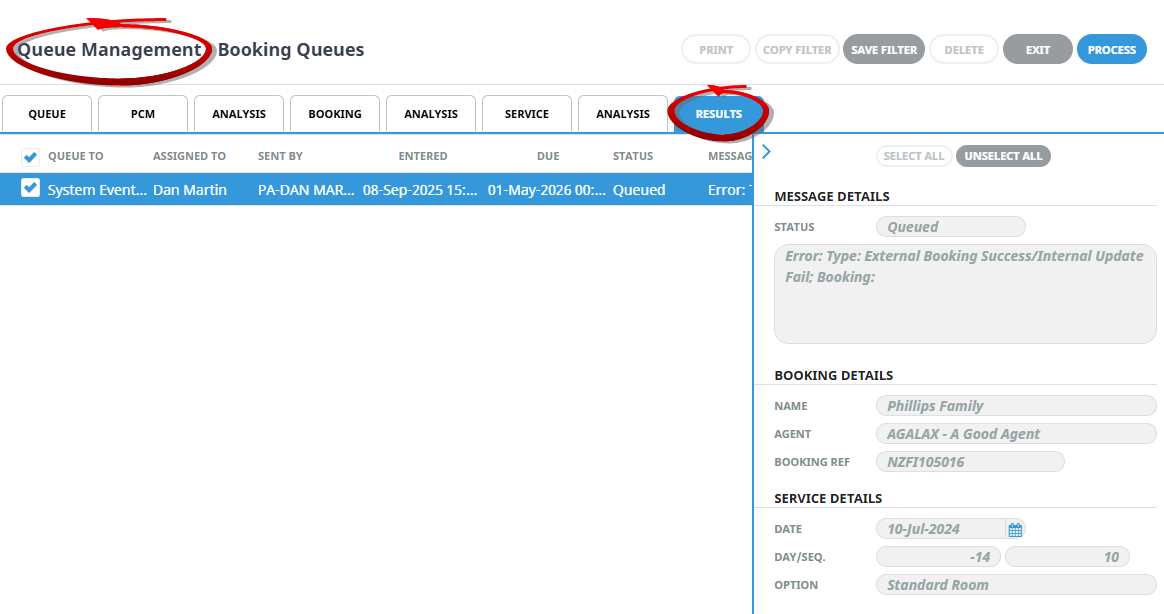
NOTE: Booking Operations > Queue Management is only available for users with sufficient system permissions within Tourplan NX. Configuration should be done in consultation with your Tourplan System Administrator