
Setup & Mapping Using NX Connections
This document will help you:
-
Prepare your system and users for supplier connectivity
-
Map your suppliers to suppliers in an external supplier system
-
Map your product to product in an external supplier system
-
Determine the selling price to use for external services
Overview
In order to be able to search for and book product in an External Supplier System from within Tourplan NX there are a number of steps that need to be completed. The first step is to have the External Supplier Adapter setup for you via the Tourplan Helpdesk.
Once that has been completed and to prepare your system for connectivity there are a number of settings that need to be made/checked in Code Setup and within the INI Settings applications.
You will then need to map (link) the supplier(s) as they are loaded in Tourplan NX to the supplier(s) as they are loaded in the External Supplier System. For example, the ‘Vibe Hotel Sydney’ supplier code may be loaded as ‘’VIBSYD’ in your Tourplan NX system but referred to as ‘AUS-SYD001265’ in Siteminders system.
You will further need to map (link) product you have loaded in Tourplan NX for that supplier to the product in the External Supplier System.
Pre-Requisites
In order to be able to use supplier connectivity:
-
You need to be on the Enterprise Edition of Tourplan NX. If you are unsure which Edition or Version you are on check with your local Tourplan Helpdesk.
-
Users need to have the applicable security settings to search/book external product.
-
A supplier connection setup. (Please see the ‘supplierConnectivity – How Do I Connect?’ Article).
Setup
Code Setup
The Tourplan Helpdesk will have created an EPS connection for you under the menu item System\External Services. The EPS connection will link you to the TMP server (the connection gateway) and in turn to the applicable supplier system. This entry should not be modified without the guidance of the Tourplan Helpdesk.
Take note of the ‘Name’ used for the connection, as this will be required for the ESA mapping later on.

Message (Format) Type
-
Optional (recommended). Under the menu item Code Setup > Messaging > Message Type – Insert an “External Services” Message (Format) Type. This will allow for a different message format to be configured within the services section of any message which is to be used for External Services.
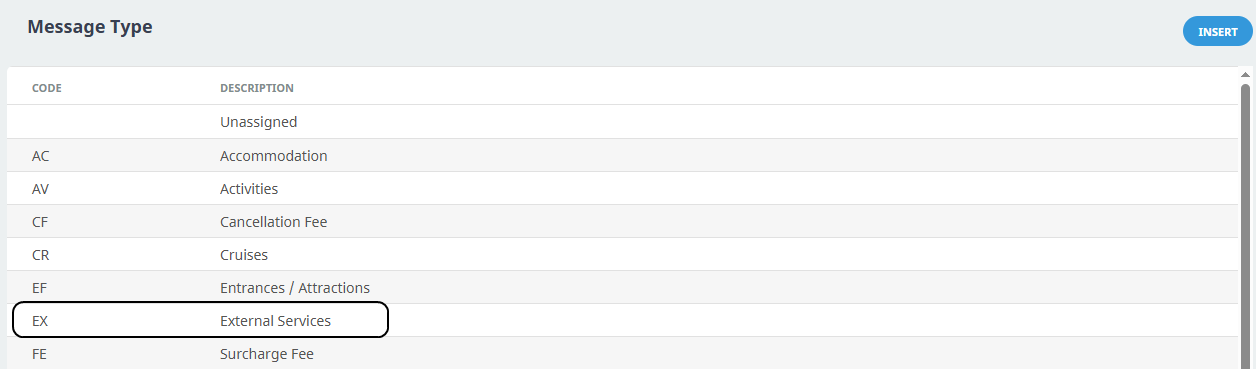 This is important as when a service is booked externally a stay price is returned by the external system and we don’t have the breakdown of the costs and quantities normally available for a Tourplan NX service. For example the per room rate, the per night rate, etc.
 -
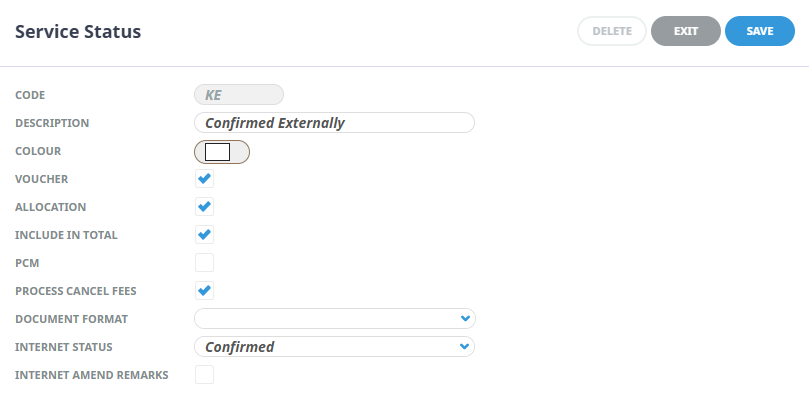
Under the menu item Code Setup > Bookings > Service Status – Insert a “Confirmed Externally” Service Status. This will allow for distinction between services confirmed externally and services confirmed off allocation or manually. Options should be set to include: Voucher, Include in Total, Allocation and (disallow) un-check PCM.
-
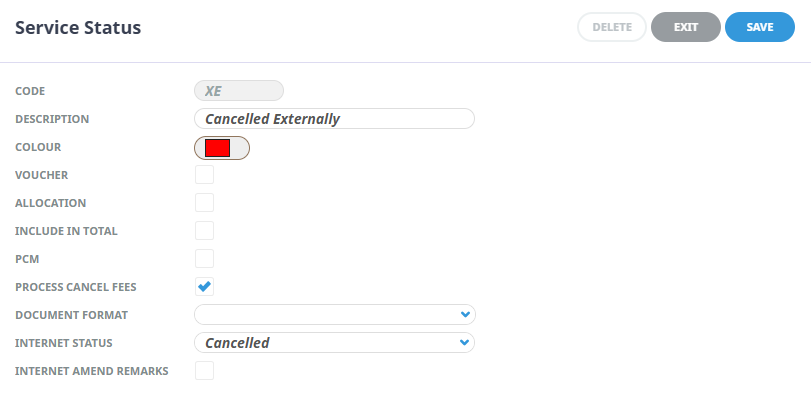
Under the menu item Bookings >Service Status – Insert a “Cancelled Externally” Service Status. This will allow for distinction between services cancelled externally and services cancelled manually. Options should be set to: Non-Voucherable, Exclude from Booking Total, Do Not Hold Allocation and Disallow in PCM. (Ensure all checkboxes are un-checked).
-
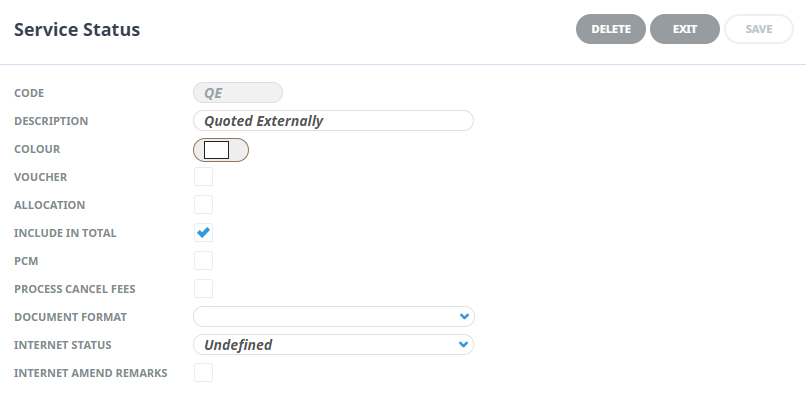
Optional: Under the menu item Bookings > Service Status – Insert a “Quoted Externally” Service Status. This will allow for distinction between services quoted externally. Options should be set to: Non-Voucherable, Include In Booking Total, Do Not Hold Allocation and Disallow in PCM. (Ensure Include In Total is the only checkbox ticked).
INI Settings
-
Under the ‘Internet’ Menu Item insert an ES_SUPPLIER_NOTE_CAT entry making sure this matches the corresponding Note Category you created above in Code Setup.
-
Under the ‘Internet’ Menu Item insert an ES_OPTION_NOTE_CAT entry making sure this matches the corresponding Note Category you created above in Code Setup.
-
Under the ‘Internet’ Menu Item insert an ES_SERVICE_LINE_NOTE_CAT entry making sure this matches the corresponding Note Category you created above in Code Setup.

-
Under the ‘Internet’ Menu Item insert an ES_MESSAGE_FORMAT entry making sure this matches the corresponding Message Format you created above in Code Setup. This is the message format code that will then be used for services linked to External Systems, allowing you to have a different services section for services that have been booked externally. If not supplied it will use the standard (default) format of the option for the lines section in messaging.
-
Optional. Under the ‘Internet’ Menu Item insert an ES_ICOM_PRICE_SELECTION entry. This is the calculation method used to determine which price is returned via hostConnect. Traditionally hostConnect only ever returns one price for an option for a given stay. Once we are connected to an External Supplier System we have the potential of returning multiple rates: Our internal rate from Tourplan, and one or more rates can be returned from the External Supplier System. Valid values are:
-
A Return the rate that provides the greatest margin amount
-
E Return all the rates
-
L Return the rate that provides the lowest selling price
-
P Return the rate that provides the greatest margin percentage.
Defaults to E (Return all rates).

-
-
Under the Code Setup >System Menu Item insert an EXTERNAL_OK_STATUS entry making sure this matches the corresponding Service Status you created above in Code Setup. All services that are booked externally or confirmed externally (i.e. they have a link to an External Supplier System) will be set to this service status making it much easier to identify linked services. If omitted the system defaults to the SERVICE_OK_STATUS.
-
Under the Code Setup >System Menu Item insert an EXTERNAL_XX_STATUS entry making sure this matches the corresponding Service Status you created above in Code Setup. All services that were booked externally or confirmed externally (i.e. they have a link to an External Supplier System) and subsequently cancelled will be set to this service status making it much easier to identify linked services that have been cancelled. If omitted the system defaults to the SERVICE_XX_STATUS.
-
Optional. Under the Code Setup >System Menu Item insert an EXTERNAL_QU_STATUS entry making sure this matches the corresponding Service Status you created above in Code Setup. All services that were are inserted in to a ‘Quote’ booking status will be set to this status and will NOT make a booking in the external system.
Security Settings
-
Review the security settings for Users and User Groups System > Security Setup > Security Settings (By Group / By User)
-
For a user to view, book and cancel External Services this must enabled in FITs > Update Booking > Add External Service.
-
For a user to be able to Cancel an External Service this must be enabled in FITs > Update Booking > Update Service > Cancel External Service.
-
For a user to be able to delete an External Service after it has been cancelled this must enabled in FITs > Update Booking > Delete External Service.
-
For a user to be able to ‘Confirm Electronically’ (This is when an internal Tourplan rate has been used but inventory is from an external source) this must be enabled in FITs > Update Booking > Update Service > Confirm Electronically.
-
-
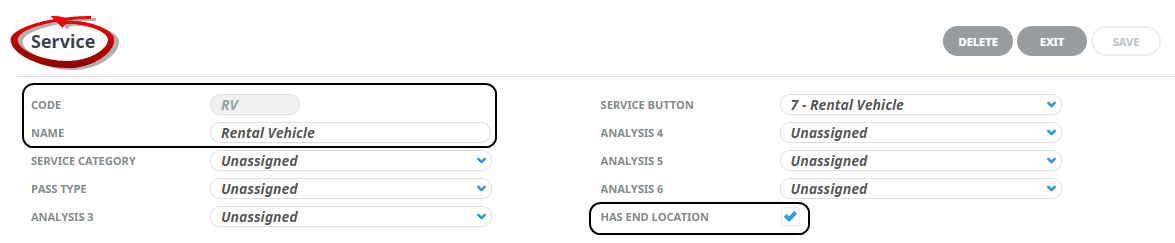
For External Supplier Systems requiring an End Location (eg: Rental Cars). Some External Supplier Systems require the specification of both a start and end location – This is typical of Car Rental systems. If you are setting up a connection to such a system you will need to specify which Service Types will require an End Location. Under the Code Setup > Product > Service Menu Item, mark the check box SERVICE HAS END LOCATION entry.
Data Mapping
Tourplan Suppliers and (Product) Options will need mapping information recorded against them in order to:
-
Determine which External Supplier System to connect to; and
-
Identify the correct/equivalent product(s) in the External Supplier System.
NOTE: Common XML elements are automatically mapped using Supplier and Product Connection Menu.
Connections
This mapping information is available at 3 levels in Tourplan:
-
Master Supplier - Settings that are applied to all products being accessed for this Tourplan NX supplier’s chain members.
-
Supplier - Settings that are applied to all products being accessed for this Tourplan NX supplier.
-
(Product) Option - Settings that are applied to all products being accessed for this Tourplan NX option.
Supplier Connections
Using this method, a single supplier can have multiple connections applied. To add connections open a Supplier.
-
Under the menu item Product Setup > Supplier > Connections – Insert a “ Supplier Connection”
-
The XML elements will generate in the Additional tab. Mapping variations specific to your organisational agreements will need to be entered.
Product Connections
To add product connections - open the product.
-
Under the menu item Product Setup > Option > Connections - Insert a "Product Connection"
-
The XML elements will generate in the Additional tab. Mapping variations specific to your organisational agreements will need to be entered.
XML Mapping
The type of data being recorded can be grouped into 3 high level XML node categories:
-
External - Top-level node describing data required to connect to the External System.
-
Rate Plan Details - Data describing how any particular rate plan code is to be used/translated by Tourplan.
-
Occupancy - Details describing occupancy information.
Mapping Elements
| Element Name | Node Level | Description |
|---|---|---|
| ESA | External |
Identifies which External Supplier System this supplier connects to. Needs to match the name defined in the Type 4 connection defined under System/External Services in Code Setup (Only applies at the Supplier or Master Supplier level) |
| SupplierID | SupplierID | Identifies the supplier ID in the External Supplier System |
| OptionID | External | Identifies the Product ID in the External Supplier System. This will link the Tourplan NX Product Option to a specific product(s) in the External Supplier System. (Only applies at the option level) |
| RatePlanCode | RatePlanDetails |
Specification of rate plan codes that can be used for this supplier or option. NOTE: Rate plan codes specified at the option level will override any rate plan codes specified at the supplier level. What happens with Rate Plan Codes that are not specified will depend on the LimitToList property. If no rate plan codes are specified (at either the supplier or option level) then all rates for the supplier/product from the External Supplier System will be available for scrolling and booking. |
| ContractRatePlanCode | External |
Specification of a rate plan code that represents the contract rate. This is the rate plan code that will used when confirming an existing service in a booking. NOTE: This needs to be specified in the mapping if you want to be able to Externally Confirm internal service that have been booked, For example, when converting from a quote to a booking. This also needs to be specified when using UseInternalRate |
| LimitToList | RatePlanDetails |
Either a 'Y' or 'N' value that determines whether:
(Default value of N) |
| Commission | RatePlanCode |
Ability to specify a rate plan code value and a commission level that will be used for calculating the cost value when that Rate Plan Code is returning a gross rate. NOTE: This is not required for all systems you are connecting to. |
| Guarantee | RatePlanCode |
The method of guarantee that is to be used when using a particular rate plan code. Valid values are:
Any other value that is specified in the guarantee string of the connection definition. In the examples used in this document this would be IATA, ARC or TIDS. NOTE: This is not required for all systems you are connecting to. |
| PriceCodes | RatePlanDetails | List of price codes that will be matched with the list of price codes against the agent to determine whether or not the agent can use the rate plan code. |
| PriceCodes | RatePlanDetails | Individual Price Code in that list. |
| MaxAdultChild | Occupancy | The maximum number of adults that can be booked through the interface. |
| ChildAllowed | Occupancy | Either a 'Y' or 'N' value to determine whether or not children can be booked through the interface. |
| InfantAllowed | Occupancy | Either a 'Y' or 'N' value to determine whether or not infants can be booked through the interface. |
| Taxation | External | Specifies the taxes to be applied to the external price. Prices can be treated as exclusive or inclusive. |
| Taxes | Taxation | Contains all the taxes that apply from the date specified. |
| TaxCode | Taxes | The Tourplan tax code to be applied. |
Mapping Examples
Listed below are some XML examples of the mapping data at each level.
Supplier or Master Supplier Mapping Examples
Example 1
Supplier Mapping Example 1
<External>
  <Esa>SITEMINDER</Esa>
  <SupplierId>AUS-SYD001265</SupplierId>
</External>
Mapping examples that would be contained in the Supplier Connection
The mapping is defining to Tourplan that this supplier is available through the 'Sitemider' connector and this supplier is identified as 'AUS-SYD001265' in the External Supplier System. This is the minimum amount of data required in order to have the system connect. In this case all rate plan codes will be made available to all agents in the system.
Example 2
Supplier level mapping can also define the list of Rate Plan Codes you are interested in returning, and optionally any characteristics those rate plans may have.
<External>
  <Esa>SITEMINDER</Esa>
  <SupplierId>AUS-SYD001265</SupplierId>
  <RatePlanDetails>
    <LimitToList>Y</LimitToList>
    <RatePlanCode Code="BAR"/>
    <RatePlanCode Code="BARBB"/>
  </RatePlanDetails>
</External>
In this example we are also going via the connector 'Siteminder' and are only interested in returning the rates known as BAR and BARBB, as the LimitToList property is set to 'Y'. Any other rates returned by the External Supplier System will be ignored.
In both of the above examples Tourplan NX will treat the rates returned by the External Supplier System as nett.
Example 3
The Supplier level mapping can record other parameters about how a rate is to be used if the External Supplier System is not returning a nett value.
Supplier Mapping Example 3
<External>
   <Esa>SITEMINDER</Esa>
   <SupplierId>AUS-SYD001265</SupplierId>
   <RatePlanDetails>
     <LimitToList>Y</LimitToList>
     <RatePlanCode Code="BAR">
       <Commission>20</Commission>
       <Guarantee>C</Guarantee>
     </RatePlanCode>
     <RatePlanCode Code="ADVP">
       <Commission>0</Commission>
       <Guarantee>IATA</Guarantee>
     </RatePlanCode>
   </RatePlanDetails>
</External>
In this example we are also going via the connector 'Siteminder'. Furthermore, we are interested in rates that are known as BAR and ADVP in that system, as the LimitToList property is set to 'Y'. Any other rates returned by the External Supplier System will be ignored.
The BAR rate requires a credit card guarantee and is returned as a Gross rate from the External Supplier System, as described in the RatePlanDetails section. It's value will have 20% calculated and subtracted to arrive at a cost price.
For example:
| Gross Price | $120.00 |
| Less 20% | $24.00 |
| Cost Price | $96.00 |
The ADVP rate is a standard Nett rate that is to be guaranteed by the supply of an IATA number.
Example 4
Settings can be applied to all rate plan codes by not specifying a code in the RatePlanDetails definition.
Supplier Mapping Example 4
<External>
   <Esa>SITEMINDER</Esa>
   <SupplierId>AUS-SYD001265</SupplierId>
   <RatePlanDetails>
      <RatePlanCode Code>
         <Commission>0</Commission>
         <Guarantee>C</Guarantee>
      </RatePlanCode>
      <RatePlanCode Code="BAR">
         <Commission>20</Commission>
         <Guarantee>C</Guarantee>
      </RatePlanCode>
   </RatePlanDetails>
</External>
In this example we will display and book any rate plan code provided by the External Supplier System and all codes except BAR will be processed on a Nett basis with an IATA guarantee. BAR will be processed on a gross basis with a credit card guarantee and 20% commission.
Example 5
Rate Plan Codes can also be validated against the agent price code list by specifying a list of Price Codes, one of which must be attached to the agent for them to see the rate.
Supplier Mapping Example 5
<External>
   <Esa>SITEMINDER</Esa>
   <SupplierId>AUS-SYD001265</SupplierId>
   <RatePlanDetails>
      <LimitToList>Y</LimitToList>
      <RatePlanCode Code="ADVP">
      <PriceCodes>
         <PriceCode>Z1</PriceCode>
         <PriceCode>Z2</PriceCode>
      </PriceCodes>
      </RatePlanCode>
     <RatePlanCode Code="BAR"/>
   </RatePlanDetails>
</External>
In this example we are also going via the connector 'Siteminder'. Furthermore, we are only interested in rates that are known as ADVP and BAR in that system, as the LimitToList property is set to 'Y'.
The Rate Plan Code ADVP is however, only available to an agent who has either price code 'Z1' or 'Z2' attached to them. Rate Plan Code BAR is available to any agent as it has no Price Code limitations defined.
Example 6
Some External Supplier Systems will accept a room/pax configuration that does not match the value that they scroll/book. The expectation is that the traveller will be advised of this and expected to pay the difference direct to the hotel when travelling. Obviously in a wholesaler/tour operator environment this is not acceptable
Mapping data will permit the specification of the maximum quantities to be scrolled/booked as follows:
Supplier Mapping Example 6
<External>
   <Esa>SITEMINDER</Esa>
   <SupplierId>AUS-SYD001265</SupplierId>
   <Occupancy>
      <MaxAdultChild>2</MaxAdultChild>
      <MaxAdult>2</MaxAdult>
      <ChildAllowed>N</ChildAllowed>
      <InfantAllowed>N</InfantAllowed>
   </Occupancy>
</External>
This setup would prevent more than 2 pax being booked through the interface.
Example 7
Mapping all external product using a wildcard. Using this style of mapping will allow an external property to be matched and that it will return all available products for that external property.
Supplier Mapping Example 7
<External>
  <Esa>TPM</Esa>
  <SupplierId>ABC-ZZZ</SupplierId>
  <MatchId>*</MatchId>
</External>
Example 8
Example mapping for a different tax to be applied to the rate returned based on the service date, where the rate returned is a tax exclusive value.
Supplier Mapping Example 8
<External>
  <MatchId>*</MatchId>
  <Taxation TreatRateAs="Exclusive">
    <Taxes ApplyFrom="2025-01-01">
      <TaxCode>GST</TaxCode>
    </Taxes>
     <Taxes ApplyFrom="2025-06-01">
      <TaxCode>G15</TaxCode>
    </Taxes>
   </Taxation>
</External>
Example 9
Example mapping to block multiple agents from accessing the external supplier. There can be one or more <AgentCode> </AgentCode> tags inside the <Blocked> </Blocked> tags.
Supplier Mapping Example 9
<External>
 <AgentRestrictions>
  <Blocked>
   <AgentCode>ANGTOU</AgentCode>
   <AgentCode>1001HO</AgentCode>
  </Blocked>
 </AgentRestrictions>
</External>
Product Option Level Mapping examples
Mapping examples that would be contained in the note category defined by the ES_OPTION_NOTE_CAT INI Setting
Example 10
Product Mapping Example 10
<External>
      <OptionId>STQNRM000</OptionId>
      <OptionId>STTWRM000</OptionId>
      <OptionId>STQDRM000</OptionId>
</External>
The mapping defined in the Supplier or Master Supplier makes connection to the External Supplier System and once there, we are mapping this option to the products 'STQNRM000' - Standard Queen Room', 'STTWRM000' - Standard Twin Room' or 'STQDRM000' - Standard Quad Room' in the External Supplier System. This means we are prepared to use either 'STQNRM000', 'STTWRM000' or 'STQDRM000' product from the External Supplier System when using this Tourplan NX Product Option.
Example 11
Product Mapping Example 11
<External>
      <OptionId Single="1" Double="1">STQNRM000</OptionId>
      <OptionId Single="1" Double="2" Twin="1">STTWRM000</OptionId>
</External>
The mapping defined in the Supplier or Master Supplier makes connection to the External Supplier System and once there we are mapping to the Tourplan Single and Double rooms to the product known as 'STQNRM000' and Tourplan Single, Double and Twin rooms to the product known as 'STTWRM000'.
This means we are prepared to use the 'STQRNM000' product from the supplier when booking either a single or double room using this Tourplan NX (product) Option and 'STTWRM000' when booking a Single, Double or Twin.
The Single ='1' and Double='2' syntax can be used to prioritise the mapping
In this example when booking a double room Tourplan NX will use the STQNR product by choice and only if it is not available will it use STTWRM000.
For single rooms we are saying we do not have a preference for which product is used.
Example 12
Product Mapping Example 12
<External>
   <OptionId Single="1" Double="1" Twin="1">DLQNSU000</OptionId>
   <RatePlanDetails>
      <LimitToList>Y</LimitToList>
      <RatePlanCode Code="A01">
      </RatePlanCode>
      <RatePlanCode Code="A02">
   </RatePlanCode>
   </RatePlanDetails>
</External>
This is a similar example to the previous one, but in addition it is specifying that for this option we are only interested in Rate Plan Codes A01 and A02.
The Occupancy notes could also be specified at the option level if that information is to override any Occupancy defined at the Supplier or Master Supplier level.
Example 13
Using easy mapping, the supplier mapping note can be set to return all external product including a <MatchID>*</MatchID> element where there is no external option note. Refer to Supplier Mapping Example 7 for more information.
If the option mapping element includes an OptionID this will be honoured instead of a wild card search.
If no external not is needed then the note must e deleted, not simply the contents removed as this will cause an error in the connection.
Example 14
Using keywords to assist the wildcard search to return only a subset of the external product. The Tourplan NX Product option Atrium room has keywords or Atrium and Bistro inserted so only the external product matching those keywords are returned.
Product Mapping Example 14
<External>
 <Keywords>
 <Keyword>Atrium</Keyword>
 <Keyword>Bistro</Keyword>
</External>
If no match is found but the external product is not limited to a keyword or minimum match element then the external product will be shown against all options for that supplier.
Example 15
Using external level element Use Internal Rate. Availability will be taken from the External Supplier System. Bookings will be made based on Internal Service Option Rates; rates from External Supplier Systems will be ignored.
Product Mapping Example 15
<External>
 <OptionId Single="1"STSGNN000</OptionID>
 <OptionId Single="1"STDBNN000</OptionID>
 <OptionId Single="1"STTWNN000</OptionID>
 <OptionId Single="1"STTRNN000</OptionID>
 <UseInternalRate>Y</UseInternalRate>
</External>For example, if you search for a Single room you only want the Single Room External Availability to be returned.
This means you should not use <MatchID>*</MatchID> in conjunction with <UseInternalRate>Y</UseInternalRate>
Mapping Precedence
Mapping data will be combined from the various levels allowing the definition of default information and then the ability to override it for specific scenarios. Mapping data at an option level will use the preference to mapping data at a supplier level, which will be used in preference to mapping data at the master supplier.
Mapping data will be searched in the following groups and once found at any level then all sub-nodes at that level will be used:
-
ESA (specified at the Supplier or Master Supplier level)
-
RatePlanDetail
-
Occupancy
-
ContractRatePlanCoe
For example, Tourplan will not attempt to take a MaxAdult setting from the option and combine it with a ChildAllowed setting from the supplier. The entire Occupancy node from the option will be used. It will however, combine a RatePlanDetail specified at the option level with the Occupancy supplied at a Supplier Master or Supplier Level.
This would allow you to specify at the master supplier:
Mapping Precedence Example 1
<RatePlanDetails>
   <RatePlanCode>
      <Commission>0</Commission>
      <Guarantee>IATA</Guarantee>
   </RatePlanCode>
</RatePlanDetails>
Meaning that all rates are Nett and guaranteed with the IATA number, then for Supplier X in that chain, specify:
Mapping Precedence Example 2
<RatePlanDetails>
   <RatePlanCode Code="BAR">
      <Commission>20</Commission>
      <Guarantee>C</Guarantee>
   </RatePlanCode>
</RatePlanDetails>
Meaning that only rate plan code BAR would be availability for this supplier, and it is a gross rate with 20% commission and guaranteed with a Credit Card.
Rate Guarantee
Rate guarantees that could be requested are:
-
None - No guarantee required in order to access/book a rate with the supplier.
-
Industry Membership Number - Various types of membership/associations numbers, for example an IATA number.
-
Credit Card Details - Credit card details are required to secure the rate.
-
Pre-Payment - Payment via Credit Card is required to secure the rate.
If the correct guarantee information is not provided when booking then the External Supplier System will reject the booking. For most situations this will require the specification at a Supplier or Supplier Master level:
Rate Guarantee Example 1
<RatePlanCode>
      <Commission>0</Commission>
      <Guarantee>N</Guarantee>
</RatePlanCode>
Some suppliers will vary the type of guarantee required on a rate-by-rate basis, in which it will need to be defined at a rate plan level.
Valid values for the Guarantee will be (N)one, (C)Credit Card, (P)re-payment or any of the values specified in the Connection Information. The default is (N)one so if <Guarantee> is not included in the mapping at all Tourplan will assume payment is guaranteed.
It is important to note that External Supplier Adapters are not a payment gateway and that any accounting transactions required to support bookings made through the interface will need to be preformed using existing Tourplan accounting functions.
Selling Price Calculation
For a service being booked in an External Supplier System we typically only get the Cost value back from the External Supplier System. When the cost price is returned there are options in terms of calculating the 'Selling Price'.
-
Use the standard Discount/Mark-up/Commission Mtrix to calculate the selling price
-
Use the new External Selling Price Matrix to calculate the selling price
-
Accommodation of the above.
Using the External Selling Price Matrix
When we receive the cost back from the External system there are 3 potential scenarios:
-
The External Cost is Greater than the Internal Cost
-
The External Cost is Less than the Internal Cost
-
The External Cost is Equal to the Internal Cost
For each of these scenarios you will need to specify how the sell price is to be calculated for use in the Booking. This is controlled by the External Selling Price Matrix, which can be found under Code Setup. The External Selling Price matrix is a similar in concept to the Markup/Discount/Commssion Marix. It allows the specification of Product, Supplier, Booking and Agent filter criteria and then a date based specification of how the sell price is to be established
For each of the above three scenarios you can elect to:
-
Use External Cost - Apply no margin (markup and use the cost price as the sell price.
-
Apply Our Margin - Apply the margin (markup) from the Tourplan NX Database that would have been applied for the agent for this service, on this date, for this room configuration, for this length of stay if the Internal rate has been booked.
-
Use Our Selling Price - Apply the sell price from the Tourplan NX Database the agent would have got for this service, on this date, for this room configuration, for this length of stay if the Internal Rate had been booked
If there are no matching entries in the matrix, then the External Cost Price will be used as the Sell Price.
Once the sell price has been found via the External Selling Price matrix the standard markup/discount/commission matrix entries, if any, will be applied to calculate the Retail and Agent values.