
Loading interactive content…
Dashboard View
The Dashboard View (Groups > Dashboard) is the default view of a new Booking once it's created and also the view shown when existing Bookings are searched for and retrieved.
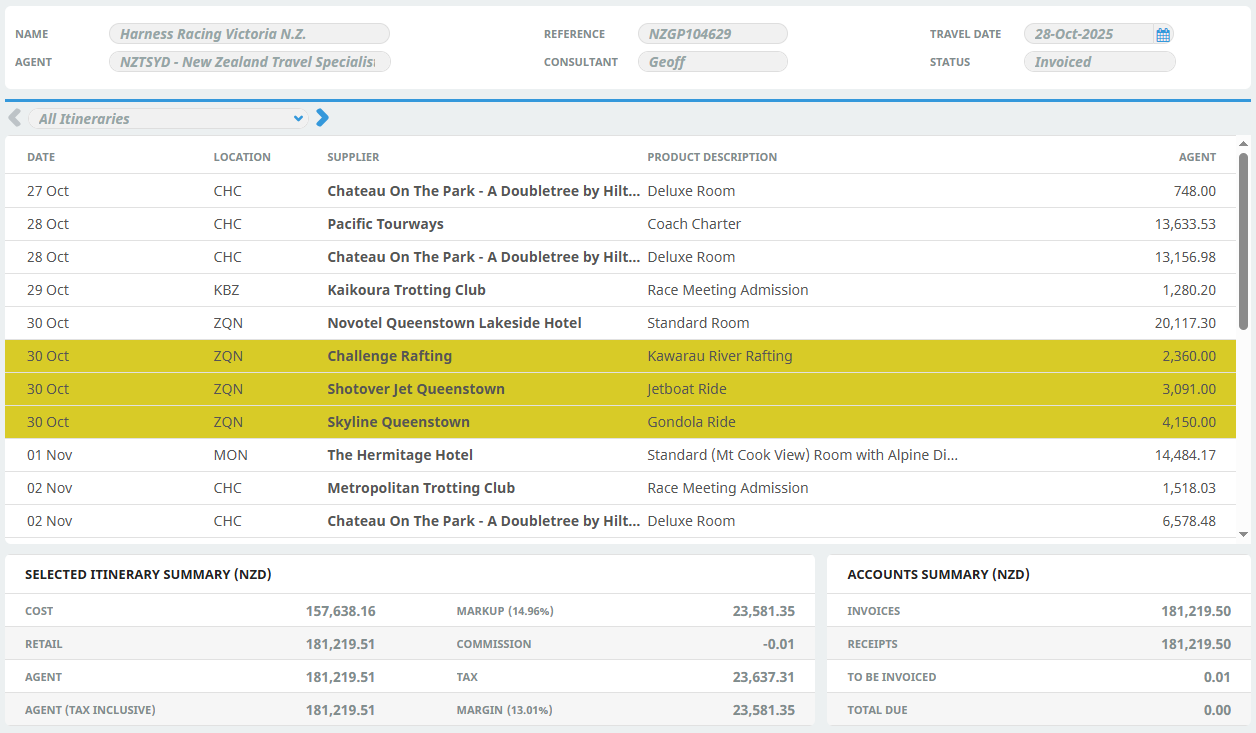
Completed Group Booking - Dashboard View:
Itinerary View
The Itinerary View (Groups > Itinerary) displays all the services currently included in an existing Booking. If the number of services fills more than one page, use the right-hand scroll bar to navigate and view the full list.
Example: Completed Group Booking - Itinerary View

The screenshots show the Dashboard and Itinerary views of the new Group Booking created in this chapter. Additional services can be added by clicking Insert New Service (see Add Services to a Group Booking).
As well as reviewing existing details presented by these views, at any time during inserting services into the booking, a summary of the booking cost, selling price, markup, commission and tax can be viewed at the bottom of the Dashboard screen (where booking costs are organised into Itinerary Summary and Accounts Summary).
If there are multiple itineraries within one booking, selection of 'All Itineraries' or a specific itinerary can be viewed when selecting  or
or  .
.
About the Itinerary View Columns
- You can sort the list rows alphanumerically by clicking once on the heading label for any column. Click once again to sort in the reverse order.
- The columns listed below describe the default columns for the Itinerary view. Refer to Scroll Column Headings for a complete description of all columns available (including the default columns).
- To change the columns displayed, click once in any white space area in the list header, which displays the Set Column Defaults screen. In the
 Set Column Defaults screen, indicate via check-box which columns should be visible and/or highlighted. You can also set each column's width and wrap text in wide columns.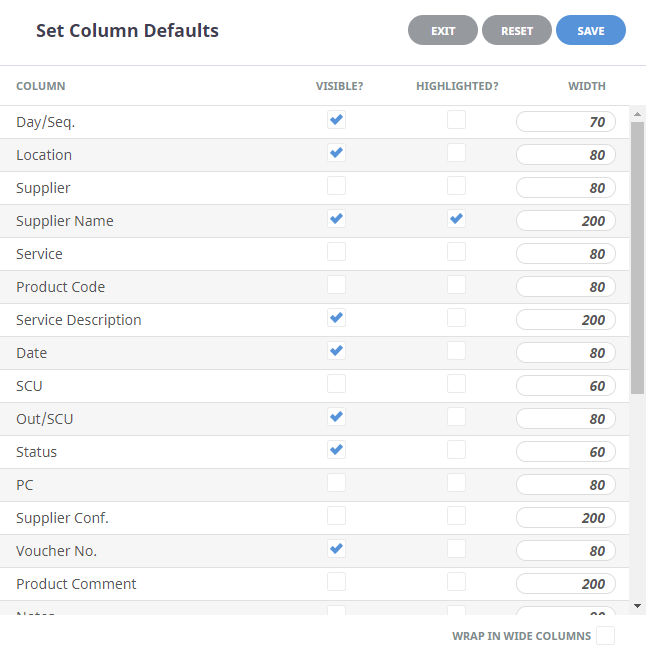
Day/Seq
The day number of each service and the sequence within the day as entered when the service was inserted. The sequence of each service determines the order in which it is displayed within the itinerary. By default the first service within each day is allocated sequence number 10 and subsequent services 20, 30, 40 etc.
Location
The location code for each service.
Supplier Name
The Supplier of each service.
Service Description
The description from the Product Database is displayed for each service.
Date
The start date of each service.
Out/SCU
This column will display the end date of the service.
However if service takes place within a day (e.g. entrances, meals, etc) this column will display the service quantity. Or more specifically the service Second Charge Unit quantity, hence the abbreviation SCU.
Status
The status of each service line. These two letter status codes are user-defined and must first be setup in Home > System > Code Setup > Bookings > Service Status. Service Status Codes can be changed by drilling down into the service line and using the drop-down on the Service Status field.
Voucher No.
This column displays the voucher number for each service (automatically generated by Tourplan).
Agent
The total ‘Agent’ price of the service including any extras (breakfasts, etc.) which may be incorporated in the service. This figure is net of any agent commission that may be being paid.
Search Icon 
There is a search icon located next to the column 'Day/Seq' heading. This allows users to quickly search the Itinerary application for an existing product. An additional search field will enable users to insert text to search, and previous and next (arrow buttons) identify entries which match the search criteria.

The Enter key can be used as a quick key to move to the next matched searched result.