
myTickets Authentication Guide
First time authentication
For security purposes, ticket requester access is authorised by a Tourplan Administrator within your organisation. Your Administrator will submit a request to our Support Team confirming your authority to create and manage tickets on behalf of your organisation.
Once your access has been provisioned, you will receive login details from your Tourplan Administrator and will be required to authenticate your account on first sign-in. After authentication is complete, you’ll be ready to log, view, and manage support tickets in our ticketing system.
Identity Verification Steps#
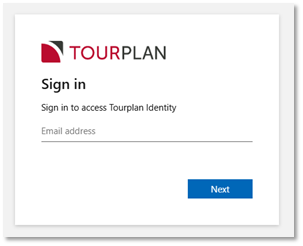
- Click ‘Sign In’.
- Enter your ‘Email Address’.
- Click ‘Next’.
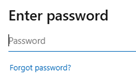
- Click ‘Forgot Password?’
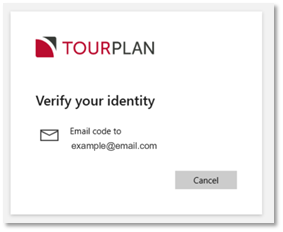
- On the ‘Verify your identity’ modal, Click ‘Email code to’ (email address).
- Open your email account.
- Select the Tourplan Identity Account verification code email.
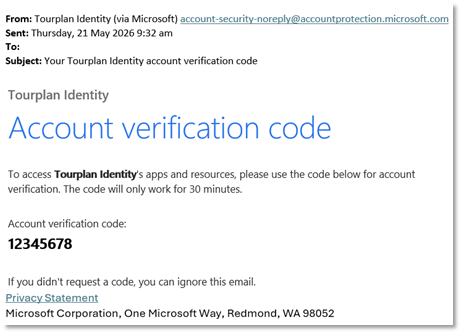
- Copy the Account verification code.
- Return to the verification code screen, to ‘Enter code’.
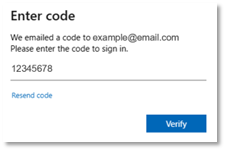
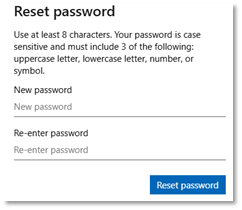
- The ‘Reset password’ modal displays.
- Enter ‘New password’ & ‘Re-enter password’. Follow the password format recommendations.
- Click ‘Reset password’.
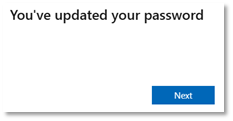
- 'You've updated your password' displays - confirming your password is updated.
- Click ‘Next’.
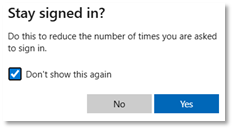
- The ‘Stay singed in?’ modal displays.
- Tick 'Don't show this again'.
- Click ‘Yes’.
- myTourplan re-displays; you know you're signed in when the Sign In button shows ‘Sign Out’
- From the myTourplan home page click ‘myTickets’ to create, manage and view your tickets.