
Loading interactive content…
This option will only print debtors' invoice or credit note documents - it does not create them. Debtors' Invoices can be created in bulk using the Bulk Invoicing option.
Bulk Printing
-
From the Home Menu select
 Home > Financials > Accounting > Bookings Management > Bulk Printing.
- Click the Home Menu to expand it:

- Click the Financials menu option to expand it:

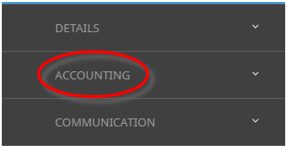
- Click Accounting to go to the Accounting menu to expand it:

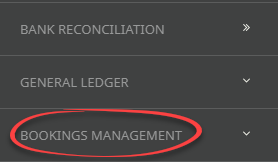
- Click Bookings Management to go to the Bookings Management menu to expand it:

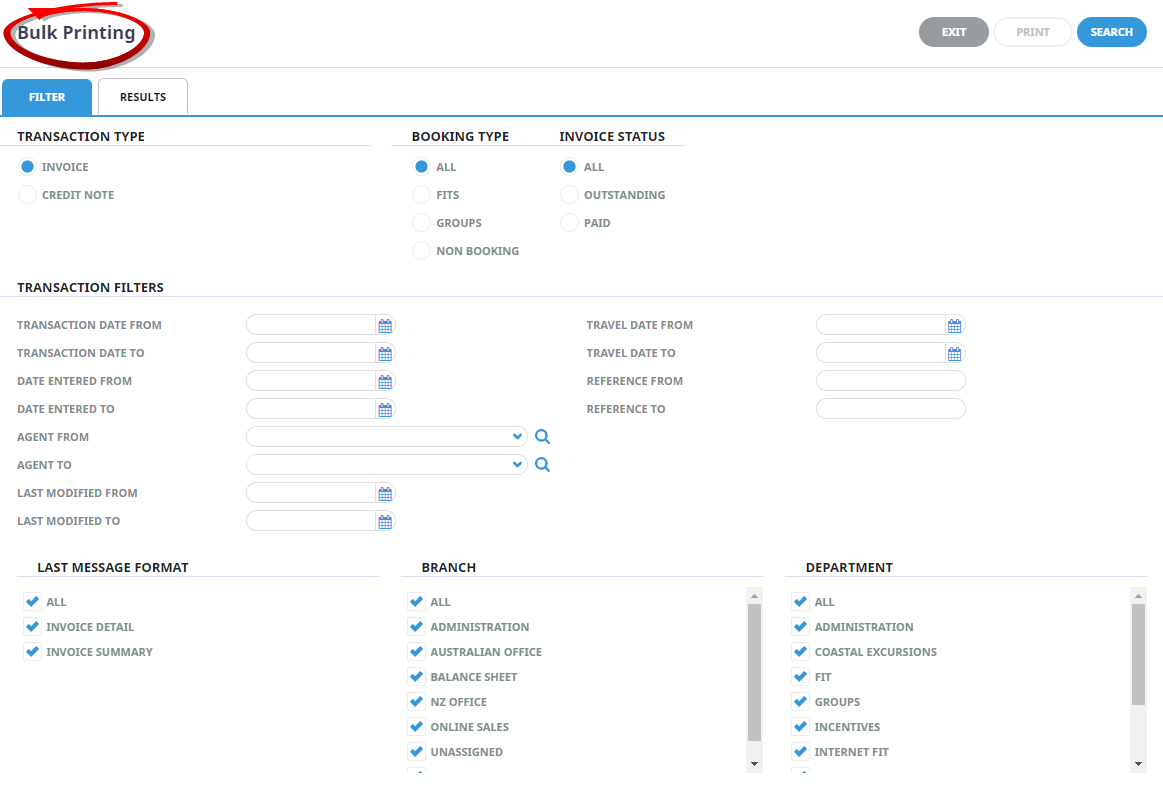
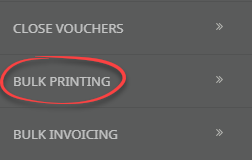
- Click Bulk Printing to go to the Bulk Printing filter screen:

- Click the Home Menu to expand it:
-
There isone Tab which allows a range of filter selections to be made.


-
When the required selections have been made from the Filter Tab , click the Results Tab orSearch.

-
Documents that match the selection criteria will display.
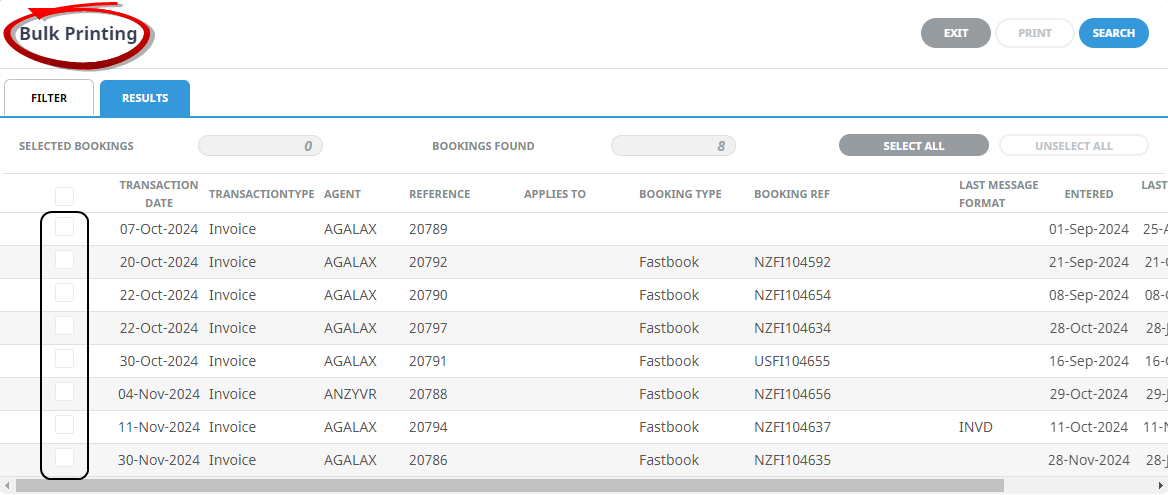
NOTE: Selected Bookings displays the number of bookings in the list that have been selected and Bookings Found displays the total number of bookings found based on the search criteria.
- To select document(s) in the list, check the check-box(es) to the left of the transaction date.
- To select all documents listed, clickSelect All.

- To unselect all selected documents clickUnselect All.

- When selections have been made

NOTE: Multiple selections can also be made based on the last message format that was used to output the invoices or credit notes.
-
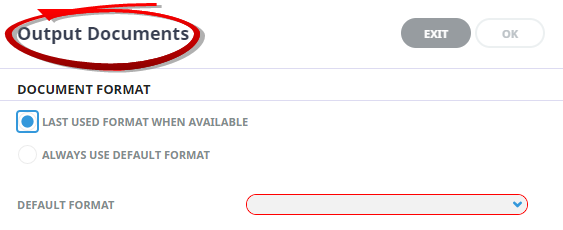
If Print is selected, theOutput Documents screen will display.
This screen is used to determine which message format the system should use to output the selected document(s).
-
To Continue, clickOK.

-
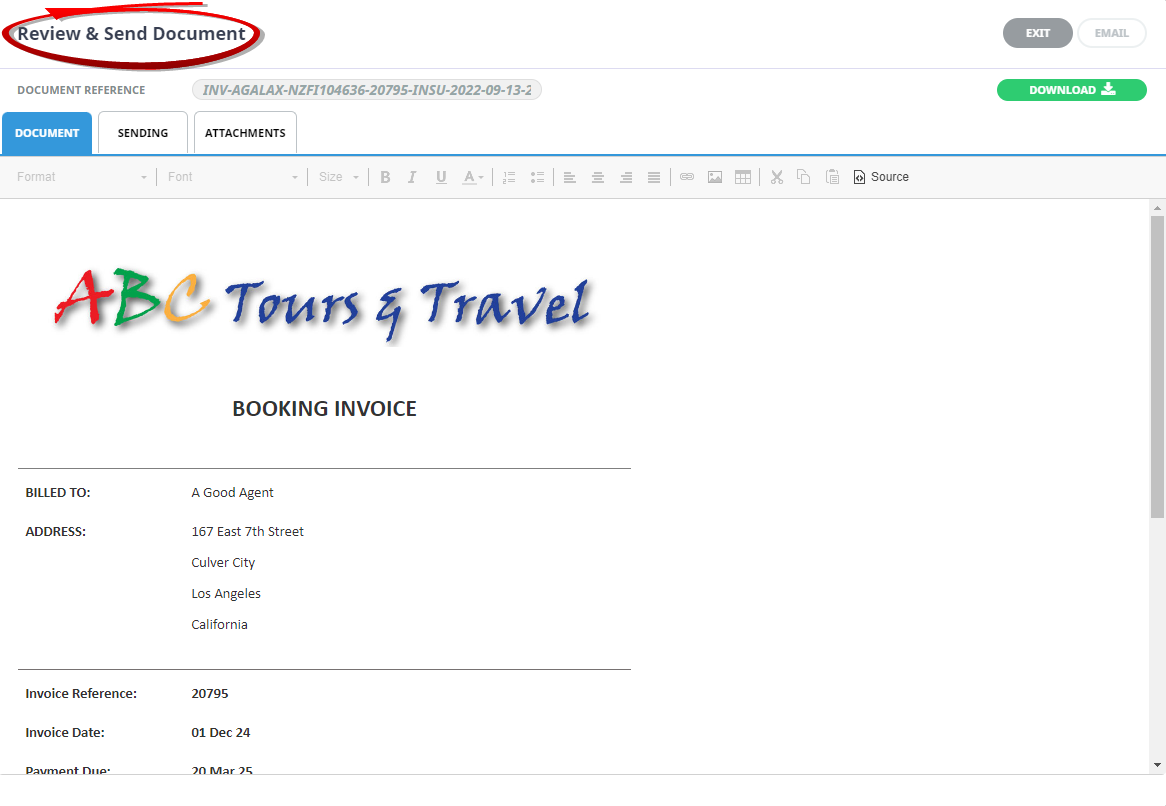
TheReview and Send Document screen will display. The document(s) can be viewed on-screen in the Document Tab. They cannot be edited.
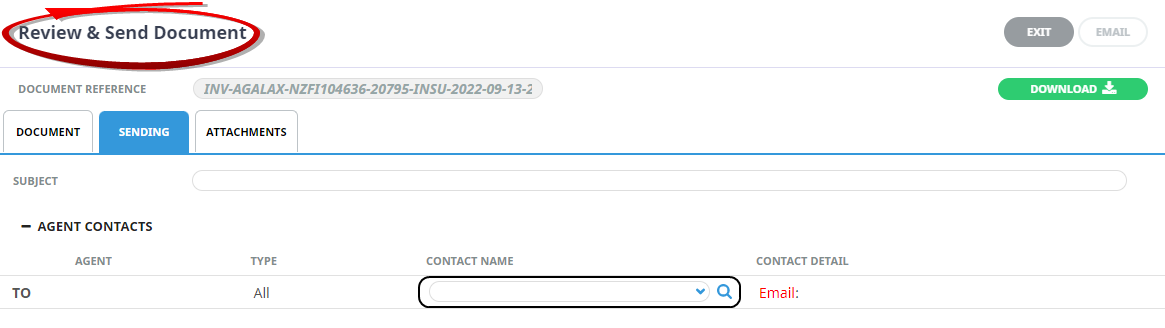
NOTE: If Tourplan NX is set up to send email messages, and email addresses exist for the agent, then the documents can be emailed.
Select the contact name and when the Email Address displays, the Email button becomes active.
-
ClickExit to discard any changes.

-
ClickDownload to Download the document.

About the Bulk Printing - Filter Tab
Transaction Type
- Invoice: Only debtors' invoices will be selected for printing.
- Credit Note: Only debtors' credit notes will be selected for printing.
Booking Type
- All: All transactions regardless of booking type (including Non-Booking transactions) will be selected.
- FITs: Only invoices for FIT bookings will be selected.
- Groups: Only invoices for Group bookings will be selected.
- Non-Booking: Invoices that are not related to bookings will be selected.
Invoice Status
This drop-down becomes active when Invoices is selected and allows either:
- All: Invoices.
- Outstanding: Invoices only.
- Paid: Invoices.
Transaction Filters (All From/To Selections)
This section of the selections screen has six ‘From/To’ selections available. All From/To selections are ‘Inclusive’ - i.e. transaction date from 01 Aug to 31 Aug will include transactions for 01 Aug and 31 Aug. The available selection fields are:
- Transaction Date: The Transaction Date range of the document(s) to be printed.
- Date Entered: The Date Entered range of the document(s) to be printed.
- Agent: Print document(s) for a range of debtors or a specific debtor.
- Last Modified: The Date Last Modified range of the document(s) to be printed.
- Travel Date: The Travel Date range of the document(s) to be printed.
- Reference:. Document reference number range to print.
Last Message Format Section
- All. When All is checked, the available document template(s) display. If the document(s) have already been output, the template that was last used will be used again.
- If the invoice(s) have not already been output, then check the invoice template button of the format they are to be output in.
Branch
Select as many or as few booking reference Branch codes as required.
Department
Select as many or as few booking reference Department codes as required.
About the Bulk Printing - Output Documents Screen
Document Format
There are two choices:
- Last Used Format When Available. If the document has already been output, this button can be checked, and the message format code that was last used will be used again.
- Always Use Default Format. If the transactions have not already been output, then check this button and select the Default Format from the from the drop-down.