Loading interactive content…
Checking Accounting Periods
This procedure describes how to view settings for specific accounting periods, these settings are configured during system setup and should not be changed. Before making any changes, including adding entries, check with your local Tourplan Support office and your system administrator first.
-
From the Home menu, select
 Home > System > Code Setup.
- Click the Home menu to expand it:

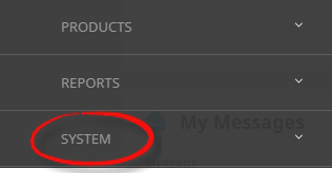
- Click the System menu option to expand it:

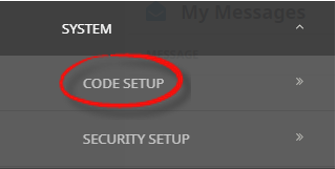
- Click Code Setup to go to the Code Setup menu:

- Click the Home menu to expand it:
-
To check Creditor accounting periods, from the Code Setup menu, selectCode Setup > INI Settings > Creditors.
- Click the Code Setup menu to expand it:

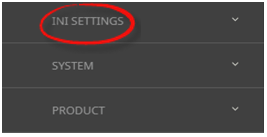
- Click INI Settings to expand the INI Settings menu:

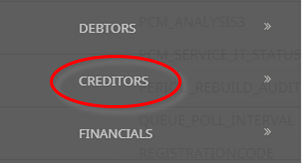
- Click Creditors to open the Creditors INI Settings screen:

- Click the Code Setup menu to expand it:
-
On theCreditors screen, check that the accounting periods are correct for your environment.
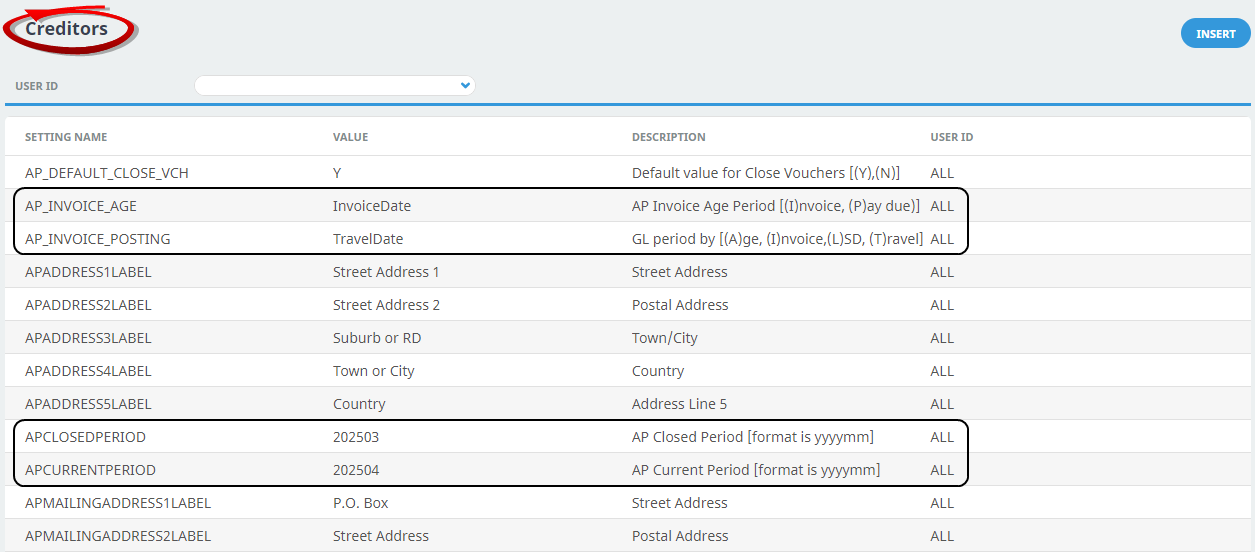
You can change Creditor accounting periods by clicking and then updating the relevant entry. If accounting periods are missing, you can add them by clicking Insert.
-
From the Code Setup menu, selectCode Setup > INI Settings > Debtors.
- Click the Code Setup menu to expand it:
- Click INI Settings to expand the INI Settings menu:
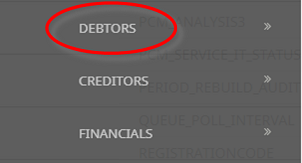
- Click Debtors to open the Debtors INI Settings screen:

- Click the Code Setup menu to expand it:
-
On theDebtors screen, check that the accounting periods are correct for your environment.
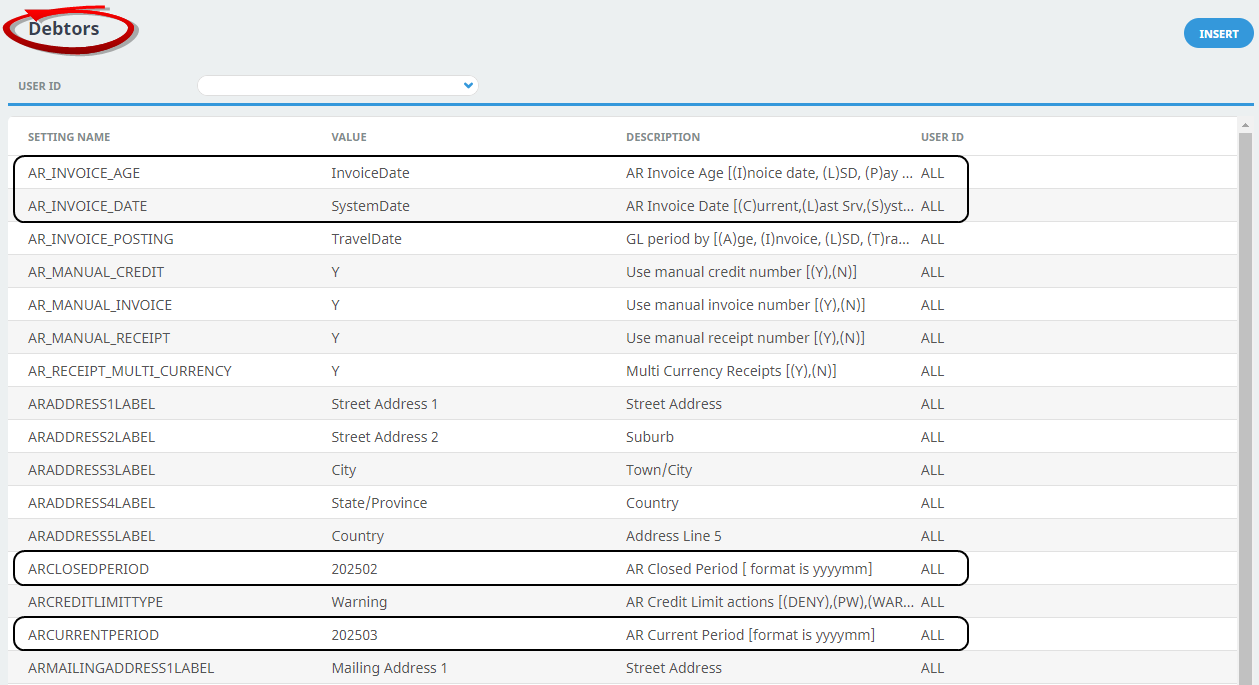
You can change Debtor accounting periods by clicking and then updating the relevant entry. If accounting periods are missing, you can add them by clicking Insert.
-
From the Code Setup menu, selectCode Setup > INI Settings > Financials.
- Click the Code Setup menu to expand it:
- Click INI Settings to expand the INI Settings menu:
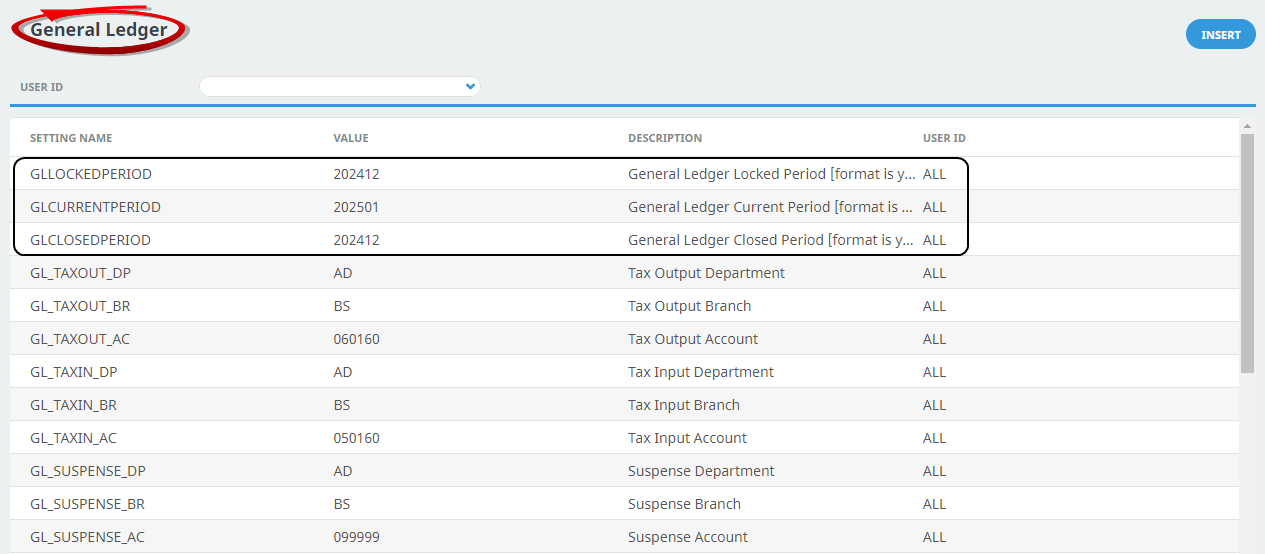
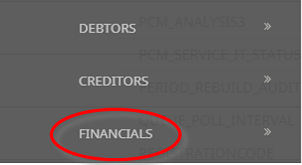
- Click Financials to open the General Ledger INI Settings screen:

- Click the Code Setup menu to expand it:
-
On theGeneral Ledger screen, check that the accounting periods are correct for your environment.