
Loading interactive content…
The Documentation screen displays a list of documents and messages previously generated for a Debtor and allows the creation of new documentation.
The process to viewing a financial transaction document is the same as viewing a general message, and the example below uses an Agent Statement as an example.
Viewing Financial Transaction Messages
Agent statement messages and financial transaction messages can be viewed from within the Debtor Documentation menu selection. Messages content can be viewed or re-sent if required.
- Make sure the required Debtor/Agent is displayed. (See Create a New Debtor or Retrieve an Existing Debtor).
-
Select Menu
 Debtors > Communication > Documentation.
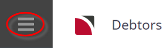
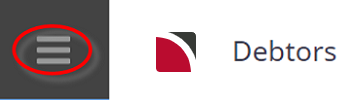
- Click the Debtors hamburger menu to expand it:
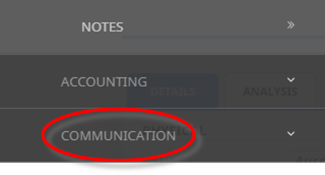
- Click Communication to expand the Debtors Communication menu:

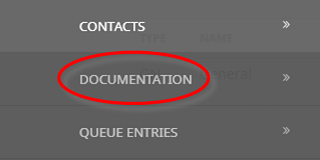
- Select Documentation to open the Debtors documentation screen:

- Click the Debtors hamburger menu to expand it:
- Any documentation already generated from Bookings or from within the Debtor will display, subject to the Message History settings in the message template. (See Message History).
- The documents display in Date Sent (descending) order and show the Date Sent, the Message Template Code, the Message Status, the Sent To destination and who Sent it.
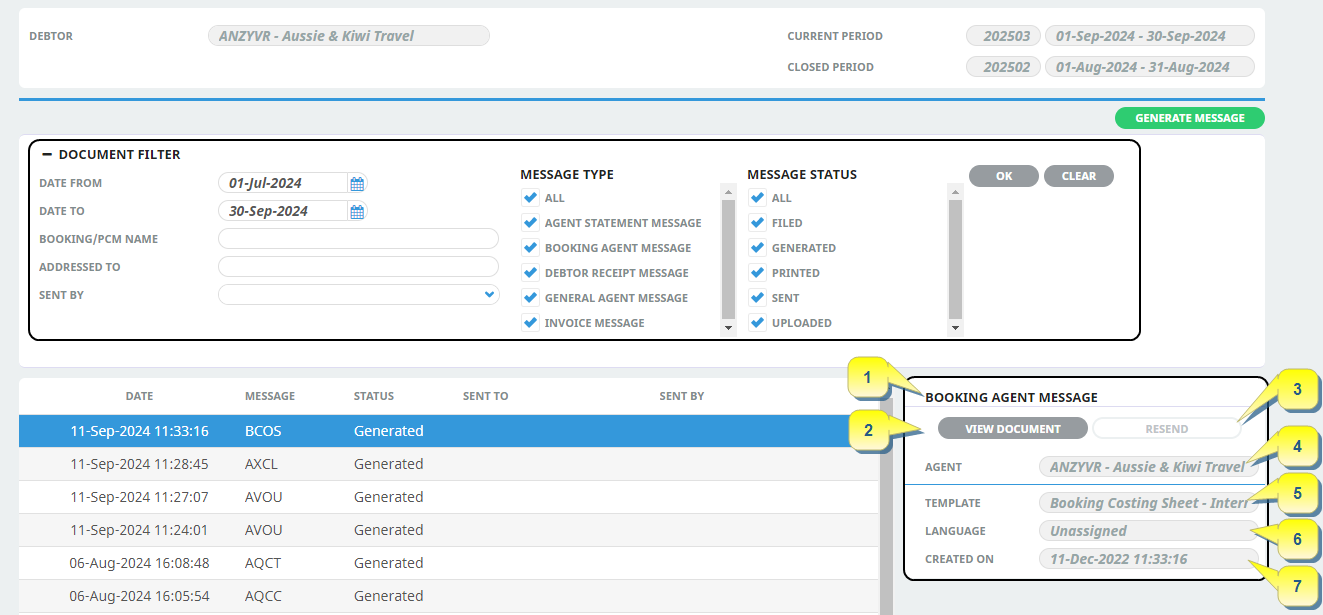
NOTE: In the detail area to the right of the list, the detail shown relates only to the message currently highlighted in the list:
(1) The type of message - e.g., Booking Agent, Agent General etc. (See System Setup User Manual for the list of valid Message Types).
(2) The document action button. Although View Document is displayed in this example, the button can display a different option - e.g. Edit Document - depending the template history settings.
(3) The document resend button. This button is only active based on message history and status settings.
(4) The Agent name related to the message.
(5) The name of the message template used for the message.
(6) The language associated with the message.
(7) The date the message was created.
-
Higlight the appropriate Generated Message and selectView Document.

-
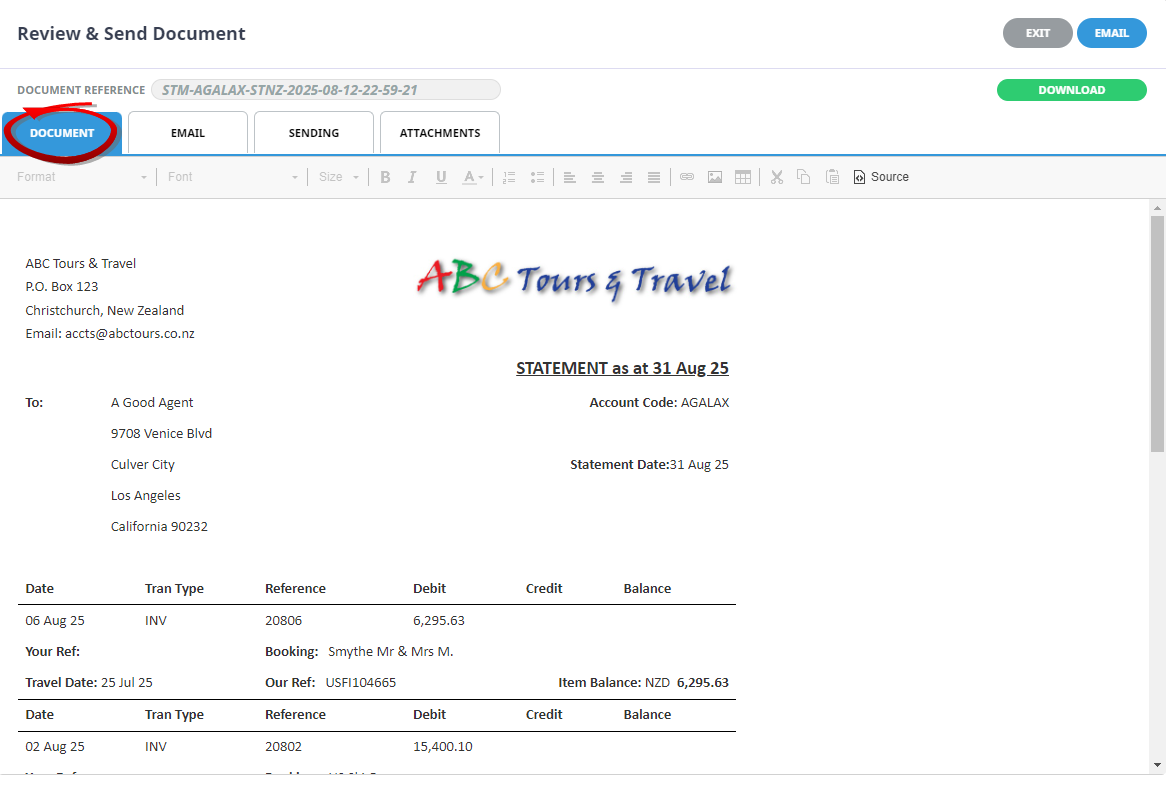
The Review & Send Document screen will display. Select theDocument Tab to view the content of the message.
-
-
There are three tabs (sometimes four) in this screen and the entry default tab is the Sending tab. The Message subject has been entered into the Subject field and the correct recipient has been selected from the Contact Name drop-down.
NOTE: That email enables because an Email Address is present in the Contact Detail field.
-
When the message has been viewed and if the message is to be re-sent, clickemail to send the message.
