
Loading interactive content…
Supplier messages can be generated from your booking and sent to your suppliers, supplier messages could include:
- Supplier request messages
- Supplier amendment messages
- Cancellation messages
- Supplier Rooming and Name List Messages
Generate a Supplier Documentation Message
- Search for and retrieve a booking to work with. If you haven't done this already, see Retrieve a Quote/Booking
-
Select menu
 FITs > Operations and Accounts > Documentation.
- Click the FITs hamburger menu to open it:
- Click the Operations and Accounts menu option to expand it:

- Click Documentation to show existing messages about this booking, or to generate new ones:

- Click the FITs hamburger menu to open it:
-
To generate a new message, clickGenerate Message.

-
In theNew Document screen select a Document Type.
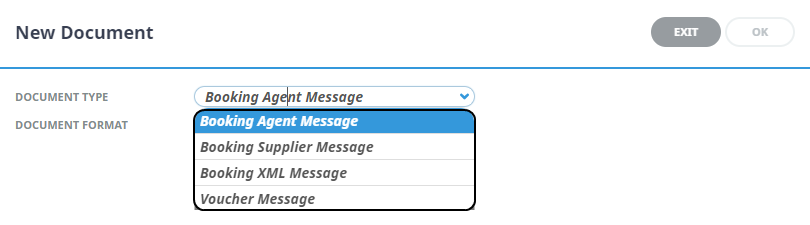
- A full list of services will display, select a Document Format, and how the services within the message are to consolidate and the order they are to display in the message.
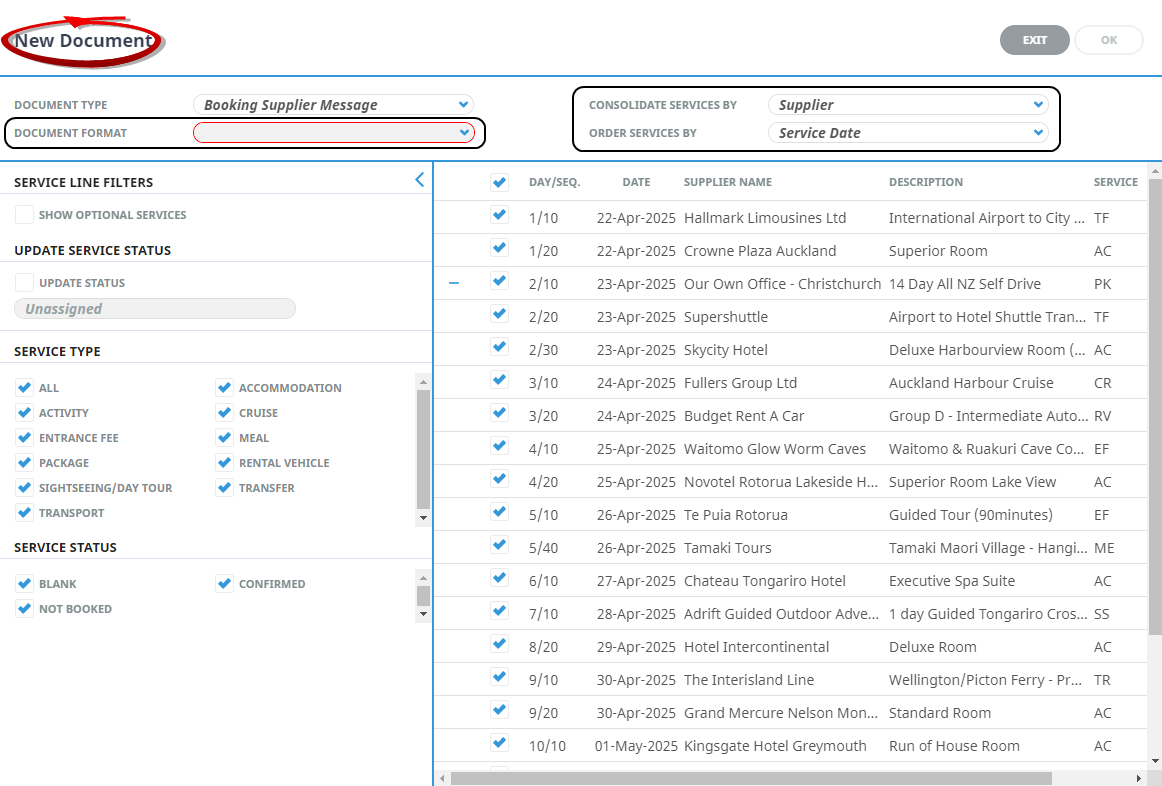
NOTE: Service line filter selections are available on the left of the screen. Users can select specific service types and/or service statuses to filter their message sending. There is also the option to update the status of the service.
-
ClickOK to keep the changes and save or update the entry.

-
ClickExit to discard any changes.

-
On the Review & Send Document screen, a list of services will show on the left of the screen you can examine the generated document, download it (using the green Download button) or email (using the blue Email button).
NOTE: Download will open the document in Microsoft Word. Any amendments made to the document in Word will not be saved unless the document is uploaded back into Tourplan.
-
Email and sending tabs are activated if the message template is setup to send as an email.
The Email and Sending tabs allow you to view the email text that will be sent and the contact name and address the email is sending to.
NOTE: A contact will default from the coding in the message template, however an alternative contact name can be selected using the drop down arrow.
-
ClickEmail to send the document.

-
ClickExit to discard any changes.
View and/or Re-Generate Documentation Messages
- Search for and retrieve a booking to work with. If you haven't done this already, see Retrieve a Quote/Booking.
-
Select menuFITs > Operations and Accounts > Documentation.
- Click the FITs hamburger menu to open it:
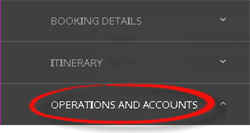
- Click the Operations and Accounts menu option to expand it:
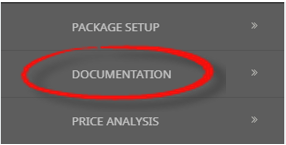
- Click Documentation to show existing messages about this booking, or to generate new ones:
- Click the FITs hamburger menu to open it:
-
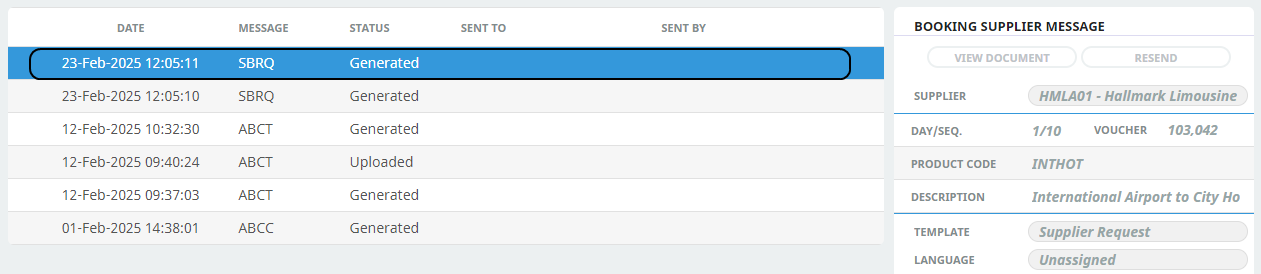
Examine thelist of documentation messages, if any. The top (and most recently worked on) messages highlighted.
The example messages were generated, however were not sent via an email. If an email was sent from Tourplan, the Sent To, and Sent By data would have recorded who the message was sent to and by whom.
-
To view an existing message, select it and clickView Document.

-
If the document can be edited, anEdit Document button will display.

-
-
On theReview & Send Document screen, you can examine the generated document, download it (using the green Download button) and email.
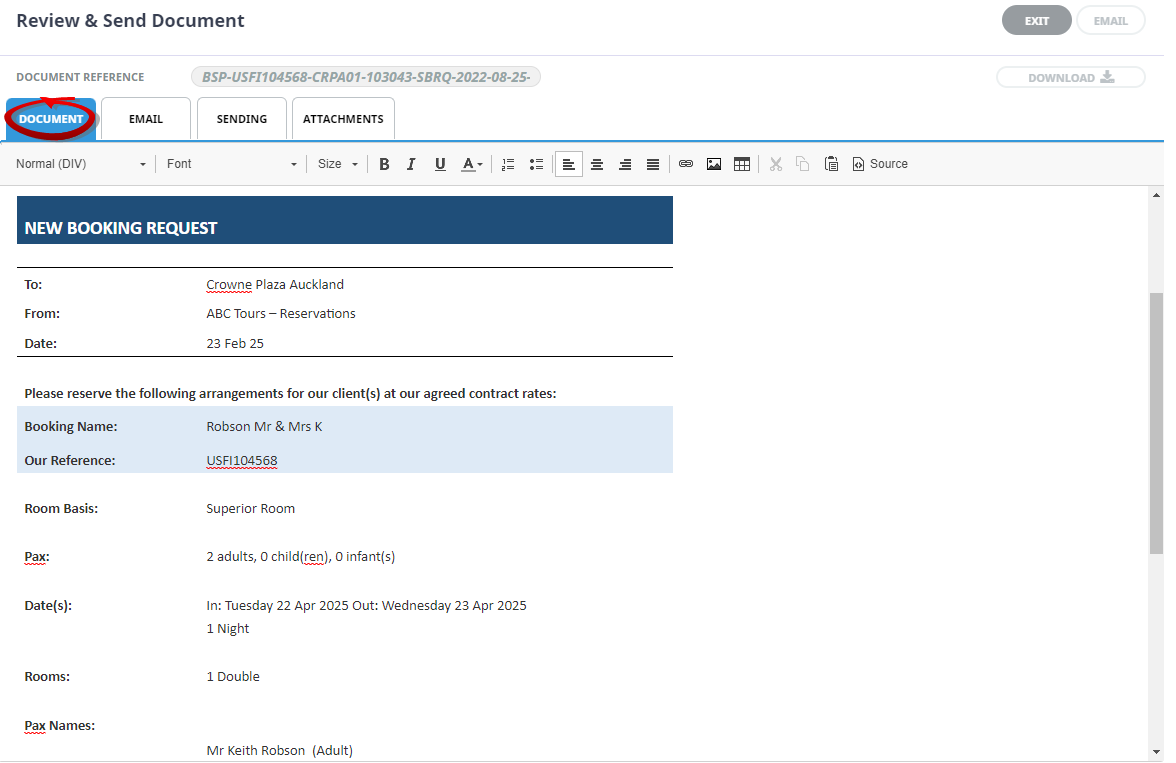
NOTE: You can scroll the document in the Document tab even if no scroll bars are visible.
- Click Download to download the document into Microsoft Word.
- To email a document:
- Click the Sending tab.
- Enter one or more email addresses (click the Search icon to enter email addresses).
- Add a Subject.
- Click Email to send the email or click Exit to return to the list of documentation messages.
- As with View Document, from here you can examine the generated document, download it or email it.
- As with generating a new document Attachments can be selected to send with the re-generated message.
NOTE: Filters can be used categorise the messages. Select the + next to the Document Filter heading to see the search filters available.

Document Filter Fields
Supplier
Selection for a specific supplier code, or supplier name will narrow the search to return messages for this supplier only.
Date From / To
If you know the approximate date the message was sent or generated. Enter a from and to date range to filter messages generated during this time. Otherwise the from date will automatically default to 3 months before todays date.
Addressed To
The filtered results will return for the email address.
Booking/PCMName
The name of the booking or PCM.
Sent By
The name of the Tourplan User who sent the message.
Message Type
Message Type selection allows results to return based on the message type checked.
Options available include; All, Agent Statement Messages, Booking Agent Messages, Debtor Receipt Messages, General Agent Messages, Invoice Messages.
Options available include; All, Booking Supplier Messages, Cheque Messages, General Supplier Messages, and/or Remittance Messages.
Options available include: Booking Agent Messages, Booking Supplier Messages, Invoice Messages, and/or Voucher Messages.
Message Status
Selection for all, individual or multiple message statuses allow the system to filter by; Filed, Generated, Printed, Sent and/or Uploaded Messages.