
| Issue | Cause | Solution |
|---|---|---|
|
Blank Lines Around Notes When the note is substituted it has blank lines inserted when they're not expected or wanted. |
<NTS: code works best, like many code when in a cell of its own. The reason for this is that the way the HTML formatted NTS data has to be inserted into a cell that contains other data and it forces a paragraph marker. | Ensure the <NTS:XX> code is in a cell of its own so that there is no paragraph required. Also consider using plain text rather than formatted notes. |
|
Additional Spacing In General The message has unexpected and/or unwanted spacing. |
This is often actually not a problem but is in fact related to the styles attached to Word content. |
The solution is to ensure that the styles are correct and not overridden within the document, especially the Normal style. A good way of dealing with this is to turn non-printing characters on which will show the spacing created by each paragraph marker. Also note the comment re fonts as an unknown font will cause the document to revert to a different style, often with additional spacing before and/or after a paragraph. |
|
Remove Rows Cell content has been removed but the row is still there. |
Incorrect usage of <RMS:ROW>. The intention of this is that it is at the start of the very first cell in the row. If it is not in that position then rows are not removed. |
If it is placed there and all of the subsequent substitution codes in that row resolve to empty values then the entire row will be removed |
|
Remove Cells Codes have been used to remove data when substitutions are empty but it doesn't work |
The codes <RMS:BL> & <RME:BL> will delete cell content but not row content and so whilst they work as designed they may not give the expected or wanted result. |
When designing the template consider what content needs to be deleted when substitutions are blank. The key difference between <RMS:BL> and <RMEL:BL> versus <RMS:ROW> is the former will empty cells but not change the table structure whereas the latter will change the table structure by actually deleting rows. |
|
Font Compatibility The font used in the note or message isn't retained in the generated document |
Not all fonts can be translated between HTML and Word. This is especially an issue for RTF notes in existing databases. Fonts are actually defined as font families which are related sets fonts that can be substituted amongst each other. The font families that NX supports are:
|
Change the source data to have a font matching one of the families that NX supports |
|
Table Alignment The alignment and sizing of the cells in the generated document are not what was expected |
Inconsistent layout, especially a variable number of cells per row. When these are are generated into the destination document then Word can get the cell alignment 'wrong'. This is especially the case when the output is displayed in the HTML editor. (see HTML View Doesn't Look Right below) | Try to make the message template have a consistent number of cells per row throughout. This may require using empty cells rather than merging cells in some cases. |
|
HTML View Doesn't Look Right When the generated document is viewed in NX, the format and alignment is not correct. |
When the generated message is shown in the NX User Interface (UI) the view is the Word .DOCX formatted output after it has been converted to HTML. HTML does not have the same level of control, especially around alignment and sizing of tables. Typically this is not an issue for 'simple' document structures but can be for more complex ones. | Use the HMTL view to check content, but for layout view the document in Word or PDF format as that is the true representation of the layout. |
|
Tables in Notes When there is a table in a note and it is output on a message, the format is lost. |
The issue here is that there is an HTML table in the note that is being inserted into a single cell of a table in the Word document. Technically there is no capability to split the cell into nn cells and even if that capability was available, chaos is still likely to reign with the overall column alignment and widths etc. | There isn't a specific solution. The best outcome would be to reformat the structure of the notes so they didn't need a table within the note record itself. |
|
Section Tags Where is it valid to place section tags |
Section tags are the codes that are placed in << >> delimiters. (See Messaging Template Sections). They indicate that there is repeating data to be injected into the document. Once generated, the section tags then need to be removed from the document but if they have been placed in a cell part way through a row the results are at best variable and at worst create an invalid .docx on output | Word doesn't deal well with deleting a cell and invariably results in a table that is a very odd shape from what would be expected. Trying to do the same when generating the message is similar and so these types of codes should always be in a row of their own. |
| Column Width from layout not maintained when saved to PDF | Columns set in the layout are maintained in HTML and .DOCX but not in .PDF. |
If when the template is created, table properties are set to Autofit/Fixed Column Width the width is likely to also be maintained when exported to PDF. To set Fixed Column Width in Word, click on the table in the template, and in the Table Tools/Layout tab/Cell Size group, click on AutoFit and select Fixed Column Width, then enter the required width into Width field to the right of the AutoFit button.
|
| Outputting Data From XML Notes | In some systems, some fields in the XML notes had short codes so that either could be used: In NX only the full tag name is used e.g <XML:ESL:OptionDescription> | Use the full tag name. This means that when any new ESL tags are added they can be used with changes to the messaging engine. |
| Spaces between text and substitution codes is lost | When a message substitution code and static text exist in the same cell the space between the two can be lost. For example <TW> Rooms can become 2 Rooms when substituted. | The cause of this is unknown but assumed to be related to the representation of the space in the Word document itself. The solution is to ensure that the substitution code is in a cell of its own and the static text is in a cell of its own so that the space is not relevant to the display. |
| Maintaining the integrity of the table | Using Ctrl+Enter within a table, will not only insert a page break but will also split the table into two separate tables at that row. |
In the .docx, click the dialog launcher button in the Paragraph group on the Home tab. On the Line and Page Breaks tab, select "Page break before." 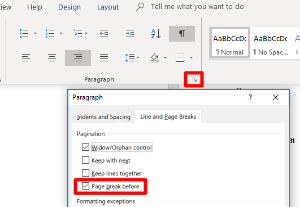
|
| Page Break | Text is running over the page and a page break is required. | Hard Coding a page break into the message template. Message templates allow a substitution code <PAGEBREAK>. |
| Sending Email via Outlook 365 |
Outlook 365 will not allow bulk sending of Email's from the same 'connection' and if it detects this occurring it will issue an error: "Error 1026 - Error for operation SendMessages: System.Net.Mail.SmtpException:Syntax Error, command unrecognized. The server response was : 4.3.2 STOREDRV.ClientSubmit; sender thread limit exceeded" |
In NX there is the ability to throttle the rate at which connections to the mail server are generated. This can be controlled through a setting in the config: MailConnectionsMax=1 In the messaging.config file in the config sub-directory of the messaging webservices. |