
Loading interactive content…
Passenger bookings are created in FITs in the usual way. There are some points to be aware of.
-
Depending on system INI settings, any
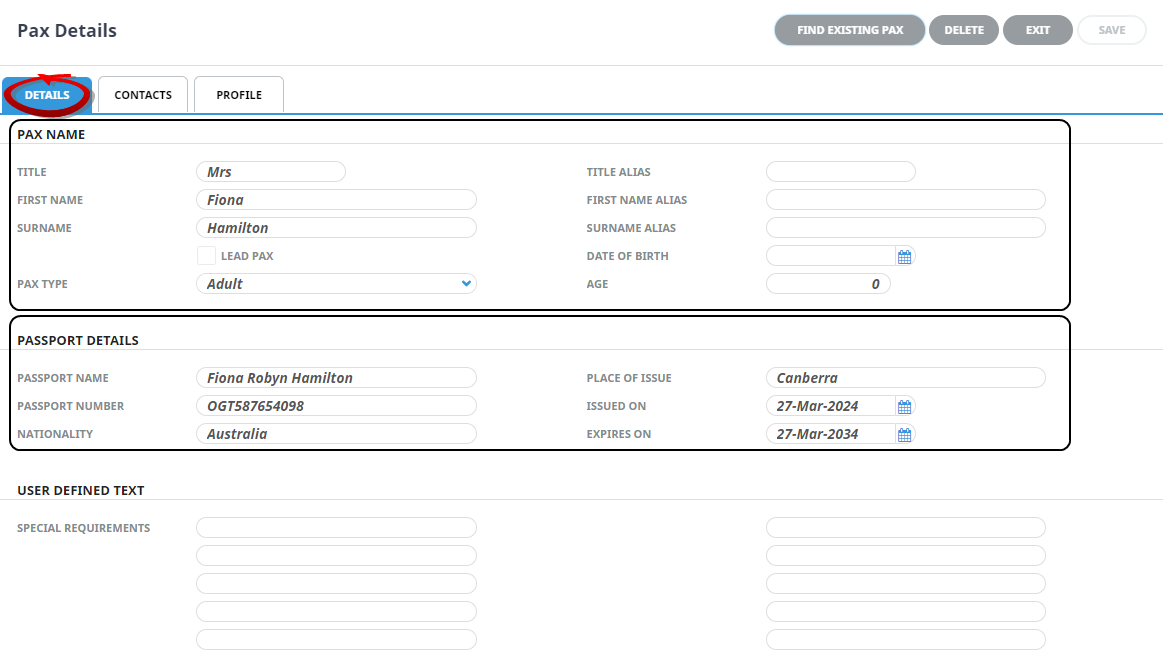
 Pax Details which are added in this screen will automatically be copied to the Rooms List in the Group Booking when it is created / updated. Similarly, any notes which have been added in any of the General Text fields regarding these pax will be copied into the Group departure rooming list Notes fields. Passport, Contact and Profile information - special diets etc - will also be copied to the Group booking. The information that is able to be captured is dependant on CRM and Profile settings in the system, as well as the Book On INI Settings.
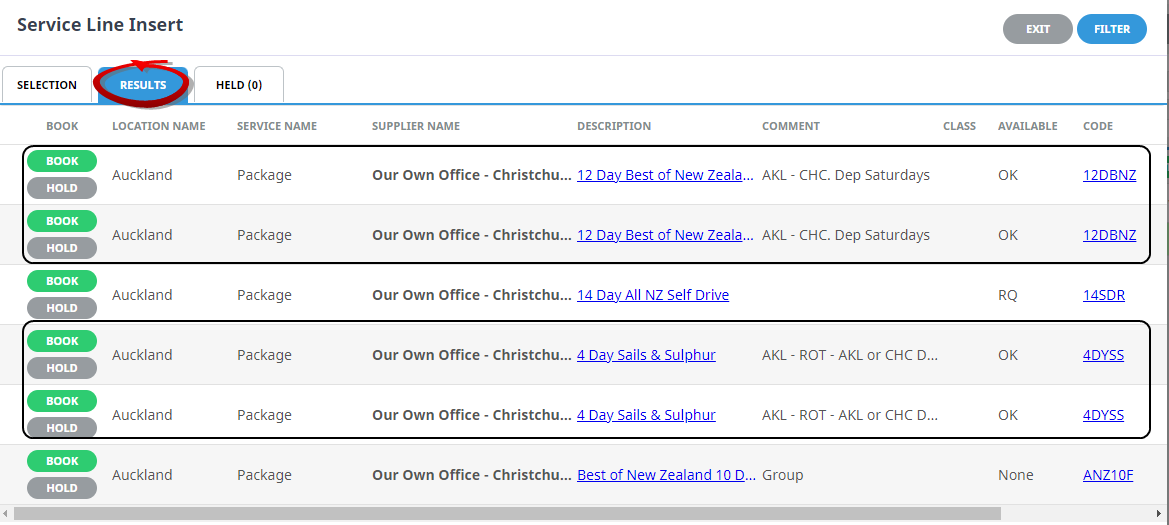
- The search for available packages is performed in the standard service line insert screen. Selection Tab and the results display in the Results Tab.
- Selection Tab - New Configuration. The pax names may be displaying under New Configuration, but if the Room Type (e.g. Double) is not displayed it means that the Room Detail has not yet been saved and as such, the system can't display package details because it doesn't know which prices to obtain from the product database.
Room detail not saving will occur if the Booking Header is created and possibly pax names added, but no services have been added using the room configuration. Any pax names entered during the initial booking entry will have been saved, the Room Configuration gets saved into the Service Lines and if there are not yet services in the booking, the configuration can not be saved.
If the room configuration (i.e. Room Type - Double) does not display, clickNew Configuration to select the required Room Type and move the pax into it.
- Selection Tab - Price Code.
- All Price Codes. Tourplan will display MULTIPLE lines per product, i.e. one line per price code. In effect, the system will show all products whether or not:
The header price code is blank
The INI-setting USER_PRICECODE_OVERRIDE is used
The price codes are valid agent price codes.
-
System Price Codes. Tourplan will display ONE line per product based on whether or not the header price code is blank:
-
If the header price code is “blank”, Tourplan will display products in the following order:
-
With the price code from USER_PRICECODE_OVERRIDE INI-setting (if set)
-
With the first valid agent price code
-
With blank price code (whether or not “blank” is a valid agent price code)
-
-
If the header price code is NOT “blank”:
-
Tourplan will display ONLY products that have the same price code as the header price code (whether or not the header price code is a valid agent price code).
-
-
-
Selected Price Codes. This setting works the same as OPTIONSCROLLPCRADIODEF = A. It is only used if all price codes are to be shown, but the ability to filter a specific price code needs to be retained.
-
Applicable Price Codes. Tourplan will display MULTIPLE lines per product, i.e. one line for each applicable price code. Applicable price codes are the header price code + the price code used in INI-Setting USER_PRICECODE_OVERRIDE + all valid agent price codes.
-
A list of package services display on theresults screen.
-
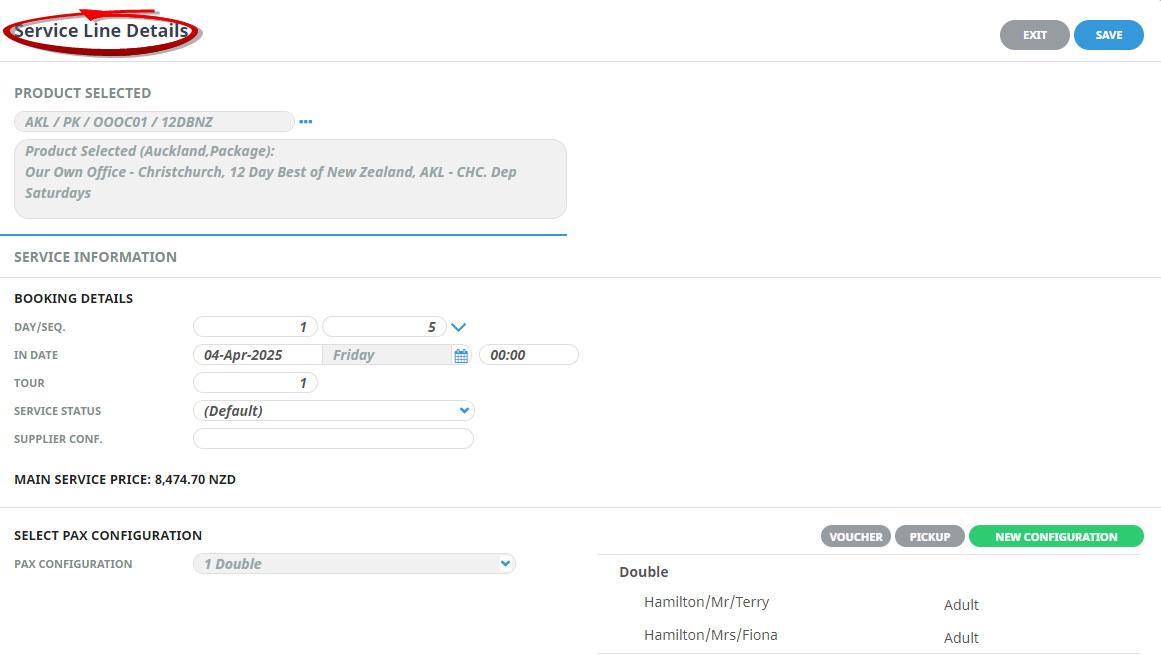
When Book is clicked, the results screen closes and theService Line Details screen is re-presented, populated with the appropriate data.
-
ClickSave to keep the changes.

- The Package service line is now inserted into the booking.

NOTE: The colour of the service line is determined by the Service Status, not because it's a package.
The two items Price Code and New Configuration which are highlighted in Red on the Selections tab have a significant bearing on what results are displayed.
NOTE: This radio button selection list defaults to a collapsed state in this screen.
The selection here determines which services will display based on the current setting. The default is determined by the INI setting OPTIONSCROLLPCRADIODEF which can on a per user basis.
NOTE: The system being used for the examples in this document has the setting Applicable Price Codes which means the services will display once for each qualifying price code - i.e., if an agent has 2 price codes that qualify, the package option will display twice.
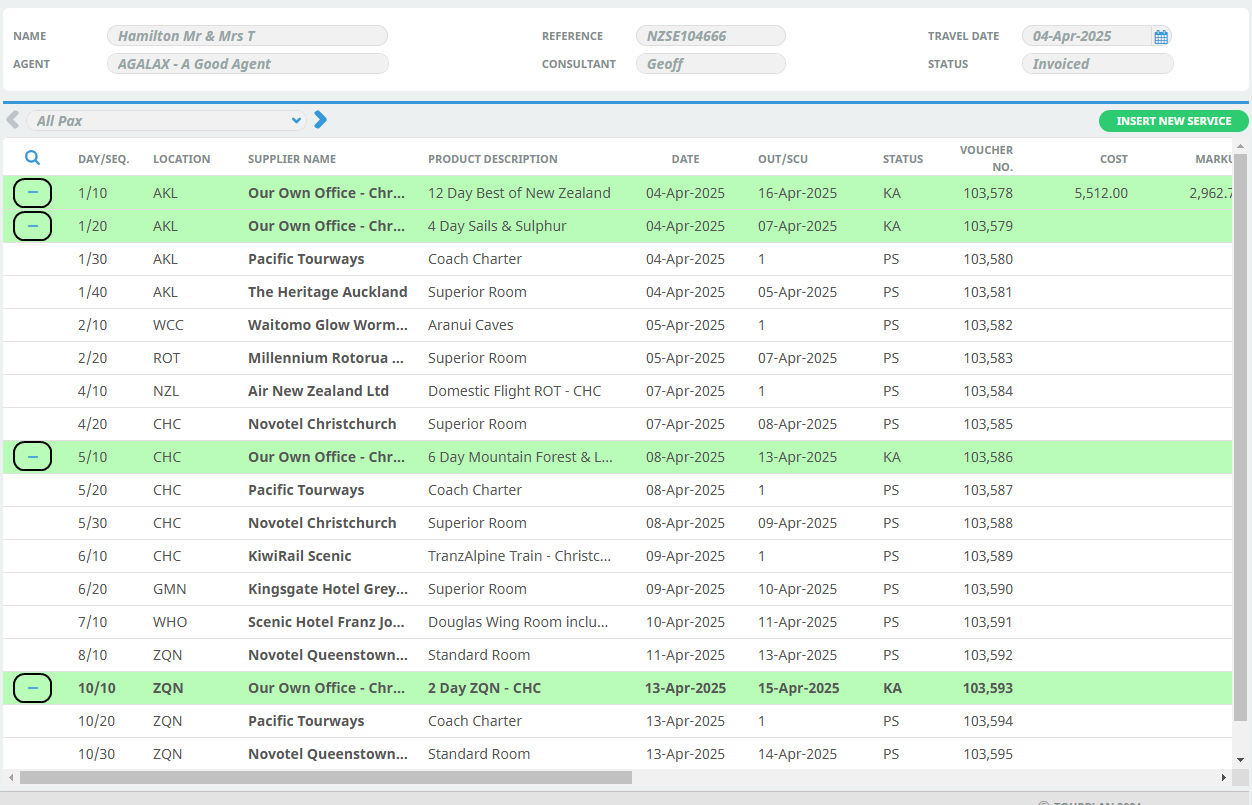
The screen shot above shows the service '12 Day Best of New Zealand' in a collapsed state in the booking. This is because the PCM/Package Product setting Consolidate In Booking is checked. To view all services, click the  icon.
icon.
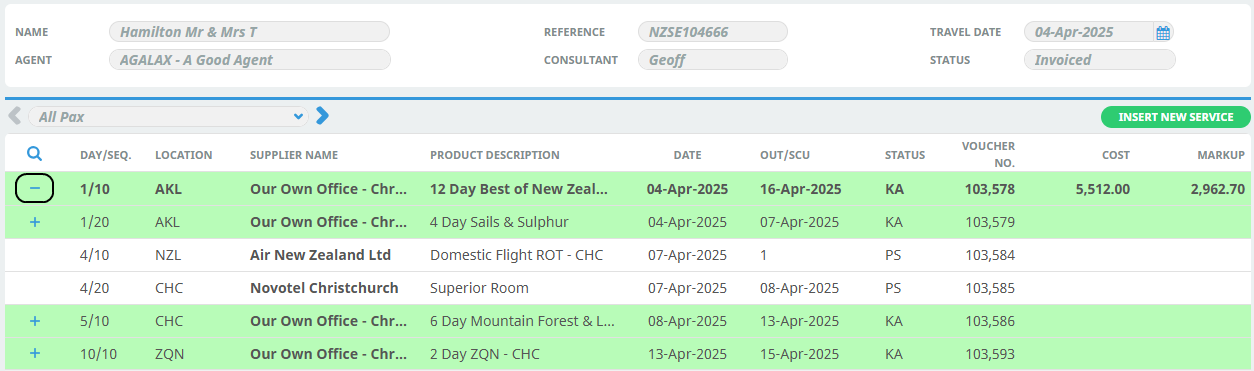
This screen shot shows the service '12 Day Best of New Zealand' in an expanded state in the booking. To collapse it again, click the  icon.
icon.
12 Day Best of New Zealand Tour
This particular tour (12 Day Best of New Zealand) is made up of three components (4 Day Sails & Sulphur, 6 Day Mountains, Forest & Lakes, 2 Day ZQN-CHC) and all are in a collapsed state when the PCM/Package Product setting ‘Consolidate In Booking’ is checked. To expand them all, check the icon next to each component line and to collapse them click the icon next to each component line.
Processing of the FITs booking continues as with any other booking – invoices raised and vouchers issued etc. The settings in the PCM Package Product screen (Step 4 - Attach Package Products to PCM's) will determine the appearance of invoices and what vouchers are issued. The common scenario is for the Invoice to be consolidated and vouchers only for the component sectors to be issued.