
Loading interactive content…
This is the third of five tasks in this section of the user manual that describes miscellaneous functions under the PCM Quotes > Operation menu.
The full list is:
- Package Setup
- Documentation
- Price Analysis (this task)
- Queue Entries
- Contacts
Tourplan's Price Analysis functionality allows users to insert a date range for the system to analyse and identify any price differences within the dates specified. Users are then given the option to recalculate the PCM where price increases or decreases are visible for a selection of dates seen in the Pax Ranges and Supplements Tab.
PCM Package prices can be analysed prior to package product rates being attached. Follow the procedure below to set specific costs per date range.
Performing a PCM Price Analysis
- Search for and retrieve a PCM to work with. If you haven't done this already, see Retrieve an Existing PCM.
-
Select menu
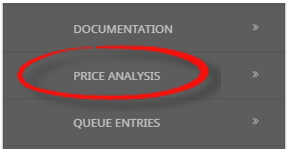
 PCM Quotes > Operation > Price Analysis.
- Click the PCM Quotes menu to expand it:

- Click the Operation menu option to expand it:

- Click Price Analysis to configure contact details for each supplier that is party to this PCM:

- Click the PCM Quotes menu to expand it:
-
To analyse the costs for a range of dates, clickAnalyse.

-
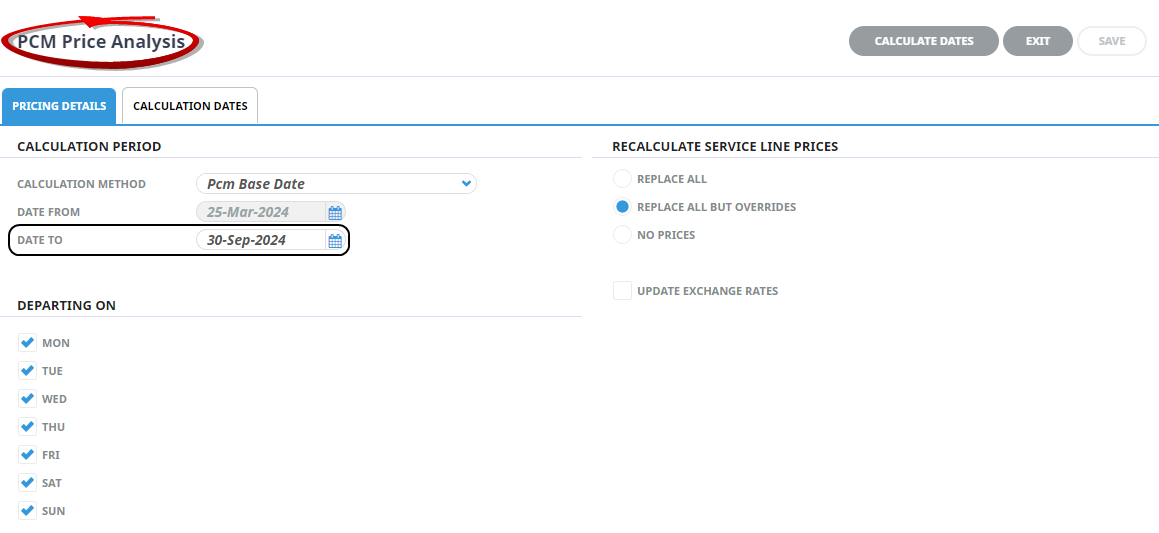
On thePCM Price Analysis screen, enter the Date To field and select how the system is to recalculate.
-
ClickCalculation Dates tab or the Calculation Dates button to view available recalculation date options.

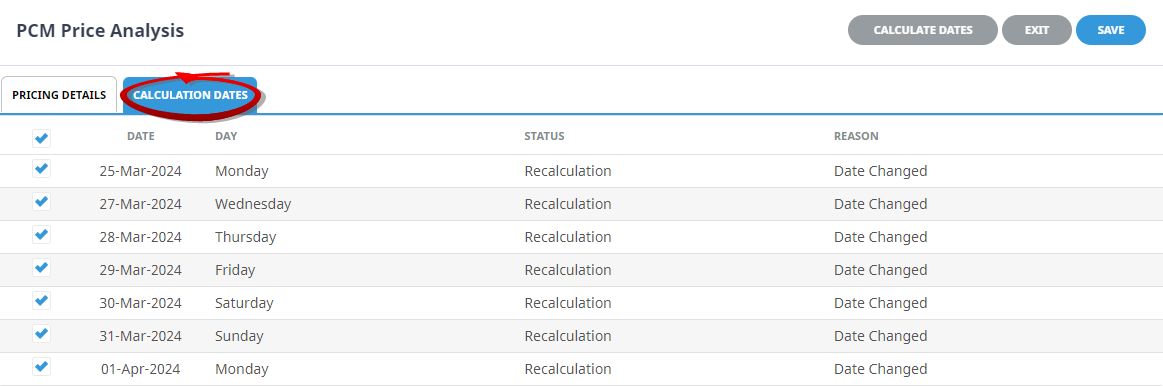
- 'Select all' is the default setting, all identified recalculation changes will be selected. Users can select specific dates to re-calculate if required.
-
ClickExit to discard any changes.

-
ClickSave to keep the changes.

-
ClickOK to keep the changes and save or update the entry.

- A list of date ranges will show to the left of the screen and values per pax range / supplement are available.
NOTE: The up and down arrow indicates a price increase or decrease from the original PCM base date quotation.
You can see from this example: the 27th of March has a price decrease from the 25th March which was the original Base Date costing.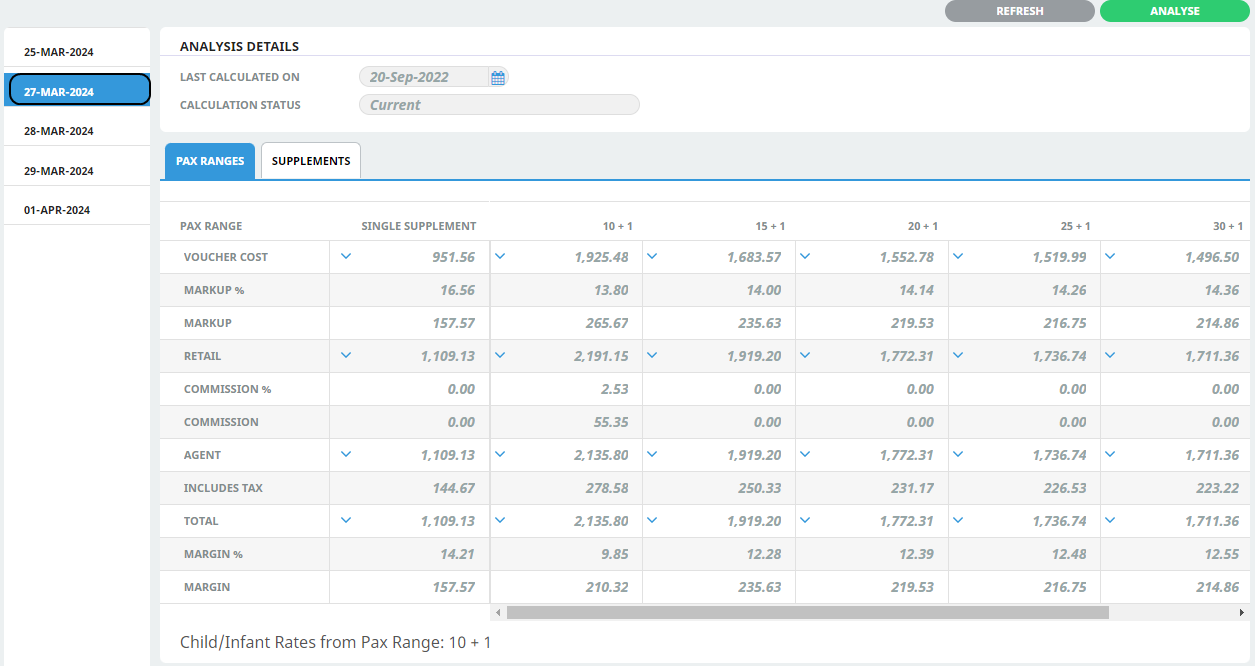

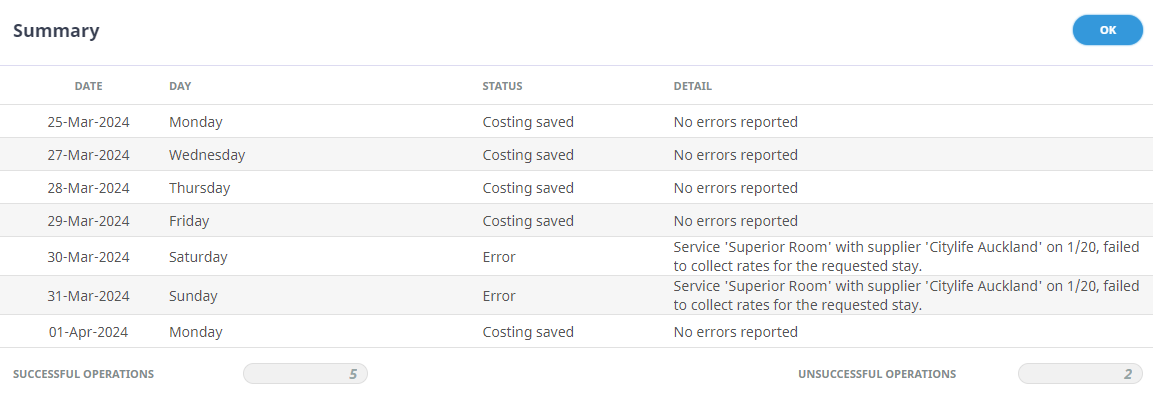
NOTE: A summary screen will display if Save is selected. The summary screen provides details of the recalculated dates, records any reported errors and the status of the PCM costings.
About PCM Analysis Fields
Calculation Method
- Date Range - allows for a range of dates to recalculate the PCM based on the first date of the date range and will look for each difference from the product database to provide new values.
- PCM Base Date - will take the values on the PCM currently and then compare the first expected change in those values.
NOTE: In both cases a new set of values will be identified and the next expected date change will be compared to the previous date not to the original PCM values.
Date From/To
Dates or a range of dates for the Price Analysis function to retrieve values from the Product Database for each service in the PCM.
NOTE: If PCM Base Date is selected as the Calculation Method the Date From field will be disabled.
Recalculate Service Line Prices
- Replace All – Revisits the product database and re-costs all services based on rates from the product database.
- Replace All But Overrides – As above, however does not re-cost services where the product database rates have been manually overridden. Manually overridden values will display in a separate dialogue and need to be confirmed with the ‘OK’ button.
- No Prices – Recalculates the totals based on the existing service line values.
- Update Exchange Rates – This check-box can be used to update the PCM values with any changes in exchange rates between service and PCM currencies.
Copy Bulk PCMs from Analysis
A PCM Quotes can be 'duplicated' to create multiple new PCM Quotes with updated Base Dates - using the Bulk Copy process from within the PCM Analysis Screen.
A 'Create PCMs' button is enabled if the Price Analysis identifies dates with different prices compared to the PCM Base Date.
Copy Bulk PCM Quotes from Analysis
- Search for and retrieve a PCM to work with. If you haven't done this already, see Retrieve an Existing PCM.
-
Select menuProduct > PCM Quotes > Operation > Price Analysis.
- Click the PCM Quotes menu to expand it:
- Click the Operation menu option to expand it:
- Click Price Analysis to configure contact details for each supplier that is party to this PCM:
- Click the PCM Quotes menu to expand it:
-
To analyse the costs for a range of dates, clickAnalyse.
-
NOTE: A summary screen will display if Save is selected. The summary screen provides details of the recalculated dates, records any reported errors and the status of the PCM costings.
-
ClickOK to keep the changes and save or update the entry.
- A list of date ranges will show to the left of the screen and values per pax range / supplement are available.
NOTE: The up and down arrow indicates a price increase or decrease from the original PCM base date quotation.
You can see from this example: the 27th of March has a price decrease from the 25th March which was the original Base Date costing. -
ClickCreate PCMs.

-
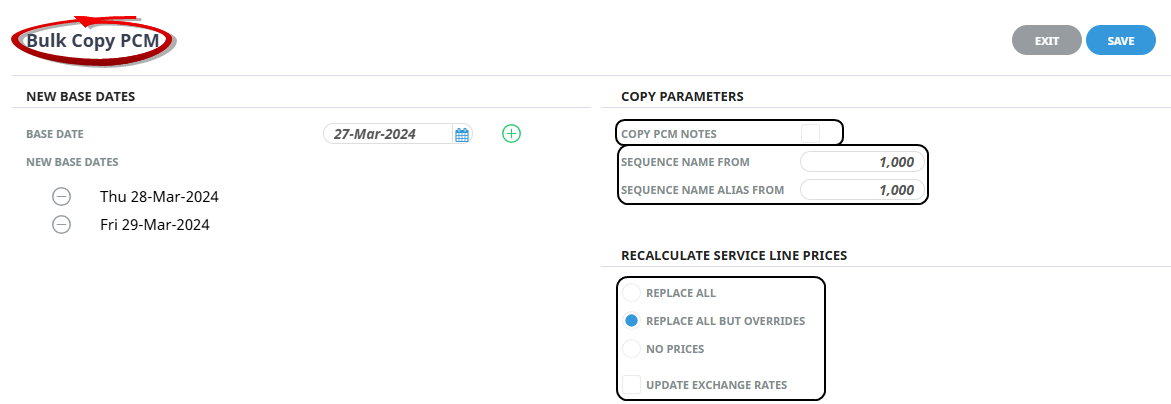
TheBulk Copy PCM screen opens with a list of New Base Dates copied from the Analysis Details screen. To copy the PCM notes, tick the Copy PCM Notes checkbox. Enter the Sequence Name From and Sequence Name Alias From values, and click the Radio button as to how the Service Line prices are to be recalculated.
-
ClickSave to keep the changes.
-
ASummary of Successful Operations opens, listing the: PCM Base Date, Day, PCM Name (with Sequence numbers appended), New PCM Reference Number and a brief Summary Detail for each PCM created.

-
ClickOK to keep the changes and save or update the entry.
- To view copied PCMs, use the PCM search feature. The newly created PCMs will have a sequence number appended to the booking name. See Retrieve an Existing PCM.
About Bulk Copy PCM Fields
New Base Dates
Base Date
The Base Date displaying defaults from the first listed date from the Analysis Details screen, click the green plus button to include this entry as a New Base Date.
New Base Dates
A list of pre-defined base dates has transferred from the Analysis Details screen, each Base Date listed creates a new PCM in the Bulk Copy process, and the services will update in the PCM to match the New Base Date. If a New Base Date is not required, use the grey minus button to remove the date from the list.
Copy Parameters
Copy PCM Notes
All PCM notes will be copied to the new PCM if the checkbox is selected.
Sequence Name From
When a new PCM is created from the copied PCM in a bulk copy process, all PCM details are copied including the PCM Name. This numerical setting is appended to the copied PCM, and when multiple PCMs are created the number will append sequentially starting with the value inserted here.
NOTE: If a PCM Name and sequence number already exist for a PCM, the system assigns the next available sequence number.
Sequence Name Alias From
When a new PCM is created from the copied PCM in a bulk copy process, all PCM details are copied including the PCM Alias Name. This numerical setting is appended to the copied PCM, and when multiple PCMs are created the number will append sequentially starting with the value inserted here.
NOTE: If a PCM Name Alias and sequence number already exist for a PCM, the system assigns the next available sequence number.
Recalculate Service Line Prices
Replace All - Revisits the Tourplan Product Database and re-costs all services.
All Except Overrides - Revisits the Tourplan Product Database, however does not re-cost services where the original product rates were manually overridden. Manually overridden values to be confirmed with the OK Button.
No Prices - Recalculates the totals based on the existing service line values.
Updating Exchange Rates - When the PCM services are re-costed should Tourplan continue to use the previous exchange rates (unchecked) or use the exchange rates from the Tourplan Code Setup Module.