
Loading interactive content…
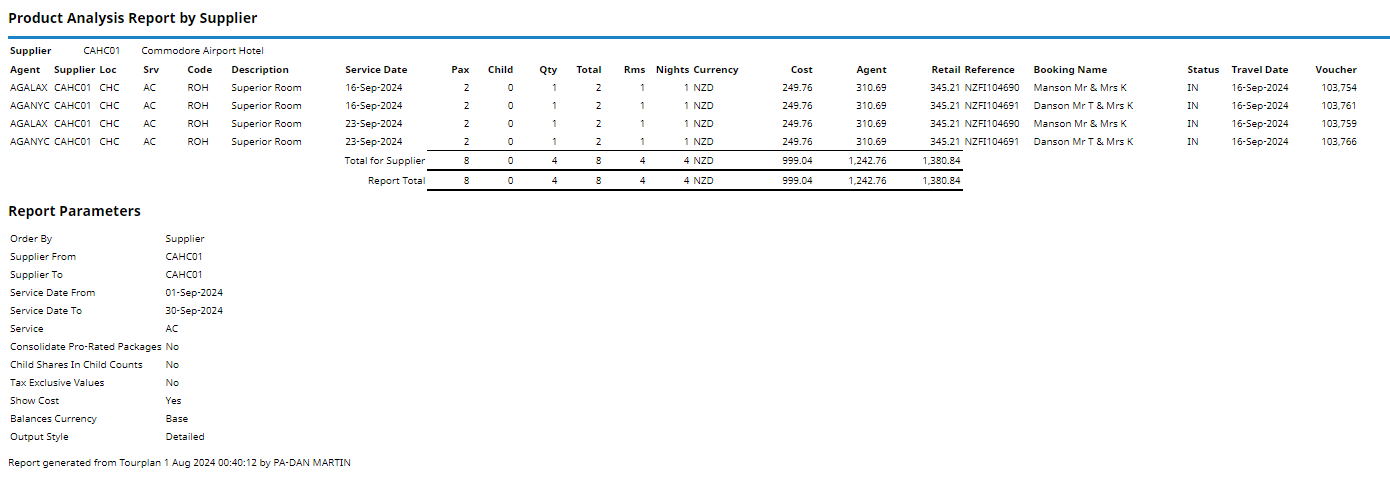
This report shows the details of service usage, such as the number of pax per service and the number of rooms and night. The report includes the product cost, agent and retail prices per service.
The Product Analysis Report is commonly used for rate negotiations and bed/night statistics.
This report includes the following information:
- Agent (Code).
- Supplier (Code).
- Location (Code).
- Service (Type).
- (Product) Code.
- (Product) Description.
- Service Date.
- Pax (Adult - Count).
- Child (Count).
- Quantity (of Product - SCU).
- Total (Count - Pax x SCU).
- Number (of Rooms - Accommodation).
- Nights (Count).
- Currency.
- (Service) Cost.
- (Service) Agent Amount.
- (Service) Retail Amount.
- (Booking) Reference.
- Booking Name.
- (Booking) Status.
- Travel Date.
- Voucher (Number).
Report Parameters can be selected to:
- Consolidate Pro-Rated Packages (Yes or No).
- Include Child Share in Child Counts (Yes or No).
- Show Tax Exclusive Values (Yes or No).
- Show Costs (Yes or No).
Generating a Product Analysis Report
-
From the Home menu, select
 Home > Reports > Operations Reports > Product Analysis.
- Click the Reports menu to expand it:

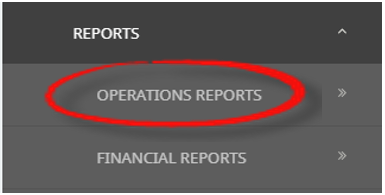
- Click the Operations Reports menu option to expand it:

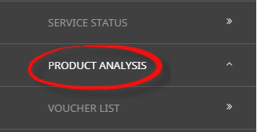
- Click Product Analysis to go to the Product Analysis Parameters screen:

- Click the Reports menu to expand it:
-
On the blank Product Analysis Parameters screen, the Service Tab will open. Select the required parameters for the Product Analysis Report.
NOTE: There are 4 tabs available to select parameters from. They are: Booking Tab, Analysis Tab (Booking & Agent), Service Tab and Analysis Tabs (Product & Supplier).
- Check the Completed Screens.
- Click on the Other Tab. Select how the results are to be ordered and filtered in the report from the dropdown selections or checkboxes available.
- Select how the report is to be displayed.
-
To view the report, clickView.

-
To Download the report to a PDF file, clickDownload PDF.

-
To Download the report to a CSV file, clickDownload CSV.


About Product Analysis Parameter Fields
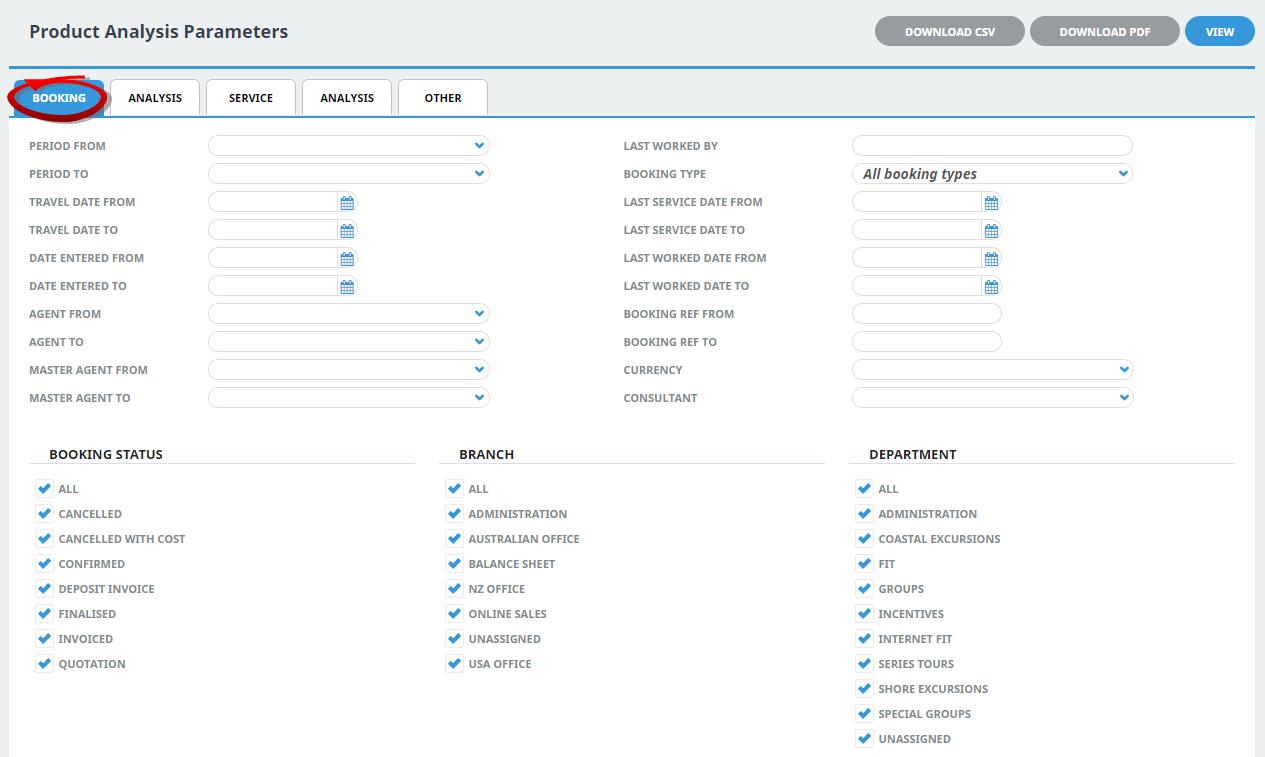
Period From/To
Travel date within financial accounting period (or range of).
Travel Date From/To
Booking travel date (or range of).
Date Entered From/To
Booking date entered.
Agent From/To
Booking agent range available from the dropdown selection.
Master Agent From/To
(Debtor) Master Agent range available from the dropdown selection.
Last Worked By
Service last worked by - type the full name (correctly spelt) of the Tourplan user.
Booking Type
Dropdown selection available for:
- All booking types (default).
- FITS.
- Groups.
Last Service Date From/To
Booking header last service date (or range of).
Last Worked Date From/To
Booking header last worked date (or range of).
Booking Ref From/To
Booking reference (or range of).
Currency
Dropdown selection of available currencies.
Consultant
Dropdown selection for booking consultants name and initials.
Booking Status
Multi select options for available booking header statuses.
Branch
Multi select options for available (booking reference) branches.
Department
Multi select options for available (booking reference) departments.
NOTE: Service Status, Branch and Departments showing in the screen captures above are for training purposes. Users company systems will reflect users organisational requirements.
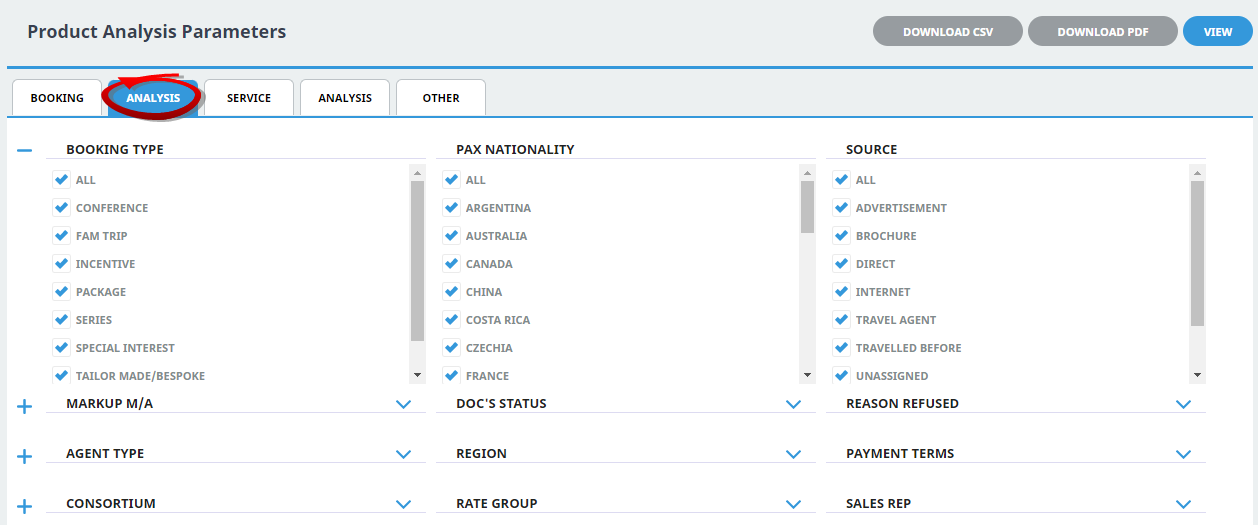
Booking Analysis Codes 1-6
The top 6 Analysis fields are the Booking Analysis codes.
Agent Analysis Codes 1-6
The bottom 6 Analysis fields are the Agent Analysis codes.
Multi select list of Analysis codes can be used to refine the report if necessary. To expand the fields use the +, and to minimise the analysis list use the -.
NOTE: Analysis codes in the above screen capture are used for training purposes. Users company systems will have analysis fields and codes unique to their organisational requirements.
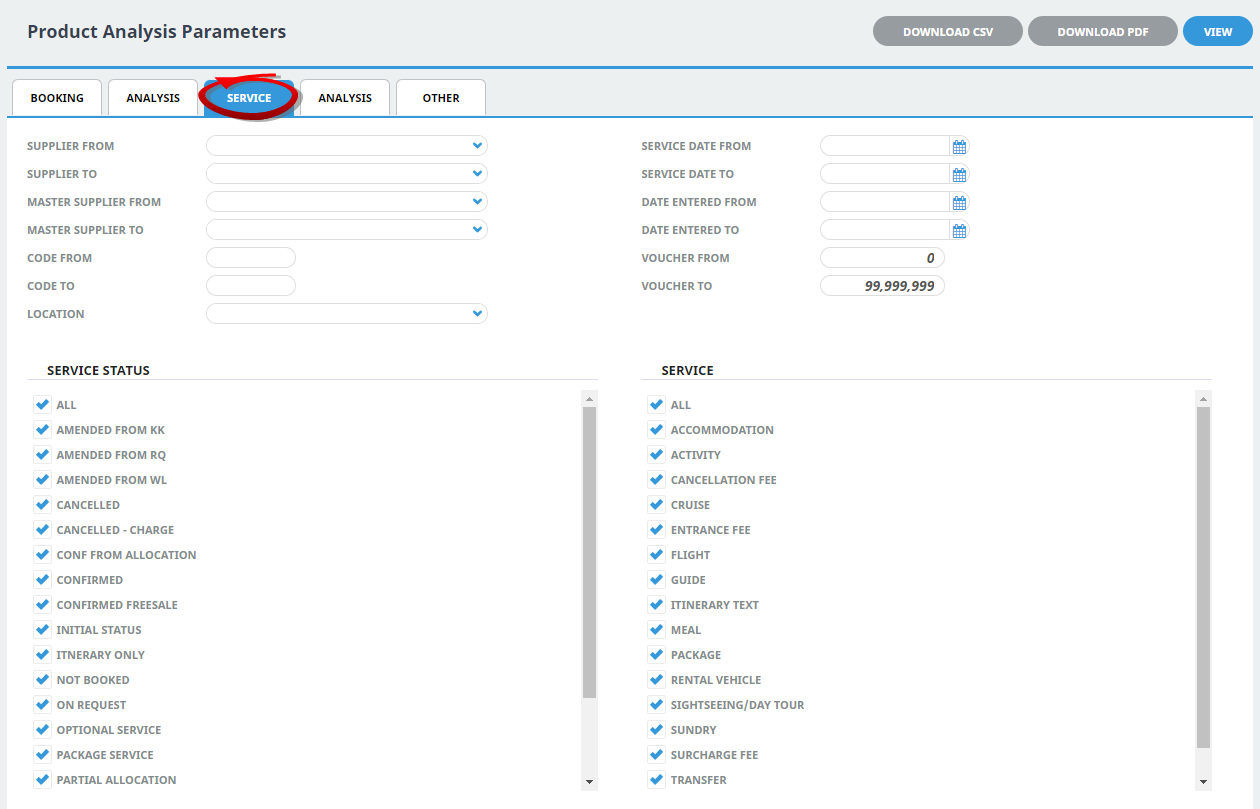
Supplier From/To
Supplier range available from the dropdown selection.
Master Supplier From/To
Master Supplier range available from the dropdown selection.
Code From/To
(Product) Code.
Location
Location code, selectable options are available in the dropdown.
Service Date From/To
The service line date (or range of).
Date Entered From/To
Booking service date entered (or range of).
Voucher From/To
The voucher number from and to. This will default to: From = 0 and To = 99,999,999 which will out put all vouchers that meet the selection criteria. Selection of specific voucher numbers (or range of) can be made.
Service Status
Multi select options for available service statuses.
Service (Type)
Multi select options for available services.
NOTE: Service Status, and Services showing in the screen captures above are for training purposes. Users company systems will reflect users organisational requirements.
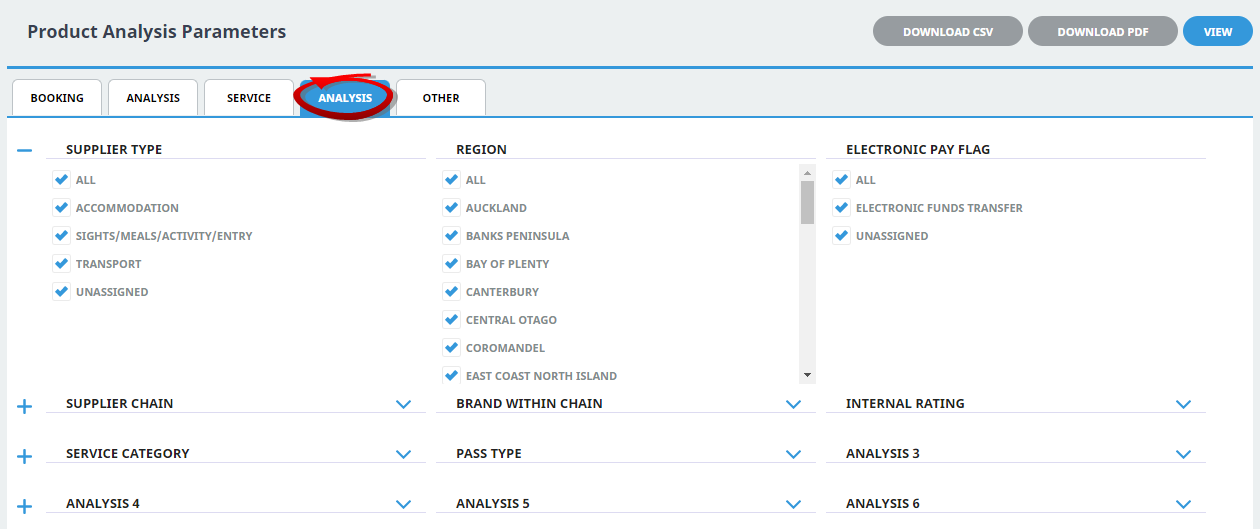
Supplier Analysis Codes 1-6
The top 6 Analysis fields are the Supplier/Creditor Analysis codes.
Product Analysis Codes 1-6
The bottom 6 Analysis fields are the Product/Service Analysis codes.
Multi select list of Analysis codes can be used to refine the report if necessary. To expand the fields use the +, and to minimise the analysis list use the -.
NOTE: Analysis codes in the above screen capture are used for training purposes. Users company systems will have analysis fields and codes unique to their organisational requirements.
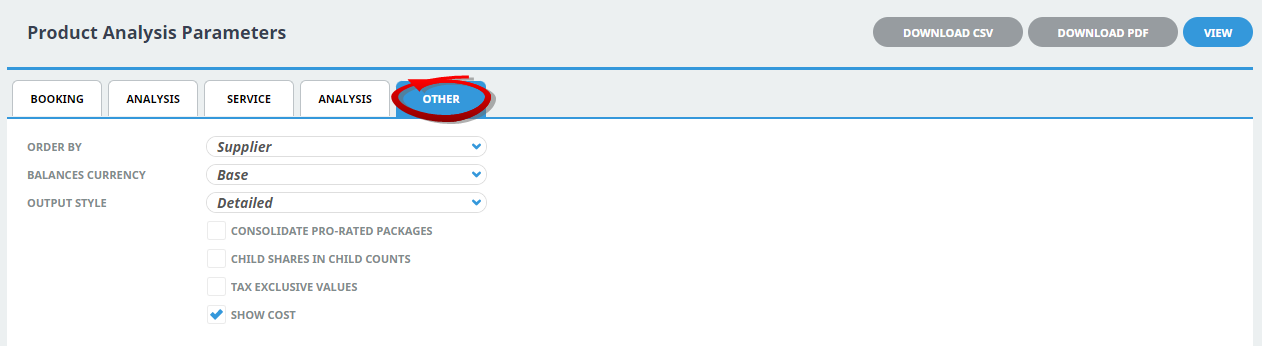
Order By
Drop-down selection to order data in the report by one of the following:
- Supplier (Default).
- Supplier, Agent.
- Agent, Supplier.
- Supplier, Branch, Department.
- Location, Supplier.
- Agent, Branch, Department.
- Location, Agent.
Balances Currency
Dropdown selection to output the services in:
- Base Currency (Default).
- Service Cost Currency.
- Service Sell Currency.
- Foreign Currency.
Output Style
There are 4 output style selections available from the dropdown:
- Detailed (Default).
- Product (Option) Summary.
- Daily Totals.
- Totals.
Consolidate Pro-Rated Packages
If a product is configured to pro-rated within packages, this checkbox allows the Product Analysis Report to consolidate pro-rated packages.
Child Shares in Child Counts
Checkbox to include Child Share children in the child count.
Tax Exclusive Values
Checkbox to display pricing excluding Tax.
Show Costs
Checkbox to suppress or display Cost Prices on the report.