
Statuses & Allocation Relationship Explained
What is the difference between Booking Status, Service Status, Package Status and Package Service Status?
In Tourplan the statuses help with workflow of your booking or package. This article will help you understand:
-
Booking Status and Service Status settings and the relation between the two levels of statuses.
-
Service Status settings in the Package (PCM) Setup Module and in the standard Products entry in the Booking module.
Booking Status Settings at Code Setup
Booking statuses control what can and cannot be done to a booking. The functions that can be controlled are:
|
Control |
Allows |
|---|---|
| Internet Read Only | What an agent will see when accessing the booking via HostConnect or WebConnect. |
|
Voucher |
Allow vouchers to be produced (dependant on service status codes) |
|
Regenerate |
Allow the booking to be regenerated (copied) |
|
Delete |
Allow the booking to be permanently deleted |
|
Allocation |
Allow service allocations to be used |
|
Auto Message |
Force the booking to obey auto-messaging settings |
| Accountable | Allows the booking to be an accountable entity generate booking invoices |
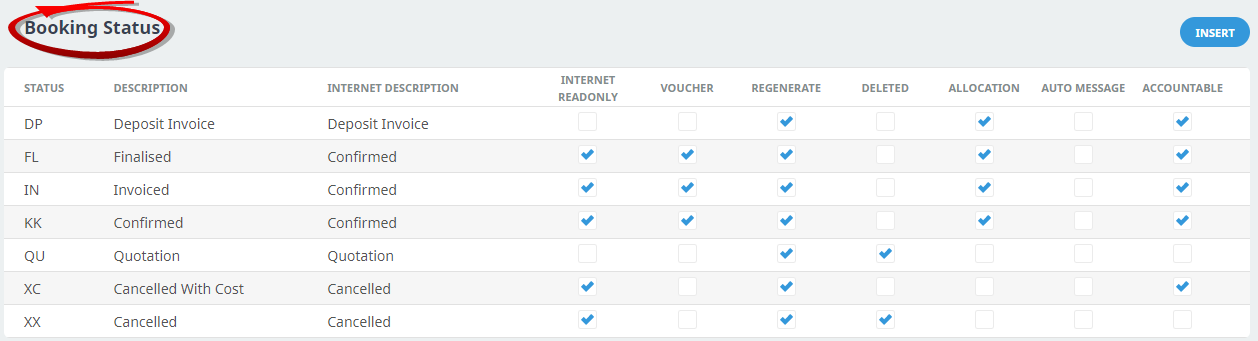
Remarks:
-
For audit-able booking entries, we suggest discussing if bookings/quotes can be deleted.
-
Identify the stages that the bookings pass through before deciding on how booking statuses are set up. There should be sufficient statuses set up to allow normal processing, and their descriptions should be a clear indication of what stage the booking is at. The status codes, descriptions and functions are user definable - they are set up by each user company depending on their method of operation. For example, a company that always asks for deposit payments would require some different status codes than a company that doesn’t require deposit payments.
-
Booking statuses are not changed automatically by the system - it is a manual task to ensure that the appropriate status is set at the correct stage of the booking.
See Booking Status for information on set up & configuration
Service Status Settings at Code Setup
Service Statuses have two main functions. First, within a booking service list, they offer a visual indication of the status of the service - Confirmed, On Request, Off Allotment etc. Second, they control (in conjunction with the Booking Status Codes) whether a service is accountable and is able to have a voucher generated or a supplier payment made.
Service Status Codes can have colours assigned to them so that services in a booking will display in the colour assigned to the status. A colour palette is provided to allow the user to set these up if required.
Service Statuses also play a role in Auto Messaging by determining which messages must be sent to suppliers. (See the relevant sections in the System Setup and Messaging User Manuals for further information.)
The functions that can be controlled are:
| Control | Allows |
|---|---|
| Voucher |
Check this box if services with this status can have vouchers created. The Service Status voucher checkbox works in conjunction with the Booking Status voucher checkbox. For a service to be able to have a voucher produced, the Service Status and the Booking Status must allow vouchers. When the Voucher check box is checked, the system recognises that the service is able to have creditors transactions applied and the service status records the services as a liability. This means that once a service in a booking has a booking status and a service status that allows vouchering, payments can be made to the supplier of the service, without a voucher necessarily being printed. This enables transactions such as advance deposits to suppliers to be made without the production of a physical voucher and will form part of the expected total in the Tour Financial Summary Report. |
| Allocation |
Check this box to allow services that have this status to take allocation, provided all other rules surrounding the allocation have been met. NOTE: If user companies are not using allocations and no supplier allocations are setup in Tourplan avoid checking this box for any service status. |
| Include in Total |
Check this box to determine if the value of a service with this service status is to be included in the total booking values. A service with a status attached that does not have the Include in Total box checked will be excluded from the booking total value. This could apply to, for example, Optional Sightseeing, Waitlisted services etc. |
PCM |
When checked, the service status will be able to be used in PCMs (Pre-costed Modules). There may be a requirement to show, for example, Optional Sightseeing services in a PCM, so a status can be tagged as being available in PCMs for this purpose. The treatment of the PCM service line status when inserting a PCM into a booking depends on whether the service status is included in the PCM/Booking total here in Code Setup:
NOTE: Additionally, there is a checkbox when inserting a PCM into a booking, allowing consultants to retain the PCMs Service Statuses on insert. |
Cancel Fees |
When checked, services with this status will qualify for any cancellation rules that may apply to the service. |
| Internet Status | If required select the appropriate HostConnect or WebConnect status related to this service status. |
| Internet Amend Remarks |
When this is checked the agent will be able to amend Pick-up/Drop-off and Remarks on HostConnect or WebConnect bookings. |
Relationship between booking/service status and hold allocation.
Service Status at Package Header and Package Service Lines
There are a number of configurations which need to be defined within the system when using PCM packages.
Settings:
-
Pre-Cost Module (Package Option segment) – Checkbox: “Take Service Allocation”. This setting is meant for the Package Service Lines not the Package Header Line.
-
Booking Status and Service Status applied to the booking when the Package Option is inserted into the Booking.
* The system checks both the Booking and Service Status settings to validate if the status has been set to 'Hold Allotment'
-
INI Settings for the Service Statuses to indicate if the service is Allocated (SERVICE_OK_STATUS) or On-Request (SERVICE_RQ_STATUS).
Relation between Service Status and Allocation:
A Service Status is applied automatically depending on the validation of the Allocation Availability.
-
The service status will be updated when saving the package depending on the INI setting for Allocated On-Request.
-
The Service Status assigned is based on the INI Setting for Allocated or On-Request.
-
The configurations settings listed above create rules for system validation and auto-allocation.
-
When the settings are not configured the validation will fail. Auto-allocation will not take place and the service status will not automatically update regardless of the Allotment availability.
-
When the settings are configured, the available allotment will automatically allocate and the service status will be updated. If no allotment is available then the service status will be updated to the previously defined On-Request status.
-
Relation between Take Service Allocation Setting and Service Status:
-
PCM - Package Option segment - Take Service Allocation = NO
-
Within the Package option insert screen, set the required status i.e. CA (allows Hold Allotment). Upon saving, the package services will have the same status as the header.
-
Auto allocation happens at the (header) package level; service options will not be individually checked while maintaining the same status CA.
-
-
PCM - Package Option segment - Take Service Allocation = YES
-
Within the Package option insert screen, set the status to the status required i.e. CA (allows Hold Allotment). Upon saving, the package header & services within the package will be checked. If allotments are available, auto allocation will take place, service lines are individually allocated and if allocation is confirmed the services will have status 'CA' or if unavailable an 'RQ' Status.
Service Status at Standard Service Insert
Settings:
-
Booking Status and Service Statuses applied to the booking when the Services are inserted into a booking.
*system checks both the Booking and Service Status settings to validate if the status has been set to allow Hold Allotment
-
INI Settings are configured for the Service Status workflow to indicate a service as Allocated or On-Request.
Relation between Service Status and Allocation:
-
Service Statuses are applied automatically depending on the validation against the Allocation Availability.
-
The service status can be updated to the same status prior to saving the package or a different status code after saving the Package Option (depending on the INI setting for Allocated On-Request).
-
The Service Status can be changed manually after it is saved.
INI Maintenance Settings - For Service Status
The Service Status assigned to the INI setting will be updated to the Booking Service Line depending on the allotment availability, once allotment auto-allocated SERVICE_OK_STATUS is applied. Otherwise, SERVICE_PA_STATUS or SERVICE_RQ_STATUS will be applied accordingly.
-
SERVICE_IT_STATUS - Initial Service Status
This acts like a trigger and will appear at the Booking New Service Insert screen. The Service Status set to this INI setting needs to allow “Hold Allocation” in order for the following INI settings to take effect.
-
SERVICE_OK_STATUS - Service Allocated OK Status
The Service Status set to this INI setting will be assigned to the Package Option or the Standard Service Option insert if there is allotment available and allocated to the package or standard service.
-
SERVICE_PA_STATUS - Service Partly Allocated Status
Similar to the SERVICE_OK_STATUS, this status to indicate the service is partially allocated.
-
SERVICE_RQ_STATUS - Service On Request Status
Similar to the SERVICE_OK_STATUS, this status to indicate the service is NOT Allocated.
NOTE: INI Settings only work when a Booking Status is applied during the Package / Standard Service insert and is assigned with a Booking Status which allows “Hold Allotment”. Otherwise, the default Service Status applied will be based on the SERVICE_IT_STATUS configuration.