
Loading interactive content…
There may be situations that you will need to do a bulk update of PCM Status.
Multiple PCMs are selected, and updated in bulk. The procedure below describes how to update multiple PCM Statues.
Bulk Update PCM Status
-
From the Home menu, select
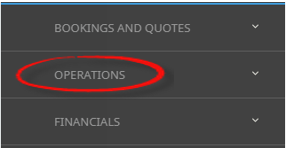
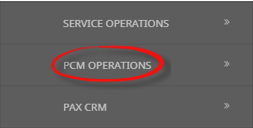
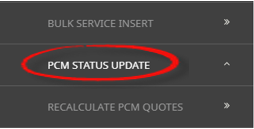
 Home > Operations > PCM Operations > PCM Status Update.
- Click the Home Menu to expand it:

- Click the Operations menu option to expand it:

- Click PCM Operations menu option to expand it:

- Click PCM Status Update to open the PCM Status Update screen:

- Click the Home Menu to expand it:
-
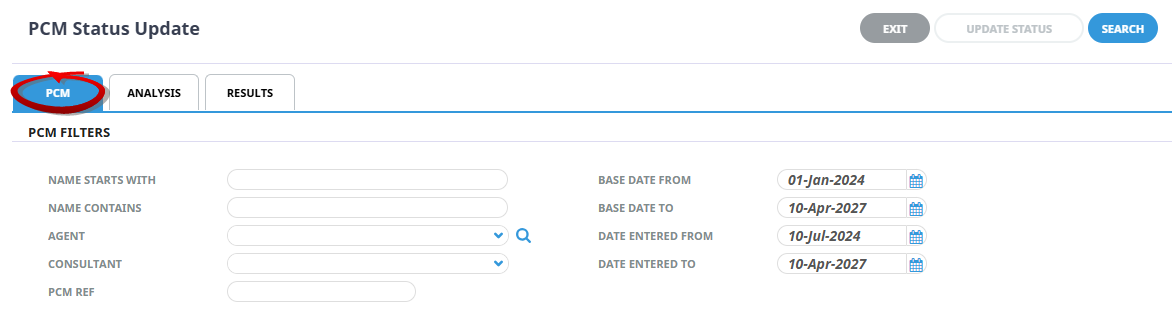
On the blankPCM Status Update screen, the PCM Tab will open, Complete the necessary fields in 'PCM Filters' section. You can amend the Base Date From/To, and Date Entered From/To fields to display results for a range of dates.
-
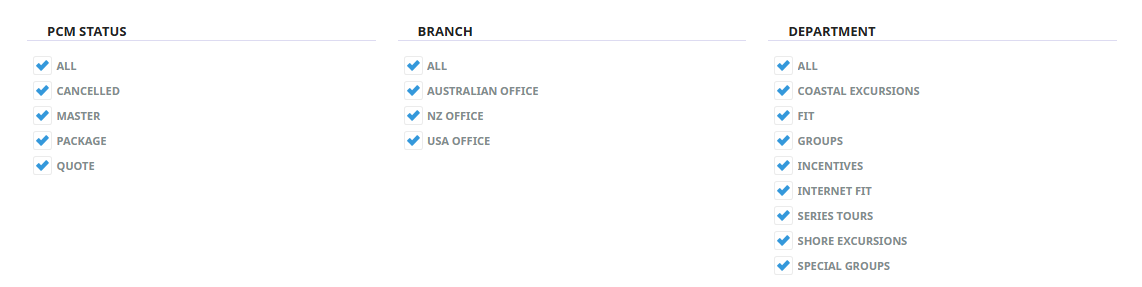
Keeping with thePCM Tab, PCMs can be filtered using 'PCM Status', 'Service Status', 'Branch' and or 'Department'. If applicable, select the required filters.
Filters used in this screen capture are examples used for Training purposes. Statuses, Branch and Department selection will reflect users own organisational fields.
-
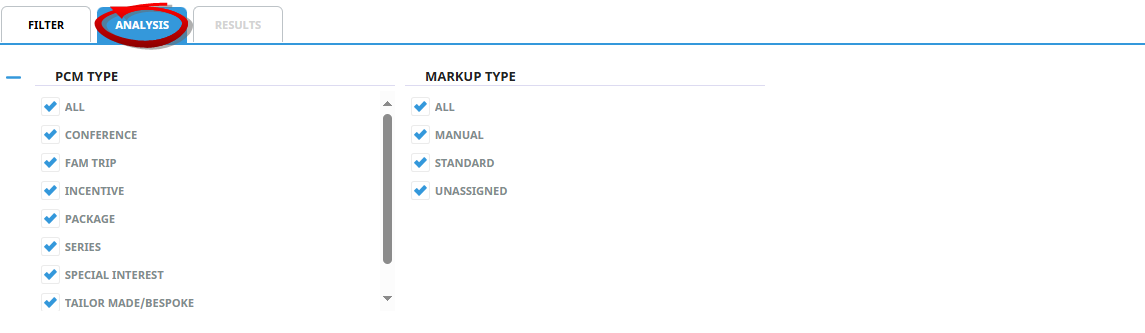
Click on theAnalysis Tab, selection of PCMs can also be made from 6 of the PCM Analysis Codes. If required select the applicable 'Analysis Codes'.
Analysis Codes used in this screen capture are examples used for Training. Analysis field headings and codes will reflect users own organisational fields.
- Check the completed screens.
-
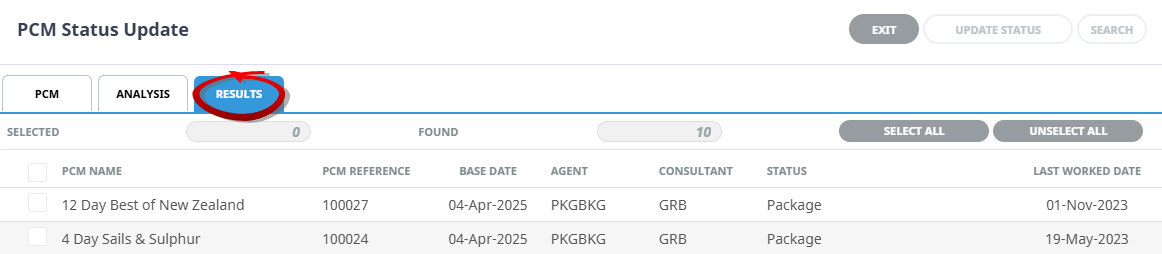
Click on theResults Tab. Select the PCMs using the 'Select check boxes' next to each PCM, or use 'Select All'.
NOTE: The Update Status button will become active when PCMs are selected.
-
To change the status, clickUpdate Status.

-
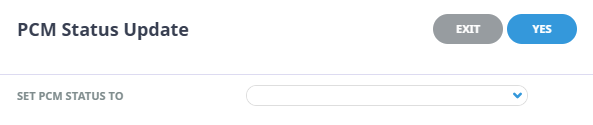
On the blankPCM Status Update screen, select the new Status to set the PCM Status to.
-
To keep the changes, clickYes.

-
ClickExit to discard any changes.

-
IfYes was selected a Summary will appear with the number of successful PCMs to be updated.

-
ClickOK to exit the modal.

-
The PCM Status Update Results Tab will re-display select Exit to close.

About PCM Status Update Fields
Name Starts With
This field will be empty, if the PCM name is known, you can enter it here.
Name Contains
As with Name Starts With, this field will be empty, This is a string search facility, i.e. it will find PCMs matching any combination of consecutive characters entered in the field, regardless of where in the PCM name the string occurs.
Agent
Selecting an agent will limit the filter results to only PCMs for that agent.
Consultant
Selecting a consultant code and consultant name will limit the results to PCMs for that consultant.
PCM Ref
Used to select a specific PCM Reference.
Base Date From/To
Base Date for PCMs is the date that appears in the header of a PCM Quote or PCM Package this is generally the date of the first service. This date range field is used to select PCMs with a specific date or fall within a range of Base Dates.
Date Entered From/To
This is the date the PCM Quote or PCM Package was created. If selection for a range of dates is entered here Pick up and Drop off details for PCMs that were created within the date range provided will display in the results screen.
PCM Status
By default, all PCM statuses are checked, PCMs can be filtered by selecting / deselecting the required PCM status code in the Multi Select List box. Un-check statuses that are not required.
Branch
By default, all PCM Branches are checked, if only PCMs with specific Branch(s) need to have the PCM Status Updated, check the appropriate box(es).
Department
By default, all PCM Departments are checked, if only PCM's with specific Department(s) need to have the PCM Status Updated, check the appropriate box(es).
Analysis Tab (PCM Analysis)
PCM Analysis
The rows on this tab are the 6 PCM Analysis codes.
NOTE: The label descriptions and analysis selections used within this User Manual will vary and will display what has been setup in each user company's system.
Results Tab
Selected check boxes
PCMs can be individually selected.
Select All/Unselect All
Select all PCM's found, or un-select all PCM's selected.
Selected
The cell to the right of this heading will provide you with the number of PCMs that have been selected.
Found
The system will provide you with the number of PCMs found, matching the filter criteria.
Column Headings
Users can customise their column headings by clicking on the header row, or can amend the order of results by clicking on the field heading, see About Changing Default Column Headings.
NOTE: The data can be sorted by any column by double clicking the column header. The order can then be reversed by double clicking the column header again.
Summary
A summary of the PCMs processed is displayed to inform users of successful Status Updates. Additional tabs highlight PCMs that require further attention to update their status or indicate if an error has occurred.
Summary Modal displays three tabs:
-
Successful - where the total number of processed PCMs is displayed in the bottom left corner of the Modal. The number of PCM successfully updated displays next to the tab heading, and a list of PCMs is shown, including the PCM Name, Consultant, Reference, and Base Date.
-
Errors Encountered - where the number of PCMs which encountered errors displays next to the tab heading, and a list of PCMs is shown, including the PCM Name, Consultant, Reference, Base Date, Rate Status, and a Message column indicating the error.