Booking Operations
All column headings are now visible when screen scrolling is activated.
Substitute Service Columns
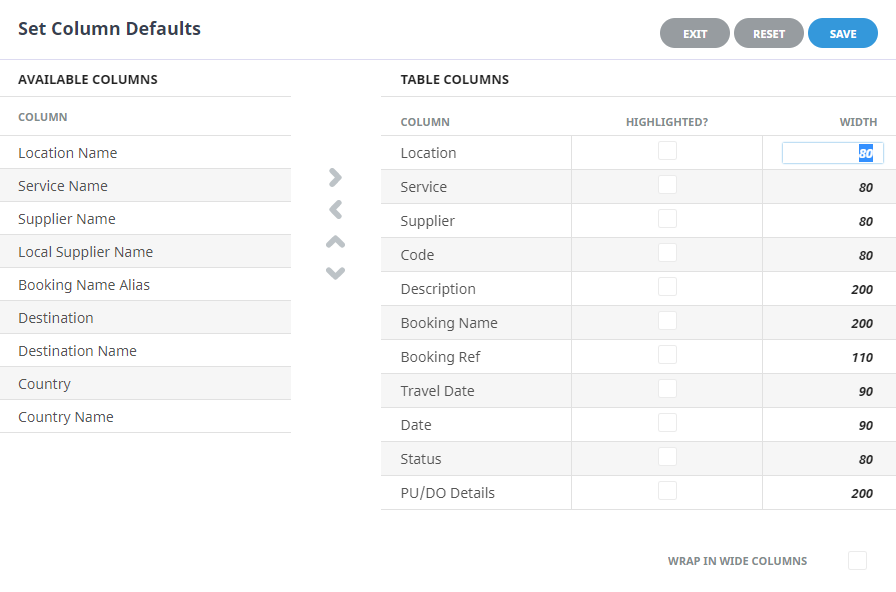
In the example below the default Location, Service, Supplier, Code, Description, Booking Name, Booking Ref, Travel Date, Date and Status headings are showing.

Users can click outside of the column headings within the header line to set column defaults. When the Set Column Defaults form appears, columns can be moved from the Available Columns list to the Table Columns list. Columns with the Highlighted checkbox selected will display the column information in bold, and column widths can be customised depending on user requirements.
Book On Columns
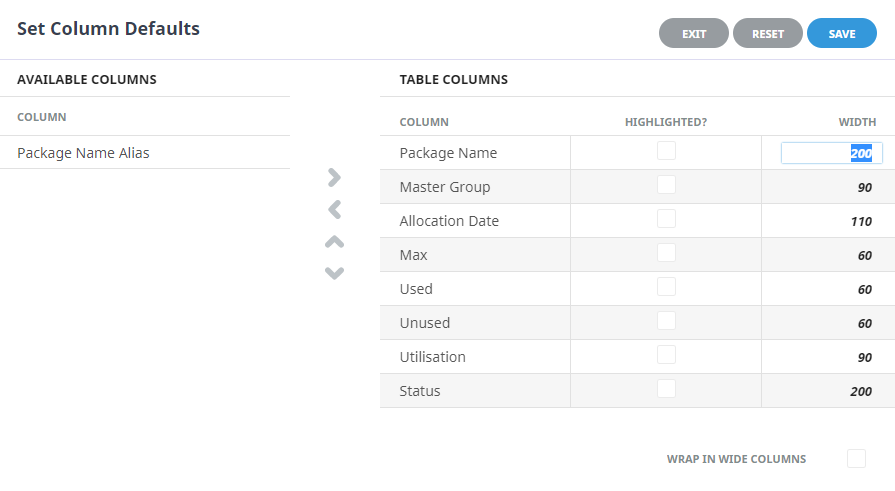
In the example below the default Package Name, Master Group, Allocation Date, Max, Used, Unused, Utilisation and Status headings are showing.

Users can click outside of the column headings within the header line to set column defaults. When the Set Column Defaults form appears, columns can be moved from the Available Columns list to the Table Columns list. Columns with the Highlighted checkbox selected will display the column information in bold, and column widths can be customised depending on user requirements.
| Column Heading | Description |
|---|---|
| *Package Name | The package (PCM) name. |
| *Master Group | The group booking reference. |
| *Allocation Date |
The package departure date (Allocation date). |
| *Max | The maximum number of spaces on the package as set up in the allocation. |
| *Used | The number of spaces (pax) booked on the package. |
| *Unused | The number of spaces left on the package. |
| *Utilisation | percentage of space used on the package. |
| *Status |
The status of the package in relation to the Group booking that will operate the package. Possible statuses are:
|
| Package Name Alias | The alternative (PCM) package name (if used). |
iCOM Activity Columns
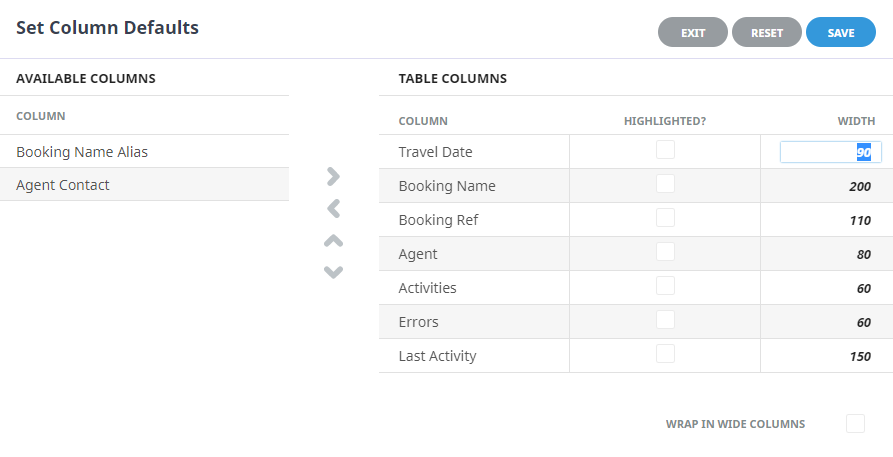
In the example below the default Travel Date, Booking Name, Booking Ref, Agent, Activities, Errors and Last Activity headings are showing.

Users can click outside of the column headings within the header line to set column defaults. When the Set Column Defaults form appears, columns can be moved from the Available Columns list to the Table Columns list. Columns with the Highlighted checkbox selected will display the column information in bold, and column widths can be customised depending on user requirements.
| Column Heading | Description |
|---|---|
| * Travel Date | Booking Travel Date. |
| * Booking Name | Booking Name. |
| * Booking Ref | Full booking reference of booking. With Branch/Department and numerical code. |
| * Agent | Agent/Debtor Code. |
| * Activities | |
| * Errors | Reported errors noted. |
| * Last Activity | Date of last activity. |
| Booking Name Alias | The booking name alias, if alias field is used. |
| Agent Contact | Agent contact name. |
Email Management Columns

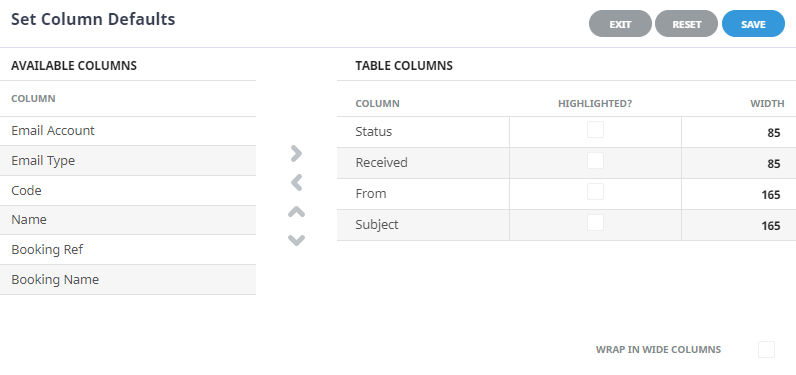
Queue Management Columns
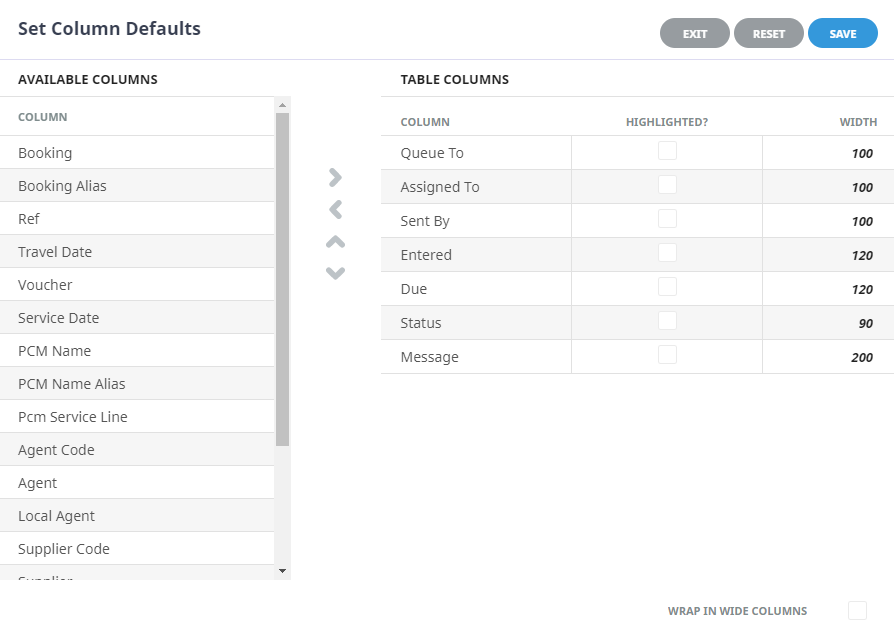
In the example below the default Queue To, Assigned To, Sent By, Entered, Due, Status and Message are showing.

Users can click outside of the column headings within the header line to set column defaults. When the Set Column Defaults form appears, columns can be moved from the Available Columns list to the Table Columns list. Columns with the Highlighted checkbox selected will display the column information in bold, and column widths can be customised depending on user requirements.
| Column Heading | Description |
|---|---|
| * Queue To | User or Group queue the message was assigned to. |
| * Entered | Date message entered. |
| * Due | Message due date. |
| * Status | Message status. |
| * Message |
Message text. |
| Booking | Booking Name. |
| Booking Alias | Booking Name Alias. |
| Ref | Booking Reference. |
| Travel Date | Travel Date of Booking. |
| Booking Consultant | Booking Consultant Initials. |
| Booking Consultant Name | Booking Consultant Name. |
| Voucher | Voucher Number. |
| Service Date | Service Line Service Date. |
| PCM Name | PCM Name. |
| PCM Consultant | PCM Consultant Initial. |
| PCM Consultant Name | PCM Consultant Name. |
| PCM Service Line | PCM Service Line. |
| Agent Code | Booking Agent Code. |
| Agent | Booking Agent Name. |
| Supplier Code | Supplier Code. |
| Supplier | Supplier Name. |
| Def. Code | Queue Definition Code. |
| Def. Name | Queue Definition Name. |
| Scope | Queue Scope. (Agent, Booking, Booking Service Line, General, PCM, PCM Service Line, Supplier or User). |
Recalculate All Bookings Columns
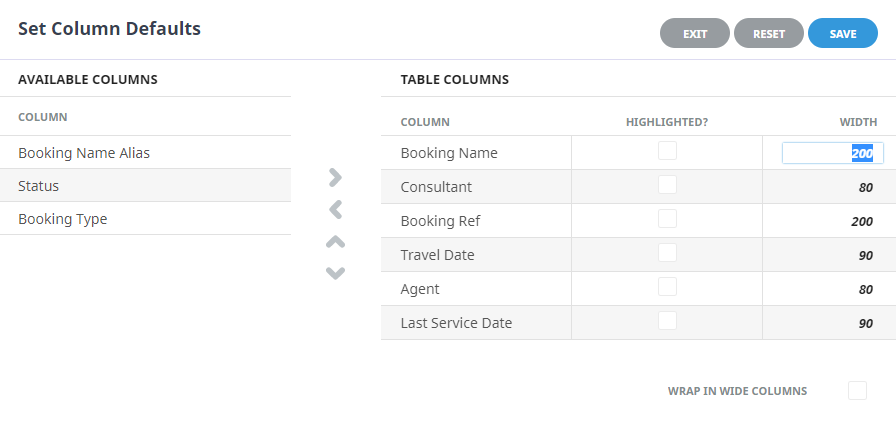
In the example below the default Booking Name, Consultant, Booking Ref, Travel Date, Agent and Last Service Date headings are showing.

Users can click outside of the column headings within the header line to set column defaults. When the Set Column Defaults form appears, columns can be moved from the Available Columns list to the Table Columns list. Columns with the Highlighted checkbox selected will display the column information in bold, and column widths can be customised depending on user requirements.
Recalculate All PCM Quotes Columns
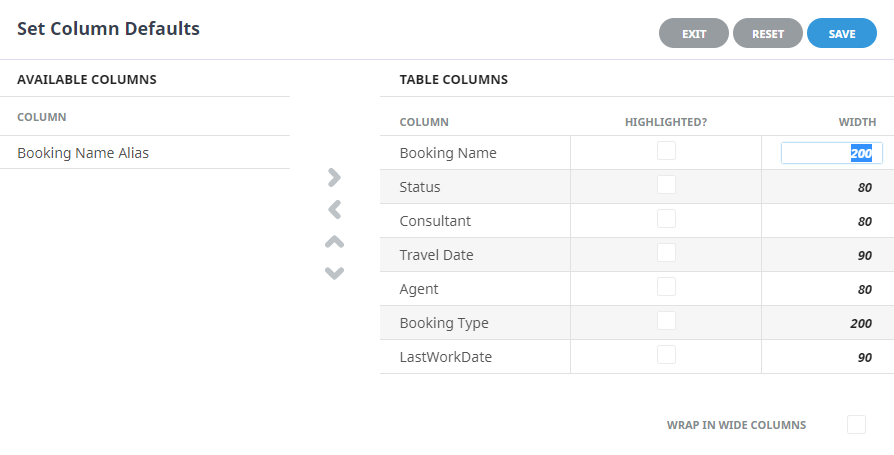
In the example below the default Booking Name, Consultant, Travel Date, Agent and Last Work Date headings are showing.

Users can click outside of the column headings within the header line to set column defaults. When the Set Column Defaults form appears, columns can be moved from the Available Columns list to the Table Columns list. Columns with the Highlighted checkbox selected will display the column information in bold, and column widths can be customised depending on user requirements.
Recalculate All Services Columns
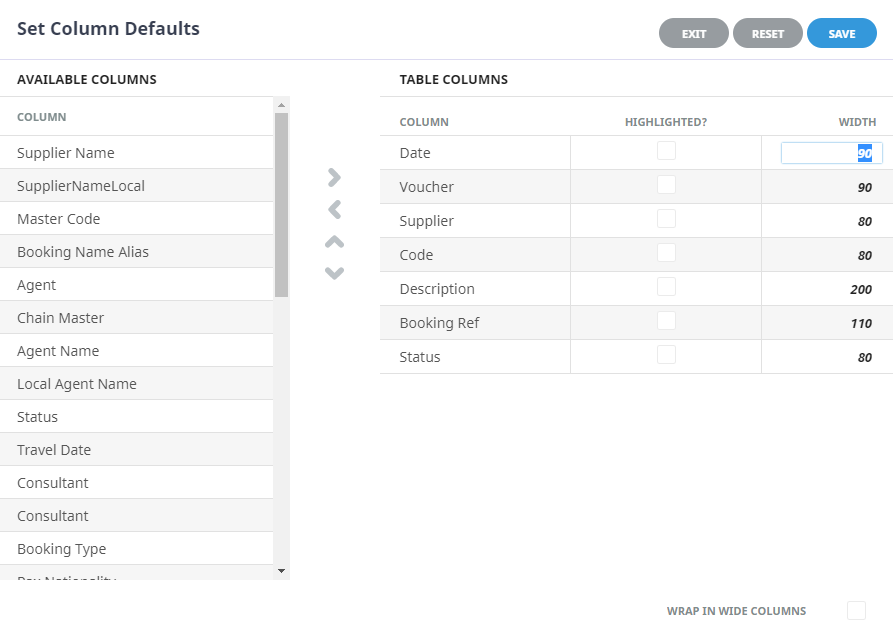
In the example below the default Date, Voucher, Supplier, Code, Description, Booking Ref and Status headings are showing.

Users can click outside of the column headings within the header line to set column defaults. When the Set Column Defaults form appears, columns can be moved from the Available Columns list to the Table Columns list. Columns with the Highlighted checkbox selected will display the column information in bold, and column widths can be customised depending on user requirements.