
Loading interactive content…
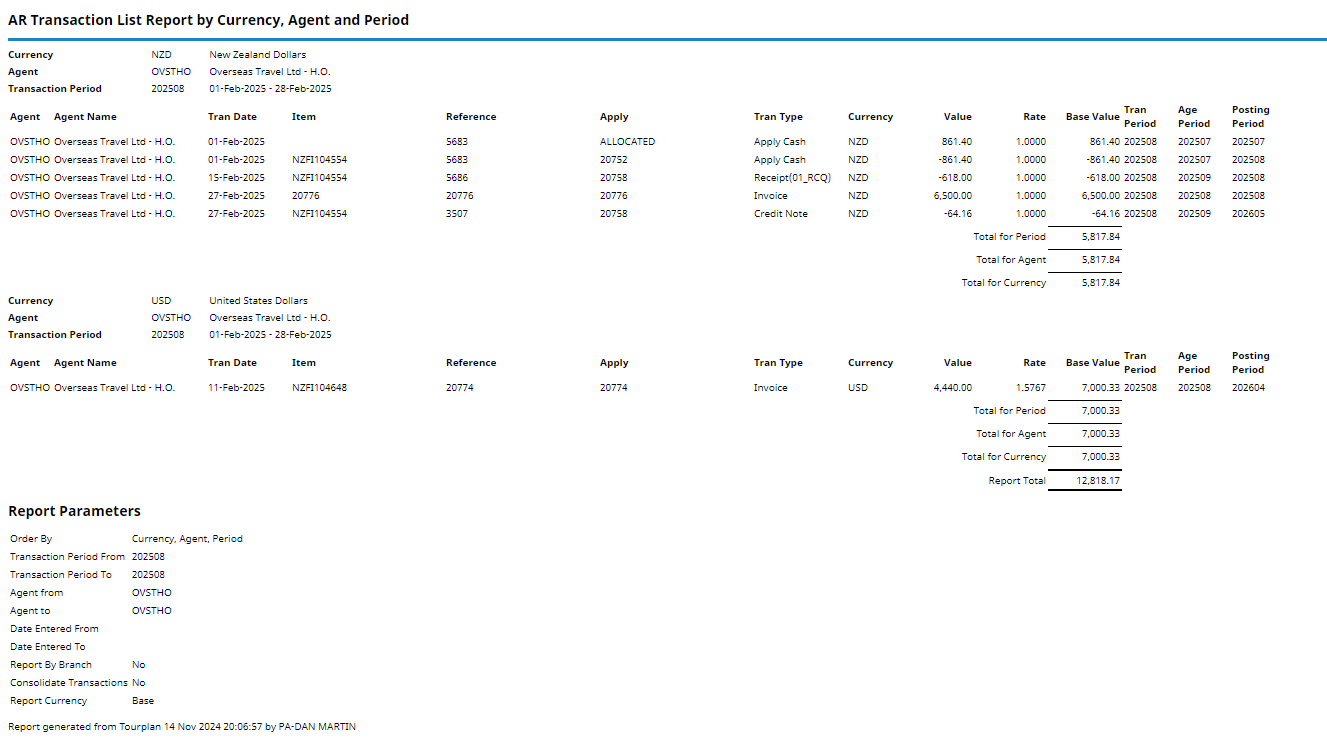
The Debtor Transaction List reports transactions raised in selected period(s).
By default the transactions are totalled by Period, and by Debtor.
The report includes:
- The booking reference and values in both the transaction and base currencies.
- The Transaction Periods - the period of the transaction, the age period and the posting period.
When the report is output to View, PDF or CSV the information available within the report is:
- Agent (Code).
- Agent Name.
- Tran(saction) Date.
- Item - This is the Booking Reference (for Booking related transactions), or the original invoice number (for non booking transactions).
- (Transaction) Reference.
- Apply (Reference).
- For Invoices this will be the same as the Transaction Reference.
- For Receipts and Credit Notes it will be the reference that the receipt or credit note has been applied against.
- Tran Type - The type of transaction (Invoice, Credit Note Receipt).
- Currency.
- Value - The transaction amount in the currency of the previous column.
- Rate - The exchange rate between the transaction currency and base currency.
- Base Value - The amount in base currency.
- Tran Period - The transaction period, i.e. the period in which the transaction was created (dependant on system settings).
- Age Period - The period into which the transaction will age (dependant on system settings).
- Posting Period - The period in the General Ledger to which the transaction will post (dependant on system settings).
Data can be ordered by specific options, and order by settings are selected within the 'Other' Tab.
Generating a Debtor Transaction List Report
-
From the Home menu, select
 Home > Reports > Financial Reports > Debtor Transaction List.
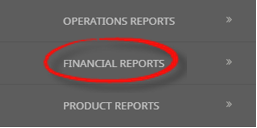
- Click the Reports menu to expand it:

- Click the Financial Reports menu option to expand it:

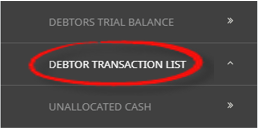
- Click Debtor Transaction List to go to the Debtor Transaction List Parameters screen:

- Click the Reports menu to expand it:
-
On the blank Debtor Transaction List Parameters screen, the Accounting Tab will open. Select the required parameters for the Debtor Transaction List Report.
NOTE: There are 2 tabs available to select parameters from. These are the Accounting Tab and the Analysis Tab (Agent).
- Check the completed screens.
- Click on the Other Tab. Select how the results are to be ordered and filtered in the report from the dropdown selections or checkboxes available.
- Select how the report is to display.
-
To view the report, clickView.

-
To Download the report to a PDF file, clickDownload PDF.

-
To Download the report to a CSV file, clickDownload CSV.


About Debtor Transaction List Parameter Fields
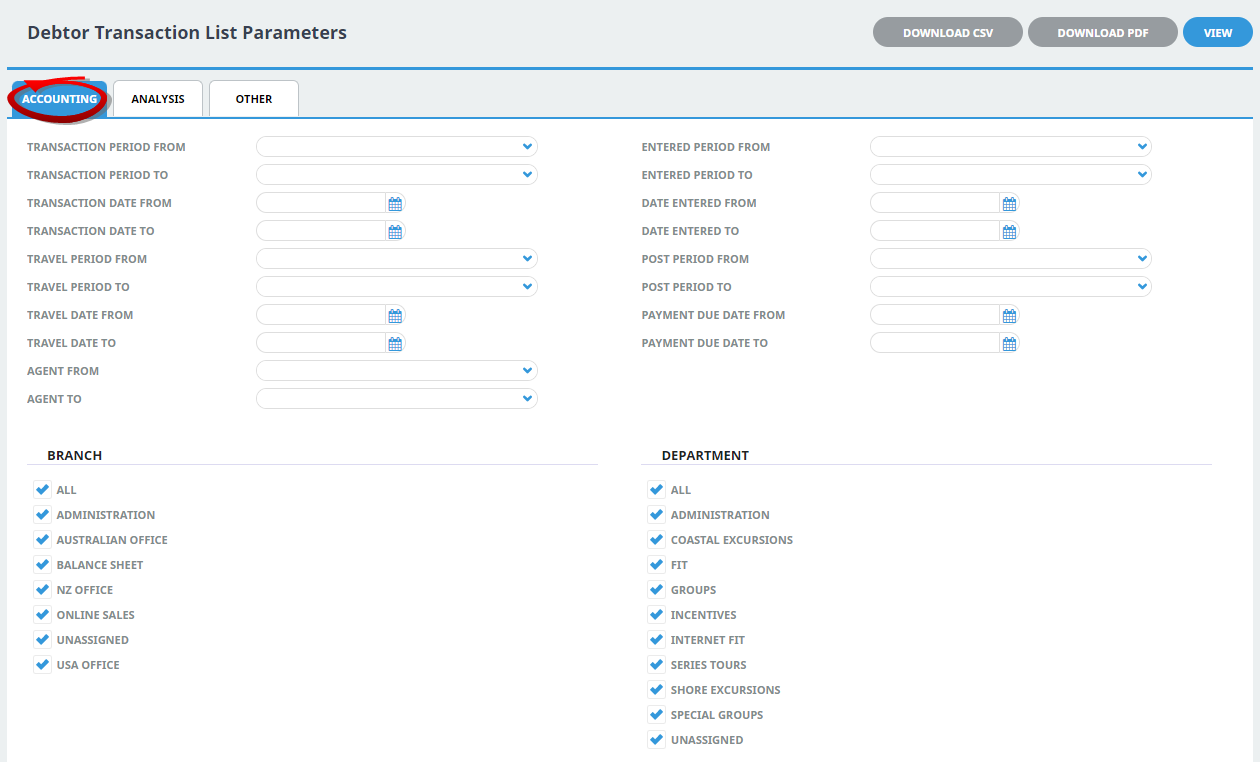
Transaction Period From/To
A specific transaction period or range of transaction periods can be selected.
Transaction Date From/To
The transaction date (or range of).
Travel Period From/To
Travel date within a financial accounting period (or range of).
Travel Date From/To
The travel date (or range of).
Agent From/To
The report can be based on a specific agent (or range of) using the dropdown selection.
Entered Period From/To
Transactions entered within a financial period (or range of).
Date Entered From/To
Booking header date entered (or range of).
Post Period From/To
Transactions posting within a financial accounting period (or range of).
Payment Due Date From/To
Debtor payment due date (or range of).
Branch
Multi select options for available (transaction) branches.
Department
Multi select options for available (transaction) departments.
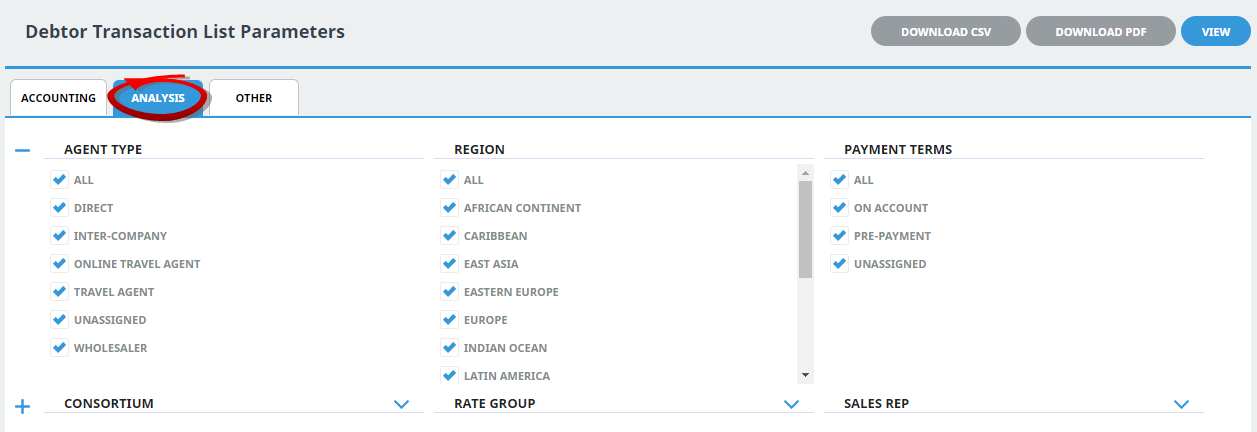
Analysis Codes 1-6
Multi select list of Debtor analysis codes can be used to refine the report if necessary. To expand the fields use the +, and to minimise the analysis list use the -.
NOTE: Analysis codes in the above screen capture are used for training purposes. User company systems will have analysis fields and codes unique to their organisational requirements.
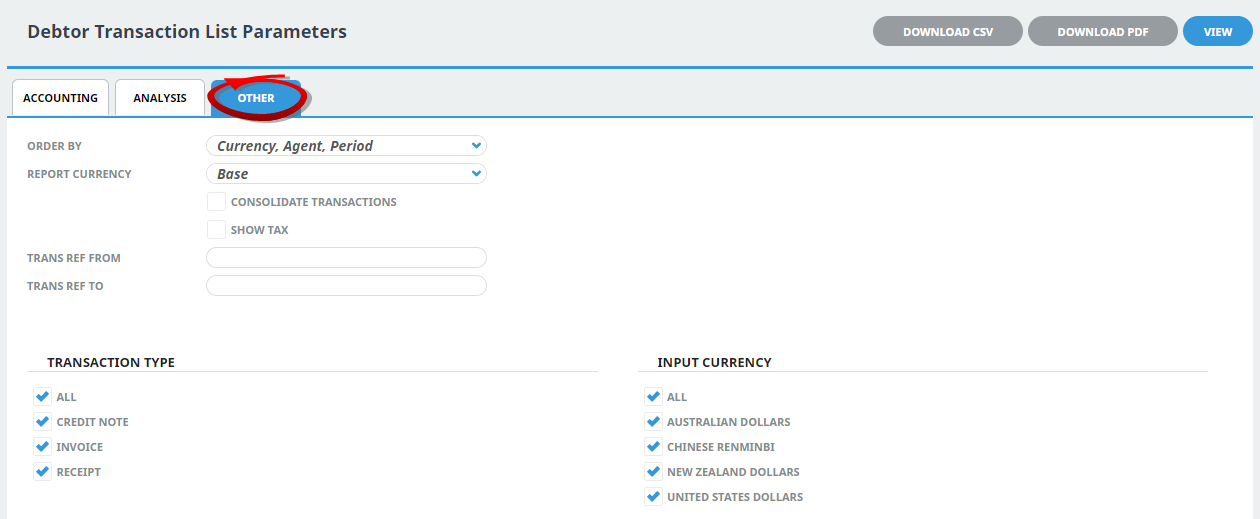
Order By
Reports can be ordered by:
- Currency, Agent, Period (Default).
- Currency, Period, Agent.
- Agent, Period.
- Period, Agent.
- (Transaction) Reference.
- Booking Reference.
- Transaction Type.
Report Currency
Selection of Base, Branch or Foreign can be used to produce report in a particular currency (base is the default).
Consolidate Transactions
Checkbox. When selected, this will consolidate the transactions to a total for each, rather than show the constituent components. An example is a receipt applied to multiple invoices will consolidate to the receipt total in one line rather than each component of the receipt displaying. The Transaction, Age and Post periods do not display in a consolidated report since they could be different for the individual transaction components.
Show Tax
Checkbox. When selected, an additional Tax column displays (between the Value and Rate columns) which displays the tax amount of each transaction.
Transaction Ref From/To
To report a range of specific transactions, enter the transaction reference numbers from/to.
Transaction Type
Multi select options for available transaction type.
Input Currency
Multi select options for available (transaction line) input currency.