
Loading interactive content…
Service Statuses have two main functions. First, within a booking service list, they offer a visual indication of the status of the service — Confirmed, On Request, Off Allotment etc.; second, they control (in conjunction with the booking status codes) whether a service is accountable and is able to have a voucher generated or a supplier payment made.
NOTE: Although the screen labels use the word voucher, it does not mean that vouchers must be physically printed. It is perhaps more accurate to describe Voucher as the service being made an accountable entity — i.e., a payment can be made to the supplier, regardless of whether a voucher has been printed or not.
Service Status Codes can have colours assigned to them so that services in a booking will display in the colour assigned to the status. A colour palette is provided to set a colour if required and an INI Setting > System > SHOW_SERVICE_COLOURS set to Yes will activate the service status colours to show in bookings.
Service statuses also play a role in auto messaging by determining which messages must be sent to suppliers.
Create Service Status
-
From the Home menu, select
 Home > System > Code Setup.
- Click the Home menu to expand it:

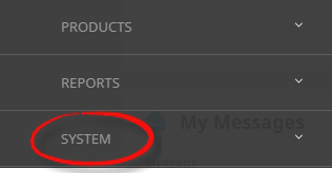
- Click the System menu option to expand it:

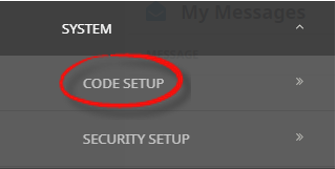
- Click Code Setup to go to the Code Setup menu:

- Click the Home menu to expand it:
-
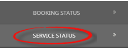
From the Code Setup menu, selectCode Setup > Bookings > Service Status.
- Click the Code Setup Menu to expand it:

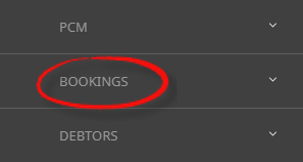
- Click the Bookings menu option to expand it:

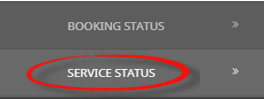
- Click Service Status to open the Service Status screen:
- Click the Code Setup Menu to expand it:
-
If the Service Status Code that you want is not already in the list, clickInsert.

-
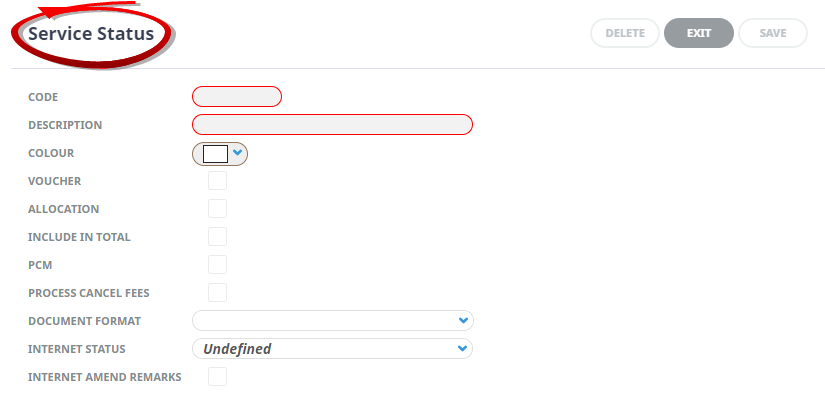
On the blankService Status screen, enter a Code and Description for the status (mandatory), select a colour and check any Functions Allowed for this Status.
-
ClickSave and verify the new code appears in the list of booking status codes.



About Service Status Fields
Code
A 2 character code for the Service Status.
Description
A descriptive field for the Service Status description, this field allows up to 20 characters.
Colour
Clicking the dropdown selection for this field will open a colour palette, a colour can be attached to the Service Status. This is the colour that will display in the booking service list.
Basic colours can be selected by clicking in the basic colours section at the left of the palette. A primary colour can be set by clicking in the main palette and the side scroll up or down until the desired shade is reached.
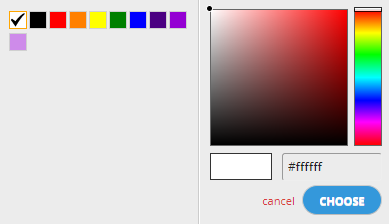
Alternatively the HTML hex colour code can be inserted into the field above the choose button. Further information on hex colours can be found at the begining of the System Setup User Manual within INI Settings Field Headings > Colours
Voucher
Check this box if services with this status can have vouchers created. The Service Status voucher checkbox works in conjunction with the Booking Status voucher checkbox. For a service to be able to have a voucher produced, the Service Status and the Booking Status must allow vouchers. When the Voucher check box is checked, the system recognises that the service is able to have creditors transactions applied and the service status records the services as a liability. This means that once a service in a booking has a booking status and a service status that allows vouchering, payments can be made to the supplier of the service, without a voucher necessarily being printed. This enables transactions such as advance deposits to suppliers to be made without the production of a physical voucher and will form part of the expected total in the Tour Financial Summary Report.
Allocation
Check this box to allow services that have this status to take allocation, provided all other rules surrounding the allocation have been met.
NOTE: If user companies are not using allocations and no supplier allocations are setup in Tourplan avoid checking this box for any service status.
Include in Total
Check this box to determine if the value of a service with this service status is to be included in the total booking values. A service with a status attached that does not have the Include in Total box checked will be excluded from the booking total value. This could apply to, for example, Optional Sightseeing, Waitlisted services etc.
PCM
When checked, the service status will be able to be used in PCMs (Pre-costed Modules). There may be a requirement to show, for example, Optional Sightseeing services in a PCM, so a status can be tagged as being available in PCMs for this purpose.
If the service status is not included in the total, it will remain the same in the booking as it is in the PCM.
If the service status is included in the total, the service is treated as if it’s being added for the first time. The status is reset to its initial value, and the appropriate automessaging and allocation checks are triggered.
NOTE: Additionally, there is a checkbox when inserting a PCM into a booking, allowing consultants to retain the PCMs Service Statuses on insert.
Cancel Fees
When checked, services with this status will qualify for any cancellation rules that may apply to the service.
Document Format
If Auto Messaging is turned on, the user will see a Document Format field selection for a message to be attached to the service status.
Internet Status
If required select the appropriate HostConnect or WebConnect status related to this service status.
Internet Amend Remarks
When this is checked the agent will be able to amend Pick-up/Drop-off and Remarks on HostConnect or WebConnect bookings.