
Loading interactive content…
The button map can be used to link a service button to specific Destinations, Locations and Service Types. In the HostConnect web page, service searches can be performed based on a destination.
NOTE: If Button Mapping is going to be used, it is recommended that the local Tourplan Support Office be contacted for advice before commencing.
If specific mappings are required, then it is necessary to set up a mapping for each location, and each service code that is available to iCom.
Insert Button Maps
-
From the Home menu, select
 Home > System > Code Setup.
- Click the Home menu to expand it:

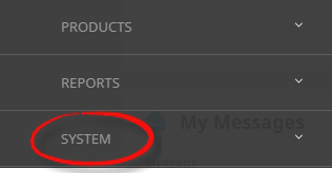
- Click the System menu option to expand it:

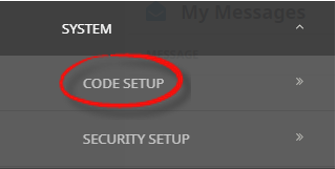
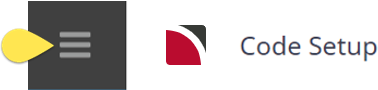
- Click Code Setup to go to the Code Setup menu:

- Click the Home menu to expand it:
-
From the Code Setup menu, selectICOM > Button Map.
- Click the Code Setup menu to expand it:
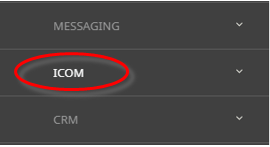
- Click ICOM to expand the ICOM menu:

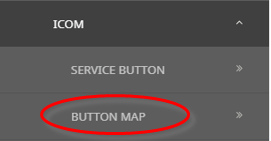
- Click Button Map to open the Button Map screen:

- Click the Code Setup menu to expand it:
-
On theButton Map screen, if the Button that you want is not already in the list, click Insert.

-
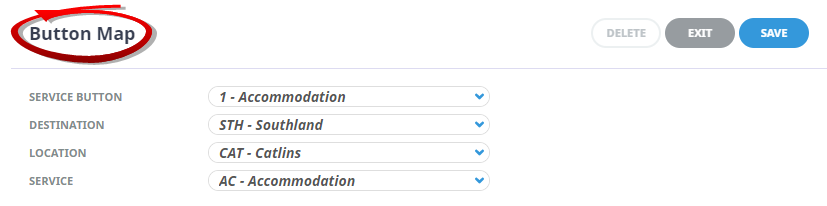
On the blankButton Map select a Service Button, Destination, Location and Service Type.
-
ClickSave to keep the changes.

-
ClickExit to discard any changes.


About Button Map Fields
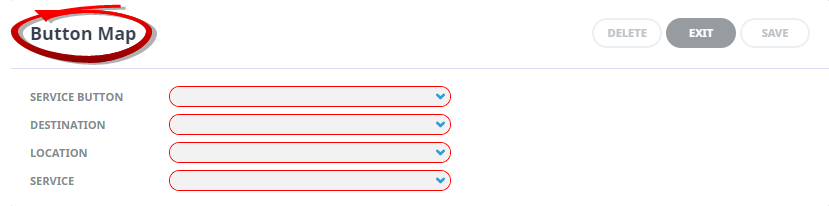
Service Button
Selection of pre-defined service buttons is required to map the destination, location and service type to the service button.
Destination
Selection of pre-defined destinations to be associated with the service button, location and service type. For information on setting up destinations, refer to Destination in the System Setup User Manual.
Location
Selection of pre-defined locations to be associated with the service button, destination and service type. For information on setting up locations, refer to Location in the System Setup User Manual.
Service
Selection of pre-defined service code to be associated with the service button, location and destination. For information on setting up services, refer to Service in the System Setup User Manual.