
Loading interactive content…
Product Change History Explained
What is the product change history?
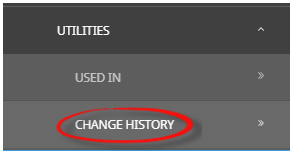
A complete history of all product changes performed within Tourplan NX can be viewed through a tool called 'Change History'. When enabled this can be accessed via the Product > Utilities menu.
NOTE: Organisations interested in the change history feature should be aware that recording ALL product change activity with Tourplan NX will result in a significant increase in data storage requirements. We advise discussing this feature with your local Tourplan support office prior to implementing.
This white paper will explain…
-
How product change history works.
-
How to enable product change history.
Overview
When a new product is created in Tourplan NX, it creates a product structure within the system. These structures can vary in complexity as they are made up of various elements such as locations, types, amenities, pricing, pax breaks, etc.
With change history enabled, product amendments are re-recorded and categorised, providing a direct data comparison between the previous 'old' and 'new' product values.
Product change history displays a summary line of recorded changes allowing users to view when the change was made, who made the change, and a summary of the type of the change.
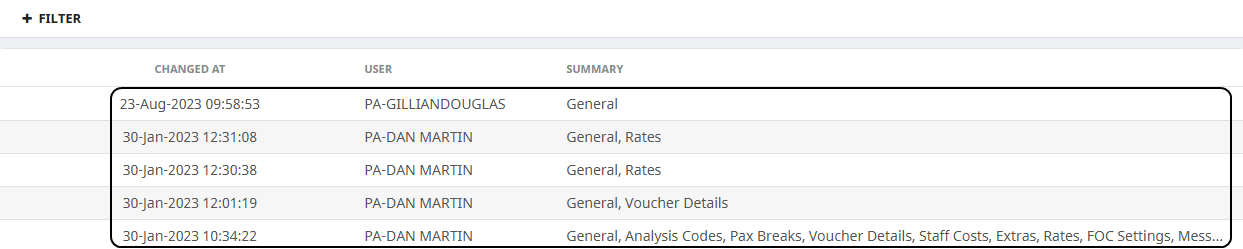
Selecting a summary line provides direct comparisons i.e. the new values vs the old.
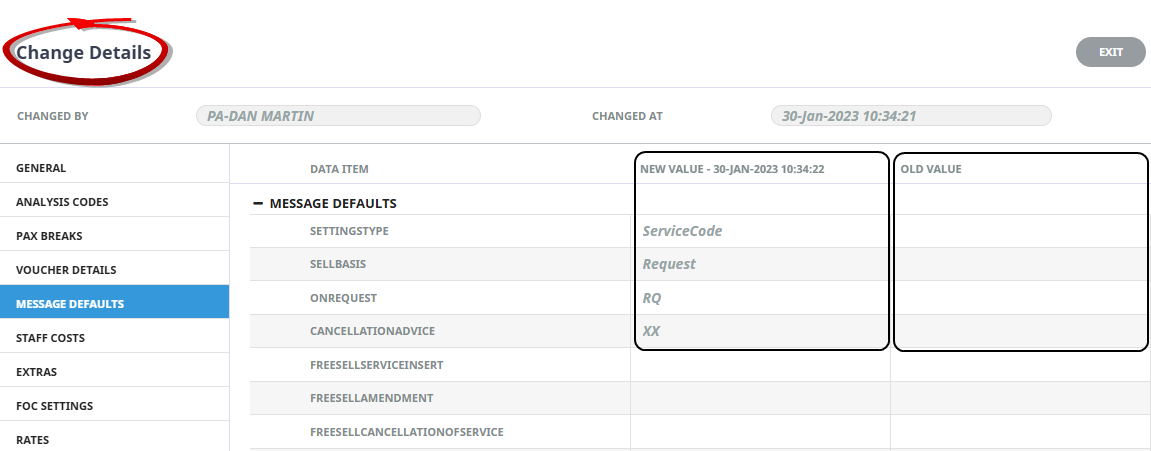
NOTE: When change history is enabled, there will be no comparison structure available for existing products. The first edit will create theis structure and all product data will appear to have been changed.
Enabling Product Change History
To view the Product Change History menu enable two features:
-
INI Setting to turn the feature on.
-
Appropriate security levels provided to users (or groups of users) to View Change History.
INI Settings
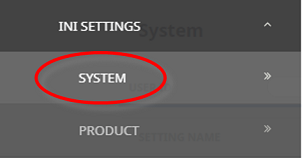
Before the product change history can be seen, the functionality must first be enabled within Code Setup > INI Settings > System.
Inserting A Product Auditing INI Setting
-
From the Home menu, select
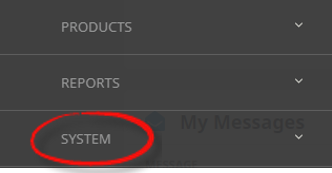
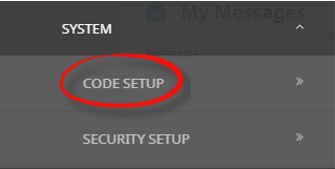
 Home > System > Code Setup.
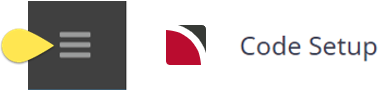
- Click the Home menu to expand it:

- Click the System menu option to expand it:

- Click Code Setup to go to the Code Setup menu:

- Click the Home menu to expand it:
-
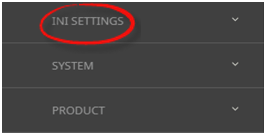
From the Code Setup menu, selectINI Settings > System.
- Click the Code Setup menu to expand it:
- Click INI Settings to expand the INI Settings menu:

- Click System to open the System INI Settings screen:

- Click the Code Setup menu to expand it:
-
On theSystem screen, if the INI Setting that you want is not already in the list, click Insert.

-
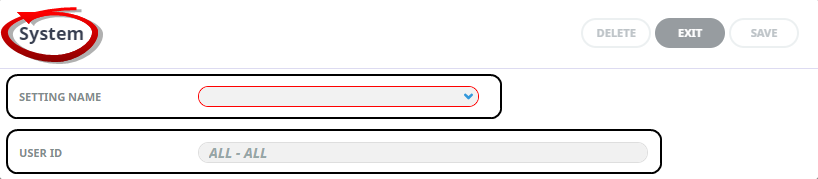
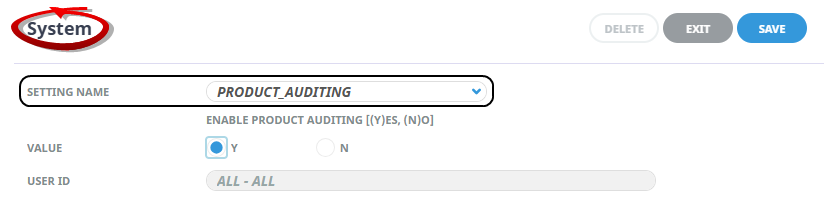
In theSystem screen, select a Setting Name and User ID.
-
ClickSave to keep the changes.

-
ClickExit to discard any changes.


Select the PRODUCT_AUDITING Setting Name, which is a Yes/No choice applied to All (User IDs).
NOTE: The INI settings application is available for users with sufficient system permissions within Tourplan NX. Configuration should be done in consultation with a Tourplan System Administrator.
Securities
As with other applications within Tourplan NX, access to the required user or groups of users is granted via Security settings within the System > Security Setup menu. Once (Product) View Change History System function is enabled, all users provided with access will see Change History as a Product menu item under Utilities.
NOTE: The Security Settings application is available for users with sufficient system permissions within Tourplan NX. Configuration should be done in consultation with a Tourplan System Administrator.
For more information on Product Auditing, click the link to learn more about Product Change History.