
Loading interactive content…
Package Product Not Found
Why can't the package product be found?
In Tourplan, the system validates the rates when attaching the package product to a PCM Package setup. There are various possibilities as to why the search results may not find the Package product.
Including:
Work through the list of procedures below to ensure all settings are in order.
Invalid Rate Period
-
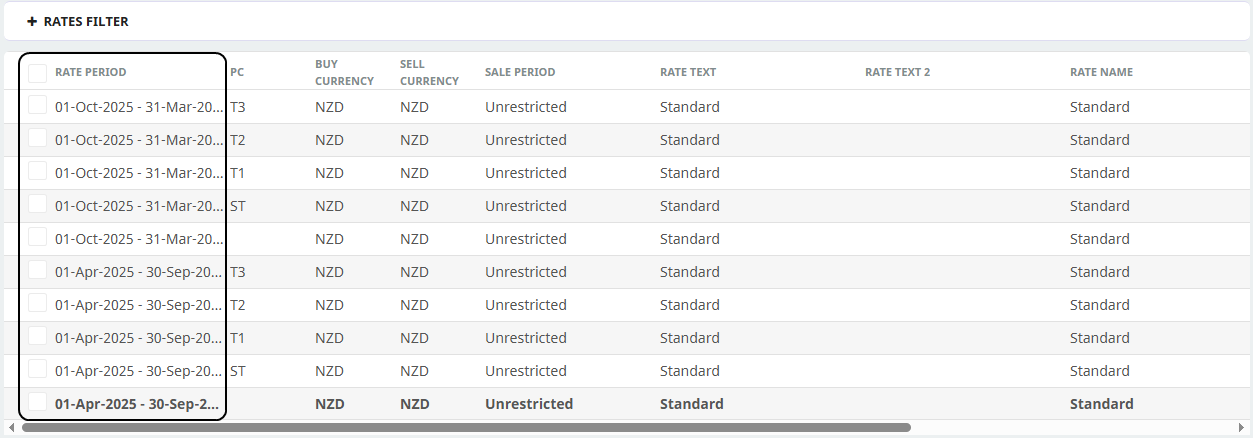
Open the Package Product > Rates menu.
-
Check that there is a valid
 Rate Period entered for the dates of your package.
-
If there is a valid rate period entered into the Package Product Setup the PCM PackageBase Date must fall within the package product rate period.

-
Agent Price Code
-
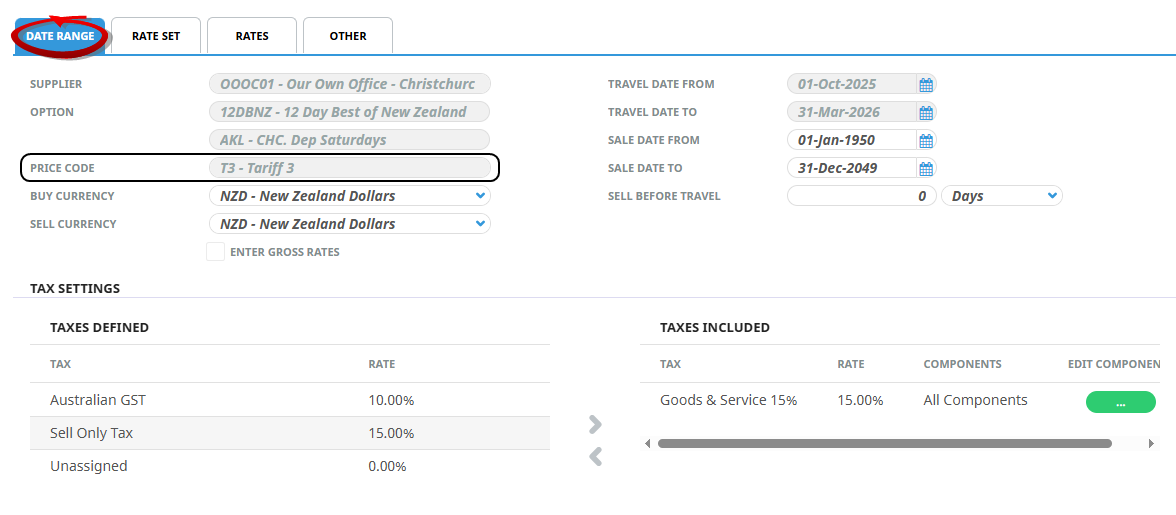
Open the Package Product > Rates menu.
-
Select theDate Range tab to see if a Price Code is used.
-
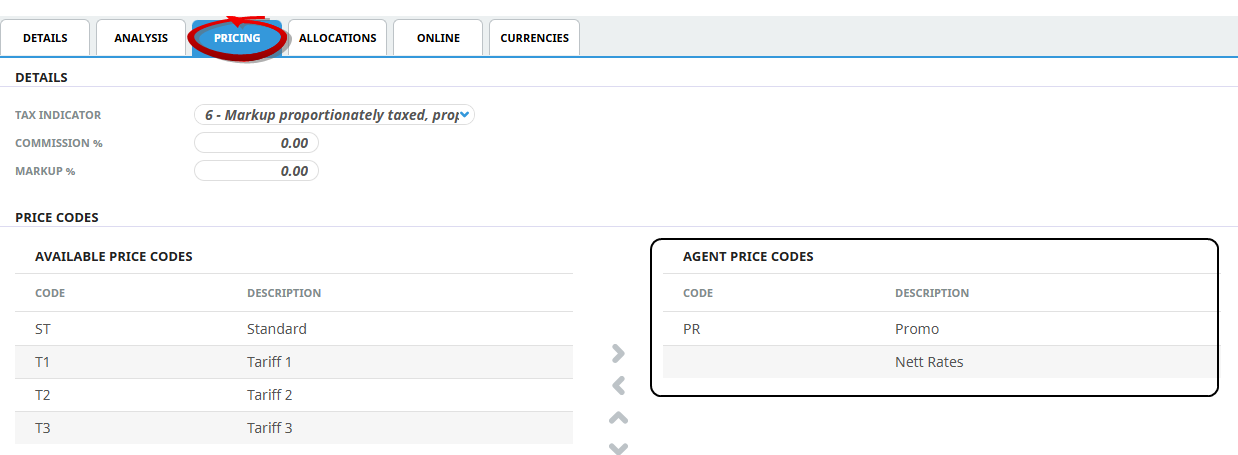
Open the Debtor used in the PCM Package.
-
Select Details > General menu, open thePricing Tab to ensure that the Price Code has been attached for this Agent.
-
If not assign the Agent Price Code and search for package results again.
If the error was because of an incorrectly assigned Price Code the Package Product Search Results should now show.
Currency
-
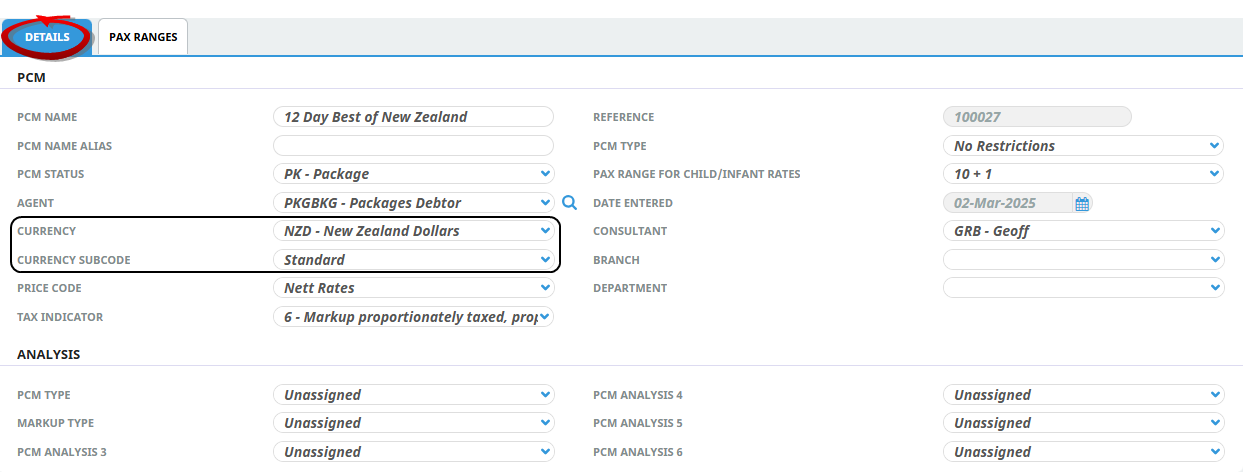
Open the PCM Package and select the PCM Details > General Setup menu,Details tab - to check the Currency field.
-
Ensure there is a valid currency in Code Setup Exchange Rates for the package dates.
-
If there is no valid currency Exchange Rate for the required dates, enter this into Code Setup > Exchange Rates.
-
Re-open the PCM Package and search for Package Product.
Rate Apply For Day
-
Open the Package Product > Rates menu.
-
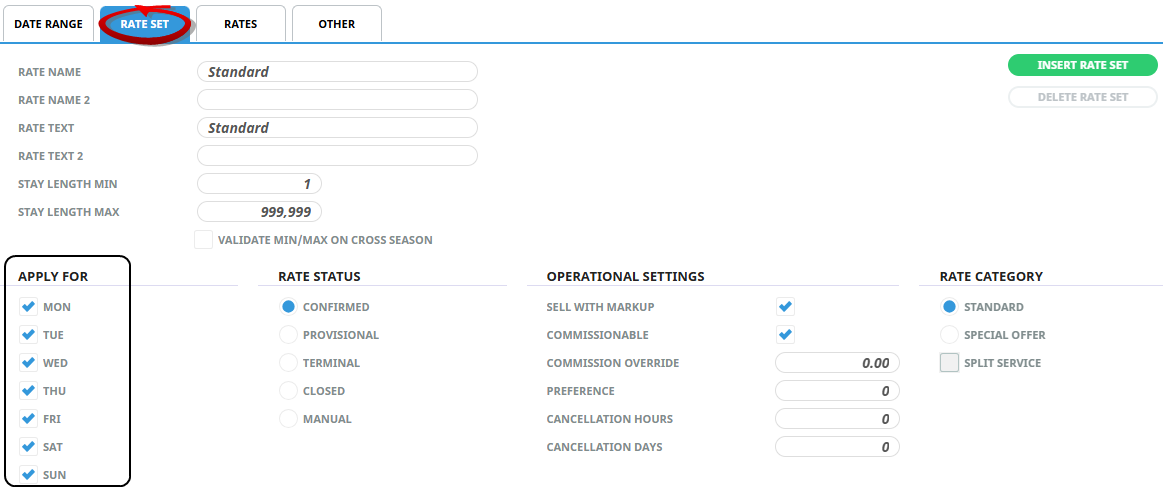
Select theRate Set tab - check the Apply For days of the week.
-
Make sure that the PCM Base Date day of the week is enabled for the Product Rate Apply For day of the week.
If the PCM Base Date is for a Saturday, the Product Rate Set screen will need to have the Saturday weekday checked within the Apply For field.
Rate Status
-
Open the Package Product > Rates menu.
-
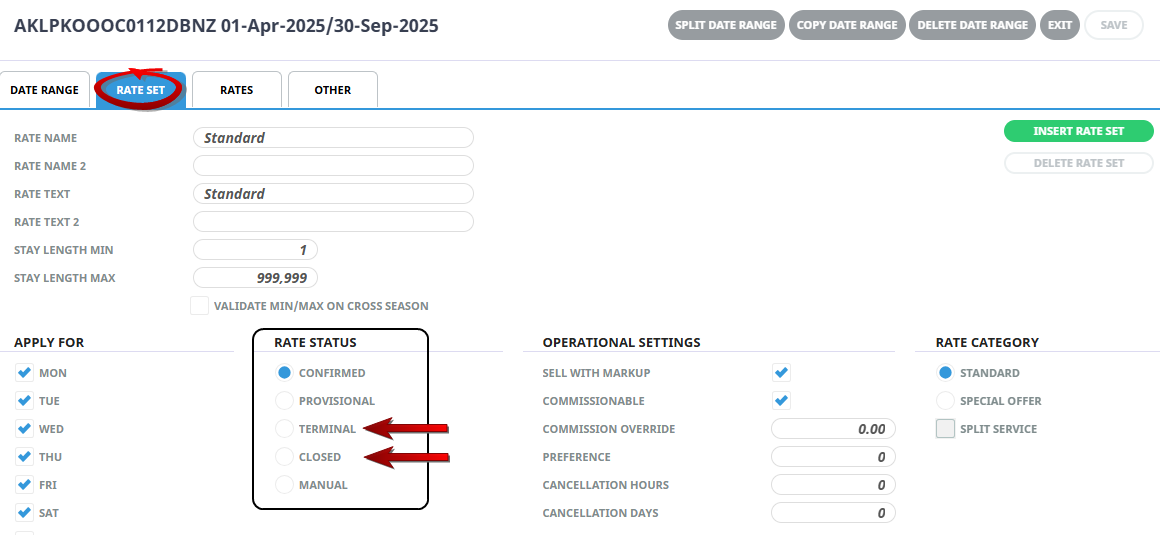
Select theRate Set tab.
-
If the Rate Status is Closed - the Package Product Search results will not be located.
-
If the Rate Status is Terminal - the system will look to the last date of the rate period to see if the PCM Package Base Date is within this Date Range, if not the rate will not display in the searched results.
Stay Length Minimum
-
Open the Package Product > Rates menu.
-
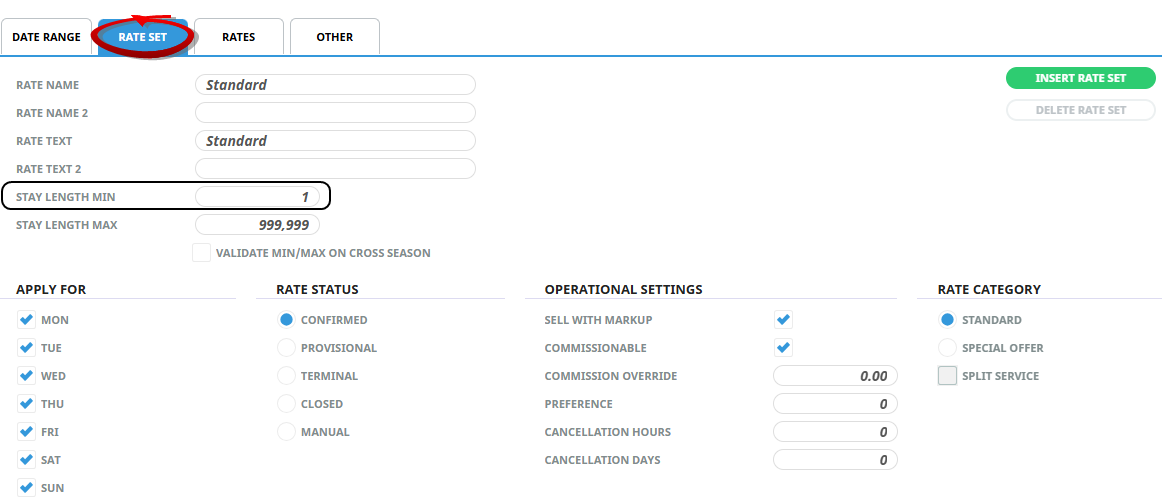
Select theRate Set tab.
-
The Stay Length Min field within the package product Rate Set screen should be 1.
If this field had been amended to an alternative number the package product will not show in the PCM Search Results.