
Loading interactive content…
Bulk Messaging allows messages to be sent in bulk to Agents. The messages selected and sent can cover multiple bookings. Concurrently, the status of the services that have had messages sent can be updated.
NOTE: Bulk Messaging will not suit all companies. This function is typically used where agent messaging is consolidated (either by user or company) and output at specific times or at end of day.
The selection criteria of frequently sent messages can be saved and recalled. If saved, a list will display when the Agent Messaging menu has been selected. Filters can be copied and saved from within the Bulk Agent Messaging screen.
Create Manual Agent Messaging Filters and Send Messages
-
From the Home menu, select
 Home > Operations > Bulk Documentation > PCM Quotes > Agent Messaging.
- Click the Home Menu to expand it:

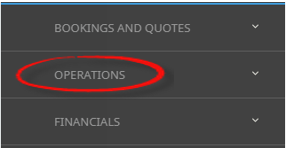
- Click the Operations menu option to expand it:

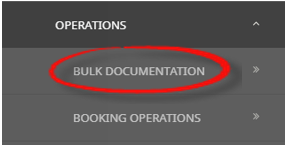
- Click Bulk Documentation menu option to expand it:

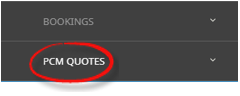
- Click PCM Quotes menu option to expand it:
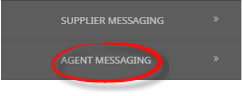
- Click Agent Messaging to open the Agent Messaging screen:
- Click the Home Menu to expand it:
-
ClickManual.


-
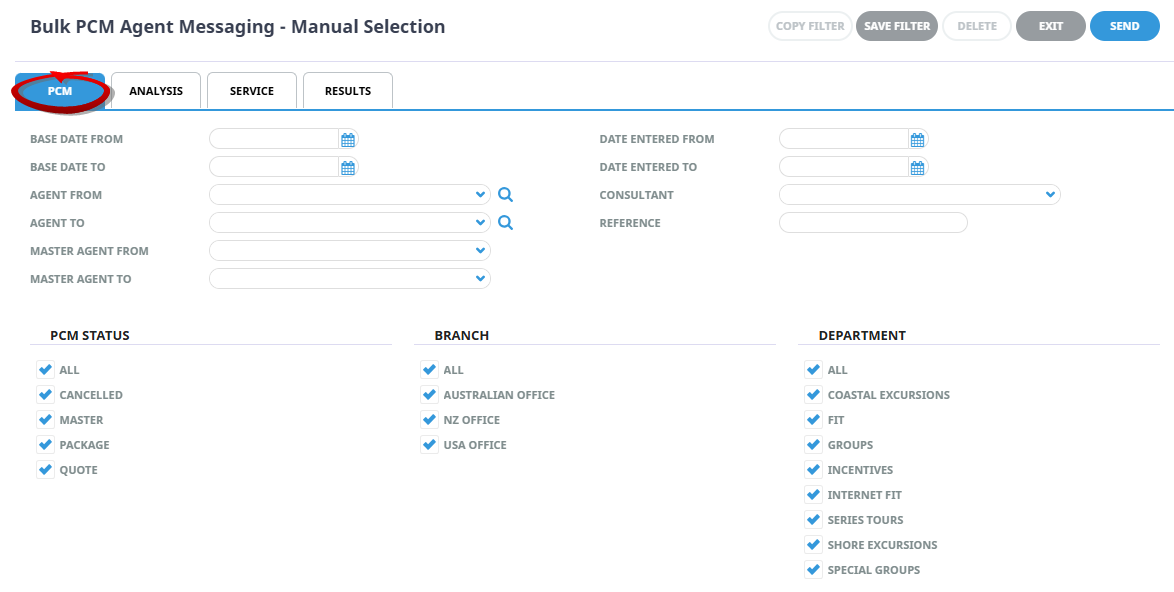
On the blankBulk PCM Agent Messaging - Manual Selection screen, the PCM Tab will open, select the required filters from the field selections available within the PCM Tab, Analysis Tab (PCM) and the Service Tab.
View Agent PCM Filter Selections to learn more about all field selections available, or view the individual tab filters: PCM, Analysis (PCM), Service or Results.PCM Tab
Analysis Tab
Services Tab
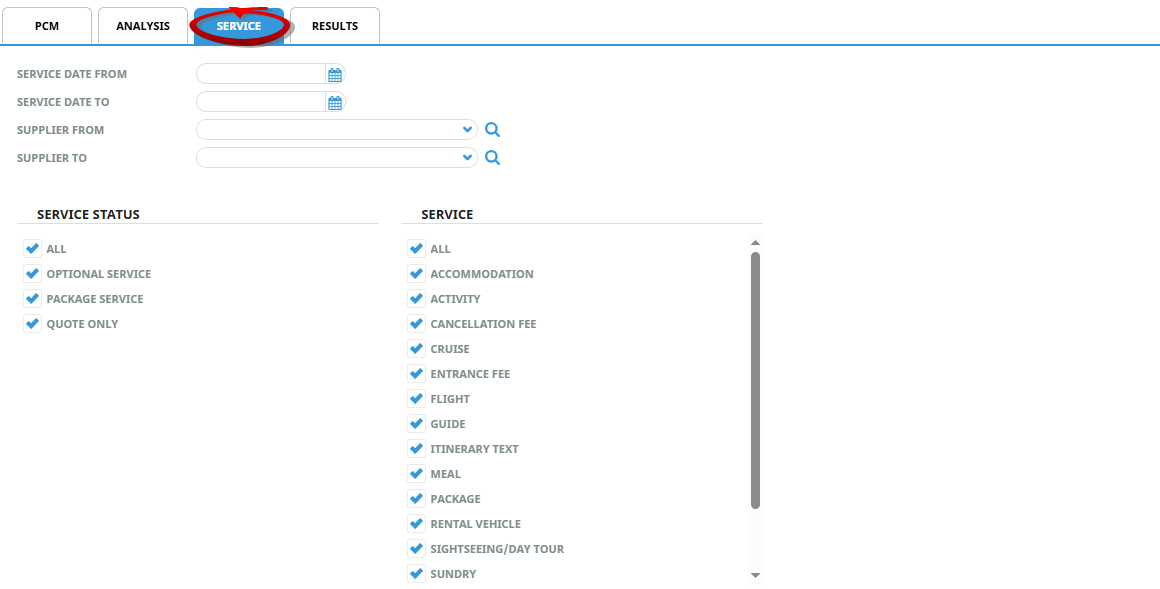
- Check the completed screens.
-
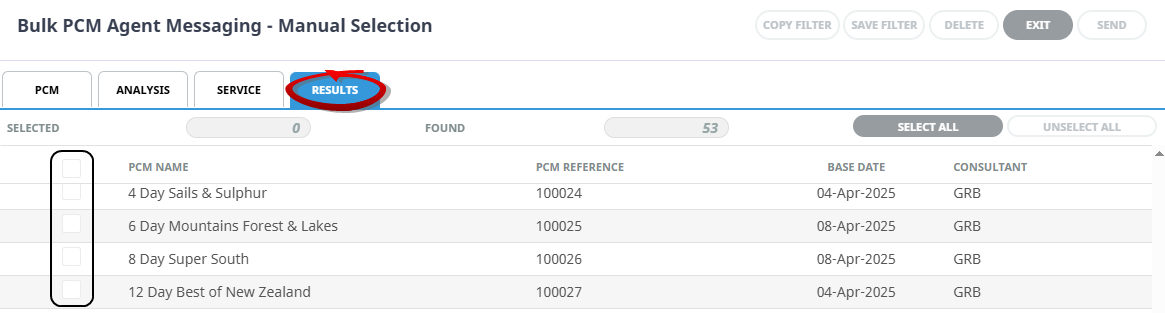
Click on theResults Tab. Select the services using the Selected check box next to each service, or use Select All.
-
To send the messages, clickSend.

-
ClickExit to discard any changes.

-
If Send is clicked, theBulk PCM Agent Messaging screen will display. Select the Document Format, and the Document Destination.

-
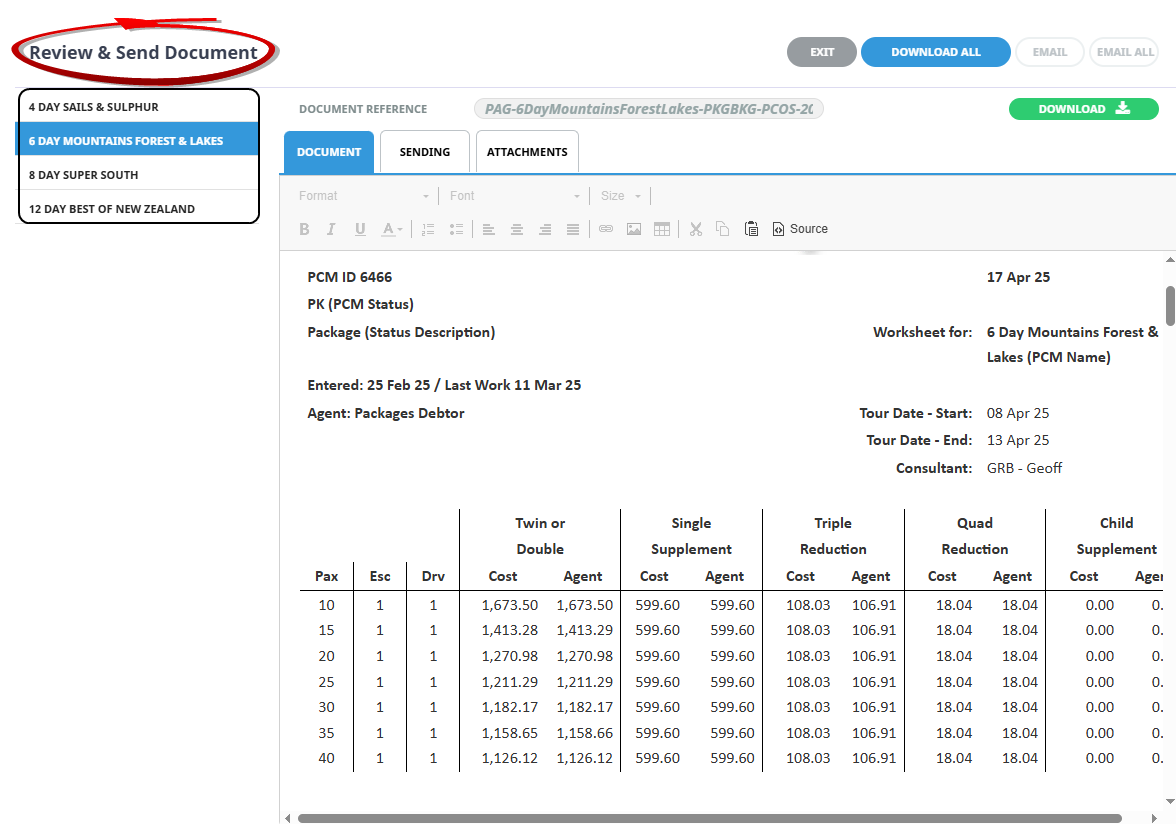
If OK is clicked, theSend & Review Document screen displays and a full list of the services selected will show on the left of the screen.
-
TheSending Tab will open if the Email and Sending tabs were activated when the message template was setup to send as an email. The Sending tab allows you to view the email text that will be sent and the contact name and address the email is sending to.
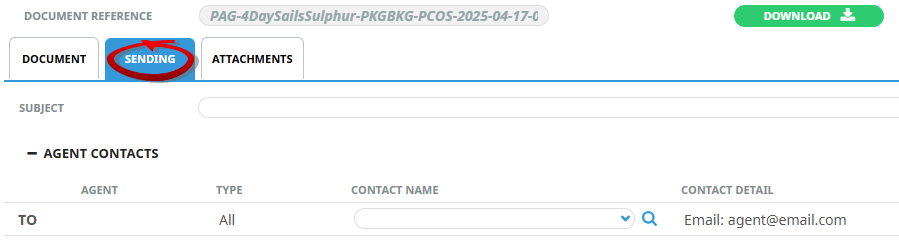
NOTE: A contact will default from the coding in the message template, however an alternative contact name can be selected using the drop down arrow. The options for CC, and BCC are also available. A list of Contact names attached to the Agent will display in a dropdown, or an alternative (or manual contact) email address can be entered using the search button.
-
On theDocument Tab, you can examine the generated document or Download it.
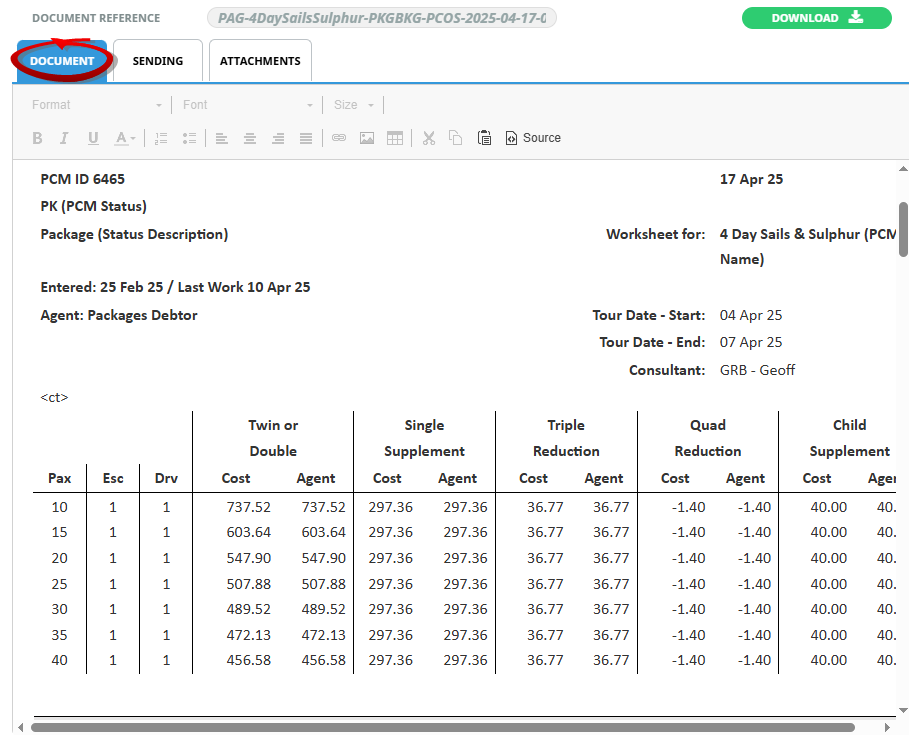
NOTE: A document can be downloaded from any of the tabs within Review & Send Documents.
Download will open the document in Microsoft Word. Any amendments made to the document in Word will not be saved unless the document is uploaded back into Tourplan. -
On theAttachments Tab, click Add to add additional attachments to send with your email.
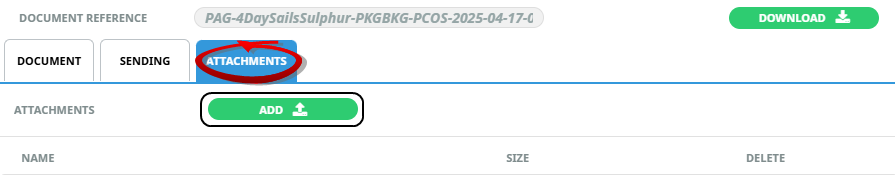
NOTE: If the Message Template has been configured to send attachments, a list of attachments will show on screen.
-
ClickEmail to send the document.

NOTE: 'Email All' will only be available if each listed service has an email address allocated.
-
ClickExit to discard any changes.
About Bulk Agent Messaging Fields
Filter selection combinations are dependent on user's company's requirements. Selection of any filter combinations will return results in the Results Tab.
There are 4 Tabs that include field filter selections:
- PCM Tab.
- Analysis Tab (PCM).
- Service Tab.
- Results Tab.
PCM Tab
Base Date From/To
Used to select PCMs with a specific, or range of, base dates.
Agent From/To
Used to select PCMs with a specific, or range of, agent(s) codes in the PCM header matching the selection.
Master Agent From/To
Used to select PCMs with a specific, (or range of) Master Agent code(s) in the booking header matching the selection.
Date Entered From/To
The PCM entered date(s) of the PCMs to be selected.
Consultant
The consultant code attached to the PCM whose messages are to be output.
Reference
The reference attached to the PCM that message is to be output from. This field will only accept the actual reference number. The Branch/Department components of the PCM reference are selected from the Booking Branch and Booking Department multi select boxes.
Booking Status
By default, all booking statuses are checked and PCMs that have this status will be selected. Un-check statuses that are not required.
Branch
By default, all branches are checked and PCMs that have those branches will be selected.
Department
By default all departments are checked, PCMs that have those departments will be selected.
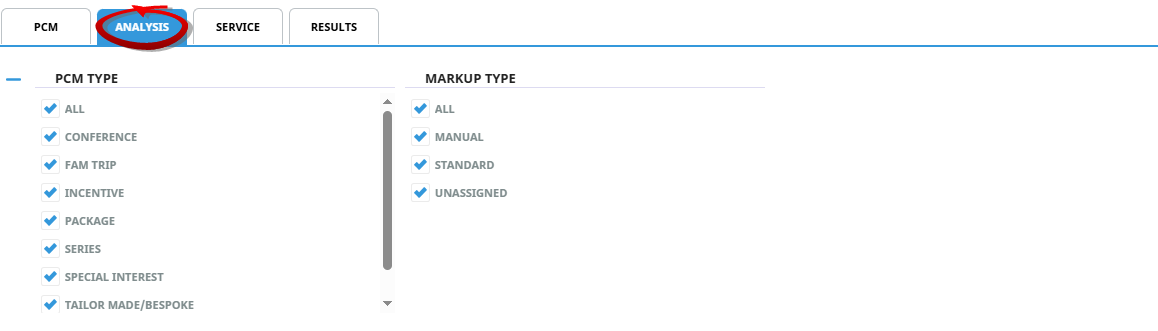
Analysis Tab (PCM Analysis)
PCM Analysis
The top two rows of this tab are the 6 Booking Analysis codes. These are booking level selections.
Analysis fields can be expanded or minimised by using the + or - function.
NOTE: The label descriptions and analysis selections used within this user manual will vary and will display what has been setup in each user's company's system.
Service Tab
Service Date From/To
The service date(s) of the services to be selected.
Supplier From/To
Used to select services with a specific, or range of, supplier code(s) matching the selection.
Service Status
By default, all service statuses are checked and services that are this status will be selected. Un-check those statuses that are not required.
Service
Used to select services with a specific, (or range of) service code(s) matching the selection.
Results Tab
Selected
The cell to the right of this heading will provide you with the number of PCMs that have been selected. (The screen capture above is showing that 0 services have been selected).
Found
The system will provide you with the number of PCMs found matching the filter criteria.
Select All/Unselect All
Select all services found, or un-select all PCMs selected.
Column Headings
Users can customise their column headings by clicking on the header row, or can amend the order of results by clicking on the field heading, see About Changing Default Column Headings.
To view the available column headings in Agent Messaging, see Bulk Documentation.
NOTE: The data can be sorted by any column by double clicking the column header. The order can then be reversed by double clicking the column header again.
Selected check boxes
PCMs can be individually selected.