Loading interactive content…
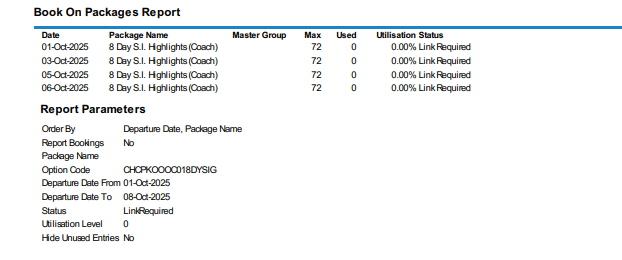
Book On Package Reporting can be printed from the Book On Operations screen as part, or independently, of the roll up process. Users have the ability to filter packages based on the package link status (e.g. All, Linked, Linked Required or Re-link Required). Results retuned on-screen can then be downloaded to CSV or PDF file output.
The report provides a list of packages (which depart between the previously filtered dates) and users can see the maximum number of pax allowed per Package and the number of Pax who have booked this package in the 'Used' column.
Searching Book On Packages by Link Status
-
From the Home menu, select
 Home > Operations > Booking Operations > Book On.
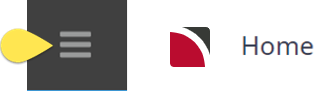
- Click the Home Menu to expand it:
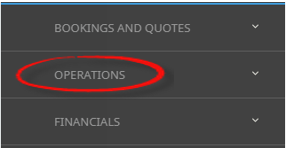
- Click the Operations menu option to expand it:

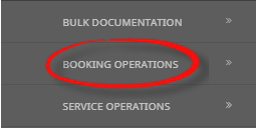
- Click Booking Operations menu option to expand it:

- Click Book On to open the Book On screen:

- Click the Home Menu to expand it:
-
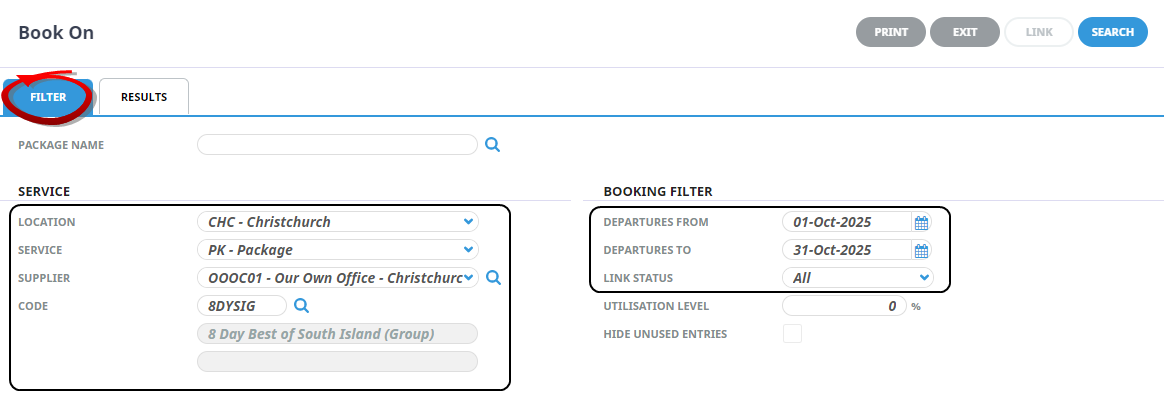
On the blankBook On screen, the Filter Tab will open, select either the (PCM) Package Name or the (Product Package) Service Location, Service, Supplier, and enter the Service Code. Under the Booking Filter heading, select the required Departures From and To dates.
The Booking Filters Departures From/To (date) fields are mandatory. Selection of specific tour dates or a range of tour dates can be entered.
Either the Package Name (from the PCM), or the Product 'Service' fields are to be completed. Manual entry of the (service) code is required and the Description and Comment fields from the product option will populate if a valid service has been selected.
NOTE: The results tab will not return bookings until either the (PCM) Package Name or the (Product) Service fields are valid, and the Departure From and To fields have dates applied.
-
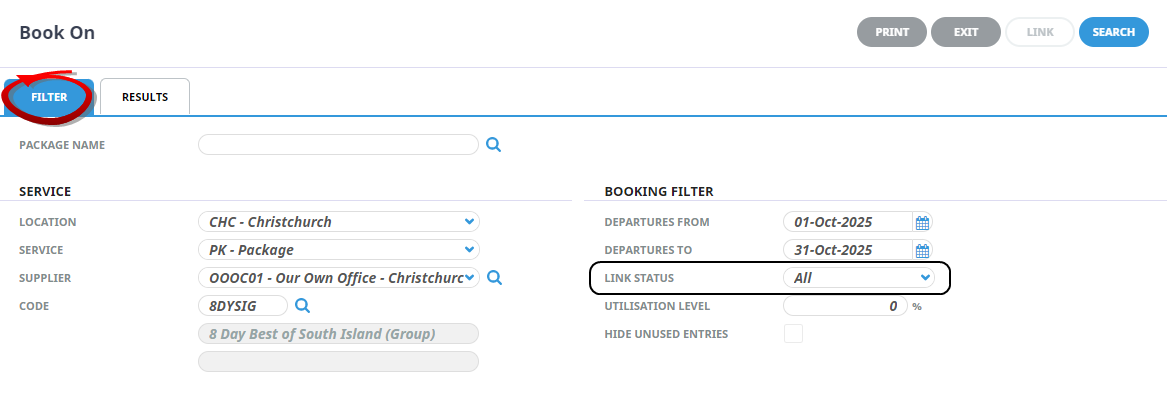
Select theLink Status.
- Check the completed screens.
-
To print from NX, clickPrint.

-
To Output the report to a CSV file, clickDownload CSV.

-
To generate the report as a PDF file, clickDownload PDF.

-
To view the report on screen, clickView.