
Loading interactive content…
Common or frequently used Bulk Service Insert Filters can be saved and given a Description so that repeatable tasks can be easily accomplished.
Bulk Service Insert
-
From the Home menu, select
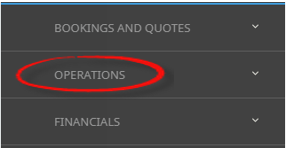
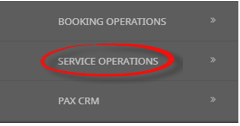
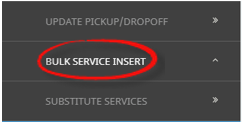
 Home > Operations > Service Operations > Bulk Service Insert.
- Click the Home Menu to expand it:

- Click the Operations menu option to expand it:

-
Click Service Operations menu option to expand it:

- Click Bulk Service Insert to open the Bulk Service Insert screen:

- Click the Home Menu to expand it:
-
ClickManual.

-
On the blank Bulk Service Insert - Manual Selection screen, the Booking Tab will open, select the required filters from the field selections, and tabs available.
View About Bulk Service Insert Fields to learn more about all field selections available, or view the individual tab filters; PCM Tab, Analysis Tab (Booking), Service Tab, or Results Tab.
- Check the completed screens.
- Click on the Results Tab.
-
If you want to save this filter, clickSave Filter.

-
On the emptyNew Selection screen, give the Saved Filter Selections a 'Description'.

-
ClickAdd to add this filter description.

-
ClickExit to discard any changes.

-
NOTE: If Add is selected the New Selection Description will appear in the Header of the Results Tab and the Description will display each time users open Bulk Service Insert. If selected for future Bulk Service Insert processing, results will be returned based on the saved filters.

NOTE: The selection options for these fields would have been pre-determined at the time of your System Setup and will fit the purpose of your organisation. For more information on creating drop-down selections for Analysis Fields or Check boxes, see the .
Copy Bulk Service Insert Filters
There maybe times where you have complex filters selected and you want to make a subtle amendment. In this case Manual Filters or Saved Filters can be copied and given a new description from within the Bookings Tab. Users can copy existing filters by using Copy Filter, make the necessary changes to filter selections and re-save giving the newly copied filters a new description.

Deletion of Bulk Service Insert Filters
Deletion of Filter Descriptions is allowed, to be able to manage currency of tasks and a confirmation message will display to ensure that you want to delete the Filter Description. If you select to delete, the filters will not be able to be retrieved again.
