
Loading interactive content…
This feature allows users to insert a service into multiple bookings using a bulk service insert process. Filters are applied to display a list of booking results, allowing users to manage the insert of a service into selected bookings.
Users can view standard product options and select one product at a time to insert. The day sequence must be specified for the search, which will then be used to insert into each booking based on the day number. When the "Add Service" operation is performed, it is inserted using the Day and Sequence number from the initial selection.
Bulk Service Insert
-
From the Home menu, select
 Home > Operations > Service Operations > Bulk Service Insert.
- Click the Home Menu to expand it:

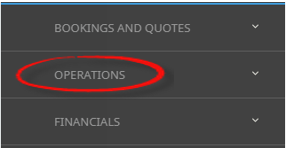
- Click the Operations menu option to expand it:

-
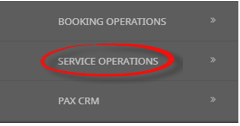
Click Service Operations menu option to expand it:

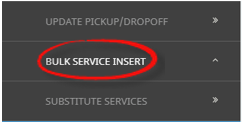
- Click Bulk Service Insert to open the Bulk Service Insert screen:

- Click the Home Menu to expand it:
-
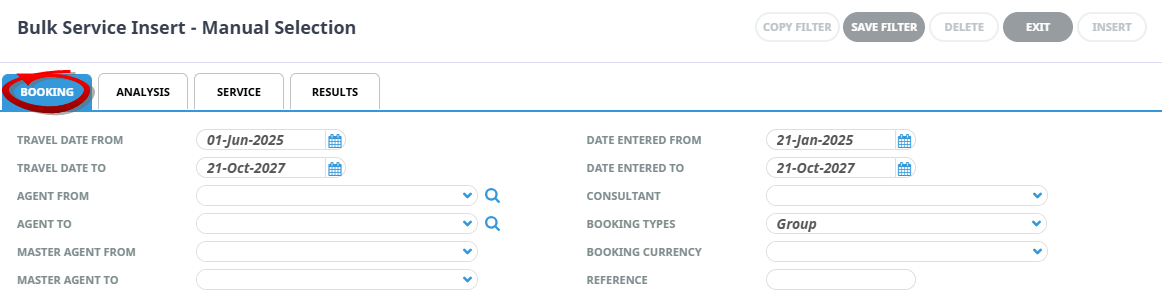
On the blankBulk Service Insert - Manual Selection screen, the Booking Tab opens. Complete the fields necessary to filter a list of Booking results.
-
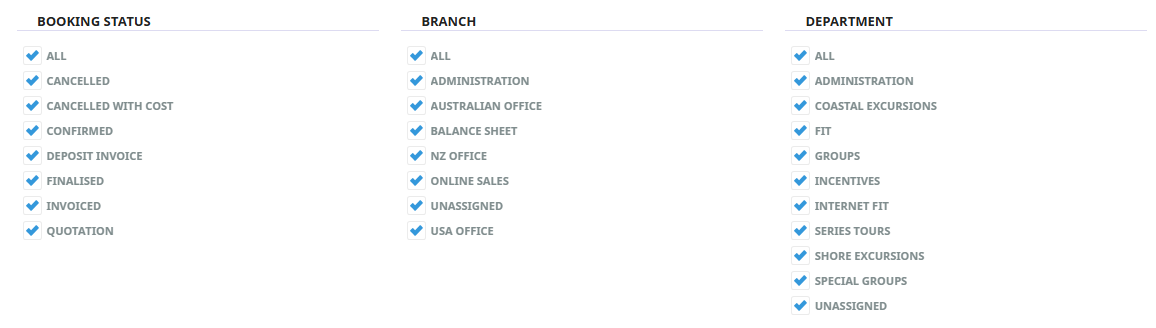
Keeping with theBooking Tab, Bookings can be filtered by 'Booking Status', 'Branch' and or 'Department'. If applicable, select the required filters.
Filters used in this screen capture are examples used for Training purposes. Statuses, Branch and Department selection will reflect users own organisational fields.
-
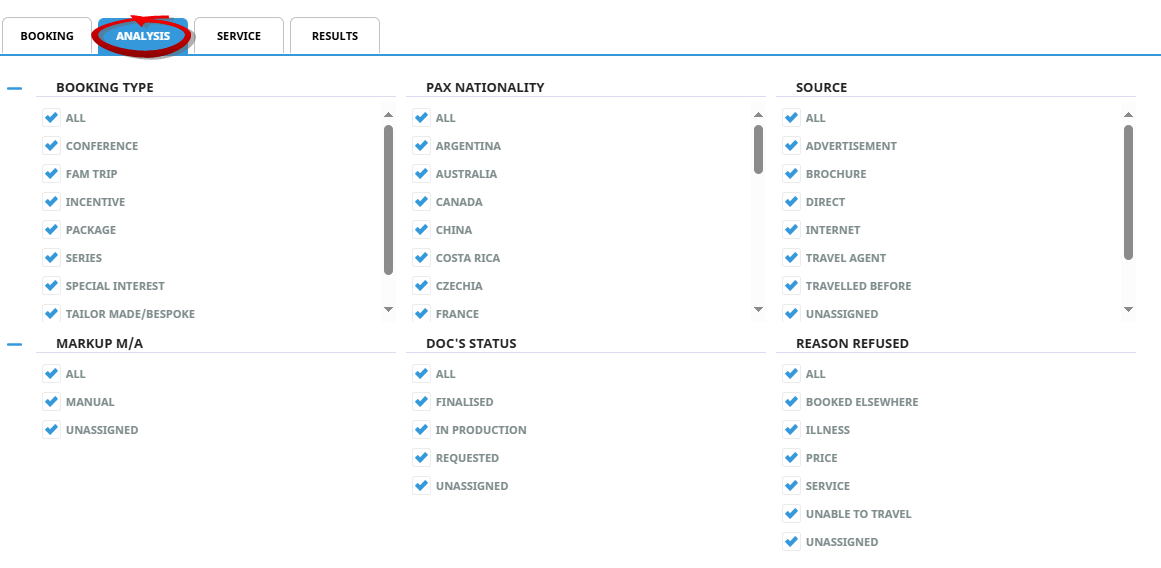
Click on theAnalysis Tab, selection of current Bookings can also be made from 6 of the Booking Analysis Codes. If required select the applicable 'Analysis Codes'.
Analysis Codes used in this screen capture are examples used for Training. Analysis field headings and codes will reflect users own organisational fields.

-
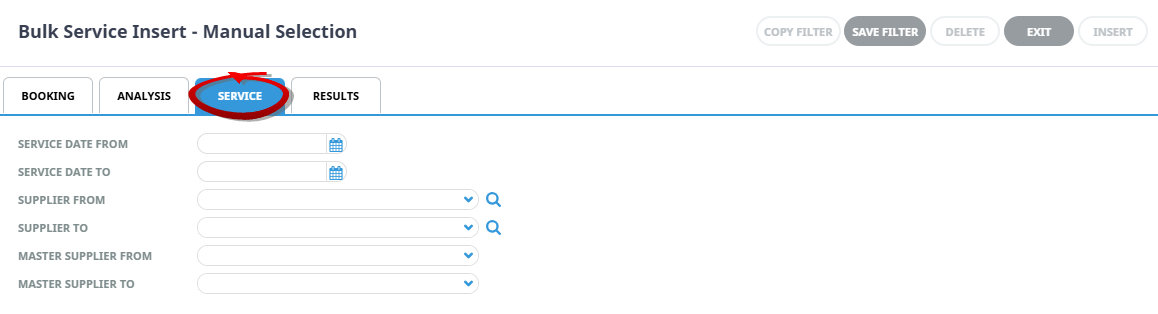
Click on theService Tab, select a Service Date From/To, Supplier, Master Supplier, or Location to filter Bookings with specific Services.
-
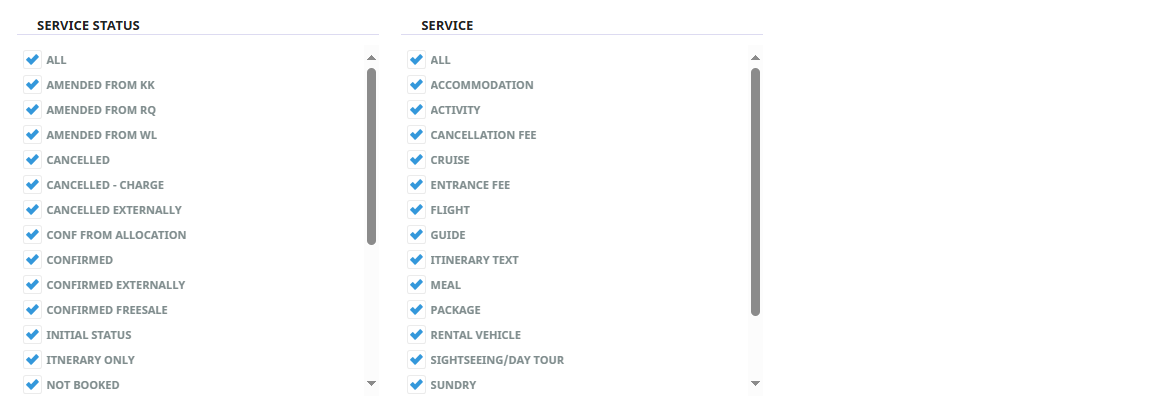
Keeping with theService, Bookings can be filtered using Service Status, Service Type.
Service Tab
Filters used in this screen capture are examples used for Training purposes, Service Status, Service Type selection will reflect users own organisational fields.
- Check the completed screens.
-
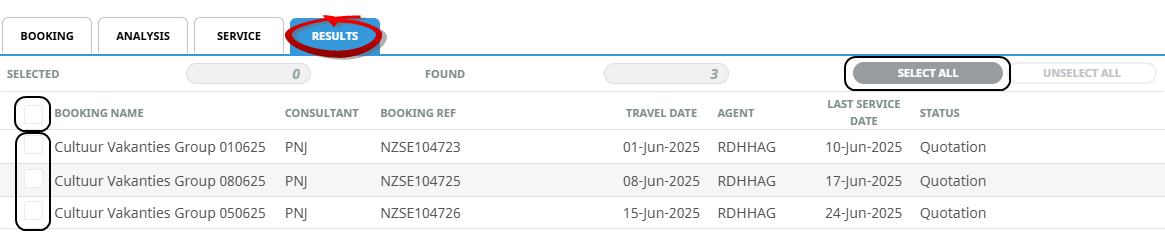
Click on theResults Tab. Select the Bookings using the 'Selected check boxes' next to each Booking, or use 'Select All'.
NOTE: The Insert Button will become active when Bookings are selected.
-
ClickInsert to add a new entry.

-
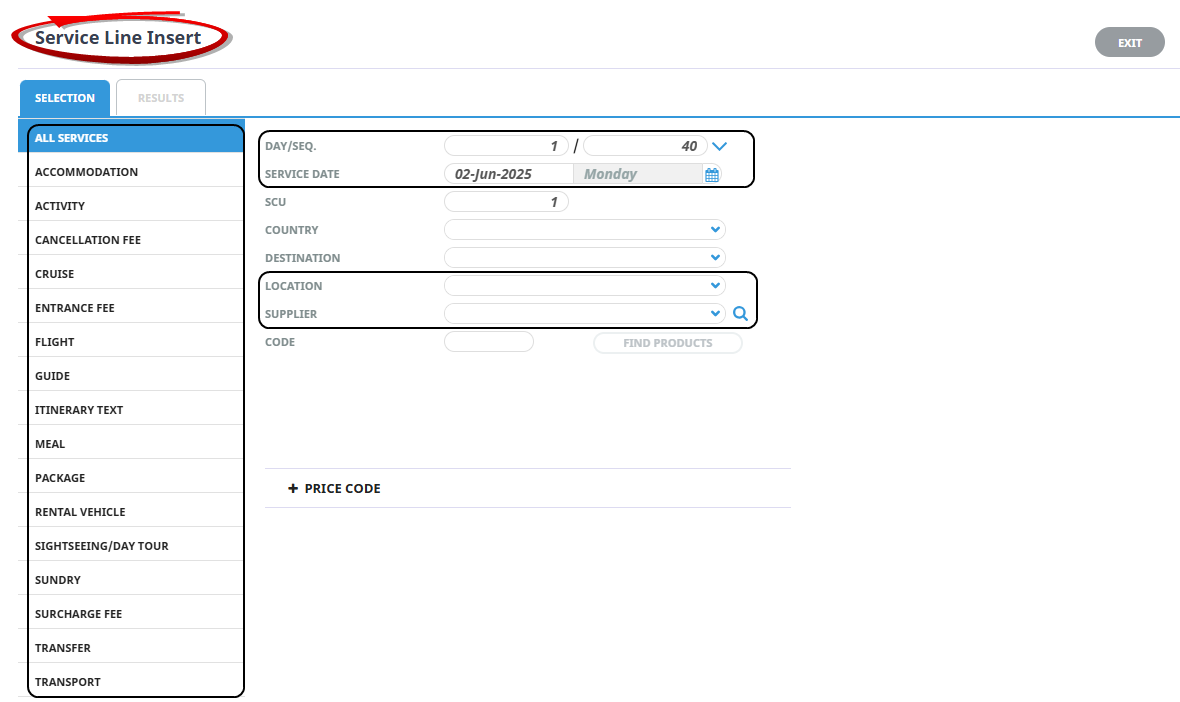
On the blankService Line Insert screen, select a 'Location' or 'Supplier' and a 'Service Type' to search for Product.
NOTE: To insert the service mid itinerary adjust the Day/Seq fields to show the correct values, the Service Date will update if Day/Seq fields are edited. If the Service Date is edited the Day/Seq will automatically update.
-
ClickFind Products.

-
On theResults tab, select the service to insert into the Bookings.

-
ClickInsert to add a new entry.

-
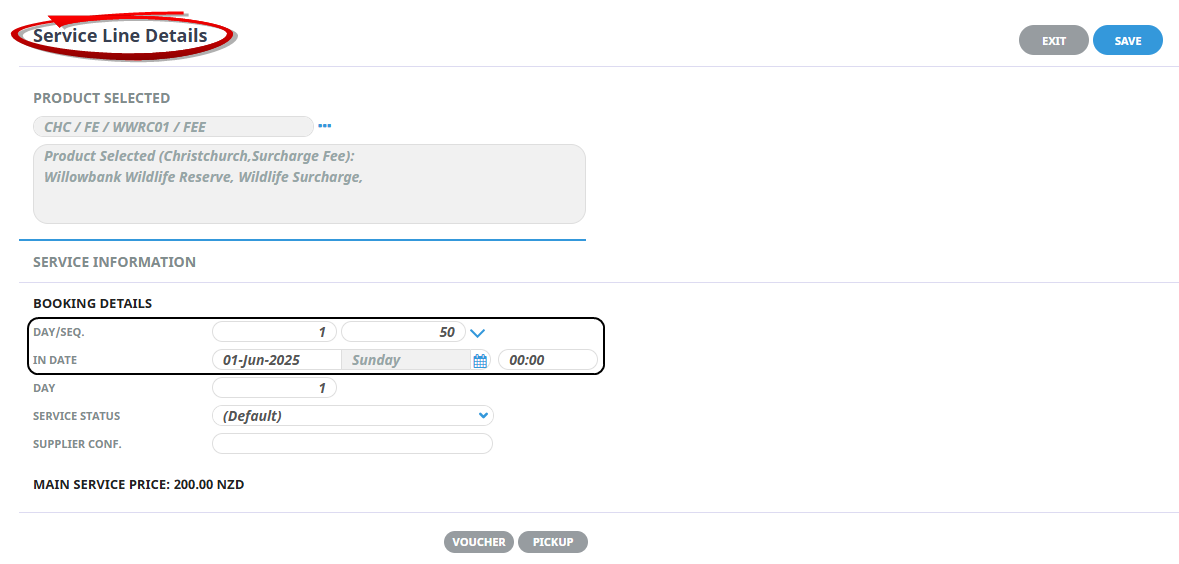
TheService Line Details screen opens with the Product Selected, check the completed screen. If pickup and drop off details are known they can be edited here.
-
ClickSave to keep the changes.

-
ClickExit to discard any changes.

-
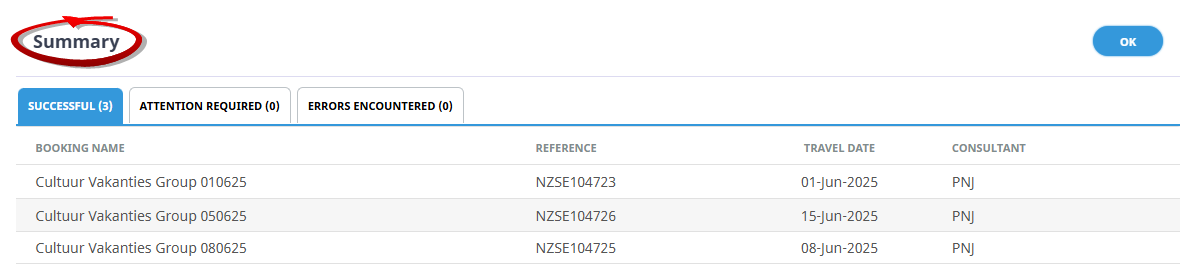
If 'Save' was selected a Summary will appear with the number of successful Bookings updated.
-
ClickOK to exit the modal.


About Bulk Service Insert Fields
There are some additional considerations with using this bulk service insert feature.
-
Package and non-accommodation package products cannot be inserted into multiple bookings.
-
External Services are unable to display in the Insert Service Results screen and therefore cannot be inserted into multiple bookings.
-
If a product rate has a Split Service, Rate Category for cross seasonal bookings - the bulk service insert process will insert a single service for the entire stay length.
Booking Tab
This is the default tab that will open when selecting to insert a service within multiple Bookings in a bulk update process.
Travel Date From/To
Travel Date for Bookings is the date that appears in the header of a Booking, this is generally the date of the first service. This date range field is used to select Bookings with a specific date, or a range of travel dates.
Agent From/To
Used to select Bookings with a specific, or range of, agent(s) codes in the Booking header matching the selection.
Master Agent From/To
This selection is used to filter Bookings with a specific, or range of, Master Agent(s) codes in the Booking header matching the selection.
Date Entered From/To
This is the date the Booking was created. If selection for a range of dates is entered here Bookings that were created within the date range provided will be display in the results screen.
Booking Types
- Defaults to Groups - those bookings that are Group bookings will be selected.
Consultant
Selecting this field will filter Bookings by the consultant code attached to the Booking.
Reference
Used to select a specific Booking reference.
Booking Status
By default, all Booking statuses are checked and bookings that have those statuses will display in the results screen. Un-check statuses that are not required.
Branch
By default, all Booking branches are checked bookings that have those branches will be selected.
Department
By default all Departments are checked, bookings that have those branches will be selected.
Analysis Tab
Booking Analysis
The top two rows of this tab are the 6 Booking Analysis codes. These are Booking header level Analysis selections.
Service Tab
Service Date From/To
This is the date of the service within a Booking. If selection for a range of dates is entered here Bookings with services that fall within the date range provided will display in the results screen.
Supplier From/To
Used to select Bookings with a specific, or range of, supplier(s) codes matching the selection.
Master Supplier From/To
This selection is used to find Bookings with a specific, or range of, Master Supplier(s) codes matching the selection.
Location
Use this field to find Bookings with services in the itinerary for a selected location.
Service Status
By default, all service statuses are checked and services that have those status will be selected. Un-check statuses that are not required.
Service Type
By default, all Service (Types) are checked. Un-check service types that are not required.
Results Tab
Selected check boxes
Bookings can be individually selected.
Selected/Found Fields
These fields are non editable fields, which provide a tally of the results found, and the Bookings selected.
Select All/Unselect All
Select all Bookings found, or un-select all Bookings selected.
Column Headings
Users can customise their column headings by clicking on the header row, or can amend the order of results by clicking on the field heading, see About Changing Default Column Headings.
To view the available column headings in Bulk Service Insert (PCM), see Booking Operations.
NOTE: The data can be sorted by any column by double clicking the column header. The order can then be reversed by double clicking the column header again.
Service Line Insert
All Service Types
An alphabetic list of services types to choose from when searching the product database. Click on a service type to highlight it (i.e. to select it). One or more service types can be selected and all matching products found will be returned in the Results tab.
Day/Seq.
For the first service to be entered into the Booking, this defaults to Day 1, Sequence 10. As services are added within each day of the Booking itinerary, Tourplan increases the sequence number by 10. The day and sequence number can be used to change the order of service lines within a Booking.
NOTE: Incrementing the Sequence number in 10s, allows new services to be inserted in-between existing services on the same day as those that have already been added to the Booking. A drop-down arrow next to the sequence field when selected provides a list of existing services allowing users to locate the point within the Booking that they may want to insert the new service. The system will then allocate the correct day sequence number.
Service Date
The date being entered here is the date of the service to be selected and inserted into the Booking. The date can be changed for each service by typing a new date or using the drop-down calendar. Changing the date will automatically change the Day number. Alternatively, the Day number can be used to change the date. The day of the week will automatically update to reflect any change in the date.
Time: If a time of arrival is known, it can be entered here. If entered here, the time will transfer into the Pickup field when selecting the Pickup Button.
NOTE: Once the service is saved editing or updating a time can occur within the service line Pickup/Dropoff tab within the service details or from the Itinerary Menu > Pickup/Dropoff.
The value in this field quantifies the number of product Second Charge Units.
Once a product is selected, the SCU gets a label, which comes from the Second Charge Unit description in the Product Database.
For example, the supplier SCEN01 - Johnstons Scenic Coachlines, out of AKL - Auckland has two product offerings; a charter service and an intercity service. These are found in the Product Database via Home > Products > Product Setup (Price Rules tab).
For the charter service, the First Charge Unit is Coach and the Second Charge Unit is Tour, so this service will have an SCU label of Tour on the Service Line Insert screen when it is selected.
Conversely, the intercity service will have an SCU label of Trip, which is how the service is charged.
- Accommodation - the FCU is Room, and the SCU is Night, so the is the number of Nights required.
- Non-accommodation - e.g. for , the FCU is , the SCU is , so the quantity required is . The system knows (from the product setup) how many people the can take and, if the number of people exceeds the available size, the system will automatically adjust the number of FCUs () to suit so, in this example, .
Country
The Country where the service takes place or originates. Not all users will see this field, this is determined by each user company's procedures as to if this field is required.
Destination
The Destination where the service takes place or originates. Not all users will see this field. It will depend if user company's requirements.
Location
The location where the service takes place or originates.
Supplier
Used in conjunction with Service Type, Location and Code fields to search the product database.
Code
Used in conjunction with Service Type, Supplier and Location fields to search the product database.
NOTE: In addition to Service Type (which defaults to All Service Types), with any one of either Location, Supplier or Code, the Find Products green button is highlighted. The more codes that are filled in when searching for products in this screen, the more accurate and filtered the results.
Price Code (+ to expand)
There are 4 selections available each of which defines how the system will handle rate retrieval and possible re-calculations for this service.
System Price Code - this selection allows the system to handle selection of the price code. This means when the package is booked, the price code will be re-evaluated using the booking agents attached price code hierarchy without honouring the original price code used in the package service line. The System Price Code selection will ensure the package service will be booked using a price code available to the agent.
The remaining selections are:
-
All Price Codes
-
Applicable Price Codes
-
Selected Price Codes - where a nominated price code can be selected
Selecting one of the remaining three options, will override the system selection defining this price code to be the highest priority. This will generally only be applicable if you require a package to always be booked using a specific price code over the agent price code defaulting logic.
Insert Service Line Results
The Results tab shows a list of all products found that match the selection criteria. Products are presented in list form under the following columns.
NOTE: All scrollable lists can have columns added or removed per user (i.e. you can change the default columns that appear in your view of the list). Click on a space in between two column labels (if you click on the label itself, the scroll will re-sort based on the column clicked on). The list of available column names will display and they can be check-box selected/deselected. The width can also be set, as can normal or bold font.
Filter Button
The results tab provides users with an additional filter option, products and services can be filtered by class, locality or attached amenities.
NOTE: This is dependant on if user company's procedures have selected to use these fields in their product setup.
Consultants can also define a rate price range for results to return based on minimum and maximum agent values.
Search Icon 
There is a search icon located next to the column 'Book' heading. This allows users to quickly search the Product Search application for an existing entry. An additional search field will enable users to insert text to search, and previous and next (arrow buttons) identify entries which match the search criteria.

The Enter key can be used as a quick key to move to the next matched searched result.
Insert
A button labelled Insert allows the service to be inserted into the selected bookings or PCMs.
Location Name
Full name of the location where the service is provided.
Service Name
Full name of the service (from the Selection tab under All Services).
Name
Full name of the service supplier.
Description
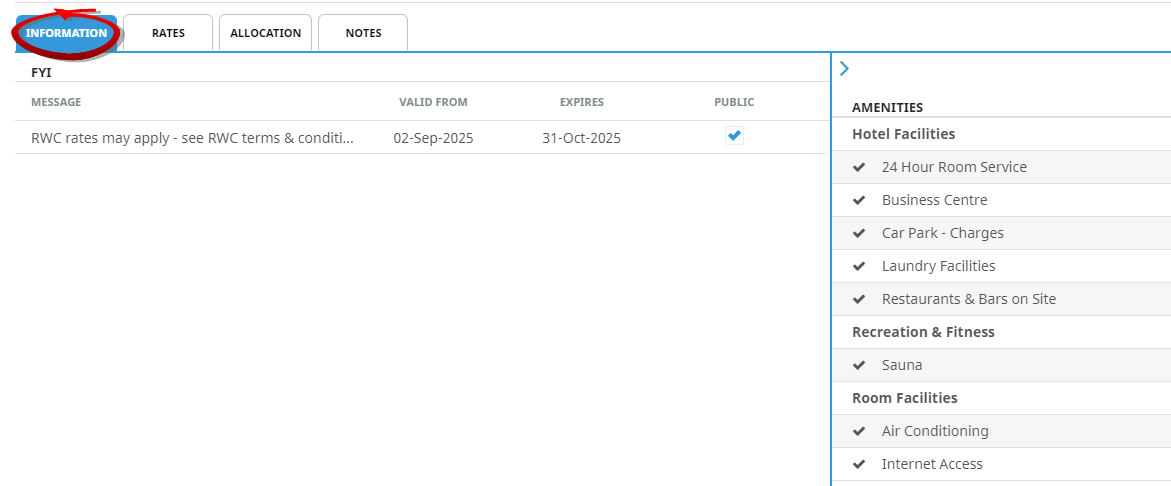
A drill-down link to further information about the service, including Rates and Notes. Book and Hold buttons are also available on the drill-down screen (albeit coloured blue, rather than green and grey).
Comment
A further field that is sometimes used as an extra descriptive field for product, or for an internal note. An example could be for accommodation services, where this organisation uses the comment field to show meal inclusions - Includes light continental breakfast.
Class
For accommodation services, this label identifies the class of accommodation; e.g. 4-Star, 5-Star, Backpackers, Luxury Boutique etc.
Sell
The cost price in the Product Database, plus markups (regardless of source), less agent commission.
NOTE: It is possible that the same product displays multiple times. This is because of INI settings that determine what is to display by default. Where the same product is displayed multiple times, it is once for each price code that has been set up against the date range for the product.
It is important to remember that, when viewing a list of results (or any aspect of a service within these tabs), the service has not yet been inserted into the , even if "Book" has been clicked. The tabs are available to refine selections and to inquire on various aspects of a service. Services are not saved into the until the Insert New Service process is complete, which requires each service
A full list of field columns available within the Results tab is available Service Line Insert (Service Scroll Headings).
Summary
A summary of the Booking Bulk Service Insert process is displayed to inform users of successful service insertion. Additional tabs highlight Bookings that require further attention to add a new service or indicate if an error has occurred.
Summary Modal displays three tabs:
-
Successful - where the total number of processed Bookings is displayed in the bottom left corner of the Modal. The number of Bookings successfully updated displays next to the tab heading, and a list of Bookings is shown, including the Booking Name, Consultant, Reference, and Travel Date.
-
Attention Required - where the number of Bookings requiring attention displays next to the tab heading, and a list of Bookings is shown, including the Booking Name, Consultant, Reference, Travel Date, Rate Status, and a Message column indicating the attention required. For example: Rates have expired, a cross season rate, a sequence number changed, allocation status.
-
Errors Encountered - where the number of Bookings that the service line was unable to be added to the Booking displays next to the tab heading, and a list of Bookings is shown, including the Booking Name, Consultant, Reference, Travel Date, Rate Status, and a Message column indicating the error. For example: no available sequence number for the relevant day, product not allowed to be used on that day.