Loading interactive content…
Add A New Consultant
How do I add a new consultant?
There is a three step process to creating a new consultant. The first is providing user access to Tourplan when creating a new staff member; the next step is to create a consultant code in each of the booking applications, and the last is binding the user to the booking applications.
Step 1 - Create a User
-
From the Home menu, select
 Home > System > Security Setup.
- Click the Home menu to expand it:

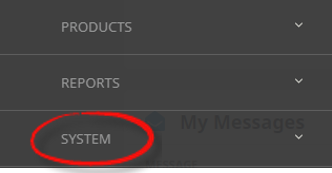
- Click the System menu option to expand it:

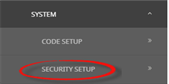
- Click Security Setup to go to the Security Setup menu:

- Click the Home menu to expand it:
-
From the Security Setup menu, selectUsers.
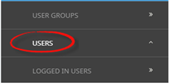
- Click Users to open the Users screen:

- Click Users to open the Users screen:
-
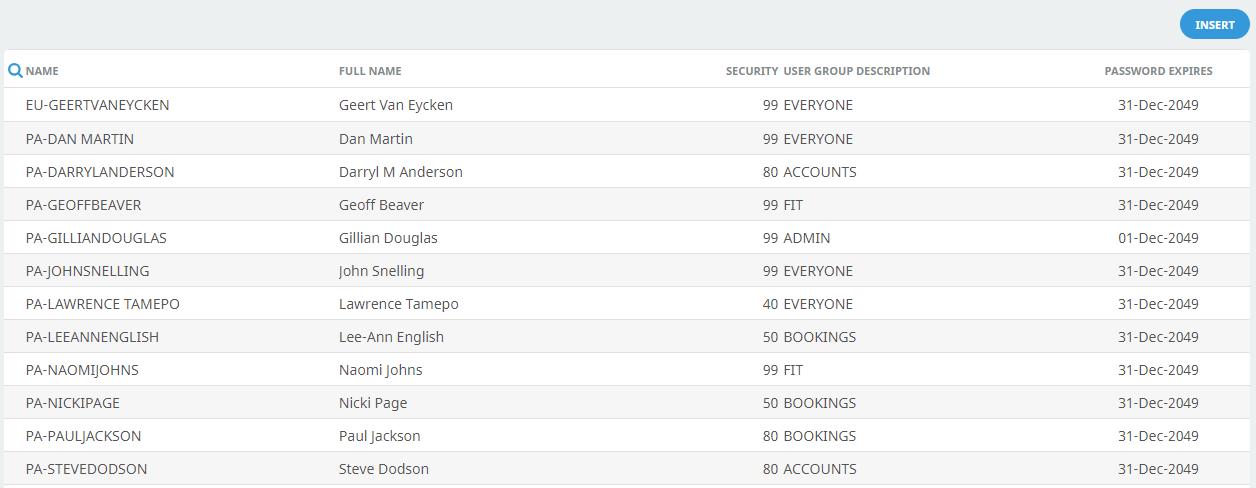
On theUsers screen, if the User that you want is not already in the list, click Insert.
-
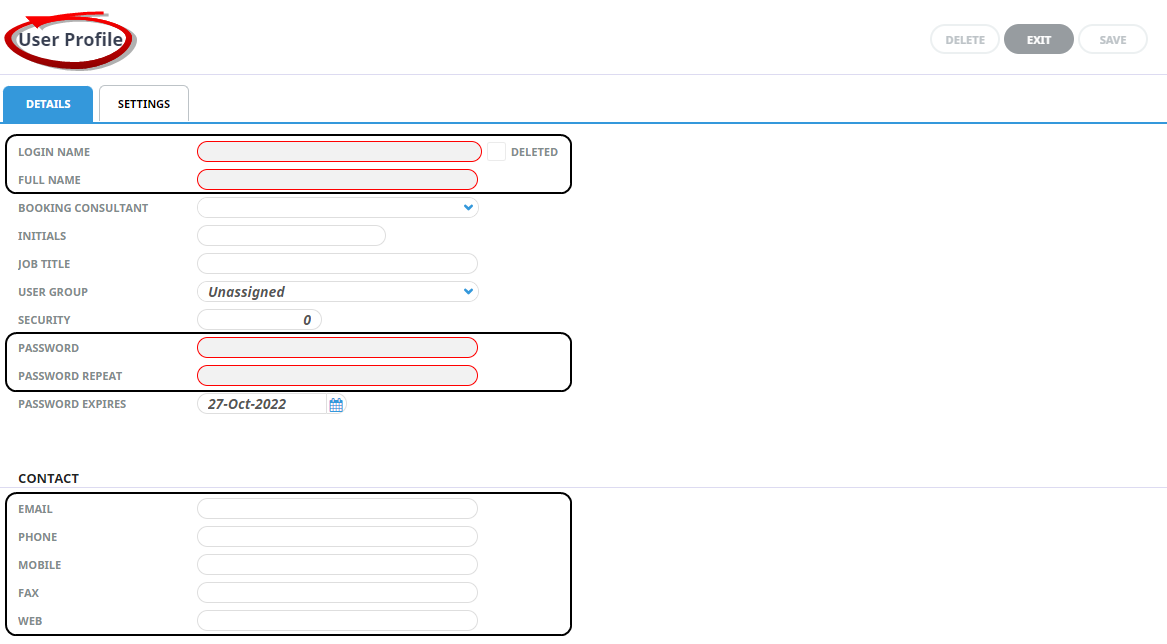
On the blank User Profile screen within theDetails tab, enter a Login Name, Full Name, Password and Password Repeat. Complete the available contact fields.
-
If you are using Security levels orUser Groups, insert the required Security Level and select the User Group.
NOTE: User Groups and Security Levels do not have to be defined.
-
Open theSettings tab, click Insert.

-
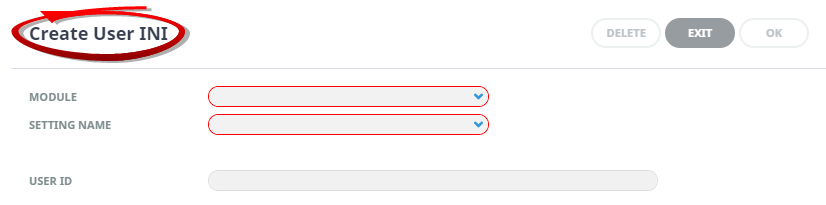
On theCreate User INI screen, select the required Module, and Setting Name from the dropdown fields. Enter values or select required options in the additional fields that display.
-
ClickOK to keep the changes and save or update the entry.

-
ClickSave to keep the changes.

-
ClickExit to discard any changes.


Step 2 - Create a Consultant:
-
From the Home menu, selectHome > System > Code Setup.
- Click the Home menu to expand it:
- Click the System menu option to expand it:
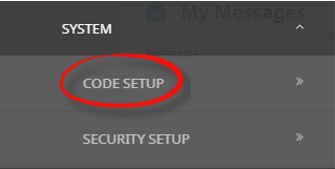
- Click Code Setup to go to the Code Setup menu:

- Click the Home menu to expand it:
-
From the Code Setup menu, selectCode Setup > Bookings > Consultant.
- Click the Code Setup Menu to expand it:
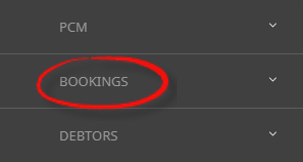
- Click the Bookings menu option to expand it:

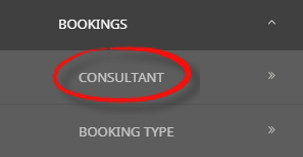
- Click Consultant to open the Consultant screen:

- Click the Code Setup Menu to expand it:
-
If the consultant that you want is not already in the list, clickInsert.

-
On the blankConsultant screen, enter Code and Description into the relevant fields.

NOTE: A consultant code is typically two or three characters indicating the person's initials.
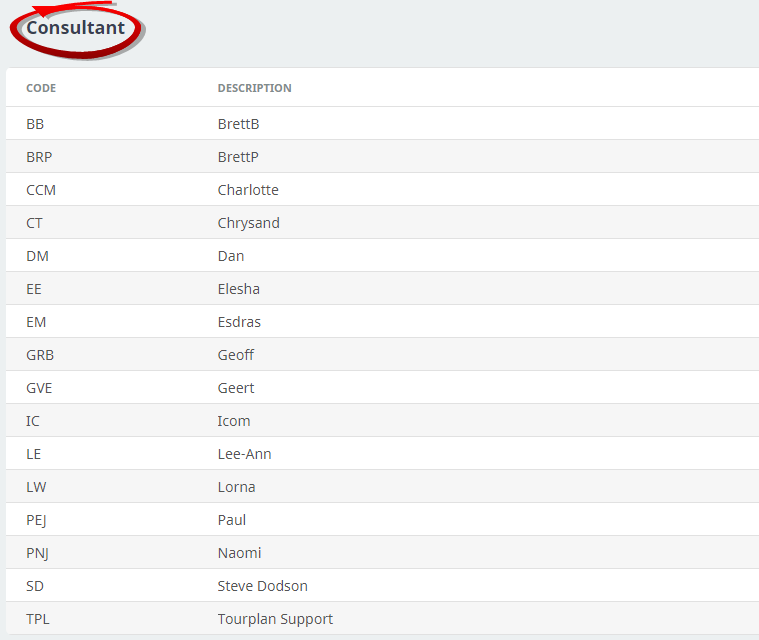
This completed example shows a Consultant with code LW and Description Lorna.
-
ClickSave to keep the changes.
If you click Save, the consultant appears in the list of consultants on the Code Setup (Consultant) screen.
-
ClickExit to discard any changes.
Step 3 - Link the User to the Booking Application:
-
From the Code Setup menu, selectCode Setup > INI Settings > FITs.
- Click the Code Setup menu to expand it:
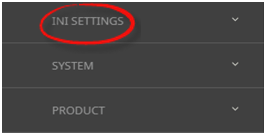
- Click INI Settings to expand the INI Settings menu:

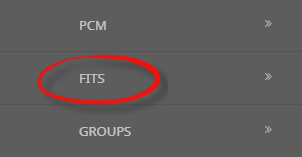
- Click FITs to open the FITs INI Settings screen:

- Click the Code Setup menu to expand it:
-
ClickInsert to add a new entry.
- Select CONSULTANT as the Setting Name.
- Type the consultant description from the previous procedure (Create a booking consultant - procedure number 4).
- In the User ID drop-down field select the user who, when logged-in, is bound to this consultant entry.
-
ClickSave to keep the changes.
-
ClickExit to discard any changes.