
Loading interactive content…
Enhanced Password Security
How do I apply enhanced password security?
By enabling specific system-wide INI Settings, you can enforce the use of strong passwords and password expiration policies for all Tourplan users in your organisation. A strong Tourplan password requires a minimum of eight characters and at least one uppercase letter, one number, and one special character (e.g., @, #, $, %).
This article will help you to …
-
Enforce strict password security.
-
Setup password expiration policies.
Overview
A strong password offers enhanced security to protect your Tourplan data from unauthorised access. Implementing this security feature also offers encryption in SQL, which prevents users with database access from viewing user passwords. To further bolster your Tourplan security, you can define password expiration policies where after a certain number of days, users are prompted to change their passwords.
Enforcing Strict Password Security
-
Open System > Code Setup > INI Settings > Security.
-
If the SEC_FORCE_USER_PW setting is not listed, click Insert and add the INI Setting.
-
Set the Value to Y(es) by selecting the radio button.
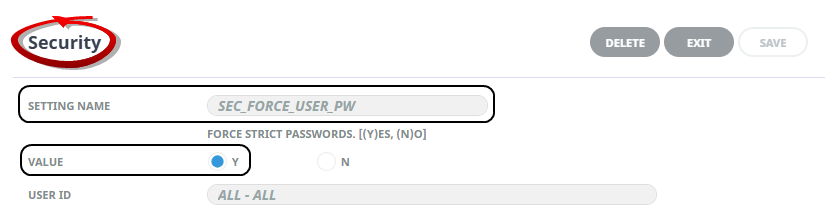
Enable the SEC_FORCE_USER_PW setting to enforce strict passwords.
-
Click
 Save to keep the changes.

Setting Up Password Expiration Policies
Some organisations choose to setup password expiration policies. It may provide additional security by forcing regular password changes, limiting the duration of unauthorised use, and ensuring former employees can no longer access company systems.
NOTE: If your IIS services are using a custom account set to a domain account with access rights to the SQL environment, this must be actively managed to ensure that the credentials do not expire otherwise access to the SQL environment will be prevented.
-
Open System > Code Setup > INI Settings > Security.
-
If the USER_PW_EXPIRES setting is not listed, click Insert and add the INI Setting.
-
In the Value field, enter the number of days after which the user password expires. In the example below, users are prompted to change their password every 90 days.
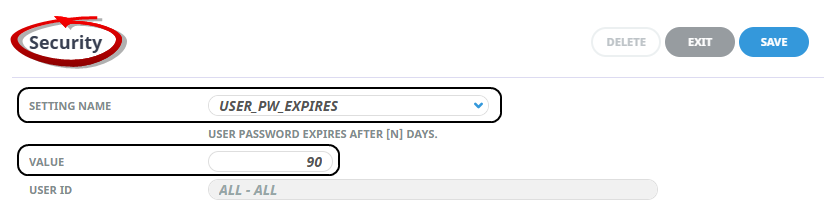
Enable the USER_PW_EXPIRES setting to define password expiration policies.
-
ClickSave to keep the changes.