
Loading interactive content…
The Analysis Tab allows pre-determined analysis codes to be assigned to suppliers. Once assigned, the codes can be used to select suppliers for inclusion in Supplier, Booking & Management reports.
Analysis tab fields are grouped into four sections:
The fields in these sections are described below.
Enter Analysis Details
-
If the supplier to which details are to be added does not exist, create the supplier first (see Create a Supplier).
-
If the supplier does exist, search for and retrieve it, so that creditor details are displayed on the screen (see Searching for Products or Suppliers).
-
Click the
 Analysis tab.
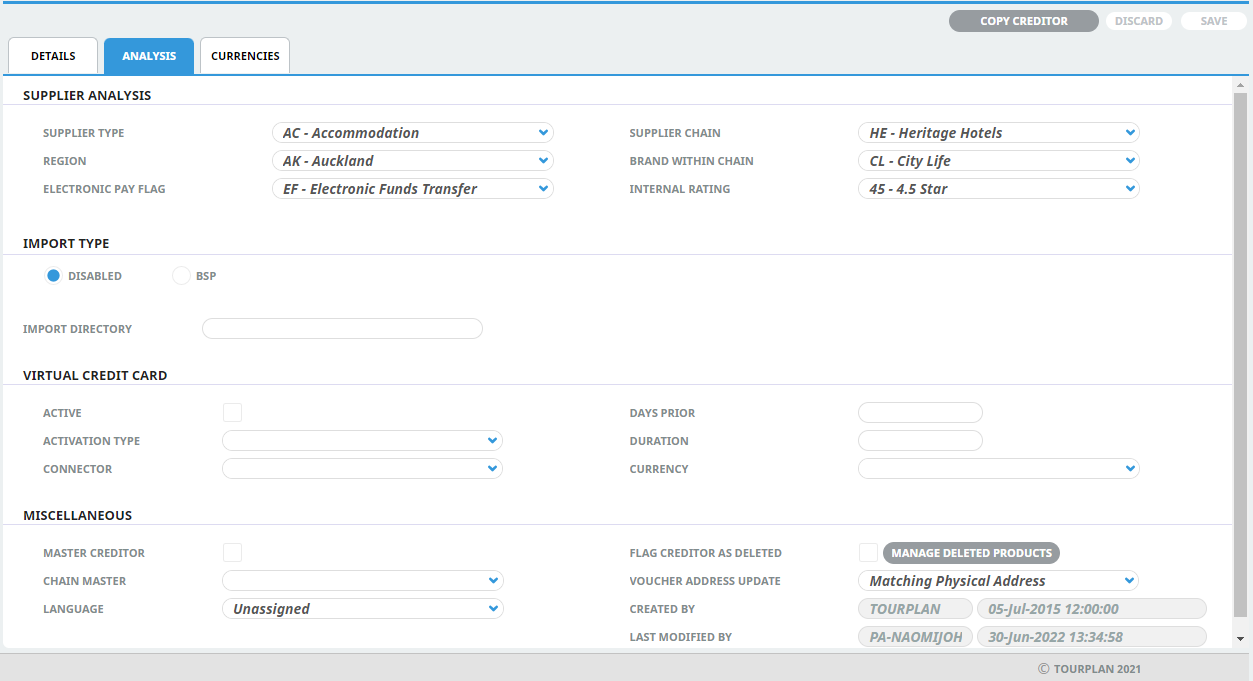
-
Enter details into fields as required and Save.
NOTE: In a new system, there will be no drop-down selections available in the fields showing Unassigned, because these entries have not yet been created and creation of them is outside the scope of this user manual.
See the System Setup User Manual for more information.
About Analysis Tab Fields
Supplier Analysis fields
There are six Supplier Analysis fields available. The labels for these fields can be user-defined in the System Setup User Manual
- Supplier Type
- Region
- Electronic Pay Flag
- Supplier Chain
- Brand Witihin Chain
- Internal Rating
Import Type fields
Tourplan has the ability to import and airline BSP data. These fields work in conjunction with system settings. If BSP import functionality is not enabled the Import Type default setting 'Disabled' should be left unchanged.
NOTE: Additional configuration is required to implement BSP import features. A local Tourplan Support office team member will assist you with these fields if required.
Import Directory fields
The directory thatcontains the BSP import files.
Virtual Credit Card fields
Active
This check box selection will activate a VCC payment option for this supplier.
NOTE: This field works in conjuntion with other system settings. The VCC funtionality will not operate solely on this activation selection.
Activation Type
There are three options available which determine the Virtual Credit Card activation date.
-
Immediate - as soon as the service is booked
-
Check In Date - the first date of service
-
Check Out Date - the last date of service
Connector
Details a pre configured Connector Code and Connector Name available from the dropdown selection.
Days Prior
Defines the number of days before the activation date the card becomes valid.
Duration
Defines the number of days the Credit Card is active for.
Currency
Determines the currency the VCC transaction will use.
Miscellaneous
Miscellaneous supplier information is a group of unrelated details, including:
-
Master Creditor- checkbox, to indicate whether or not this is a master creditor. Who the Chain Master supplier is (if assigned)
-
Language - pre defined list of language selections if the Supplier requires language translations.
-
Flag Creditor as Deleted - indicates whether or not this creditor can be found in searches.
-
Manage Deleted Products Button - provides the ability to view and edit the delete status of products attached to this supplier.
-
Voucher Address Update - specifies how updates should be applied to voucher addresses
-
Also included in miscellaneous details are four read-only metadata fields about this supplier record which includes: the user who created the Creditor and the date it was created; and the user who last modified the Creditor and the date it was last modified.
About Master Creditor / Chain Master
Tourplan allows suppliers to have subsidiary suppliers. This feature means, for example, that Supplier Remittance Advices detailing transactions for subsidiary suppliers can be sent to, and the cheques made out to, the head office/master supplier.
For this feature to work, the system has to know which supplier is the Master and which are the subsidiaries:
If the supplier being entered is a master, then click the check box Chain Master. If the supplier being entered is a subsidiary of a supplier which has already been entered and defined as a master, click the drop-down Chain Master list and select the master supplier from the list. If the supplier being defined is not a master or a subsidiary supplier, leave both fields blank.
This feature should only be used where payment for services from one supplier has to be made to another supplier/creditor, e.g. the payment for a supplier has to be made to a head office, not directly to the supplier.
Language
The language code in this field determines which set of document and message templates are displayed when sending messages to this supplier. These language codes must first have been set up via Code Setup (Home > System > Code Setup > Messaging > Language). If foreign language documents or messages are not required, then leave this field as Unassigned.
Flag Creditor as Deleted
This flag "hides" the supplier when bookings/quotations are made, so that consultants cannot use this supplier in a booking. The supplier is then only available for maintenance via the Creditors application.
Manage Deleted Products Button

Selecting this button opens an additional screen to multi select products from the supplier and manage whether they are flagged as deleted or available for use in bookings and PCM's.
Voucher Address Update
This drop-down is used when address details of an existing supplier are modified. When the supplier is used in a Database Product, the physical address details are saved as the voucher address in the Product (see Add Product Detail > Add Voucher Details). If the address details change, choose a drop-down selection to determine whether or not the address details in any Products in which the supplier is used should also be updated. The choices are:
| Selection | Effect |
|---|---|
| None | Products will not be updated with new name or address details. |
| All With Physical Address | All Products that have this supplier's physical address will be updated, regardless of the voucher address. |
| All With Mailing Address | All Products that have this supplier's mailing address will be updated, regardless of the voucher address. |
| Matching Physical Address | Only Products for this supplier that have the exact original physical address (before modifying) will be updated with the new name or address details. |
| Matching Mailing Address | Only Products for this supplier that have the exact original mailing address (before modifying) will be updated with the new name or address details. |