
Loading interactive content…
Email Account
The configuration of Email Accounts enables organisations to designate an email address for Tourplan to use when sending emails, and optionally to establish an email account for importing replies into Tourplan. This setup involves defining protocols, which are the rules and standards that manage data transmission and communication between your email system and Tourplan.
The procedures below include creating an SMTP Email account to send emails from Tourplan, and an IMAP procedure to set up an Email account to Import Emails from.
Create an SMTP Email Account
-
Select menu
 Home > System > Code Setup.
- Click the Home menu to expand it:

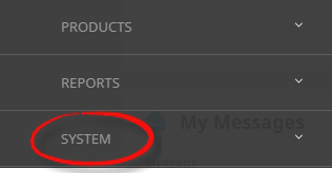
- Click the System menu option to expand it:

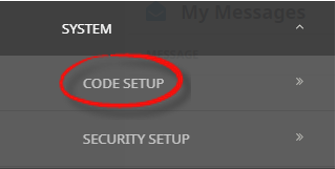
- Click Code Setup to go to the Code Setup menu:

- Click the Home menu to expand it:
-
Select menuCode Setup > System > Email Account.
- Click the Code Setup menu to expand it:
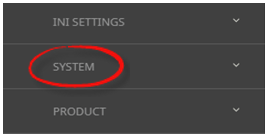
- Click the System menu option to expand it:

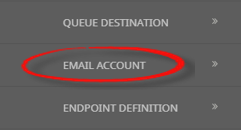
- Click Email Account to open the Email Account screen: (any existing records will display)

- Click the Code Setup menu to expand it:
-
ClickInsert.

-
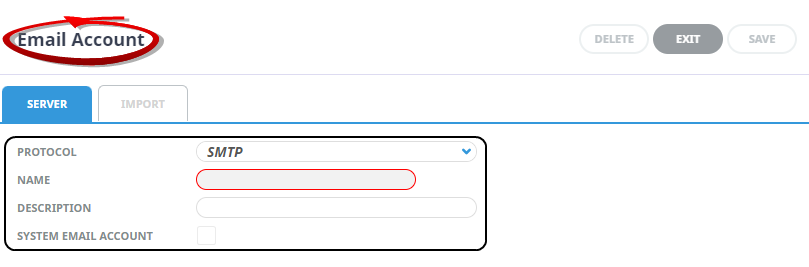
On theEmail Account screen, (Server Tab), select a Protocol, enter an Account Name and Account Description.
NOTE: Account name is a mandatory field, the Description field is optional.
-
Check the System Email Account checkbox to enable sending emails from this account.
-
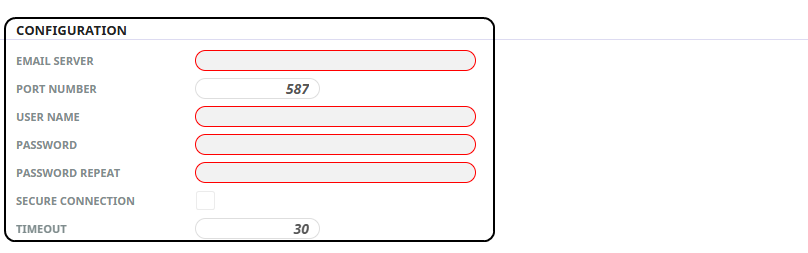
In theConfiguration section, enter the Email Server, Port Number and login credentials including User Name and Passwords fields. Check the Secure Connection checkbox if required, and enter the Timeout value.
-
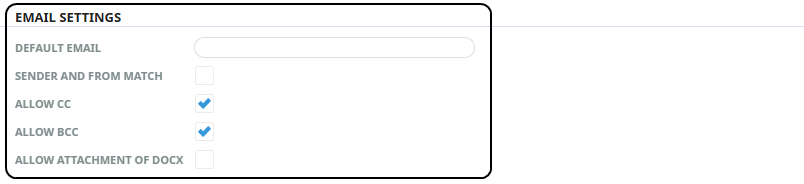
Insert theEmail Settings, including the Default Email Address, and check the required checkboxes for this account. (By default the Allow CC, and Allow BCC are selected)
- Complete the Limit Mailbox Connections section (No Limit is the default selection).
- Check the completed screen.
-
ClickSave to keep the changes.

-
ClickExit to discard any changes.

-
NOTE: After clicking Save, the screen clears, ready for another Email Account – continue adding the required Email Accounts, or click Exit to close the screen.


Create an IMAP Email Account
This setting is configured to import emails from an external email account.
-
Select menuHome > System > Code Setup.
- Click the Home menu to expand it:
- Click the System menu option to expand it:
- Click Code Setup to go to the Code Setup menu:
- Click the Home menu to expand it:
-
Select menuCode Setup > System > Email Account.
- Click the Code Setup menu to expand it:
- Click the System menu option to expand it:
- Click Email Account to open the Email Account screen: (any existing records will display)
- Click the Code Setup menu to expand it:
-
ClickInsert.
-
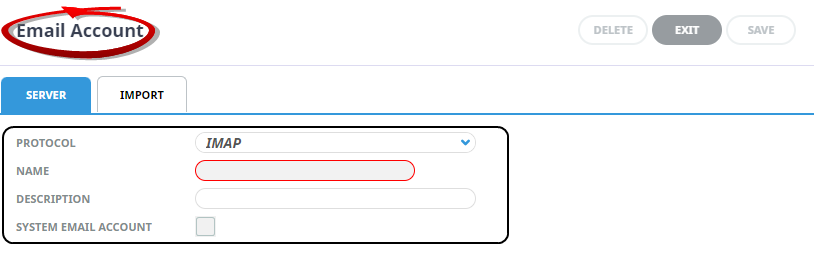
On theEmail Account screen, (Server Tab), select a Protocol, enter an Account Name and Account Description.
-
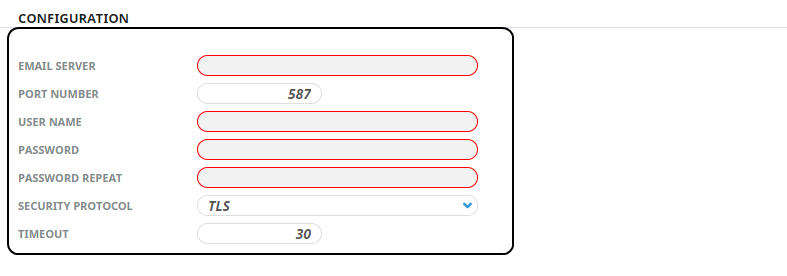
In theConfiguration section, enter the Email Server, Port Number and login credentials including User Name and Passwords fields.
- Complete the Limit Mailbox Connections section (No Limit is the default selection).
- Check the completed screen.
-
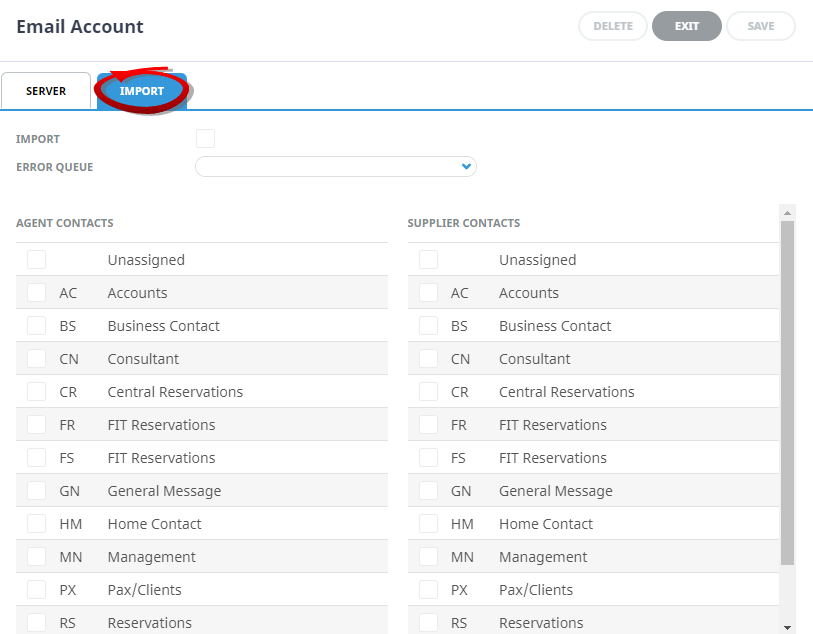
Click theImport Tab, check the Import checkbox, select an Error Queue, check the required Contact types for import for Agent and/or Suppliers.
-
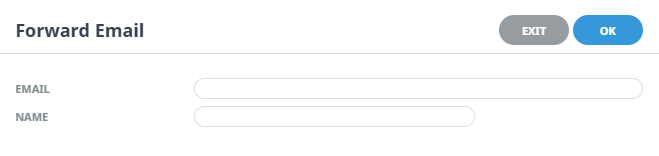
If you want to forward emails to a nominated email address from this account, clickInsert.

-
TheForward Email modal opens, enter an Email address, and Name.
-
ClickOK to keep the changes and save or update the entry.

-
-
ClickSave to keep the changes.
-
ClickExit to discard any changes.
-
NOTE: After clicking Save, the screen clears, ready for another Email Account, click Exit to close the screen.
About Email Account Fields
Server Tab
Protocol
Protocols are a set of rules or standards that govern how data is transmitted and communicated between your email system and Tourplan. This field selection identifies the Email Protocol Tourplan will use for the Email Account created.
NOTE: The Protocol selections are pre-defined and are not user definable or editable.
Available options are:
-
IMAP - IMAP stands for Internet Message Access Protocol, select to import emails into Tourplan.
-
Office 365 Modern Authentication - select to allow Tourplan to use Office 365 as its email service.
-
SMTP - SMTP stands for Simple Mail Transfer Protocol, select if the Email Account is used to send emails from Tourplan.
Name
A name is required for the Email Account - this name is used to schedule tasks to import emails.
NOTE: Once a Email Account Name is saved it cannot be amended.
Description
Define a description for the Email Account - this field remains editable once saved.
System Email Account
When this setting is checked, it specifies the email account used to send messages from Tourplan. This option is available for SMTP, or Office 365 Modern Authentication protocols.
NOTE: Tourplan allows sending emails from one account, so multiple email accounts cannot be selected.
Configuration
The Configuration fields change depending on the Protocol selected.
IMAP Configuration Fields
-
Email Server - Email server URL
-
Port Number - Protocol Port Number (defaults to 587 - this can be amended to the required port number)
-
User Name - The nominated Email Address for the Email Account
-
Password - The Password of the nominated Email Account
-
Password Repeat - The Password of the nominated Email Account (repeated)
-
Security Protocol - None, Start TLS, and TLS
-
Timeout - Number of minutes
Office 365 Modern Authentication
-
Tenant ID - Office 365 Directory ID
-
User Object ID - Office 365 User (licence) Object ID
-
Client ID - Office 365 Application ID
-
Client Secret - Office 365 Client Certificate Secret Description
-
Client Secret Repeat - Office 365 Client Certificate Secret Description (repeated)
SMTP
-
Email Server - Email server URL
-
Port Number - Email server assigned port number
-
User Name - The nominated Email Address for the Email Account
-
Password - The Password of the nominated Email Account
-
Password Repeat - The Password of the nominated Email Account (repeated)
-
Secure Connection - Select the check box if the URL is a secure site
-
Timeout - Number of minutes
NOTE: These settings are all provided/defined by your email service provider and Tourplan support will not know the values that you should be using. If you don't know the required values then please contact your email service provider in the first instance.
Email Settings
-
Default Email - Sets the default email account for outgoing emails (for Tourplan to send from)
-
Send and From Match - Enable this option to ensure that the 'Send' email address matches the 'From' address
-
Allow CC - By default this checkbox is selected enabling the use of CC (Carbon Copy) fields in email communications.
-
Allow BCC - By default this checkbox is selected enabling the use of BCC (Blind Carbon Copy) fields in email communications.
-
Allow Attachment of Docx - Select the check box if messages from this account can send attached .docx files.
Limit Mailbox Connections
Some email providers have a limit to the number of concurrent connections a mailbox can have - if a limit is required select the 'Limit To' radio button and set the maximum number of concurrent mailbox connections.
Import Tab
Import
Select the Import check box if the email account is to import email replies into Tourplan.
Error Queue
This is a drop down selection which allows the email messages to appear in the Email Management page if the message errored during import.
NOTE: The drop down selections for this field are configured as a Queue Destination in Code Setup. This is an optional setting and not a requirement to import emails into Tourplan.
Agent Contacts
Select the check boxes of the Contact Types the system will import email replies from.
Supplier Contacts
Select the check boxes of the Contact Types the system will import email replies from.
Insert Button (Forward Email)
Select Insert to enter an approved forward email address.
NOTE: Defining Email Address here allows organisations to forward imported emails to another email address (from within the Email Management Page).