Loading interactive content…
Queue Defaults are used as a template for standard text that may be frequently used when sending internally queued messages. It saves users from having to type Queue Message information that may be commonly used.
Queue Defaulted messages allow users to quickly attach and send internal messages; for services within a booking, for messages related to bookings, for agents, for PCMs, for Suppliers, for associated users or general messages can also be sent unrelated to a booking.
The setup of Queue Defaults can determine the different destination types intended for the message defaulted text.
NOTE: Queue messages addressed to other users or queues will display on their system Dashboard.
Create a Queue Default
-
Select menu
 Home > System > Code Setup.
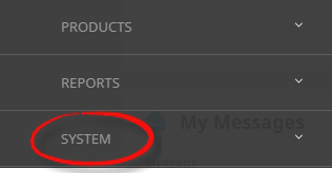
- Click the Home menu to expand it:

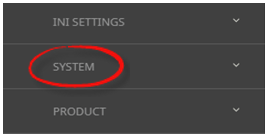
- Click the System menu option to expand it:

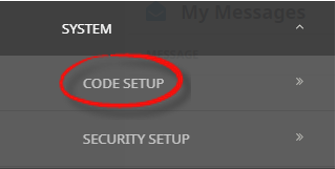
- Click Code Setup to go to the Code Setup menu:

- Click the Home menu to expand it:
-
Select menuCode Setup > System > Queue Defaults.
- Click the Code Setup menu to expand it:

- Click the System menu option to expand it:

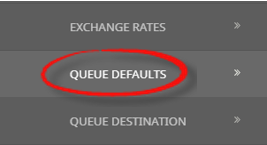
- Click Queue Defaults to open the Queue Defaults screen:

- Click the Code Setup menu to expand it:
-
ClickInsert.

-
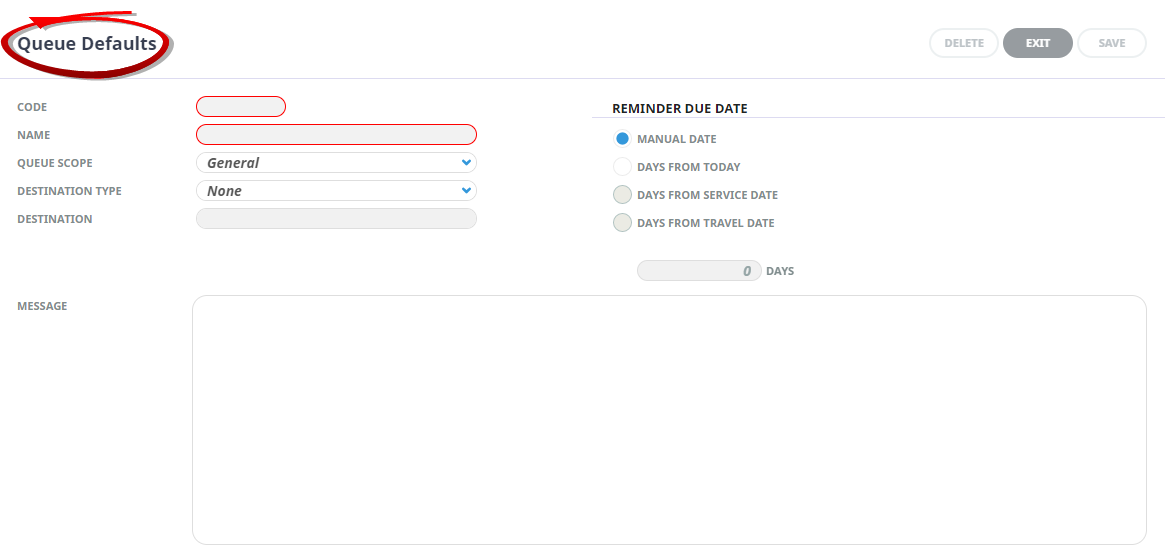
On theQueue Defaults screen, enter a Code and Name.
-
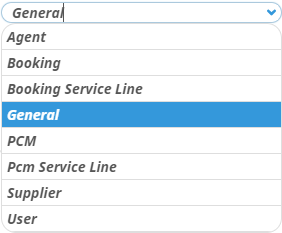
If required select aQueue Scope.
-
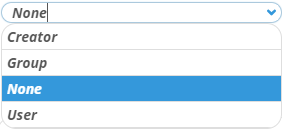
Select aDestination Type.
NOTE: This is who the message is intended for. If the Destination Type selected is Group or User then the next field (Destination) must be selected.
-
TheDestination field will be enabled if Group or User was selected in procedure 6. Select a destination Group or User from the drop down.
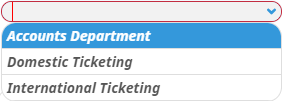
- Enter the required text into the Message field.
-
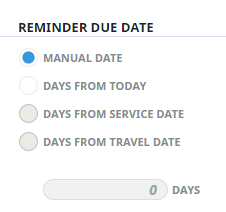
If required select aReminder Due Date.
NOTE: These fields are quite intuitive however field explanations can be found in the section called Reminder Due Date.
- Check the completed screen.
-
ClickSave to keep the changes.

-
ClickExit to discard any changes.



NOTE: After clicking Save, the screen clears, ready for another Queue Default – continue adding queue defaults or click Exit to close the screen.
About Queue Default Fields
Code
This field requires a code for the Queue Default, it can be up to 6 characters.
Name
A descriptive field name for the Queue Default.
Queue Scope
This field determines the entity that the queue applies to, selections include:
- Agent - the message will be associated with the Booking Agent.
- Booking - the message default will be associated with the Booking Header.
- General - the message will not be associated with a specific entity, this will be a General Message default.
- PCM - the message will be associated with the PCM Header.
- PCM Service - the message will be associated with a PCM Service Line.
- Supplier - the message will be associated with the Supplier.
- User - the message will be associated with a User.
Destination Type
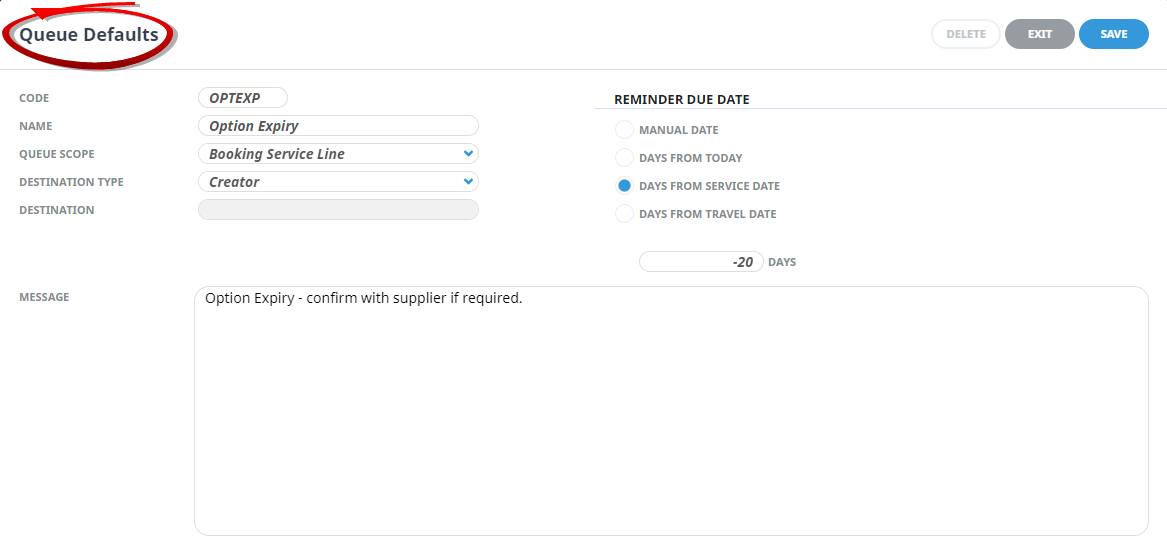
A Queue Destination can be set to control the destinations that can be selected when a message of this type is created. In the example below the destination type is set to Creator which means that the user that creates a message of this type will automatically be set as the recipient of the message. Other destination types are:
- None - no pre-defined destination.
- Group - the message will be set up to send to a specific group.
- User - the message will be set up to send to a specific user.
Destination
This field will remain shaded, and an entry into this field will be unavailable unless the Destination Type selected is Group or User. If the Queue Default has used Group or User in the Destination Type fields then a dropdown selection will be enabled.
Reminder Due
Message Defaults allow for reminder due dates to be set to send for specific times the selections available are:
- Manual Date - if this message is selected by a user they will be able to select a manual date for the message to send.
-
NOTE: selecting any of the three remaining check box (Days from today, Days from Service Date, Days From Travel Date will enable the number of days field to be used.
- Days from Today - the message will be sent using the 'number' of days from 'today'.
- Days from Service Date - the message will be sent using the 'number' of days from the service date.
- Days from Travel Date - the message will be sent using the 'number' of days from the booking travel date.
-
NOTE: for Days from - Today, Service Date, Travel Date, the due date of the queue will be calculated by the system and the calculated date cannot be overridden.
Days - this can be a negative number for example, -20 for 20 days prior to service date or perhaps 20 days prior to travel. It can also be a positive number perhaps a quote follow up message for 10 days from today.
Message
A free text field that for the message associated with the queue default.
This example shows a queue default that has been inserted for a service line expiry message. When this queue is selected, the message text will automatically populate for the user and in this example for the creator of the booking. This is a very useful time saving tool when using message queues to communicate internally.
Additionally this message has a Reminder Due Date to appear 20 days before the service date.