Loading interactive content…
NOTE: The Financial menu nodes display on the Code Setup menu as 'General Ledger Analysis unless they have been labelled in Code Setup > INI Settings > System
There are two steps to the setup of an analysis field:
- first the General Ledger Analysis field heading must first exist (in INI Settings). This task may have been completed, and the procedure in this topic will show users how to insert new data into these fields
- second the definition of data (selectable options) must be configured in Code Setup.
INI Setting: GLANALYSIS1-6 (6 Fields) (All Users)
Labels for the six General Ledger Analysis fields. Once set, these field labels are available in Code Setup > Financials for the definition of data in the General Ledger analysis tables. This data is then able to be set against the General Ledger.
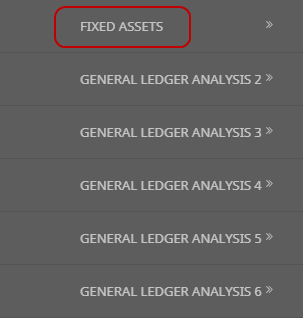
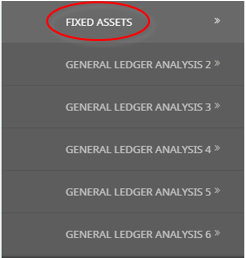
In this example, General Ledger 1 has been labelled Fixed Assets.
The General Ledger Analysis Fields could be used to categorise your accounts seen in different cashflow activities such as Operating, Financing & Investing.
Alternatively GL Analysis Fields could be used to create a report with Financial ratios and could be classified in Current/Fixed Assets, or Current/Long Term Liabilities as an example.
Using analysis codes in General Ledger enables reporting to be selectively based on each analysis field. The analysis codes can be used in a wide variety of standard accounting reports to categorise accounts as well as in Excel based analysis reports.
Create General Ledger Analysis Codes
The following procedure uses General Ledger Analysis 1, however users may have different General Ledger field headings based on organisational requirements of this field.
-
Select menu
 Home > System > Code Setup.
- Click the Home menu to expand it:

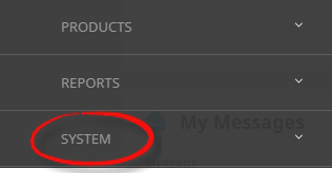
- Click the System menu option to expand it:

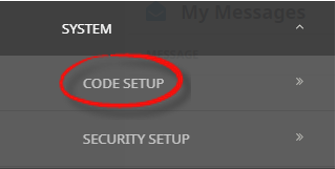
- Click Code Setup to go to the Code Setup menu:

- Click the Home menu to expand it:
-
Select menuCode Setup > Financials > Analysis 1 to 6.
- Click the Code Setup menu to expand it:

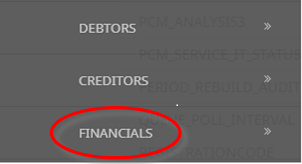
- Click the Financials menu option to expand it:

- Click General Ledger Analysis Field to open the Analysis Field screen (in this example we are using Analysis 1, which has been renamed as FixedAssets:

- Click the Code Setup menu to expand it:
-
On theAnalysis 1 (Fixed Assets) screen, if the code that you want is not already in the list, click Insert.
This is an example list, it is not a requirement to insert Fixed Assets as Analysis 1 with the codes below noted.

-
On theAnalysis 1 (Fixed Assets) screen, enter a Code for the Analysis Code and a Description.

-
Review thecompleted screen.

-
ClickSave to keep the changes.

-
ClickExit to discard any changes.



NOTE: After clicking Save, the screen clears, ready for another Analysis Code - continue adding Analysis Codes or click Exit to close the screen.
About General Ledger Analysis Fields
Code
A 2 character code for the Analysis code
Description
A descriptive field for the Analysis code description, this field can be up to 40 characters.
Where to attach General Ledger Analysis Codes
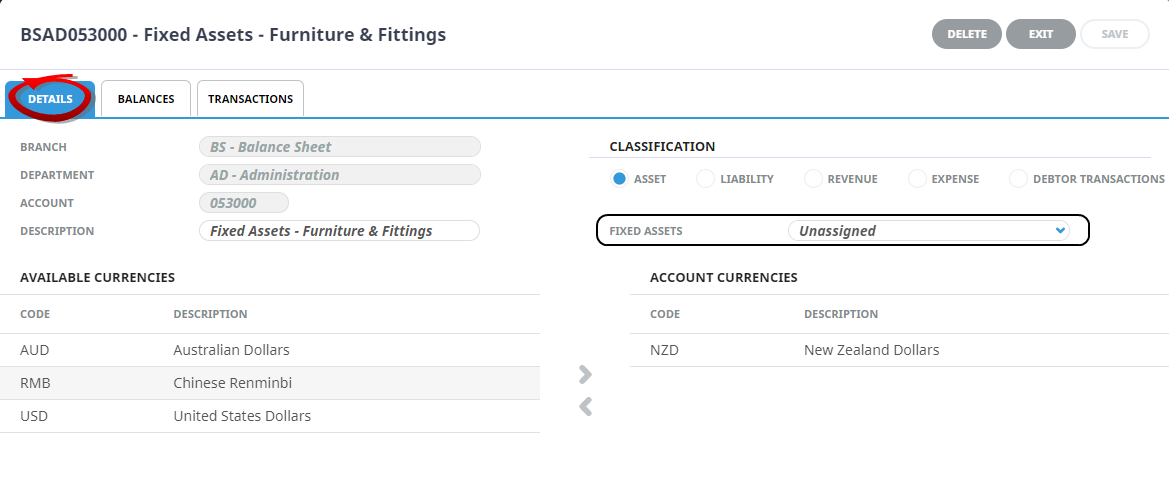
When the procedure above has been completed, a list of General Ledger Analysis codes will appear in the General Ledger Analysis fields. Users will be able to attach codes to the applicable Ledger.
Example on where to Attach General Ledger Analayis Codes to the Account.
The option to attach the previously defined Analysis Codes from the proceedures above to your Agents will now be available.
When A General Ledger record is open, select the Details Tab. The General Ledger Analysis fields are in the top section of the screen. Select the required Analysis Codes from the drop-downs.