
Loading interactive content…
Import Supplier Invoice
How do I use the import supplier invoice function?
This article will explain:
-
What the import supplier invoice function does
-
What file formats are valid for this process
-
How to use the import supplier invoice functionality
-
How to enable this function
Overview
The Import Supplier Invoice function gives you the ability to import a file that creates Supplier invoices within Tourplan, the feature must be made available to users or groups of users.
File Formats
The two supported file formats for invoice imports are .xml or .csv.
CSV File Format
A valid file can contain the following fields, those marked with an * are mandatory i.e. must have a non-blank value.
| Fields | Detail |
|---|---|
| SupplierCode* | 6 Character Creditor Code |
| InvoiceReference* | Invoice Reference Number |
| InvoiceDate* | Invoice Transaction Date |
| InvoiceCurrency* | Invoice Currency from the Booking Header |
| VoucherNumber* | Invoice Voucher Number |
| AmountTaxExclusive* | Invoice Value Exclusive of Tax |
| AmountTax* | Invoice Tax Amount |
| CloseVoucher* | Close Voucher Instruction, Y/N Value |
| RemittanceNotes1 | Any Required Remittance Notes |
| RemittanceNotes2 | Any Required Remittance Notes |
XML File Format
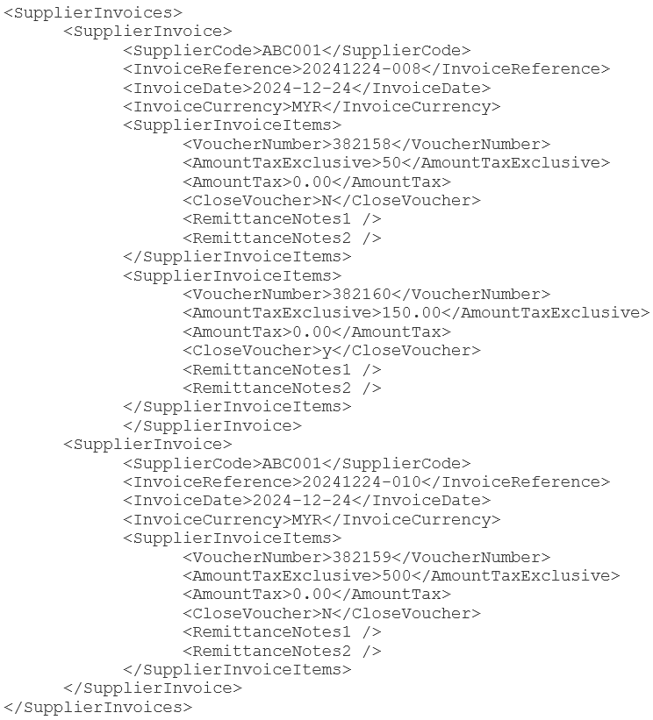
NOTE: If you require example .CSV or .XML files please contact your local Tourplan support office.
Supplier Invoice Import
-
From the Home menu, select
 Financials > Accounting > Accounts Payable > Import Invoices.
- Click the Home Menu to expand it:

- Click the Financials menu option to expand it:

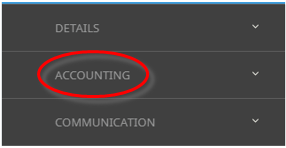
- Click Accounting to go to the Accounting menu to expand it:

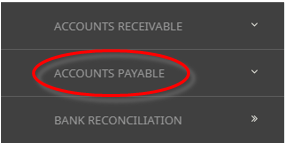
- Click Accounts Payable to go to the Accounts Payable menu to expand it:

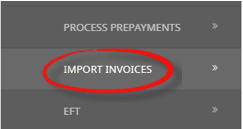
- Click Import Invoices to go to the Import Invoices screen:

- Click the Home Menu to expand it:
-
Locate the required file from your local drive and open the file to begin the import.
NOTE: An error message will appear if the selected file format is incorrect or the file contains invalid data values.
-
The Import Invoice screen will display a list of columns to import. Click Yes to continue, or No to cancel the file import.
-
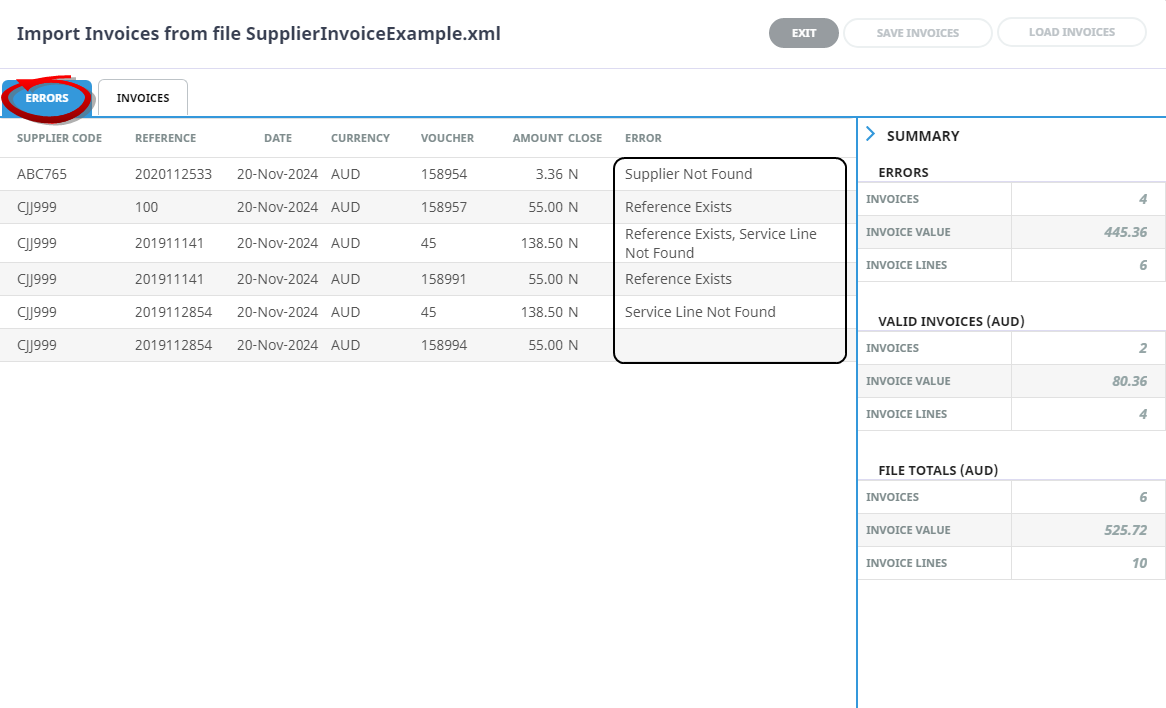
The Import Invoice Transaction Lines screen displays the validation results from the invoice file.
-
Errors Tab - if the invoice file contains validation errors a list of errored invoice lines will display.
-
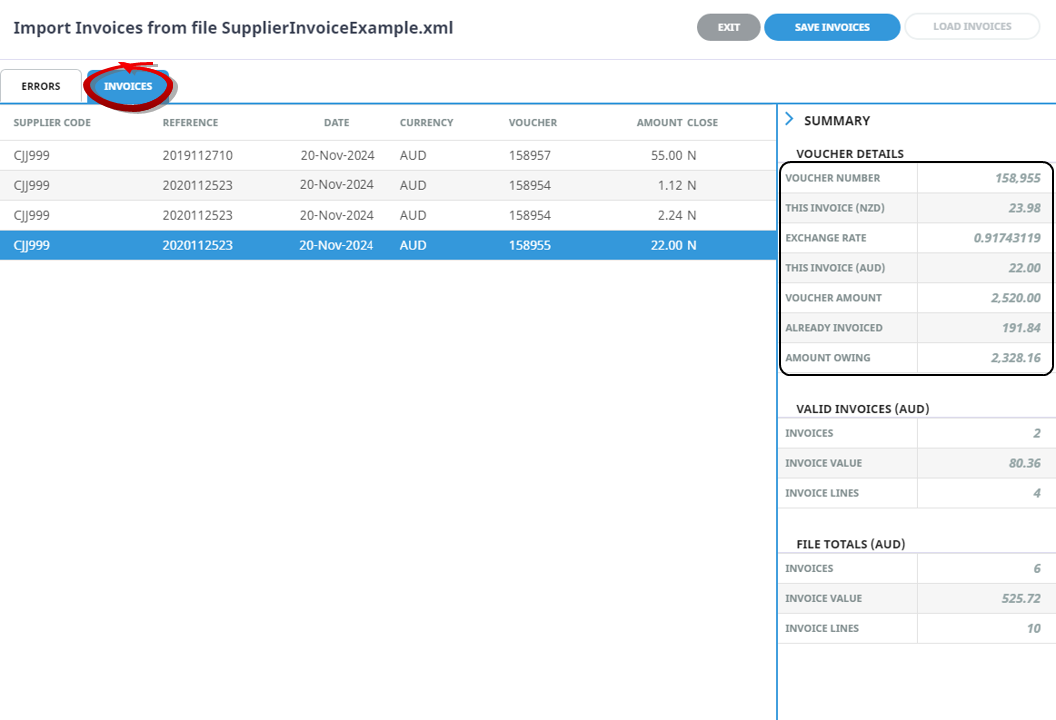
Invoices Tab - valid invoice lines display on the Invoices tab.
NOTE: Selecting an invoice line displays the Voucher Details in the summary panel of the screen.
NOTE: The Errors and Invoices tab fields are display only, data cannot be corrected within the UI . -
-
From the Invoices tab,
-
Click Save Invoices to complete the process.
-
Click Exit to cancel the process.
-
-
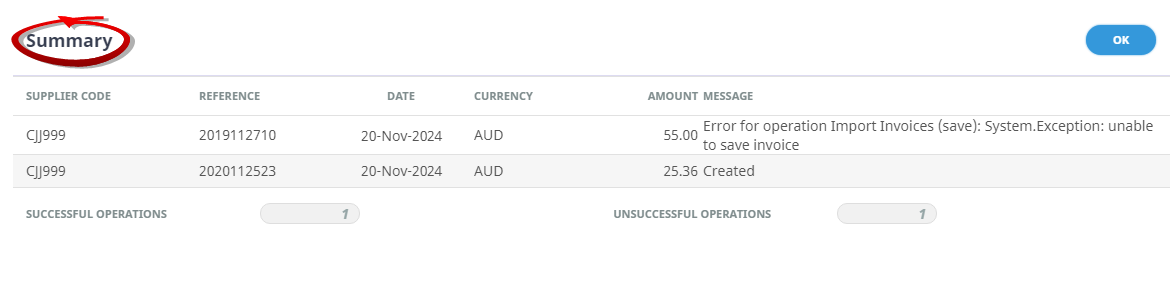
If Save Invoices was selected, a Summary screen will display showing one row per invoice line saved.
-
ClickOK to keep the changes and save or update the entry.



About the Import Invoices Fields
Errors and Invoices Tab
Supplier Code
All 6 digit supplier codes.
Reference
The reference number for the invoice.
Date
This is the invoice transaction date.
Currency
The invoice transaction currency.
Voucher
All identified invoice voucher numbers.
Amount
The transaction invoice amount.
Close
Whether the voucher will be closed as a part of the transaction. Y (Close Voucher)/N (Voucher Remains Open).
Error (Error Tab)
A list of the errors found within the content of the import file.
Error Types
| Error Types | Definintion |
|---|---|
| Supplier Not Found | The Supplier code specified cannot be found |
| Service Line Not Found | The voucher number does not match the service line ID of an exisiting service line |
| Reference Exists | An exisiting invoice with the specified reference has been found for the supplier |
| Voucher Not Found | The specified voucher number cannot be found |
| Invalid Currency | The currency specified cannot be found |
| No Liability | There is no liability on the service line |
| Date In Closed Period | The invoice date is in a closed period |
| Period Not Found | The invoice period was not found |
Summary Section
The summary section to the right of the screen can be collapsed or expanded using the arrows.
Voucher Details Section
Voucher Number
The voucher number for the selected invoice line.
This Invoice
The invoice amount in the systems base currency.
Exchange Rate (If Invoice currency different from Voucher currency)
Any exchange rate from the invoice currency to the system base currency.
This Invoice (If Invoice currency different from Voucher currency)
The invoice amount in the invoice currency.
Voucher Amount
The total value of the voucher.
Already Invoiced
The total value already invoiced against the voucher.
Amount Owing
The total value still owing against the voucher.
Valid Invoices Section
Invoices
The total number of valid invoices identified within the import file.
Invoice Value
The total value of valid invoices identified within the import file.
Invoices Lines
The total number of valid invoice lines identified within the import file.
File Totals Section
Invoices
The total number of invoices identified within the import file.
Invoice Value
The total value of invoices identified within the import file.
Invoice Lines
The total number of invoice lines identified within the import file.
Security Settings
Important Note: As with other applications within Tourplan NX, access is granted to required users or groups of users via security settings within the Security Setup menu. Once Imported Transactions is enabled, all users provided with access will see Import Invoices as an accounting menu item under Accounts Payable.
NOTE: Security setting amendments can only be actioned by users with sufficient system permissions within Tourplan NX and should be done in consultation from your Tourplan system administrator.