
Retain Link To PCM
What does retain link to PCM do?
When inserting a PCM into a booking, you can choose to enable the Retain Link to PCM checkbox. This indicates you want to keep the PCM price and maintain the link between the booking's Pax Configuration and the PCM's Pax Ranges. You can then add and amend services within the booking without altering the established PCM per Pax Price.
This feature is helpful when inserting a PCM Quote into a booking as retaining the link allows you to hold and apply the PCM Quote per Pax price even when there are price changes or Pax configuration differences in the booking. When services are unlinked from a PCM, they are detached from the PCM pricing structure and Tourplan adds the individual product prices to the booking value.
This article will help you to...
-
Maintain the PCM price integrity in a booking.
-
Link additional services without changing the PCM price.
-
Unlink services from the PCM pricing structure.
Overview
PCMs are priced based on a Half Twin/Single Supplement. The feature to Retain Link to PCM allows you to cost a set of services for tours based on varying Pax Rages and then hold the price of one of those Pax ranges when converted to a booking.
Maintain the PCM Price integrity in a booking
-
Create a Group booking and define the Pax Configuration before inserting a PCM Quote.
-
Click Itinerary > PCM Management.
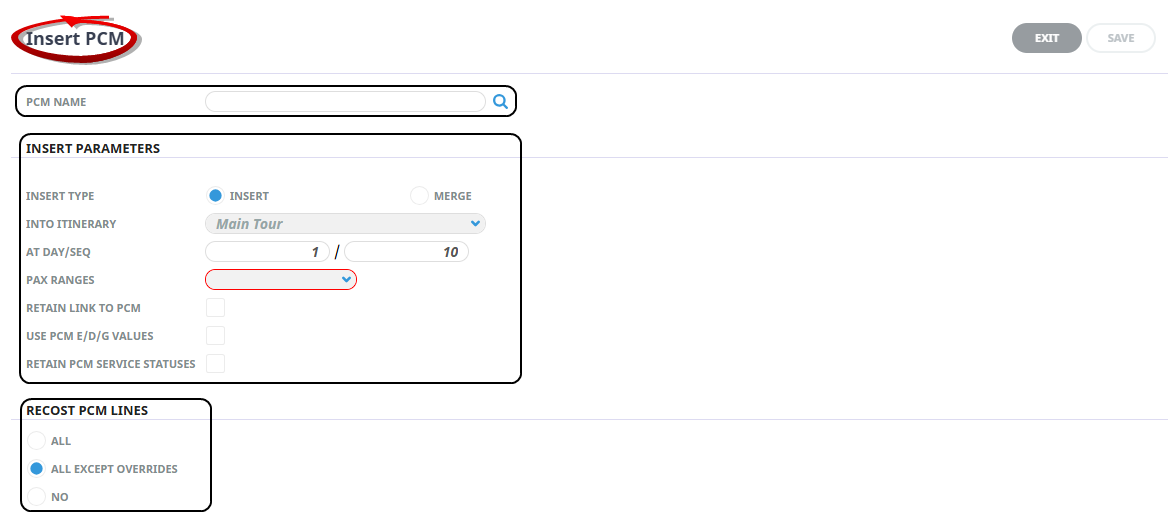
The Insert PCM screen opens where you can define several insert parameters.
-
Select the Insert Type, Into Itinerary, and enter the Day/Seq the PCM will insert into.
-
Choose the closest Pax Rage based on the current booking's Pax Configuration. The price for the PCM and specific Pax range will transfer to the booking.
-
Enable the Retain Link to PCM setting by ticking the checkbox. This indicates the inserted PCM is linked to an established price regardless if the PCM services are later altered or substituted in the booking.
-
Click Save.
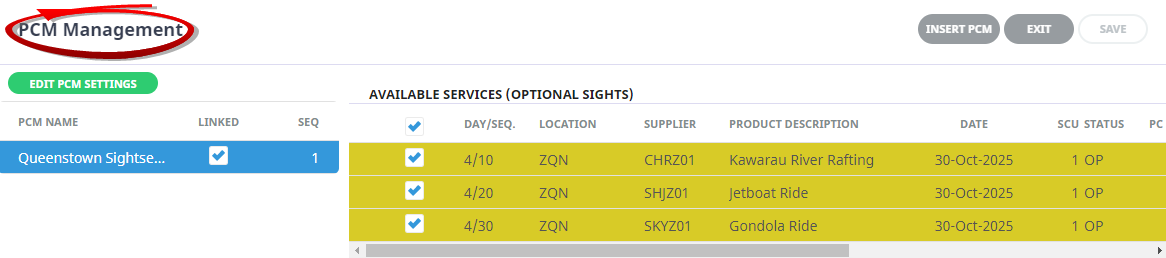
The PCM Management screen will show the linked PCM services with the ticked checkboxes.
-
Click Exit to return to the booking Itinerary screen.
NOTE: you can override the cost price for each service line in the Service Details screen. Differences between the PCM price and service costs that were overridden in the markup and margin values while the total PCM price remains unchanged.
Markups and commissions are applied from the agent and product levels and cannot be manually amended for individual services linked to a PCM.
If the Retain Link to PCM checkbox is not enabled, the price for each PCM service is taken directly from the product pricing in Tourplan.
Link additional services in a booking without changing the PCM price
This step assumes you have crated a Group booking and inserted a linked PCM.
-
To link a new service to the PCM without changing the PCM price, open the booking's main Itinerary and insert the new service line.
-
Click Itinerary > PCM Management.
-
Tick the checkbox to include the new service.
-
Click Save.
NOTE: The additional service becomes part of the PCM price with a possible change in markup and margin values. The original PCM price remains unaffected by the modification.
Unlink services from the PCM pricing structure
-
To unlink a services from a PCM after inserting it into a booking, click Itinerary > PCM Management.
-
Uncheck the linked service.
-
Click Save.
Markups and commissions can be amended for individual services unlinked from a PCM. Alternatively, you can apply a flat markup and commission % to all services in the Pax Configuration screen.
For more information on PCM Linking see PCM Management Groups.