
Buy Sell Currencies
How do I apply different buy/sell currencies to services in a booking?
By using the currency conversion feature at the product level, Tourplan enables you to apply different buy and sell currencies to individual products. When the products are added to a booking itinerary or PCM, the buy and sell rates will be retained if the Apply Database Markup checkbox is enabled on the Service Details screen when inserting the product. If this checkbox is not ticked, only the buy currency (cost rate) is brought into the booking.
This article will help you to…
-
Apply different buy and sell currencies at the product level.
Overview
The booking or PCM can be created in your base currency and the sell currency can be applied at the booking level or when raising an invoice. For organisations that need to setup different currencies for specific products, Tourplan offers the flexibility to define multi-currency products.
NOTE: The example uses New Zealand Dollars (NZD) as the buy currency and Australian Dollars (AUD) as the sell currency.
Apply different buy and sell currencies at the product level
-
Open Products > Product Setup and locate the product.
-
Click the Rates menu option and select an existing rate period or define a new rate period.
-
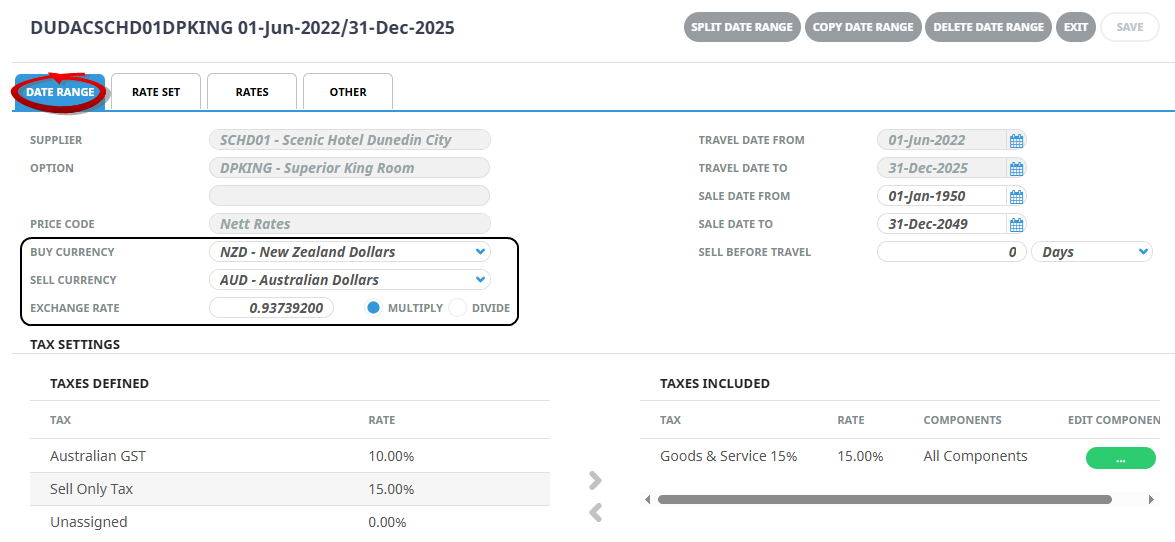
On the Date Range tab, use the dropdown boxes to select the Buy Currency and Sell Currency.
NOTE: The currencies must be defined in System > Code Setup > System > Currency to be available for selection here. The Exchange Rate field appears when a different Buy and Sell Currency is selected. The default system rate is 1.00000000.
-
Enter the Exchange Rate and select Multiply or Divide, depending on the type of conversion required.
-
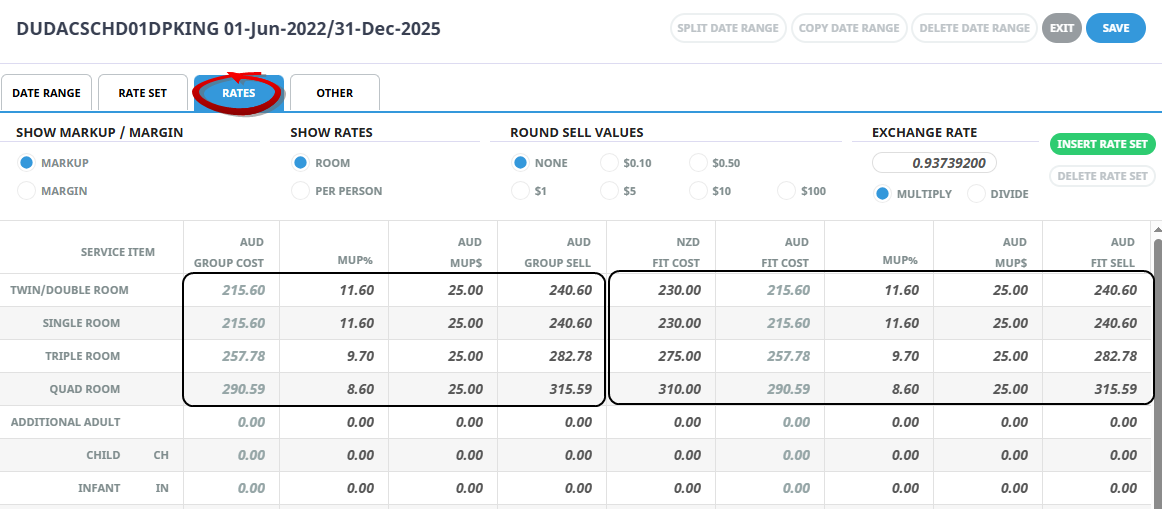
In the Rates tab, enter the Group and/or FIT Cost amounts. Tourplan will automatically perform the currency conversion based on the exchange rate entered in the Date Range tab.
-
Enter the Markup Percentage or Markup Amount.
-
The group of columns on the left display the NZD Group Costs, AUD Group Cost markup%, AUD markup $, and AUD Group Sell fields
-
The group of columns on the right display the NZD FIT Cost, AUD FIT Cost markup %, AUD markup $, and AUD FIT Sell fields that are editable.
-
Click Save to keep your changes and return to the Product Setup > Rates screen.

-
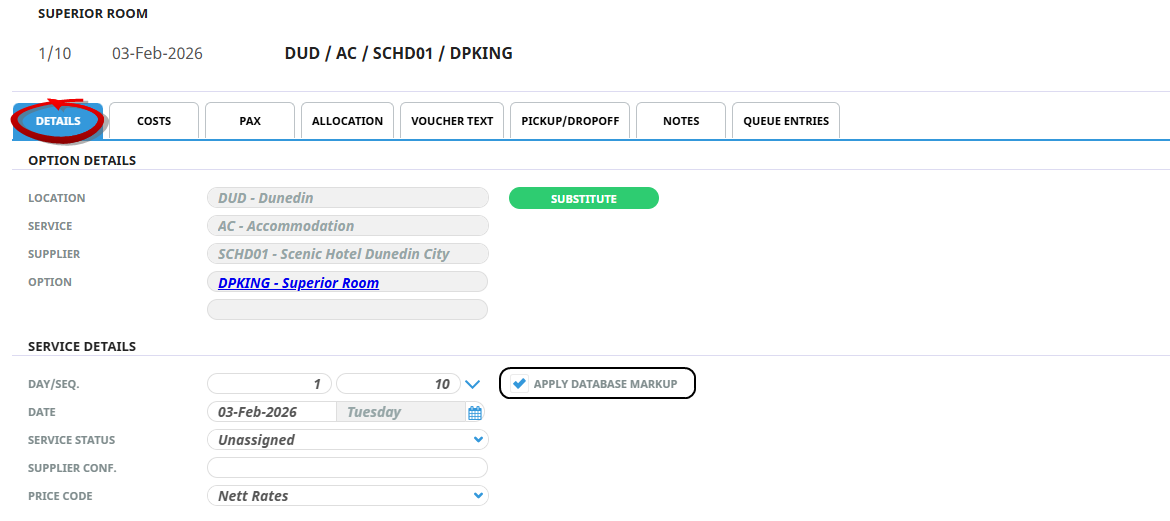
When the product is inserted into a booking or PCM, open the service line and ensure the Apply Database markup checkbox is ticked.
-
Click on the Costs tab to view the product Buy and Sell Currency amounts.
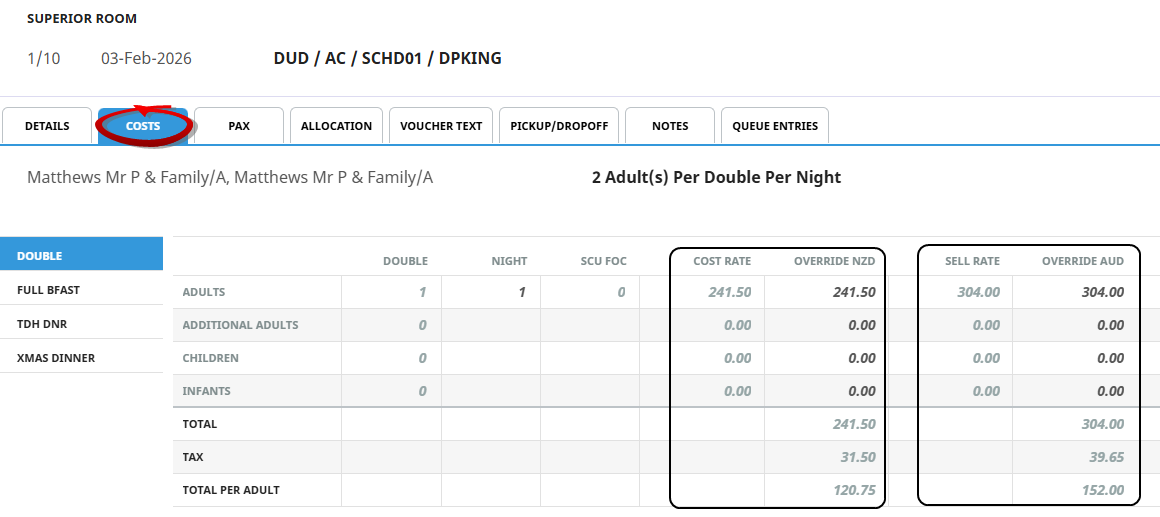
The example above shows which fields can be edited.
For more information click on the link - Apply Different Buy-Sell Currencies