
Pax Range Apply Markup & Commission
There are times where operators may need to apply markup and commission for all pax ranges or have variations in markup and commission across multiple pax ranges. Tourplan can manage each requirement within the Pax Range Details screen.
This article will help you to:
-
Understand the feature
-
Know where and how to apply this setting
-
See supplement options when applying these settings
Overview
This feature was designed to meet an operational requirement to manage PCMs more efficiently. Providing flexibility to modify markup and commission percentages recorded at a singular pax range level. We have included a new setting within the Pax Range Details screen:
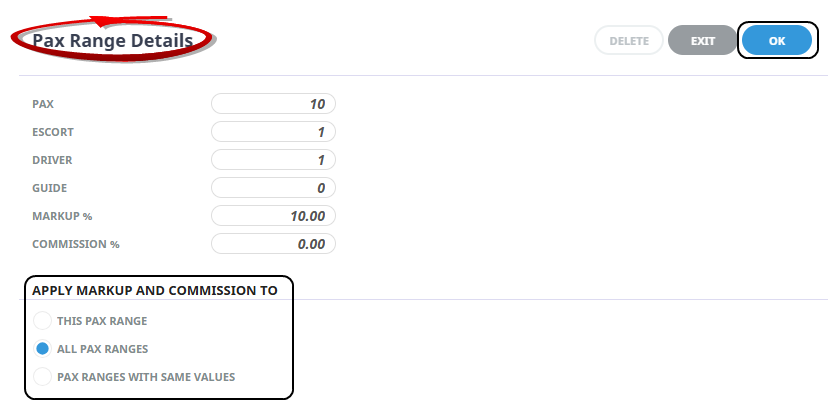
‘Apply Markup And Commission To’
-
This Pax Range
-
All Pax Ranges
-
Pax Ranges With Same Values
This allows a change to occur across multiple pax ranges, assisting with the management of markup and commission values within PCMs.
Manage Pax Range Markup and Commission
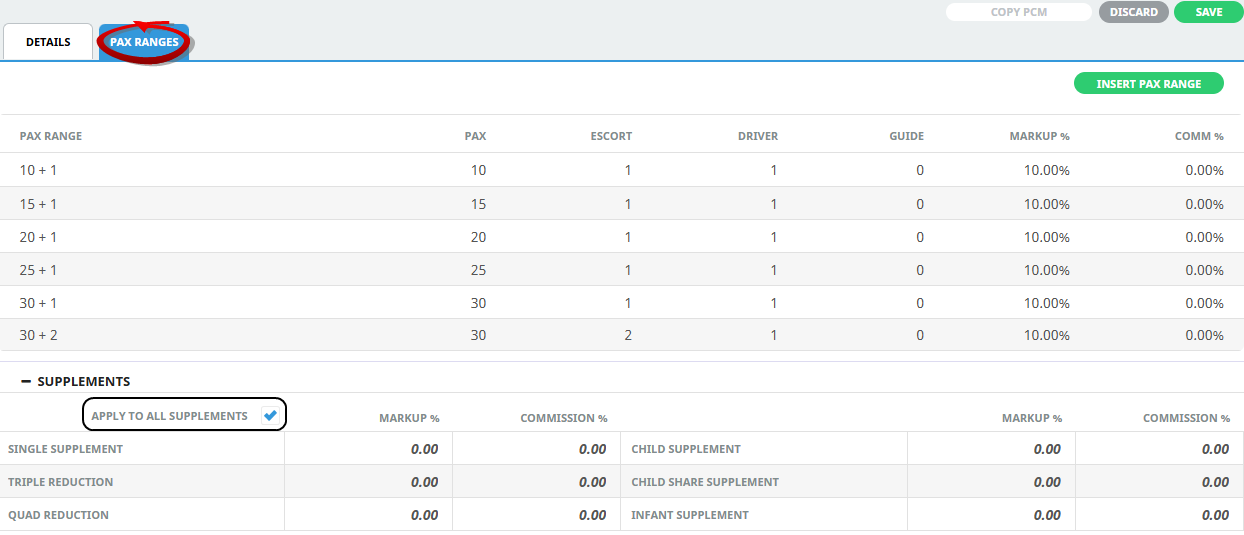
This feature is available within the PCM Pax Ranges tab and applies to the PCM you are working on.
-
Display a PCM on screen or create a new PCM.
-
Select a Pax Range to open the Pax Range Details screen.
-
Click to Apply Markup and Commission To:
-
This Pax Range (default setting).
-
All Pax Ranges.
-
Pax Ranges with Same Value.
-
-
Click Ok to Exit the Modal.
-
Expand Supplements and select if the Markup and Commission values are to Apply to All Supplements.
-
Click Save to update.
Conclusion
This feature is easy to apply standardised markup and commission levels across multiple pax ranges, whilst allowing existing per pax range management of existing PCMs. Supplementary efficiencies are also available with a new ’Apply to All Supplements’ tick box. When this is ticked the markup and commission is replicated when a change is made to any of the Room Supplements or Child/Infant Supplement percentages and the change applies to all supplements.