
Loading interactive content…
Compulsory Extras
How do I include compulsory extras?
Tourplan can apply Compulsory Extra charges for products allowing the inclusion of mandatory product add-ons to automatically apply the additional cost in a booking.
This article will help you to…
-
Add Compulsory Extras to products.
-
Include Compulsory Extras in bookings.
-
Verify the cost of a booking with Compulsory Extras.
Overview
Compulsory Extras are defined as mandatory charges that are automatically included when inserting the product into a booking.
The feature for Compulsory Extras is available in all versions of Tourplan and through webConnect and hostConnect if the product has Extras defined.
Use Case Examples
-
A Compulsory dinner if staying a certain night (e.g. Christmas or New Years’ Eve).
-
Compulsory transfers (e.g. for island resorts where the only way to get there is by boat transfer).
-
Stay Pay deals where breakfast is chargeable for the nights payable or for the entire length of stay regardless of the SCU quantity.
Charge Per Options
There are 4 charge options for Compulsory Extras that determine how charges are applied.
-
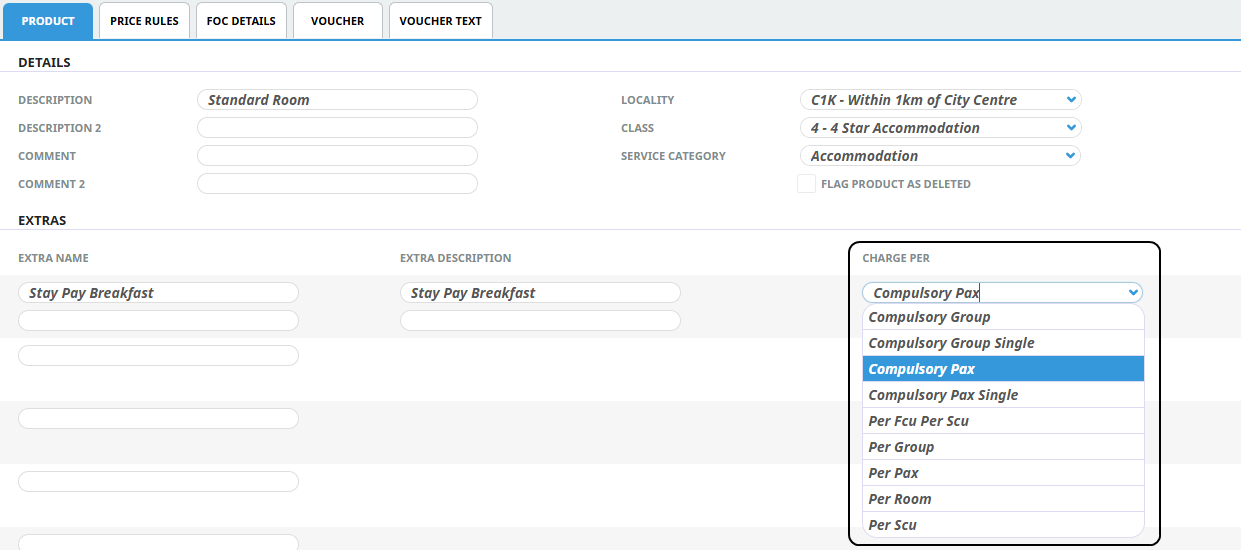
Compulsory Group: The Compulsory Extra is charged to a Group for each SCU (second charge unit) as defined in the Product Details > Price Rules tab. For example, per room per night, per vehicle per day, per transfer per sector.
-
Compulsory Group Single: The Compulsory Extra is charged once to the Group regardless of length of stay.
-
Compulsory Pax: The Compulsory Extra is charged to each Pax using the service based on the SCU (second charge unit) quantity.
-
Compulsory Pax Single: The Compulsory Extra is charged once to each Pax regardless of the SCU quantity.
The booking scenario below illustrates how the different Charge Per options are applied using 4 Pax in 2 Rooms for 3 Nights and a Compulsory Extra of $10.
| Example | |
|---|---|
| Pax | 4 |
| Rooms | 2 |
| Nights | 3 |
| Compulsory Extra | $10.00 |
| Charge Per Option | Outcome | Per Group | Per Pax | Total |
|---|---|---|---|---|
| Compulsory Group | Group pays $10.00 per night | $30.00 | $30.00 | |
| Compulsory Group Single | Group pays a single charge of $10.00 | $10.00 | $10.00 | |
| Compulsory Pax | Each Pax pays $10.00 per night for three nights | $30.00 | $120.00 | |
| Compulsory Pax Single | Each pax pays $10.00 a single charge | $10.00 | $40.00 |
Create Compulsory Extras
If this is a seasonal extra, such as a Christmas meal which is compulsory, you may need to split your rate period to be for the 25th December, and apply the compulsory extra to Christmas day only. For more information on splitting rates click on the link: Date Range - Split Existing Rate.
This example uses compulsory extra charges for stay pay rates.
Add Compulsory Extras To Stay Pay Products
-
Open the Product > Product Details > Product tab.
In the
 Extras section, enter the Extra Name and Extra Description for the Compulsory Extra.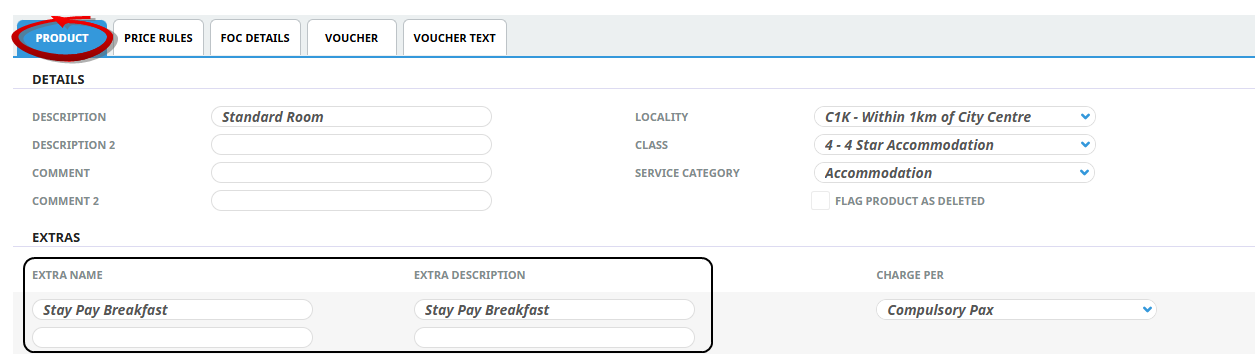
NOTE: The available fields accommodate up to five Extras (compulsory and/or standard extras) for each product. An additional Extra Name field and two Extra Description fields are enabled to allow for alternative text to display in messages.
-
Select theCharge Per option required for costing e.g. Compulsory Pax.
-
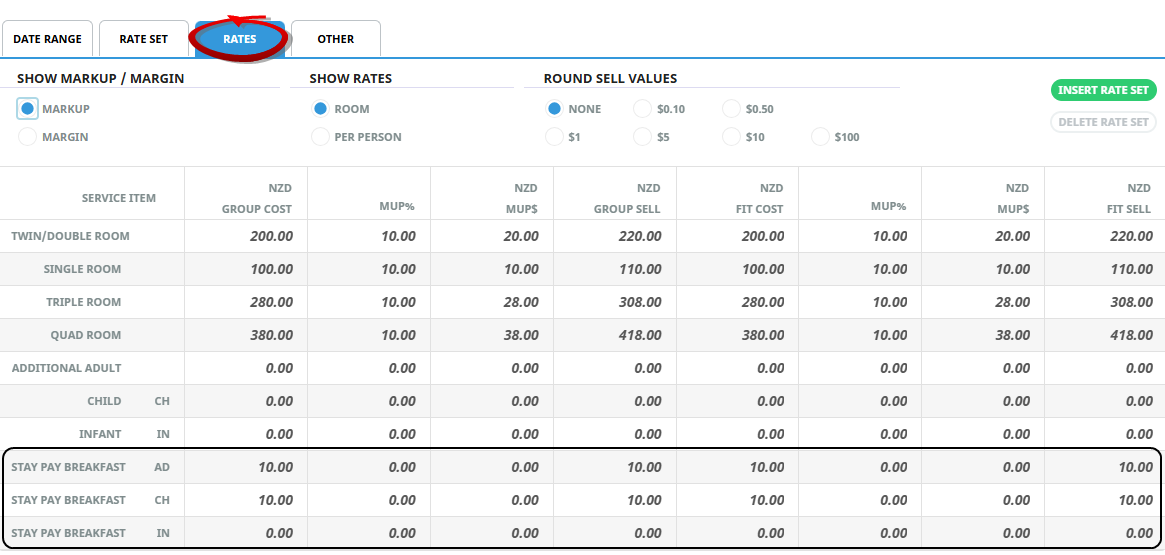
Open theProduct > Rates menu, Rates Tab, define the Compulsory Extra Rate Value.
Managing Compulsory Extras in Stay Pays
There are many different ways in which Compulsory Extras can be applied to bookings - and the setup is dependant on you Supplier Contracts. The following examples look at using Compulsory Extras with Stay Pays.
-
If the Compulsory Extra is charged for 'paid' nights for a Stay Pay.
Open the
Product Rates > Other tab, ensure the Extra Charged For checkbox is un-ticked. This will ensure the Compulsory Extras are charged for the nights payable.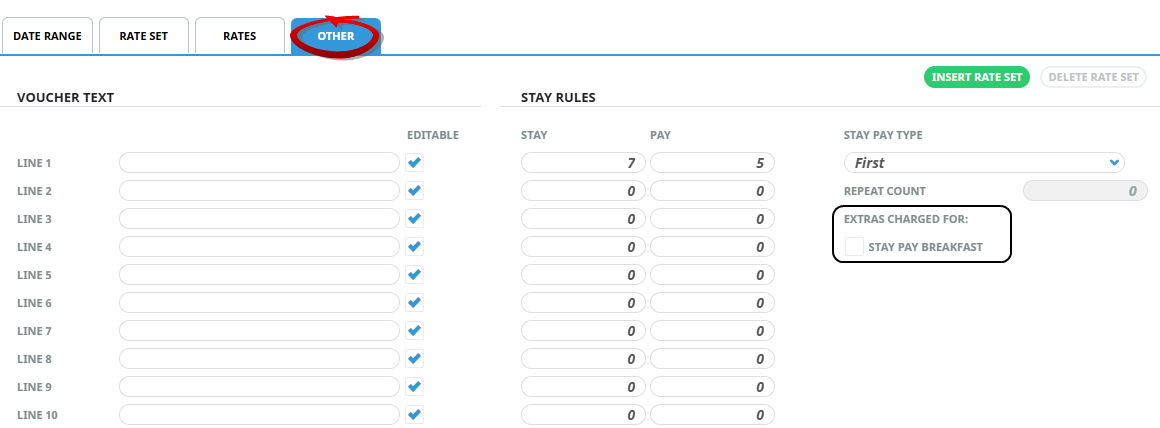
-
If the Compulsory Extra is chargeable for each extra night stay in a Stay Pay.
Open the
Product Rates > Other tab, select the relevant Compulsory Extra checkbox listed under the Extras Charged For. This will ensure the Compulsory Extra is charged for the entire stay (per SCU, depending on the Compulsory Extra setup in your product setup)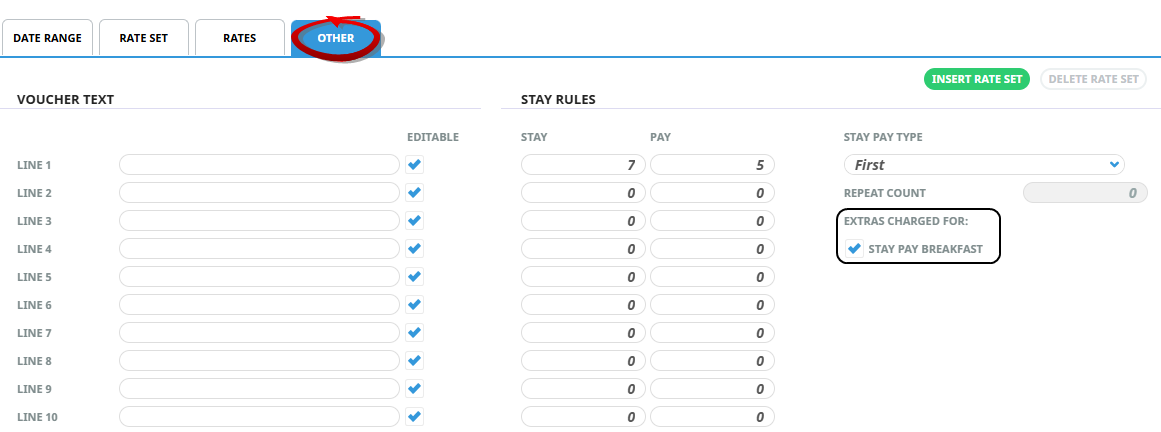
Apply Compulsory Extras To Bookings
-
Create a new FITs or Group booking and ensure the relevant Supplier-Product with the Compulsory Extra is added to the booking.
-
Open the Itinerary menu.
-
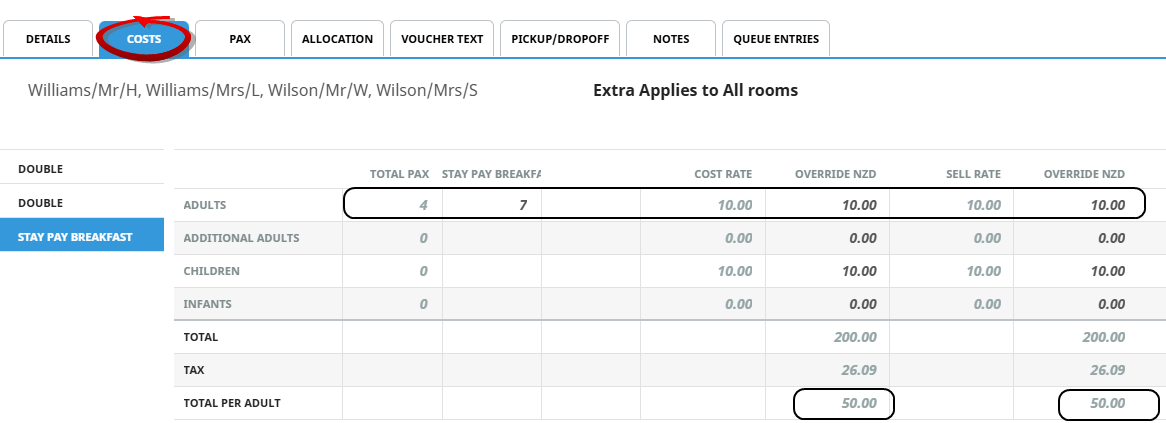
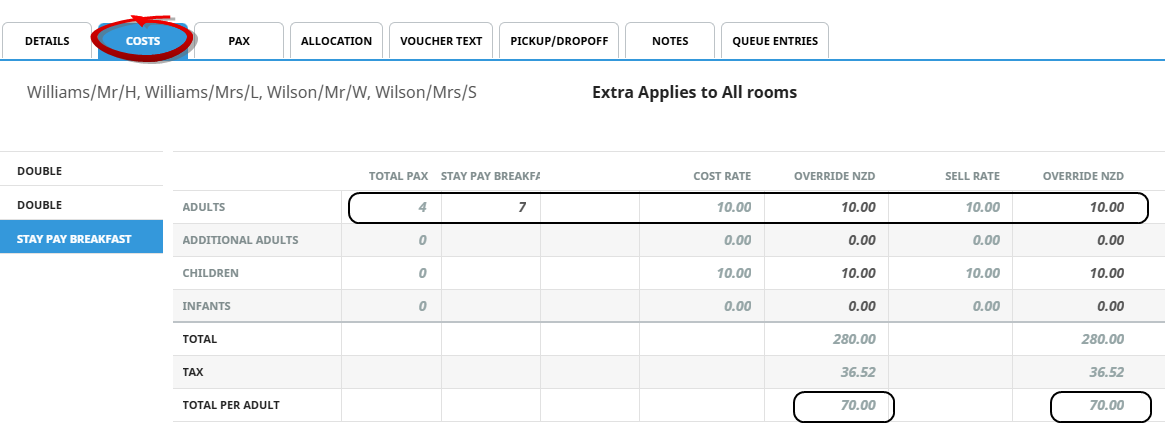
Click on the Service Line to view the Cost tab. Select the Compulsory Extra from the list on the left.
-
This example uses a Stay 7 Pay 5 with a Compulsory Extra of $10 charged only for the 5 nights payable.
-
The next examples uses a Stay 7 Pay 5 with a Compulsory Extra of $10 charged to each Pax for every night of the stay.
-
-