
Email Import Overview
What is email import?
Version 2.5 provides a new feature allowing your emails to import into Tourplan. The email import feature will automatically link emails to bookings when the subject line contains a recognised booking reference or agent reference.
This document outlines the fundamental setup requirements and emphasizes key business considerations that should be addressed before proceeding with the setup.
Considerations
We recommend that organisations carefully assess their current business practices, particularly focusing on the operational workflow related to agent and supplier emails. The import process will bring in ALL emails sent to the designated account(s) - including new requests, replies, and spam.
If a booking cannot be matched, the email will be listed on the Email Management Page, where users can either:
-
assign it to an existing booking or;
-
create a new booking, linking the email to it
Organisations can designate specific users or groups to manage emails. The Email Management feature is accessible to users with appropriate Security Settings, allowing organisations to control access and designate responsibility for monitoring email replies and unassigned emails. An internal queue for users or groups of users to manage email errors - can also be set up.
Your organisation will need to have email accounts defined in Tourplan to import incoming emails. This feature imports emails into Tourplan from central organisational accounts rather than individual personal email accounts.
A scheduled task is set up to import emails from the defined accounts, with configuration options to determine the frequency and timing of these imports. It's important to discuss and establish how often these tasks should run for your organisation.
Customised settings enable automated email lists to appear directly on a user's home screen, with options to define how long emails remain visible.
We suggest reviewing Message Definitions to ensure that email templates are formatted to receive reply messages from agents and suppliers.
This feature relies on email contact types, so it's advised to review and confirm consistent usage within your system. We also suggest reviewing to ensure agent and supplier contact email addresses are saved in Tourplan instead of manual entry when sending an email from Tourplan.
Let's take a closer look at the features:
Home Page
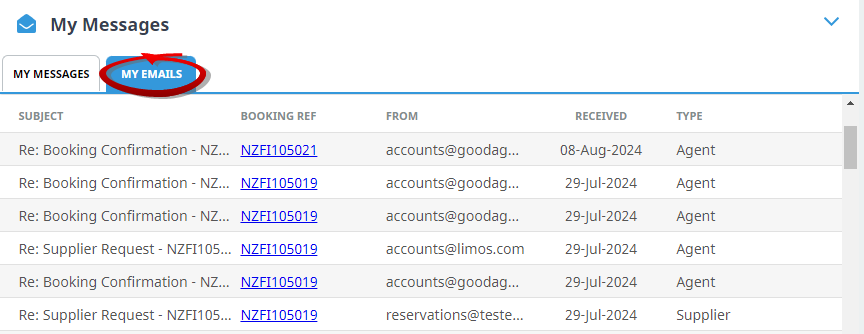
The Home Page now features a My Emails tab under My Messages. Booking Consultants can view a list of imported emails much like an Email Inbox. This section of the home screen can be configured to display emails by booking consultant, branch or department, or booking analysis.
Email Management
The Email Management page offers visibility into imported emails. Inbox Email Filters enable efficient sorting by various criteria, including email account, date (received or sent), specific agent or supplier, email type, email status, or booking reference.
Unassigned emails, such as a new booking request, allows users to create new booking records by selecting the assign button. Consultants can then process the booking, and the email will be linked to the newly created booking.
Emails can be removed from the Email Management page, moving them to a different location. These emails will remain accessible in the Email Management submenu labelled 'Trash'.
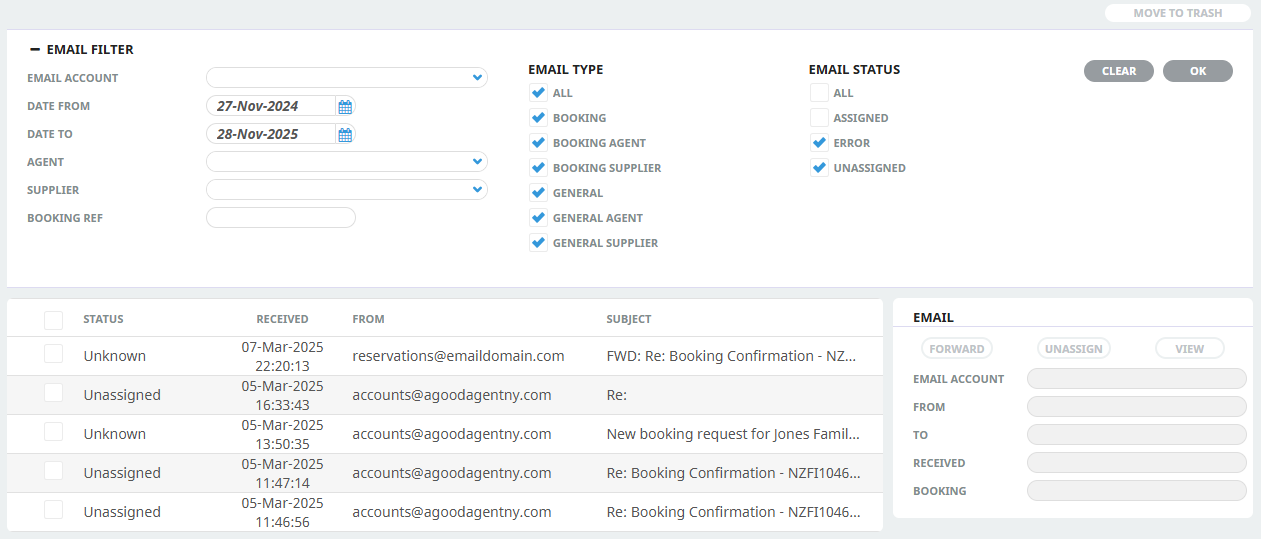
NOTE: Emails are replied to from within the booking its been assigned to. There is no ability to reply to an email from the Email Management page. Unassigned emails will need to be assigned to a new booking for users to reply to the emails.
Bookings
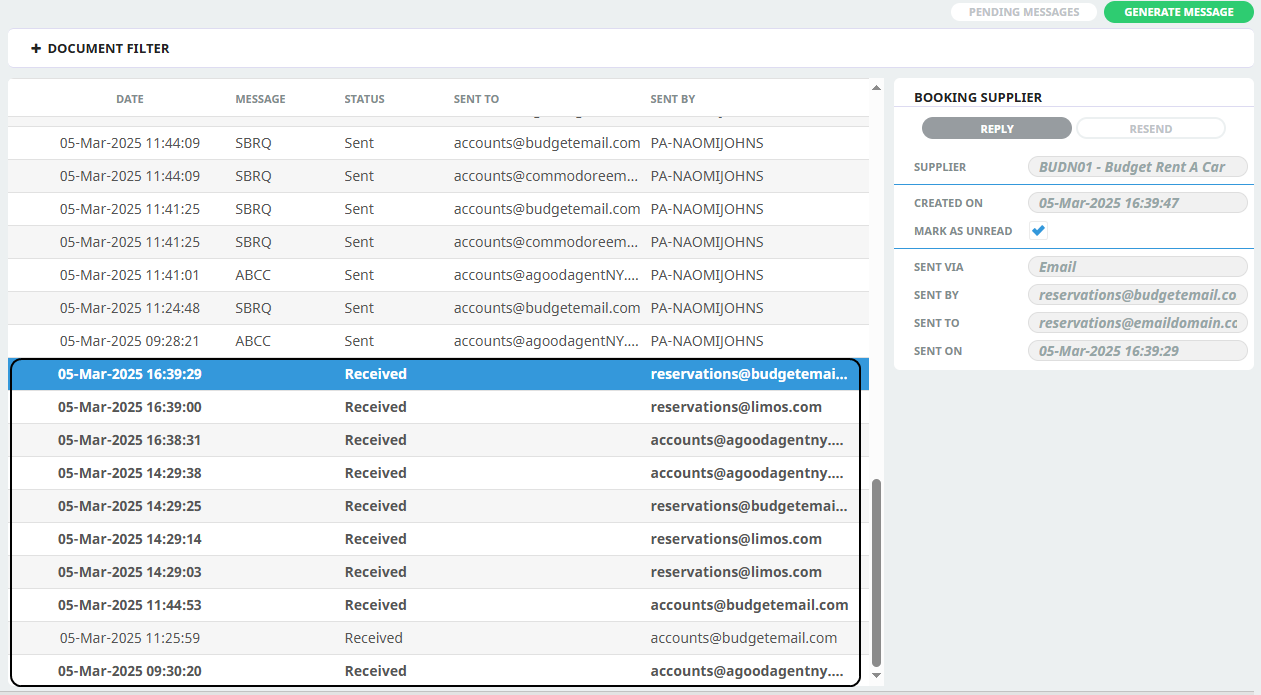
Email replies will be assigned to bookings if the email subject includes a booking reference or booking name, the email will appear as received within the booking documentation page.
Setup Requirements
Your organisation will need to have email accounts including login and password details for the configuration within Tourplan, we suggest making a time with your local Tourplan support team to discuss your setup requirements including:
-
INI Settings - to set visible email settings on your users home page.
-
Securities - providing Email Management access to a user or group of users.
-
Email Accounts - nominate email accounts to import emails from, including
-
login and password to the email account(s).
-
approved Supplier and Agent contact types to import from.
-
-
Scheduled Tasks - to cache and import emails into Tourplan at scheduled times, when and how often the tasks should run.
-
Internal Queues - to set a user or group of users to view possible errored imports.
-
Message Definition - review of message templates to ensure email commands are configured correctly for import.
-
Agent and Supplier Contacts have email addresses loaded.
For more information on Email Import click the links below: