Loading interactive content…
This section contains suggested key settings for various different types of Services. Admission, Entrance Fees, and Meals are loaded as non-accommodation services which provide a per person costing for each service.
Per person prices are exactly that – the price is in the Product Database as a price per person, and in a quotation or booking, these are added together to obtain the total cost per person. Examples of per person pricing are such things as; Admission Fees, Entry, Sightseeing, Show, Ride, Visit, Walk, Entry, Trip, or Meals: Meal, Lunch, Dinner, Taste
Sightseeing / Entrance Fee - Screen Overview
Example: Sightseeing Admission
Price Rules Tab
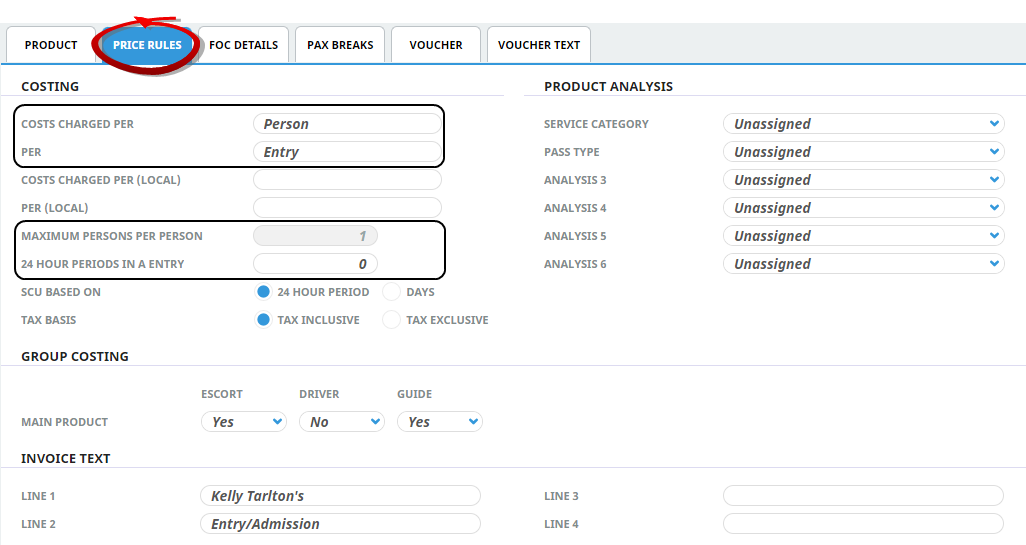
The Price Rules for the Sightseeing entry hold the First & Second Charge Units (Per Person, Per Entry). Children's ages can be inserted into the policies.
Rates Tab
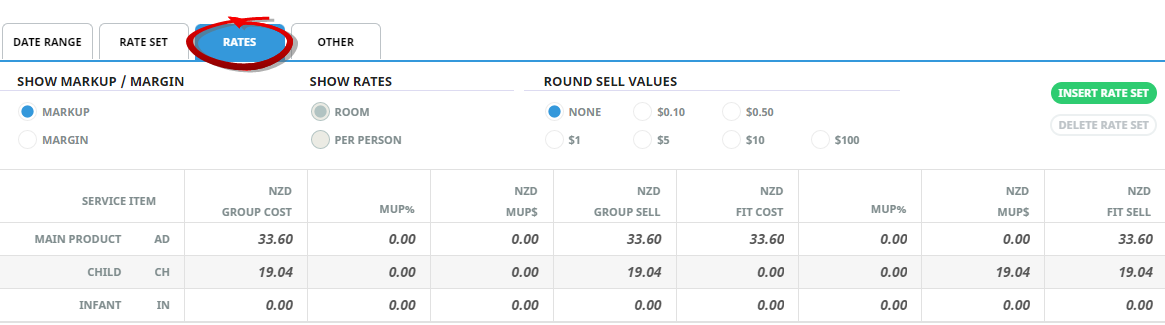
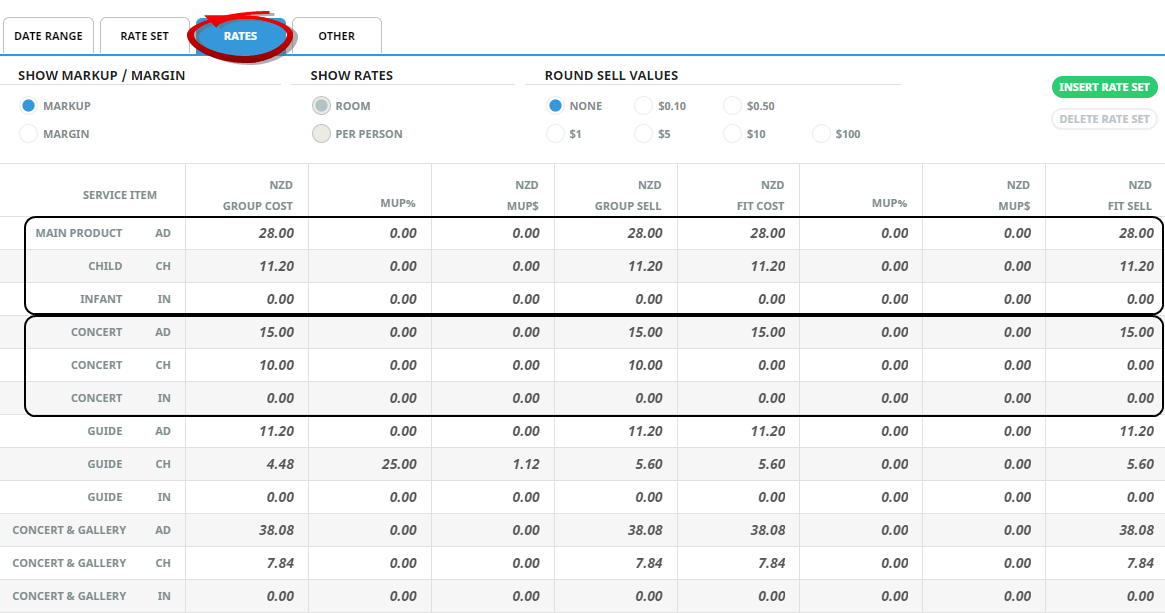
The Rates Tab allows for Adult, Children and Infant pricing.
Create Per Person Product
The steps below advise users on how to create the shell of a product. Further details and examples of rate loading are covered in the procedures to follow.
Insert Admission/Entrance Fee/Sightseeing Product
-
Select menu
 Home > Products > Product Setup.
- Click the Home Menu to expand it:
- Click the Products menu option to expand it:

- Click Product Setup to go to the Product Setup menu:

- Click the Home Menu to expand it:
-
ClickCreate New Product.

-
On theInsert Product screen, enter data into fields (the top three are drop-down selection fields - entries must already exist before you can select them). Refer to Admission/Entrance Fee/Meals for more information on the data you can enter.
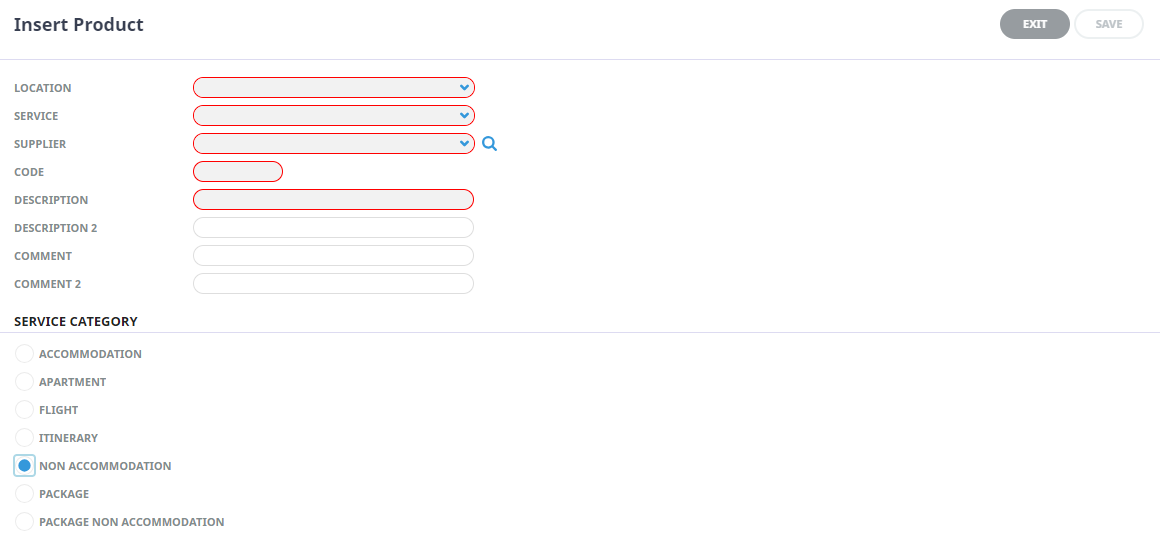
-
Check thecompleted screen.
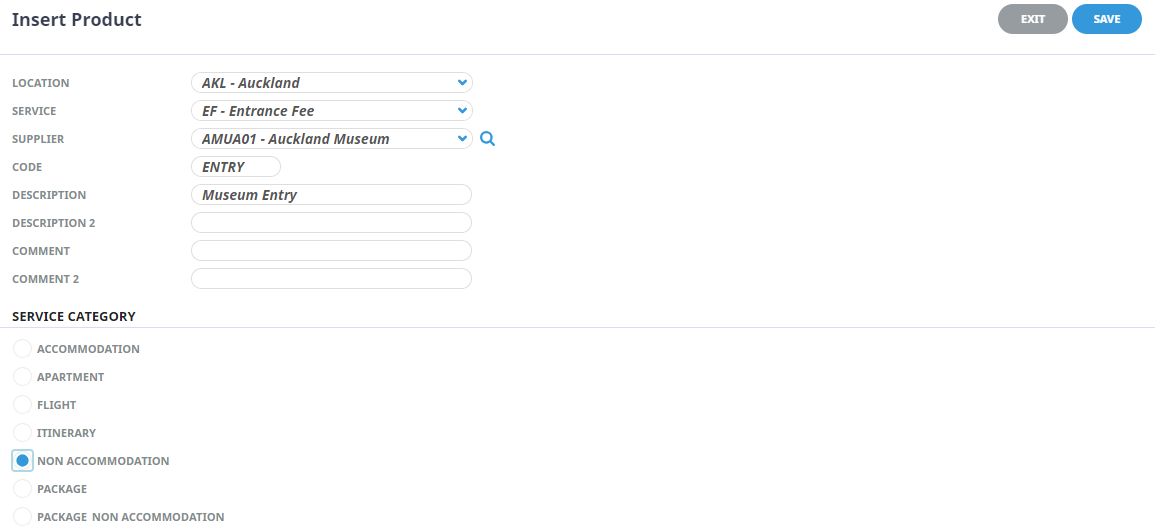
-
ClickSave to keep the changes.

-
ClickExit to discard any changes.



Product Details
Once a product has been created, further product detail can be added to it. Many pieces of information may be added to a product, such as defining rules about how product variations are charged, what the age policies are or how vouchers might be handled.
Insert Product Information
- Make sure the product has already been created (see Insert an Accommodation Product).
- If the product is not already displayed, retrieve it (see Searching for Products or Suppliers).
- Identify the tab containing the fields you need to modify. For this example, click the Product Tab (if not already shown).
-
Add details to theProduct Tab fields.
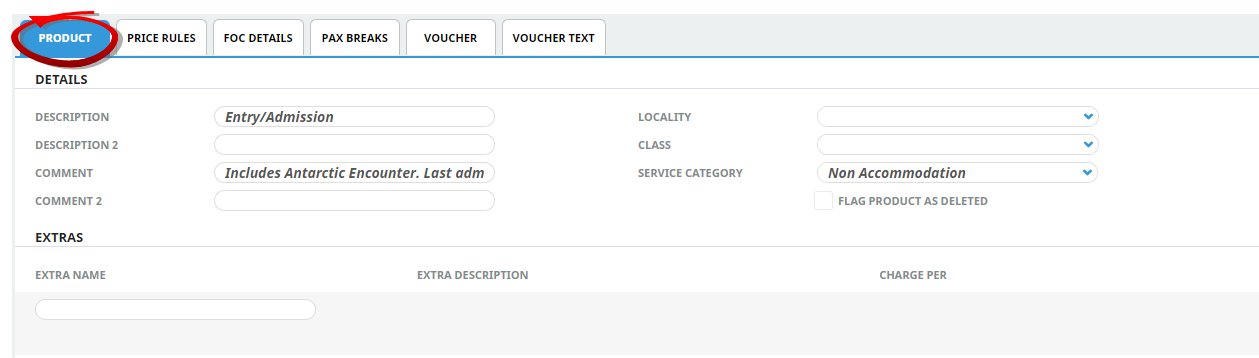
Feel free to use your own data - refer to the System Setup User Manual for information on how to add entries to drop-down fields.
-
To keep the changes, clickSave.

-
ClickDiscard to discard all changes.

Price Rules
The price rules tab defines how the system will cost the service.
There is a very simple rule for defining the First Charge Unit for Non-Accommodation services - whatever type of service they might be:
- If the supplier is charging on a Per Person basis, the First Charge Unit will always be Person.
- If the supplier is charging by (e.g.) Per Entry, then the Second Charge Unit should try to reflect the supplier's charge basis: Entry, Meal, Admission, Pass etc.
Insert Price Rules Information
- Make sure the product has already been created (see Insert an Accommodation Product).
- If the product is not already displayed, retrieve it (see Searching for Products or Suppliers).
- Identify the tab containing the fields you need to modify for the product. For this example, click the Price Rules Tab.
-
Add details to thePrice Rules Tab fields.
Feel free to add your own price rule configurations.
-
To keep the changes, clickSave.
-
ClickDiscard to discard all changes.
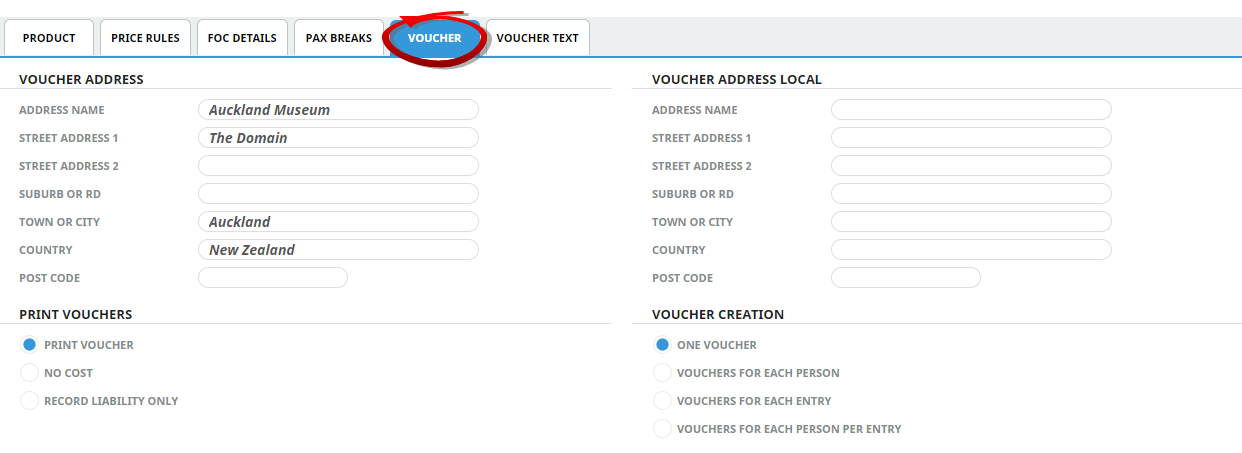
Voucher Tab
This screen determines:
- How Tourplan creates vouchers for this service option
- Whether or not a voucher should be printed for the service option
- The address details to print on the voucher
Inserting Voucher Details
- Make sure the product has already been created (see Insert an Accommodation Product).
- If the product is not already displayed, retrieve it (see Searching for Products or Suppliers).
- Identify the tab containing the fields you need to modify for the product. For this example, click the Voucher Tab.
-
Add details to theVoucher Tab fields.
-
To keep the changes, clickSave.
-
ClickDiscard to discard all changes.
Policies
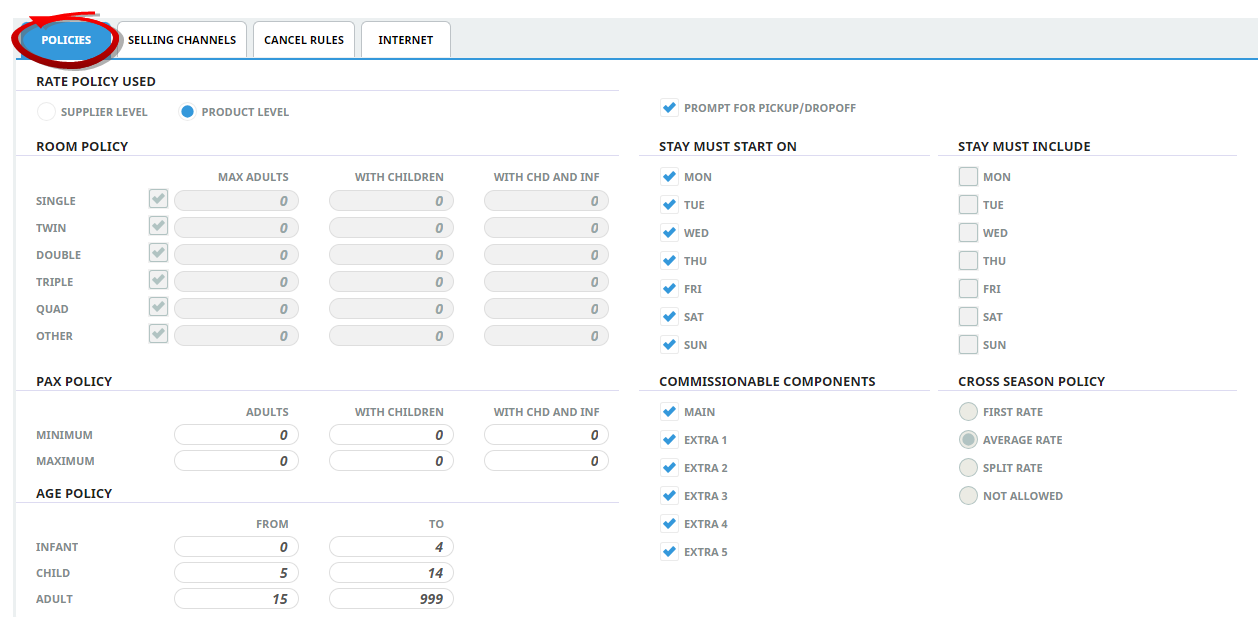
Age Policy
If age policies for children and infants were the same for every service offered by the supplier, we would recommend defining age policies at a supplier level. However, if the supplier offers distinct age differences for individual services then it would be preferable to set the age policies at a product level.
Pax Policy
If the supplier has conditions of sale based on the number of passengers travelling. Product policies can define minimum and/or maximum pax requirements for non-accommodation services. If Pax Policy fields are 0, there will be no pax number restrictions.
Insert Policy Rule Information
- Make sure the product has already been created (see Insert an Accommodation Product).
- If the product is not already displayed, retrieve it (see Searching for Products or Suppliers).
- Identify the tab containing the fields you need to modify for the product. For this example, click the Product Details > Policies > Policies Tab.
-
Add details to thePoliciesTab fields.
-
To keep the changes, clickSave.
-
ClickDiscard to discard all changes.
Cancellation Rules Tab
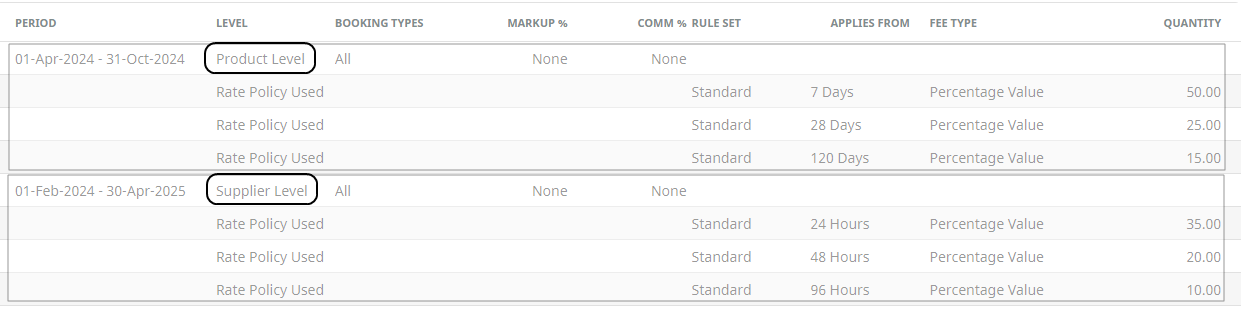
Cancellation rules can be inserted at the product level (offering differing cancellation rules per service) or at the supplier level (for all services linked to the supplier).
Insert Cancellation Rules
- Make sure the product has already been created (see Insert an Accommodation Product).
- If the product is not already displayed, retrieve it (see Searching for Products or Suppliers).
- Identify the tab containing the fields you need to modify for the product. For this example, click the Product Details > Policies > Cancel Rules tab.
-
ClickInsert to add a new entry.

-
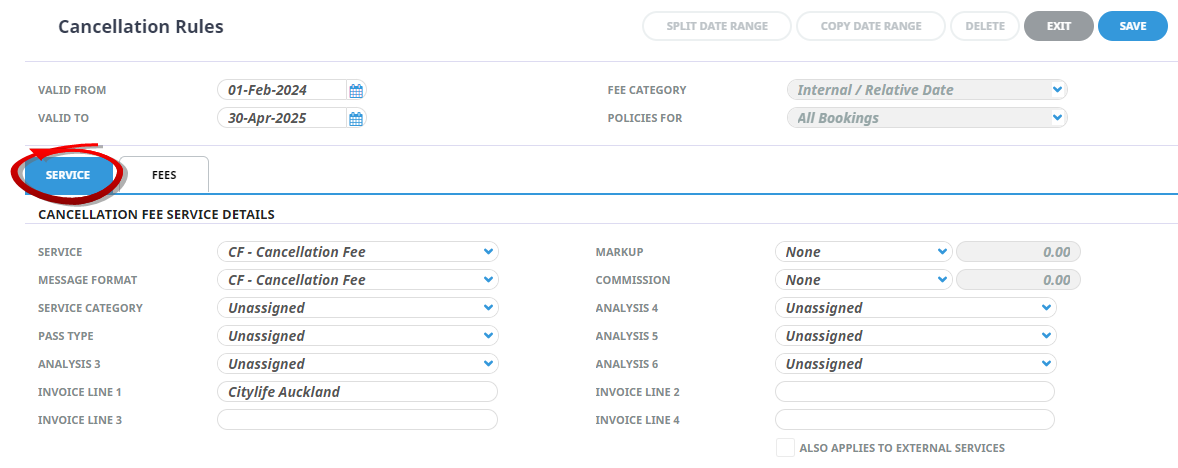
On theCancellation Rules screen, enter Valid From/To dates, select if the type of date in the rule is Relative or Fixed and the type of bookings the policy is for.

-
TheService Tab will be open on screen, enter the Cancellation Fee Service Details fields.
-
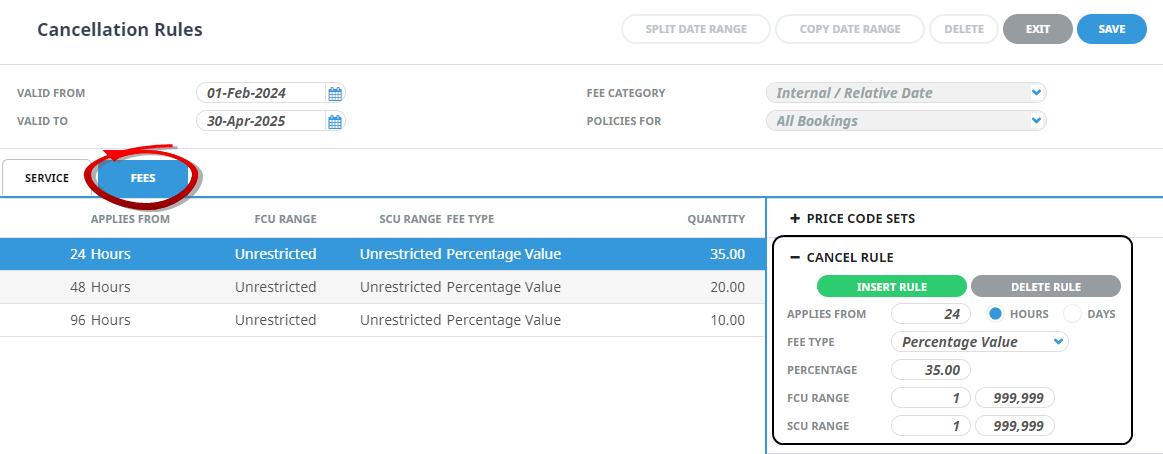
Click theFees Tab and enter the Cancel Rule information.
-
ClickInsert Rule to save the rule, and insert a new rule.

-
ClickOK to keep the changes and save or update the entry.

-
ClickDelete to remove the entry and/or discard any changes.

-
ClickExit to discard any changes.
Insert Rates
There are 4 Tabs which allow specific rate information to be stored per date range.
- Date Range - How is the rate sold? Are there specific sales periods? Will the rate be a gross rate or a nett rate? Are there any taxes which need to be defined against the rate?
- Rate Set - Does the rate apply for specific days of the week? Is the rate a confirmed rate?
- Rates - The rates tab is where the rates are defined.
- Other
Per person prices are inserted into the rates screen. If there are child and infant prices they can also be inserted here for automated pricing when the service is selected in a booking.
NOTE: Child and infant ages will need to be defined in the supplier or product policies screen and the children's ages will need to be defined in the booking header for correct pricing.
Row Headings - Non Accommodation Products (Display Only)
For non accommodation products, the first row will always display 'Main Option'.
Extras
For both Accommodation and Non Accommodation products, any Extras that have been defined in the Product tab (see Add Product Detail) will display, with separate rows that allow for (AD)ult, (CH)ild and (IN)fant costs to be entered against them.
NOTE:
- In the example being created, the 'Net Rates' price code will have no markup attached at this level; i.e. the cost and sell rates for both Group and FIT rates will be the same. Markups will be applied when a different Price Code is added to the Date Range.
- Remember when entering the rates, if tax is involved, then the values entered into these Rate fields must reflect the Tax Inclusive/Exclusive setting from the Tax Setting section. Taxes in general are discussed in more detail under (Set Date Range Information).