Loading interactive content…
This utility can be used to amend a supplier code.
Change Supplier Code
-
Select menu
 Home > Product > Product Utilities > Product Notes > Code Change > Suppliers
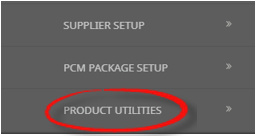
- From Products click the Product Utilities menu to expand it:

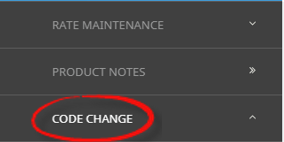
- Select the Code Change menu to expand it:

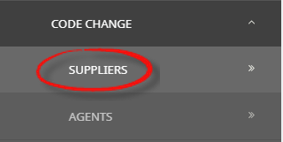
- Select the Suppliers option to filter selection and display results on screen:

- From Products click the Product Utilities menu to expand it:
-
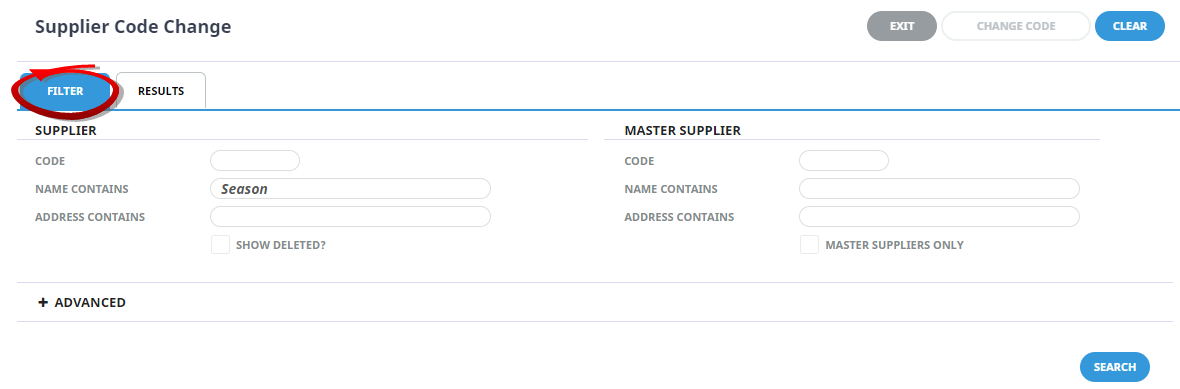
On the Supplier Code Change screen theFilter Tab will open, search for the Supplier using one of the search methods.
NOTE: When data is inserted into one/all of the fields; Code From, Name Contains, or Address Contains, the search button will become active.
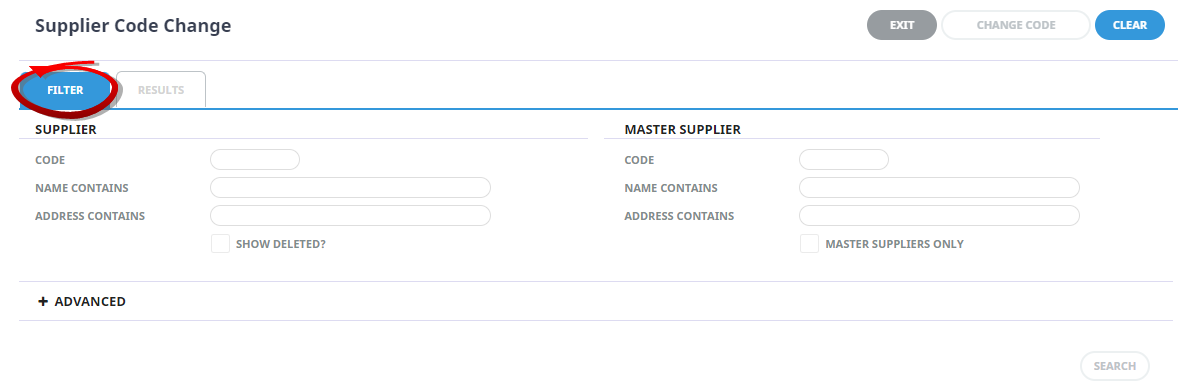
- Select the Results Tab or click Search.
-
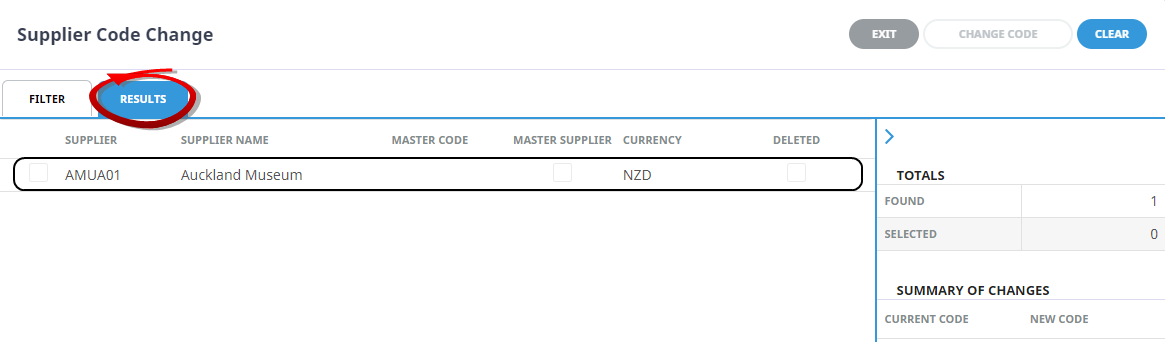
Select theSupplier.
-
On theEnter Supplier Code Change screen, enter the New Code.
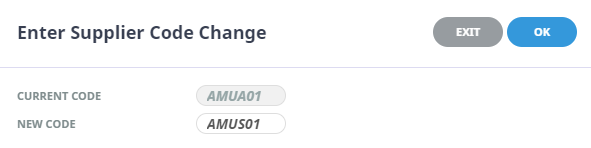
- Check the completed screen.
-
ClickOK to keep the changes and save or update the entry.

-
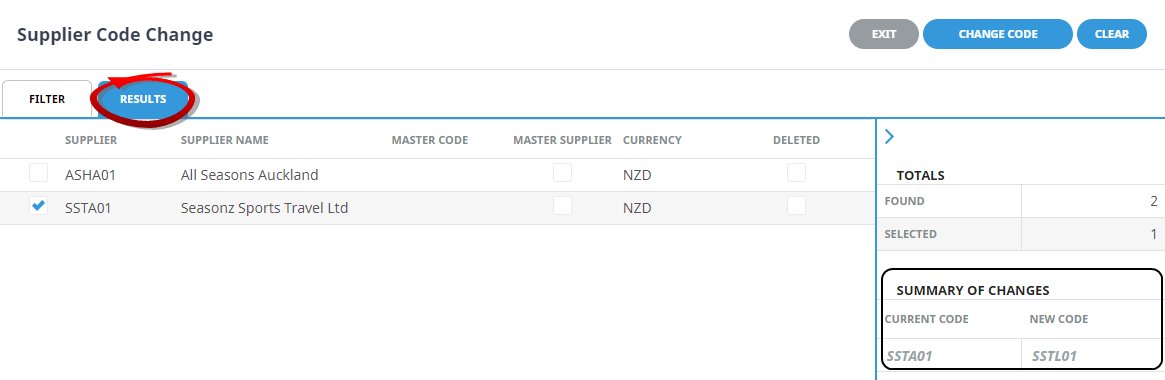
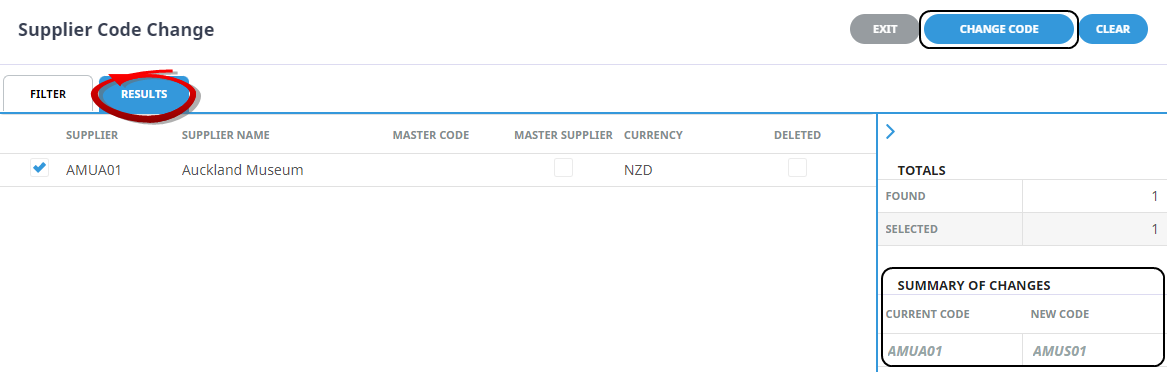
TheResults Tab will re-display, a Summary of Changes will show the Current Code and the New Code. To accept the change/s, select Change Code.
-
ClickOK to keep the changes and save or update the entry.
About Supplier Code Change Fields
Filter Fields
Enter information in any of the available fields to refine search criteria (i.e. reduce the number of suppliers returned).
Results Tab
All Suppliers matching the search criteria will be returned in the Results Tab. Click a Supplier to open the enter Supplier Code Change New Code field.
Checkbox
The check box next to a Supplier will be ticked when the Supplier code has been noted for change, the new code will not apply until the Change Code button is selected.
Supplier Name
Full name of the Supplier.
Master Code
If the Supplier is linked to a chain master the Master Chain Supplier code will show here.
Master Supplier
If this check box is ticked, the Supplier is a Master Supplier.
Currency
This is the default Currecny the Supplier trades in.
Deleted
If a check box is ticked in the deleted column, it means that the Supplier has been marked as deleted.
Arrow above totals
The arrow  located above the Totals heading, when selected, will collapse the Totals pannel to allow more colums to display on screen. Selecting the
  will revert the pannel to display again.
Totals
This section of the Results Screen, shows the number of results that were found to match the selected filters, and the number of Suppliers selected.
Summary of changes
This field will remain blank until a Supplier has been selected and a new code has been assigned to change to show data from the suppliers current code and the new code for the supplier. The new code will not be applied until the change code button is selected and the code change has been confirmed.