
Loading interactive content…
This utility allows multiple products to be copied from one supplier to another. Filter fields are completed to display product results to copy, and a new supplier is selected to copy the listed product to the new destination supplier.
During this process the copy product utility copies product information including; product details, rates, rate periods, and policies.
NOTE: Policies are copied if the source policy is configured at a product level, however if the source policies are configured at a supplier level then the copied product will be linked to the destination supplier policies.
Copy Multiple Products
-
Select menu
 Home > Product > Product Utilities > Product Maintenance > Copy Products.
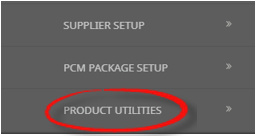
- From Products click the Product Utilities menu to expand it:

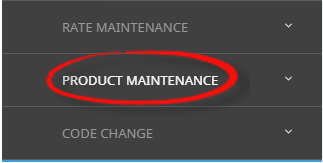
- Select the Product Maintenance menu to expand it:

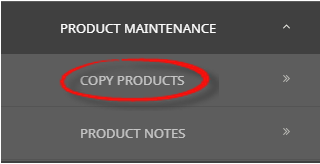
- Select the Copy Products option to filter selection and display results on screen:

- From Products click the Product Utilities menu to expand it:
-
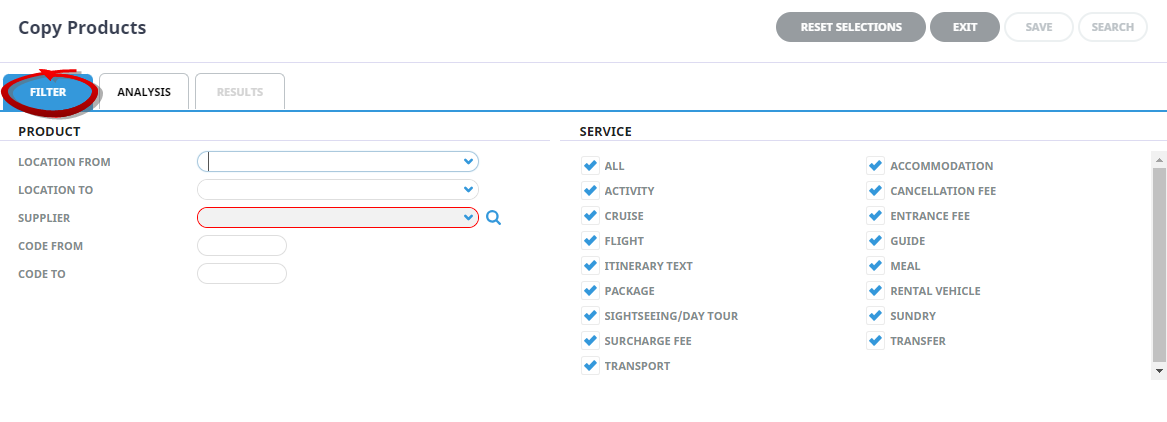
On the Copy Products screen theFilter Tabwill open, select a Supplier, complete the required filter fields to narrow search results.
-
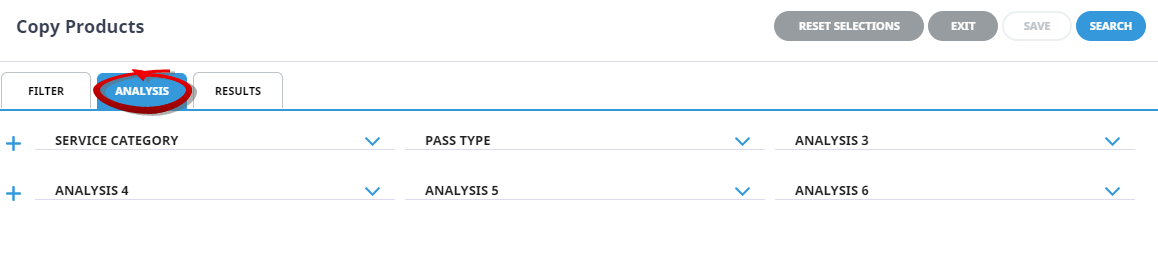
If required, select theAnalysis Tab to filter results by Analysis fields.
- Check the completed screens.
- View returned product results either:
- Click on theResults Tab, or
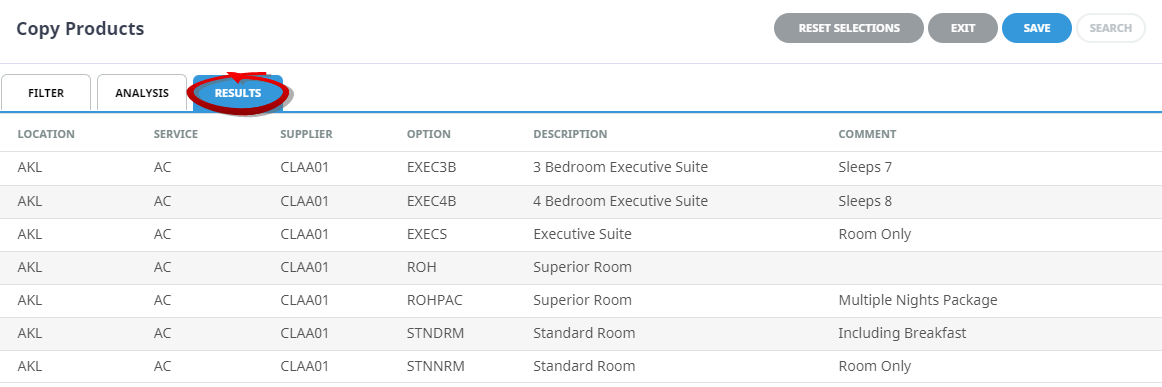
- Select theSearch button.

-
ClickSave to keep the changes.

-
A furtherCopy Products screen will show, select a Supplier to copy the product to, and check the Update Invoice Text 1 checkbox if required.

-
ClickSave to keep the changes.
-
A summary screen displays the number of successful operations.

NOTE: If the product did not copy, an error message will summarise the reason for the failed copy.
-
ClickOK to keep the changes and save or update the entry.

-
ClickExit to close screen.

About Copy Products Filters
Multiple product options can be copied to a supplier in a bulk process by selecting a supplier to copy from and the required product filters. Below are the filter selections available when using Copy Products in Product Maintenance.
Reset Selections (Button)
The reset selections button will clear field entries on the Filter tab and the Analysis Tab.
Location From/To
To select locations, users can use the dropdown selection, providing a full list of locations, or manual entry of the three character location code can be used. Using these fields will filter all products/services that are from/to the specified locations.
Supplier
Selection of Supplier can be done by using the dropdown selection, typing the Supplier Code, or by searching for the Supplier using the search button.
Code (From/To)
Insertion of specific option codes can be entered. These must be known as there is no dropdown available at the (Option) Code level.
Service Type
Products can be filtered by a Service Type, by selecting the checkbox of the required service. The default selection is All, where all Service Types are selected.
Analysis Tab
Expand the Product Analysis Fields to select a specific product analysis field to filter by.
Copy Product Modal
Supplier
Selection of Supplier for the copied product can be done by using the dropdown selection, or typing the Supplier Code.
Update Invoice Text 1
This checkbox selects if the Invoice Text 1 is to be copied.
NOTE: The 'Update Invoice Text 1' checkbox copies Invoice Line 1 to the new product, but only if it has been edited from the default Supplier Name.