Loading interactive content…
This utility can be used to view, and or update notes based on the selections offered. The filter notes screen allows selection of supplier, supplier/product or product notes, and users can have up to three note categories displaying on screen at once.
View or Edit Product Notes
-
Select menu
 Home > Product > Product Utilities > Product Notes
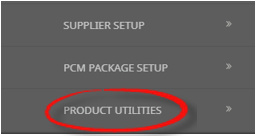
- From Products click the Product Utilities menu to expand it:

-
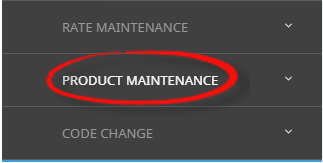
Select Product Management menu to expand it:

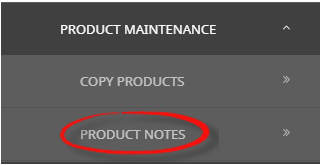
- Select the Product Notes option to filter selection and display results on screen:

- From Products click the Product Utilities menu to expand it:
-
On the Filter Notes screen theProduct Tab will open, select required filter fields to narrow search results and select the required note category/ies.
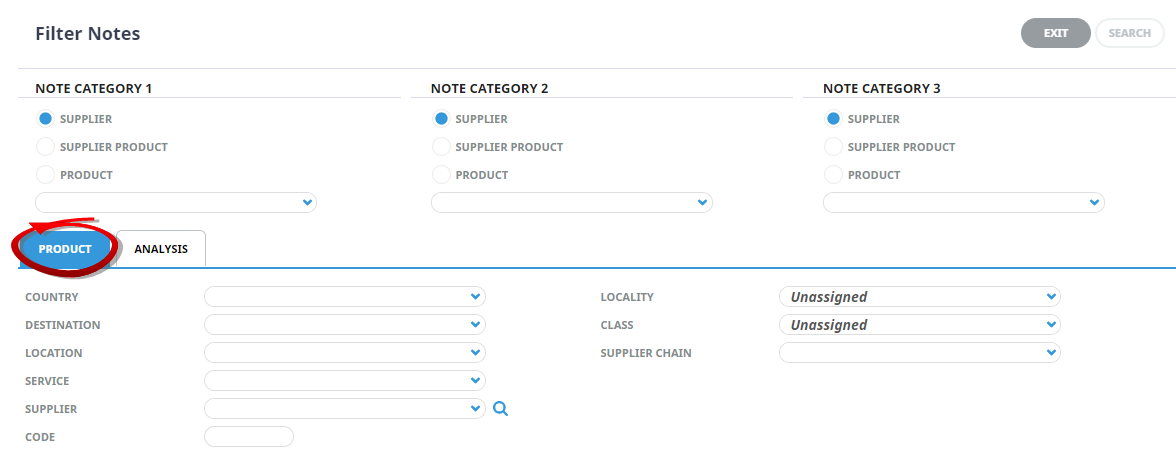
- Check the completed screen.
-
Select theSearch button to return results.

- The selected notes will display on screen based on the filted criteria.
-
If note editing is required, use theedit icon to edit the text within the note.

-
ClickSave to keep the changes.

-
ClickExit to discard any changes.

About Notes Filter Fields
Note Category
The Note Category you want to find for either a Supplier, Supplier Product, or a Product note and select a Note Category from the dropdown.
Up to 3 Note Categories can be selected on screen using the three note category columns.
Product Tab
Country
Country search parameter, if notes are to be viewed by country.
Location
Location search parameter, if notes are to be viewed or edited by location.
Service
Option Service type search parameter.
Supplier Code
The Supplier code search parameter.
Supplier Name
The specific Supplier name search parameter.
Locality
Specific Locality search parameters if notes are to be viewed or edited by locality.
Class
Specific Class search parameters if notes are to be viewed or edited by class.
Supplier Chain
The specific Supplier chain search parameter.
Example Product Utilities Edit Notes in Bulk
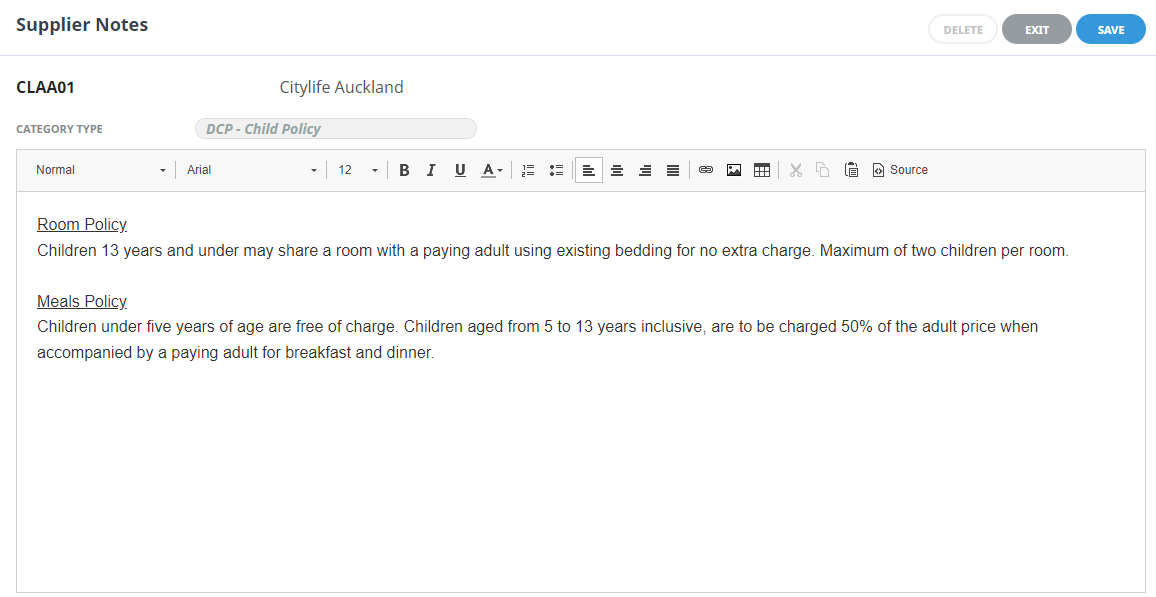
This example shows three note categories (Itinerary Long Description, Cancellation Policy, Child Policy) for supplier CLAA01, three note categories have been selected from the filter screen. Full note text can be viewed by selecting the Edit Note Icon, or by using the scroll bar beneath the note field.
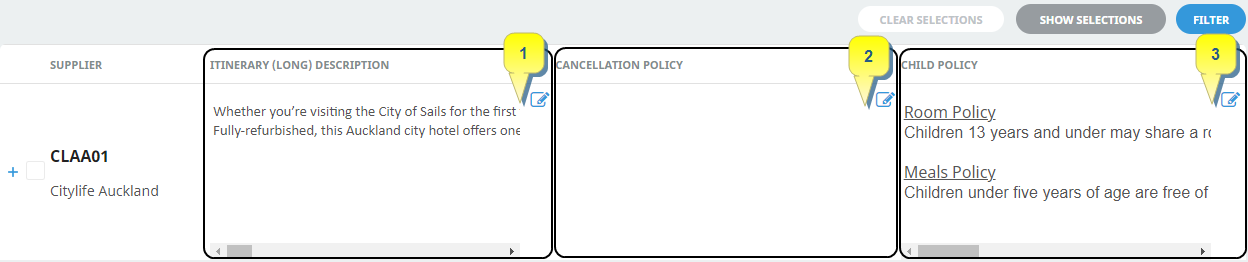
If the Edit Note icon is used the full note will apear on screen. Edits can be made and saved, the note can be deleted or if Exit is selected the user will return to the previous screen.