
Order Services By Pickup Time
How do I order itinerary service lines by pickup time?
We have provided the ability to order itinerary services by pick up time, assisting operators with re-ordering same day services.
This article will help you to:
-
Understand this feature
-
Configure additional column screen selections
-
Understand day/sequence updates
-
Consider the sequence calculation methods when applying pickup time amendments
Overview
This feature was designed to assist organisations with managing their Itinerary Service Line order using additional fields to order by pick up time. A system wide INI Setting applied to all users enables functionality to re-sequence same day services included in the itinerary by pickup time. Itinerary Service Line column selection within FITs, Groups and PCMs allows pickup and drop off dates and time columns to display on the Itinerary screen.
System Wide Setting
System administrators will need to update an INI Setting for all User IDs. This System Setting configures the sequencing method for Itinerary Service Lines within FITs, Groups, and PCMs.
INI Setting - SERVICE_AUTO_SEQUENCE
All system upgrades will default this INI Setting to ‘Standard’, which allows the system to operate using existing day/sequencing methods. Organisations that wish to adopt this new feature will need to change the value of the setting to ‘Pickup’.
Itinerary Column Selection
Individual Users can enable the display of two new columns ‘Pickup Date Time’ and ‘Drop Off Date Time’ from with their Itinerary Screens within FITs, Groups and/or PCMs.
-
Open a Booking or Quote in FITS, Groups or PCMs
-
Select the Itinerary menu.
-
Click in the blank space between Heading Names.
-
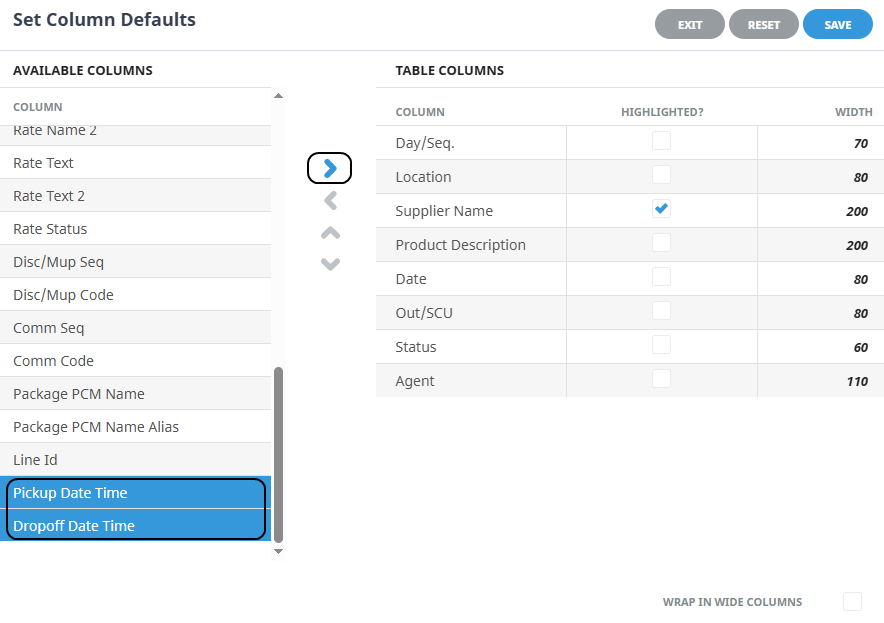
The Set Column Default modal opens. Click Pickup Date Time and Drop Off Date Time from the Available Column Headings.
-
Use the Right Arrow to move one or both to the Table Columns list.
-
Users can:
-
re-order their Itinerary Table Columns list by highlighting the ‘Column Name’ and selecting the up or down arrow to move the Column Name up or down the list. (The top of this list displays as the first column visible on screen)
-
Adjust the column Width to suit their preference.
-
-
Click Save.
About Itinerary Sequencing
Day/Sequence Numbers
Tourplan uses a day number and a sequence number to order services within an itinerary. The day number equates to the number of days from the booking Travel Date (for FITs & Groups) or the PCM Base Date (for PCMS). The sequence number, by default, increments by 10 on service insert, providing an ordered itinerary of services for each day.
For example:
| Day | Sequence | Date | Pickup TIme |
|---|---|---|---|
| 1 | 10 | 05.06.2026 | 9:00 |
| 1 | 20 | 05.06.2026 | 9:30 |
| 1 | 30 | 05.06.2026 | 10:00 |
| 1 | 40 | 05.06.2026 | 10:30 |
| 1 | 50 | 05.06.2026 | 11:00 |
With this feature turned on – when a change is made to the pickup time of service line 1/30 from 10:00 to 10:35 then the following re-sequence would occur. The system re-orders the service sequence number to fall between sequence 40 and 50 (Day 1/Sequence 45).
| Day | Sequence | Date | Pickup TIme |
|---|---|---|---|
| 1 | 10 | 05.06.2026 | 9:00 |
| 1 | 20 | 05.06.2026 | 9:30 |
| 1 | 40 | 05.06.2026 | 10:30 |
| 1 | 45 | 05.06.2026 | 10:35 |
| 1 | 50 | 05.06.2026 | 11:00 |
Considerations
The following information is important to note when re-sequencing services by pickup time.
Service line pick up date
The service Pick Up Date must be the same as the service date to trigger the re-sequencing of services on Pick Up Time. If the dates do not match the sequence number will remain unchanged.
Setting pick up times during service insert
If a Pick Up Time is entered at the time of service insert the service will enter into the Itinerary list in a sequential order relative to the existing same day services.
If there is no sequence number left to place the service between existing services then the service line will not be able to be created with that Pick Up Time.
Service line edit
Editing the Pick Up Time for a service line from either the Itinerary Service Details screen within Pick Up Drop Off tab or from the Pickup Drop Off Menu will trigger a sequential adjustment for the service you are amending.
If there is no sequence number left to place the amended service between existing services then the service line will not update.
NOTE: If existing itinerary services need to be re-ordered, you will need to open the Itinerary > Manage Days menu to Re-sequence Days.
Bulk Operations
This feature also applies sequential changes to service lines within Bookings and PCMs if the Bulk Operations feature is used to Update Pick Up/Drop Off times. An error message will report if there is a problem.
PCM Packages
Package services with an updated Pick Up Time applies a change in sequence number to the amended service if the package header is not defined to ‘Allow Services Inside Package’
Conclusion
This feature is a very useful tool for operators who need to react quickly to service delays or amended meeting times re-ordering amended itinerary services with an edited pick up time. Consultants and Itinerary planing logistic co-ordinators who work with complex multi service bookings or PCMs will save time if manual editing of pickup information and manual re-sequencing of services is part of your current workflow.