
Loading interactive content…
Customise Columns
Most screens within the different modules allow you to customise the columns and re-order the columns.
Each user can customiser their own view, although we suggest talking with you System Administrator to see if there are preferences your organisation has for consistency in screen column heading display.
Change Default Column Headings
- Click anywhere in the white space of a list's column headings.
For example, retrieve a booking and, on the Itinerary, click the white space between column headings Supplier and Product Description in the list of services returned:

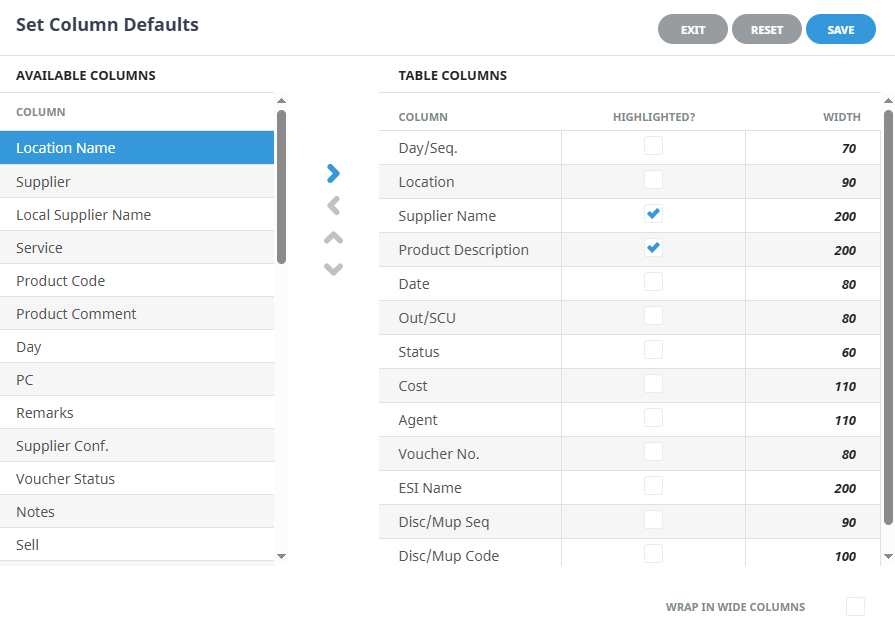
- On the Set Column Defaults screen, check a column heading from the Available Columns, use the Blue Arrow to move the label to Table Columns list to make it visible . You can also use the Highlighted? check boxes to make a column bold, and specify the width of columns or re-order the column using the up and down arrows..
For example, Cost under Table Columns and also under Highlighted? to display that column with bold font in the list:
-
Click
 Save to keep the changes.

- The list is immediately updated to reflect the new defaults chosen.
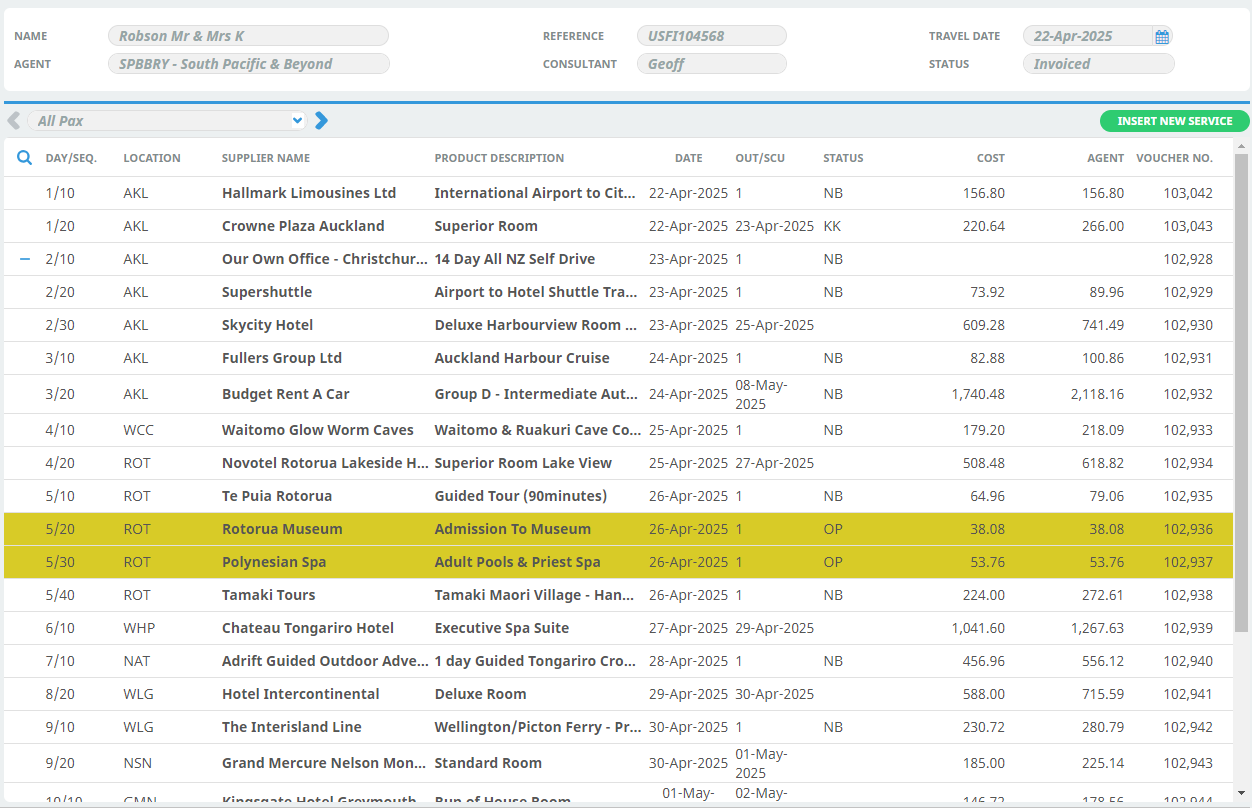
The updated services list now shows an additional Cost column and displays it with bold font (no other defaults changed):
From NX Version 2.5 Column Headers now ‘persist’ or continue to remain visible for users when they log in on a different computer or use a different browser.