Check Price Code
How do I check there is a valid price code for my Product to show on webConnect?
The agent logged into webConnect will need to have access to the loaded price code used in the product rate period. First check the price code used in the product, then ensure that the agent has the correct price code attached to their debtor.
Checking for a valid price code
-
Open Product search select the required Product option.
-
From the Product Menu select Rates.
-
View the Price Code used for the Date Range (for the dates searched in webConnect).

Ensure the agent has the required price code attached
-
From the Financial Menu click Debtors
-
Select the required Debtor/Agent
-
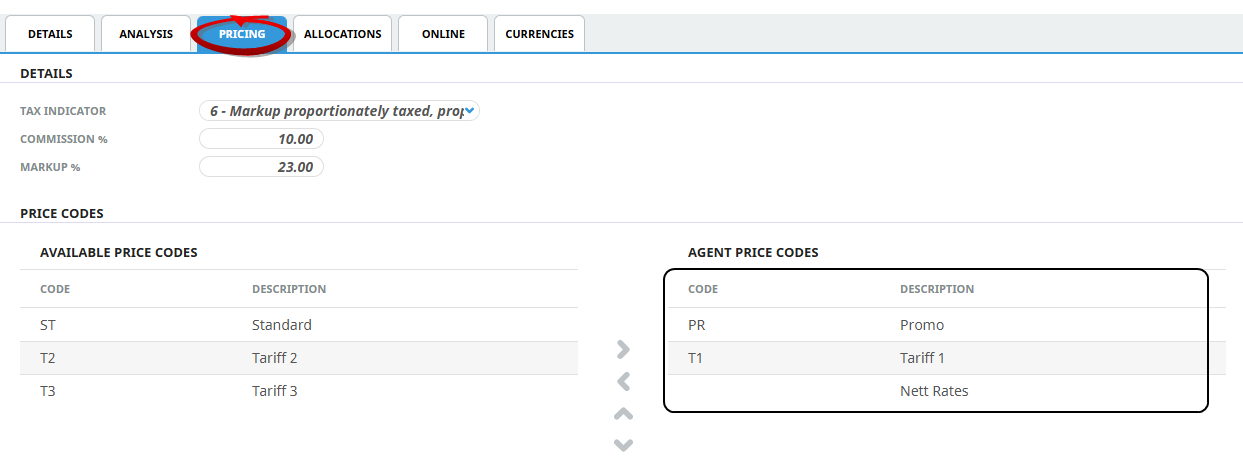
Click on the Pricing tab
-
Check the Price Code showing within the right hand column.
(If not; and the agent should have access to these rates, move the price code from the Available Price Code list on the left, to the list on the right).
-
Ensure you have the hierarchy of Price Codes ordered correctly.
-
Click Save.