
Space Rendering in Messages
Some message layouts appear to have spacing issues when the message is generated from NX. This is because rendering of spacing occurs in the MS Word HTML code.
This article will help you:
-
Understand why the space is happening
-
Learn how to fix the space rendering in a message output
Why is the space occuring?
A space exists in the .docx MS Word document when it is uploaded into NX, then when the message is generated there is no space visible.
For example: When the show hide function is enabled in MS Word a space is configured between the substitution code <trncurr> and <agent>.
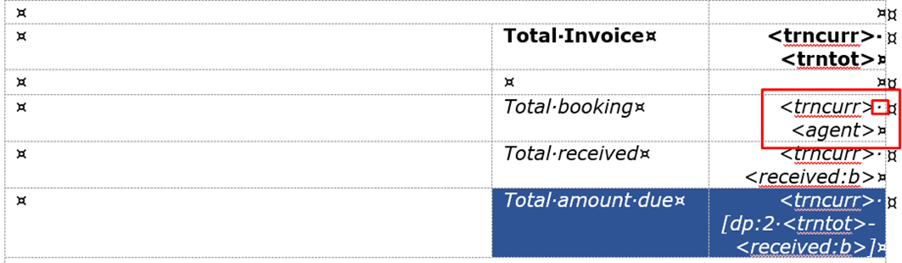
However when the message is generated, there is no space between the Currency and the Value.

How do I fix the spacing issue?
A known work around to resolve this issue is to use the MS Word feature (Find Replace/Replace All) replacing existing spaces used in the layout with a new space.
Find and Replace
-
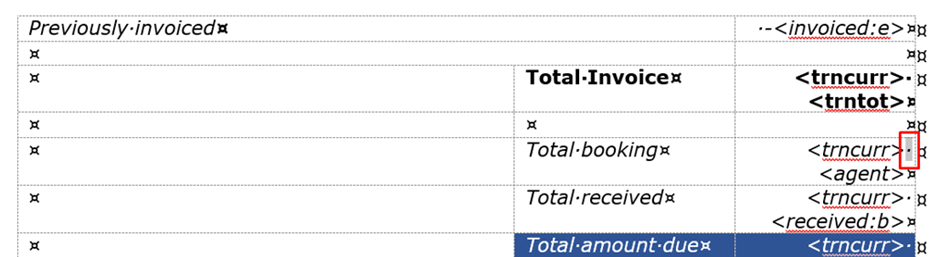
Open the MS Word Template and select an existing space.
-
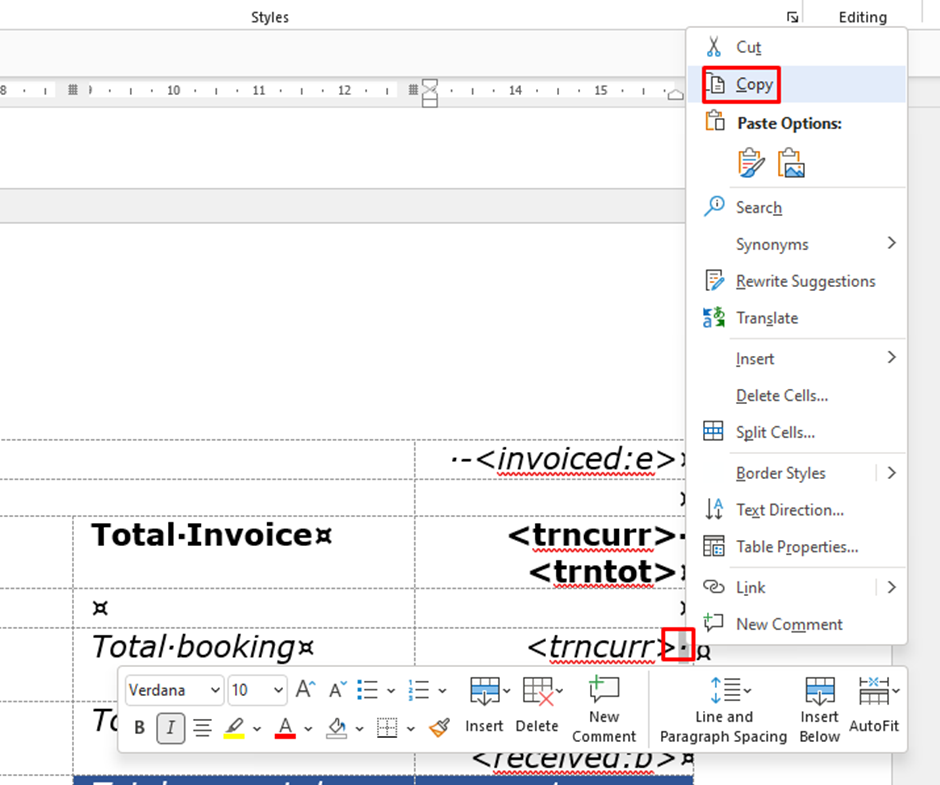
Copy the space to your clipboard.
-
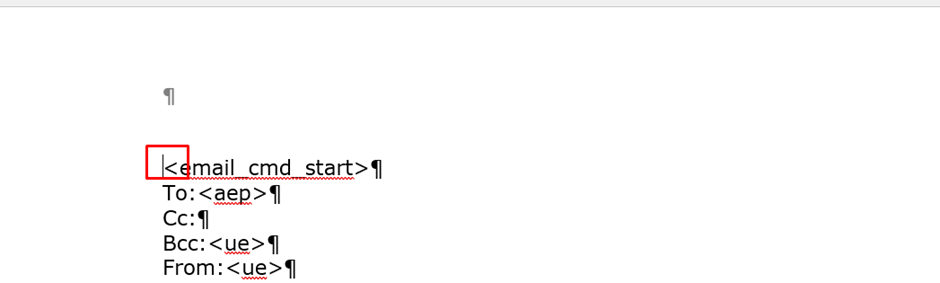
Go to the top of your document (CTRL+Home).
-
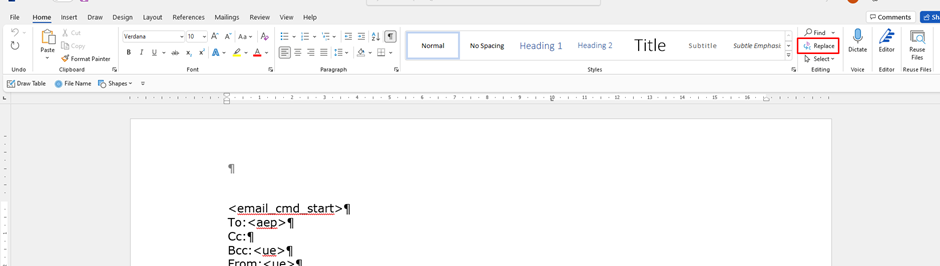
Use the Home Menu from the top ribbon, and select Replace.
-
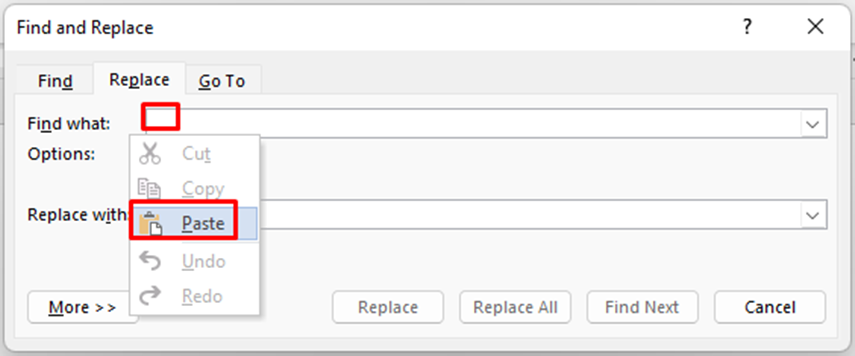
In the Find What field Paste the space that you copied from your document.
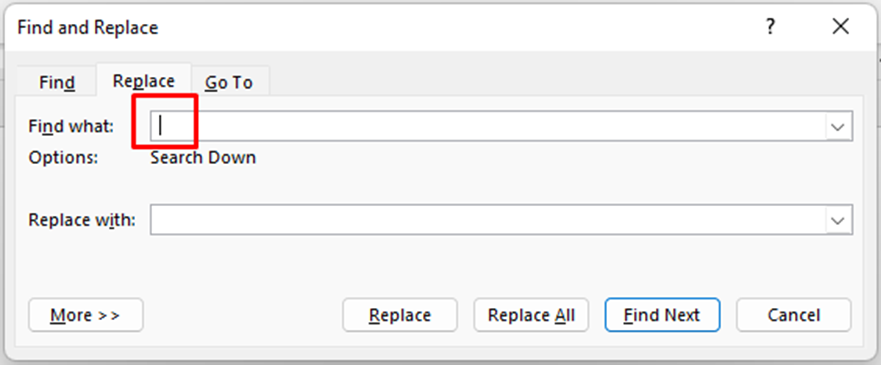
You should see the following result:
-
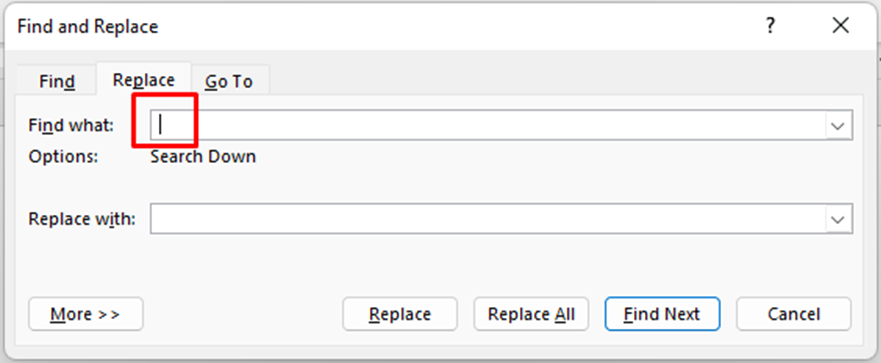
In the Replace with field, insert a space by clicking once on your Space-Bar, you should see the following result:
-
Click Replace All.
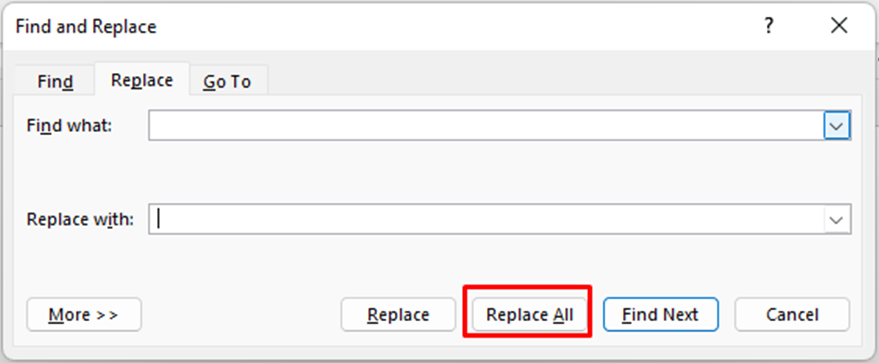
-
Click Ok.
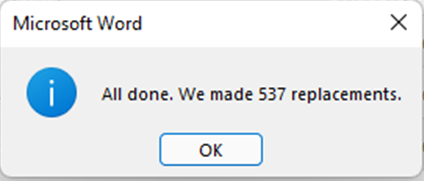
In our example document - we replaced 537 space replacements
-
Save the MS Word Document and Re-upload the Message Definition template into NX
-
Regenerate the document from NX and check the result.
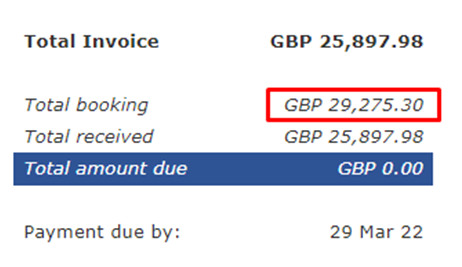
Where there was no space before there is now a space.
Technical Note
Word .docx files are complex structured data in XML format and what is happening with the find and replace action is that the underlying structure in being changed such that the space can be ‘found’ and retained during the message generation function. Here is the structure of the cell containing <trncurr> <trntot> before the find & replace:
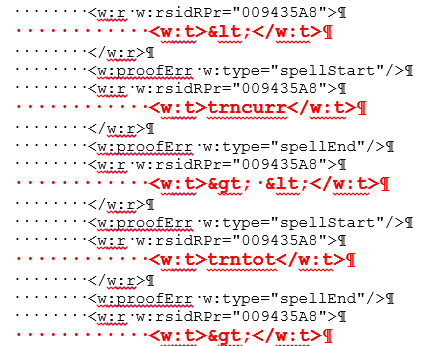
The red text is the internal representation of <trncurr> <trntot> and you will note that there is a space character between the greater than (>) and less than (<) characters.
After the substitution the structure is modified:
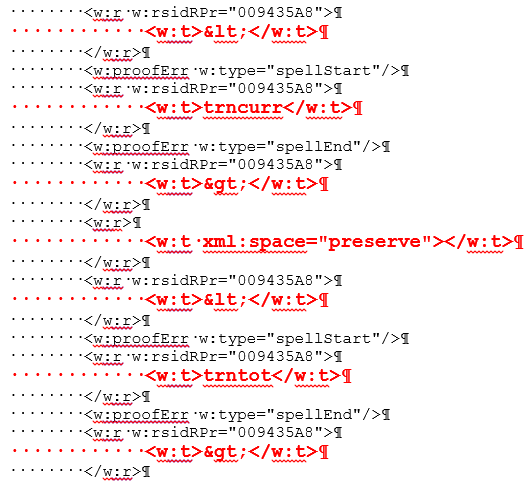
It is that change of structure that allows the message generation to retain the space.
Will this technique always work?
That is likely to depend on a number of factors:
-
The version of Word the template was created under
-
The version of Word the template is being edited under
-
The structure of the document
-
How the text got into the document in the first place.
NOTE: The technical recommendation is still that substitution codes are placed in cells of their own and the cell alingment and margins manipulated as required.
-