
Loading interactive content…
The CRM application allows collection and storage/retrieval of data at an individual booking level and in later versions of NX a seperate CRM application user interface allows pax based CRM data to be managed from outside of bookings.
Procedures below assist users with setting up CRM features.
Enable a CRM INI Settings
-
From the Home menu, select
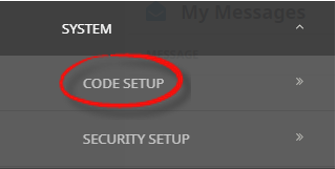
 Home > System > Code Setup.
- Click the Home menu to expand it:
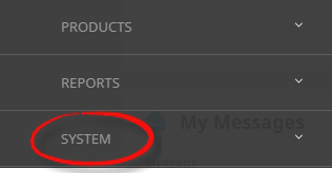
- Click the System menu option to expand it:

- Click Code Setup to go to the Code Setup menu:

- Click the Home menu to expand it:
-
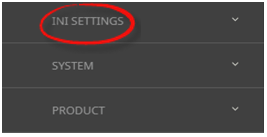
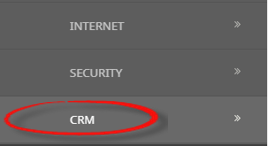
From the Code Setup menu, selectINI Settings > CRM.
- Click the Code Setup menu to expand it:
- Click INI Settings to expand the INI Settings menu:

- Click CRM to open CRM INI Settings screen:

- Click the Code Setup menu to expand it:
-
On theCRM screen, if the INI Setting that you want is not already in the list, click Insert.

-
In theCRM screen, select a Setting Name and User ID.
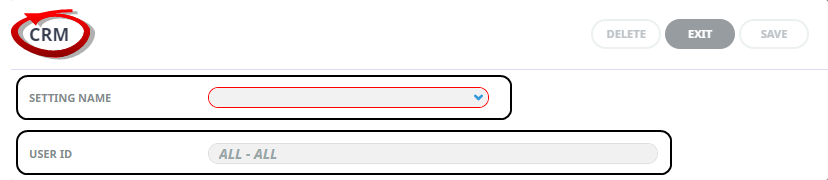
-
ClickSave to keep the changes.

-
ClickExit to discard any changes.


Available CRM INI Settings
INI Settings can be enabled for all users or (where permitted) for specific users.
- There are 5 address labels on the Contact Tab in the FIT pax travelling screen and in the Group Rooming List/Pax Names screen. What lables do you want these fields to show?
- Will your organisation be using Group Types and should the Group Type default in a new Group booking?
- Should the CRM be accessable to the FIT application?
- Should the CRM be accessable to the Groups application?
CRM_ADDRESS1-5_LABEL (5 Fields) (All Users, String)
Used to define the labels of the Address fields on the Contacts tab in the FIT Pax Travelling screen. Also available in Group in the Rooming List/Pax Names screen.
CRM_DEFAULT_GROUP_TYPE (All Users, String)
The Group Type code that will be the default in new bookings. (See Pax Group Type).
CRM_FB_INTEGRATION (All Users, String)
Enable CRM integration in FITs (Y/N).
CRM_GB_INTEGRATION (All Users, String)
Enable CRM integration in Groups (Y/N).